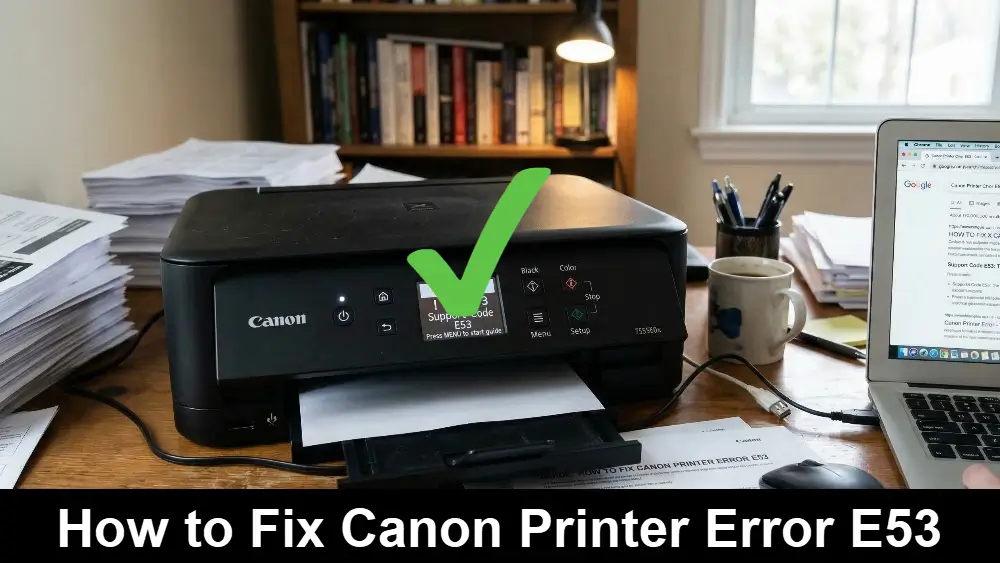
If you’re seeing the Canon Printer Error E53, you’re not alone. This particular error can be confusing, especially since it often appears without a clear cause.
However, the good news is that this is a very common and solvable issue. In this guide, we’ll walk you through exactly what this error means and how to fix it, so you can get back to printing without any more interruptions.
In a Rush? Here’s the Quick Fix:
The Canon Printer Error E53 is almost always related to the discontinued Google Cloud Print service. The fastest way to solve it is to simply press the OK button on your printer to clear the message.
For a permanent solution, you’ll want to remove any old Google Cloud Print configurations from your devices.
This article is for any Canon printer owner who is seeing the E53 error and wants to understand the cause and implement a lasting fix.
Common Causes of Canon Printer Error Code E53
Understanding why an error occurs is the first step toward fixing it for good. While the Canon Printer Error E53 might seem random, it’s directly linked to a specific, now-obsolete technology.
In almost every case, this error is not a sign of a critical hardware failure. Instead, it is your printer’s way of communicating a minor, internal cleanup task.
Let’s explore the primary reasons you are seeing this message.
The Main Culprit: Google Cloud Print Discontinuation
The overwhelming majority of E53 errors are caused by the shutdown of the Google Cloud Print service.
For many users, this can be confusing, especially if they never actively used the feature.
Here’s a more detailed breakdown of what happened and, more importantly, why it affects your printer today.
- What Was Google Cloud Print?
For years, Google Cloud Print was a popular and convenient service that allowed users to print documents from any device – such as a smartphone, tablet, or computer – to a connected printer over the internet.
Many Canon printers came with this feature built-in, which allowed for easy remote printing. Because of this, even if you never set it up, the functionality was still present in your printer’s software. - The Shutdown:
As technology evolved, Google decided to end support for this service. As a result, Google officially discontinued Google Cloud Print on December 31, 2020.
According to a service notice from Google, as of January 1, 2021, the service is no longer operational. This means that no device can print using this method anymore. - Why the Error Appears Now:
Even though the service is gone, your printer might still have the old Google Cloud Print settings saved in its internal memory.
Periodically, the printer may try to connect to the non-existent Google Cloud Print servers as part of its routine network checks. When this connection inevitably fails, the printer’s internal software is designed to automatically delete the outdated registration information.
Therefore, the Canon Printer Error E53 is essentially a notification telling you that this cleanup process has occurred. You can find more information on this from Canon’s official website, which posted a product advisory about the Google Cloud Print termination.
In short, the error is not a sign of a hardware malfunction. Rather, it’s your printer’s way of telling you it has removed a feature that no longer works. It is a harmless message, but its reappearance can certainly be a nuisance.
Outdated Printer Drivers or Firmware
While less common, outdated software on your printer or computer can sometimes contribute to communication errors. Technology is constantly changing, and keeping your software current is crucial for stable performance.
Here’s why keeping them updated is important in this context:
- Printer Drivers:
These are the essential pieces of software on your computer that allow it to communicate with your printer.
If your drivers are old, they might still contain references to Google Cloud Print or have other bugs that can cause unexpected errors. An updated driver ensures the communication protocol is modern and secure. - Printer Firmware:
This is the operating system that runs on your printer itself. Manufacturers like Canon release firmware updates to fix bugs, improve performance, and remove obsolete features.
An older firmware version might not be equipped to handle the Google Cloud Print shutdown gracefully, causing it to repeatedly try connecting and triggering the E53 error.
Incorrect Printer Configuration or Network Issues
In some situations, the error can be triggered by a simple misconfiguration or a network hiccup.
For example, if you have multiple printers set up on your computer, a print job might be accidentally sent to the wrong one, or to a “ghost” printer profile that was created for Google Cloud Print years ago.
This can cause the system to try and communicate using the old, defunct service, which in turn triggers the E53 error.
Additionally, intermittent Wi-Fi connectivity can sometimes cause the printer to display a general error as it struggles to communicate with the network.
Advanced Troubleshooting for Canon Printer Error Code E53
If simply pressing the “OK” button doesn’t stop the error from reappearing, or if you want to ensure your printer is fully cleared of any old settings, it’s time for some more in-depth troubleshooting.
These steps will help you permanently resolve the Canon Printer Error E53 and optimize your printer’s performance for the long term. By taking these measures, you are not just fixing an error; you are performing preventative maintenance.
Step-by-Step: Removing Google Cloud Print from Your Google Account
Since the root cause is the defunct Google Cloud Print service, the most effective long-term solution is to remove your printer from your Google account. This prevents your devices from ever trying to contact the old service again, which is the most common reason for the error’s recurrence.
- Navigate to the Google Cloud Print Page:
Open a web browser and go to the Google Cloud Print management page. Although the service is inactive, you may still be able to see and manage your old printers that were once registered. - Select Your Printer:
Find your Canon printer in the list of devices. It might be listed under its model name. - Delete the Printer:
Select the option to delete or unregister the printer. This will permanently remove the connection from your Google account, and your devices will no longer attempt to use it.
For a visual guide on managing printer settings and resolving common errors, this helpful YouTube video on how to fix common Canon printer issues provides excellent, easy-to-follow instructions that can help you navigate your printer’s settings and apply general troubleshooting steps (and is hopefully also embedded below).
Updating Your Canon Printer’s Firmware
Updating your printer’s firmware can resolve a host of issues, including those related to outdated services.
A firmware update can remove the Google Cloud Print feature entirely, so the printer no longer attempts to connect to it. This is often the most definitive solution.
- Find Your Printer’s Model Number:
This is usually printed on the front or top of your printer for easy identification. - Visit the Canon Support Website:
Go to the official Canon support page for drivers and downloads. This is the only place you should source official software for your device. - Enter Your Model Number:
Type your model number into the search box to find the correct support page for your specific printer. - Download the Firmware:
Look for a “Firmware” tab or section. If an update is available, download the file to your computer. Be sure to select the correct version for your operating system (Windows or macOS). - Run the Updater:
Open the downloaded file and follow the on-screen instructions carefully. Ensure your printer is on and connected to your computer via a USB cable during this process to prevent any interruptions.
Performing a Full Reset of Your Canon Printer
If the error persists, a factory reset can wipe all settings, including any lingering Google Cloud Print configurations.
Important: This will erase all your custom settings, including your Wi-Fi network password, so you will need to set up the printer again from scratch. This should be considered a last resort.
The reset procedure varies by model, but here is a common method for many PIXMA models:
- First, ensure the printer is turned off.
- Next, press and hold the “Stop” button.
- While still holding “Stop,” press and hold the “ON” button. Do not release either button yet.
- Then, release the “Stop” button, but continue holding “ON.”
- Finally, press the “Stop” button five times in a row, and then release the “ON” button.
The printer will cycle through a reset process, and the power light may blink. Once it’s finished, it will be restored to its factory default state. You will then need to reconnect it to your Wi-Fi network and reinstall it on your computer.
Finding and Installing the Correct Printer Drivers
Corrupted or outdated drivers can cause a wide range of printing problems. Reinstalling them ensures that your computer is communicating with your printer correctly using the latest protocols.
- Uninstall Old Drivers:
First, go to your computer’s settings (“Apps & features” on Windows, or “Printers & Scanners” on a Mac) and remove any existing instances of your Canon printer. This clears out any potentially corrupted files. - Download the Latest Drivers:
Next, visit the Canon support website and find the latest drivers for your specific model and operating system. - Install the New Drivers:
Run the installer and follow the setup instructions. During this process, you will be prompted to connect your printer. This is the best way to ensure a clean and correct installation, free of any legacy settings.
By following these advanced steps, you can be confident that you have fully addressed the root cause of the Canon Printer Error E53 and have set up your printer for reliable, error-free operation moving forward.
Final thoughts on Canon Printer Error E53
While seeing any error message on your printer can be a cause for concern, the Canon Printer Error E53 is, fortunately, one of the most benign issues you can encounter.
It serves as a simple notification that your printer has successfully removed outdated settings related to a service that no longer exists.
In most cases, a single press of the “OK” button is all you need to do to get back to printing.
To prevent this error from appearing in the future, taking a few moments to update your printer’s drivers and remove any old Google Cloud Print configurations is a worthwhile investment.
By keeping your printer’s software up to date, you ensure it continues to operate smoothly and efficiently for years to come.
With the steps outlined in this guide, you should now be fully equipped to handle this error and continue using your Canon printer without any further interruptions.
Frequently Asked Questions (FAQ) about Canon Printer Error E53
1. Is the Canon Printer Error E53 a serious problem?
Not at all. This error is informational and simply means your printer is cleaning up old settings from the discontinued Google Cloud Print service.
It does not indicate a hardware failure, and your printer should continue to function normally after you dismiss the message.
2. Will I lose any functionality by removing Google Cloud Print?
No. Since Google shut down the Cloud Print service in 2020, the feature was already non-functional.
Removing the settings from your printer and Google account only gets rid of obsolete configurations and will not impact your ability to print using modern methods like Wi-Fi, AirPrint, or the Canon PRINT app.
3. Why does the E53 error keep coming back?
If the error reappears, it means your computer or another device on your network is still trying to communicate with your printer using the old Google Cloud Print protocol.
To fix this permanently, you must remove the printer from your Google account and ensure your printer drivers are up to date.
4. Can I still print from my phone or tablet without Google Cloud Print?
Absolutely. Modern Canon printers support a variety of mobile printing options.
You can use Apple AirPrint for iOS devices, the Mopria Print Service for Android devices, or download the official Canon PRINT Inkjet/SELPHY app for advanced functionality on both platforms.
How to Permanently Fix Canon Printer Error E53
This short guide provides the definitive steps to permanently resolve the E53 error by removing the obsolete Google Cloud Print settings from your printer and computer. By following these instructions, you can clear the error in just a few minutes.
Estimated Time: 10 minutes
What You Will Need:
- Your Canon printer
- A computer with internet access
Tools Required:
- A web browser
Step-by-Step Instructions:
- Clear the Error Message on Your Printer:
First, the most immediate step is to press the OK button on your printer’s control panel. This will clear the E53 error message and allow you to continue printing for the time being. - Remove the Printer from Your Google Account:
Next, open a web browser and navigate to the Google Cloud Print management page.
Find your Canon printer in the list of registered devices and select the option to Delete or Unregister it. This is the most critical step to prevent the error from returning. - Update Your Printer’s Drivers:
After that, visit the official Canon Support website. Search for your printer model, download the latest driver package for your operating system, and run the installer.
This ensures your computer is using the most current and secure method to communicate with your printer. - Update Your Printer’s Firmware (Recommended):
While on the Canon Support website, it is also a good idea to check for any available firmware updates for your model.
A firmware update can completely remove the old Google Cloud Print functionality from the printer’s operating system, providing a definitive fix. - Restart Your Printer and Computer:
Finally, after completing the steps above, perform a full restart of both your printer and your computer.
This ensures that all new settings are applied correctly and that any cached, outdated information is cleared from the system.
Finally be sure to check out our Tech Troubleshooting FAQ or our Printer Troubleshooting Tips pages for even more general tips that cover a wide range of technical problems and solutions.
(If after reading the above article you still a “Canon printer error E53” issue, then you might find a much less obvious solution on the above tech pages!)