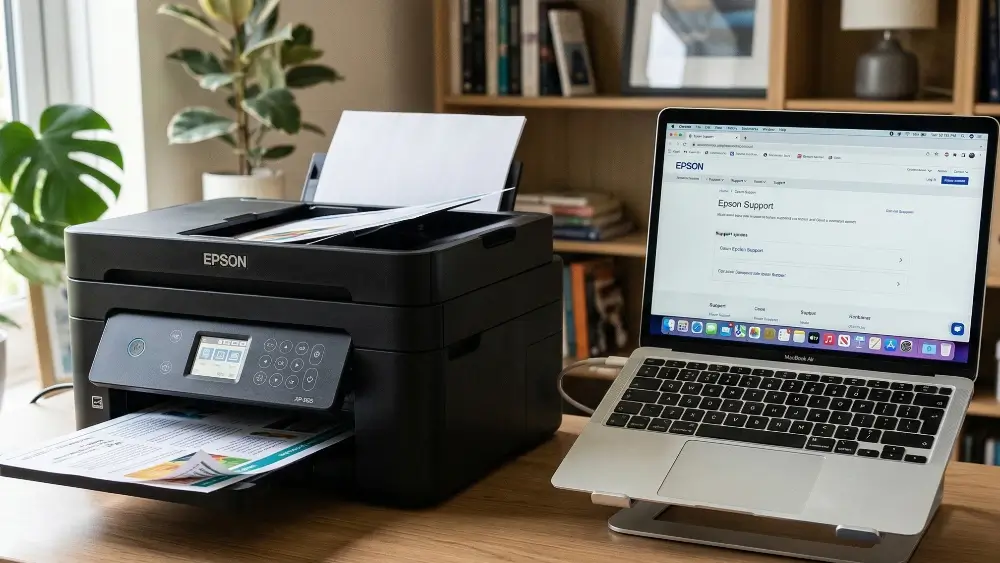
Have an issue where you need to understand how to install Epson printer without cd quickly?
It is incredibly frustrating when you need to print an important document, only to realise your new printer cannot be set up because your computer lacks a disc drive or you have lost the original installation disc.
You might feel stuck, wondering if your hardware is now useless.
Fortunately, learning how to install Epson printer without cd is a straightforward process that takes only a few minutes, allowing you to bypass outdated technology and get your device functioning smoothly.
If you are struggling to set up your device without the original disc, you are not alone.
The most reliable fix is downloading the official software package directly from the manufacturer.
This approach guarantees you get the latest, most secure drivers for your specific model, completely bypassing the need for a physical CD drive.
Download the Epson Printer Driver from the Official Website
When you cannot rely on a physical disc, downloading the software directly from the manufacturer is the most effective solution.
This method ensures your computer receives the most up-to-date and secure software available, which often resolves compatibility issues that older CD versions might cause.
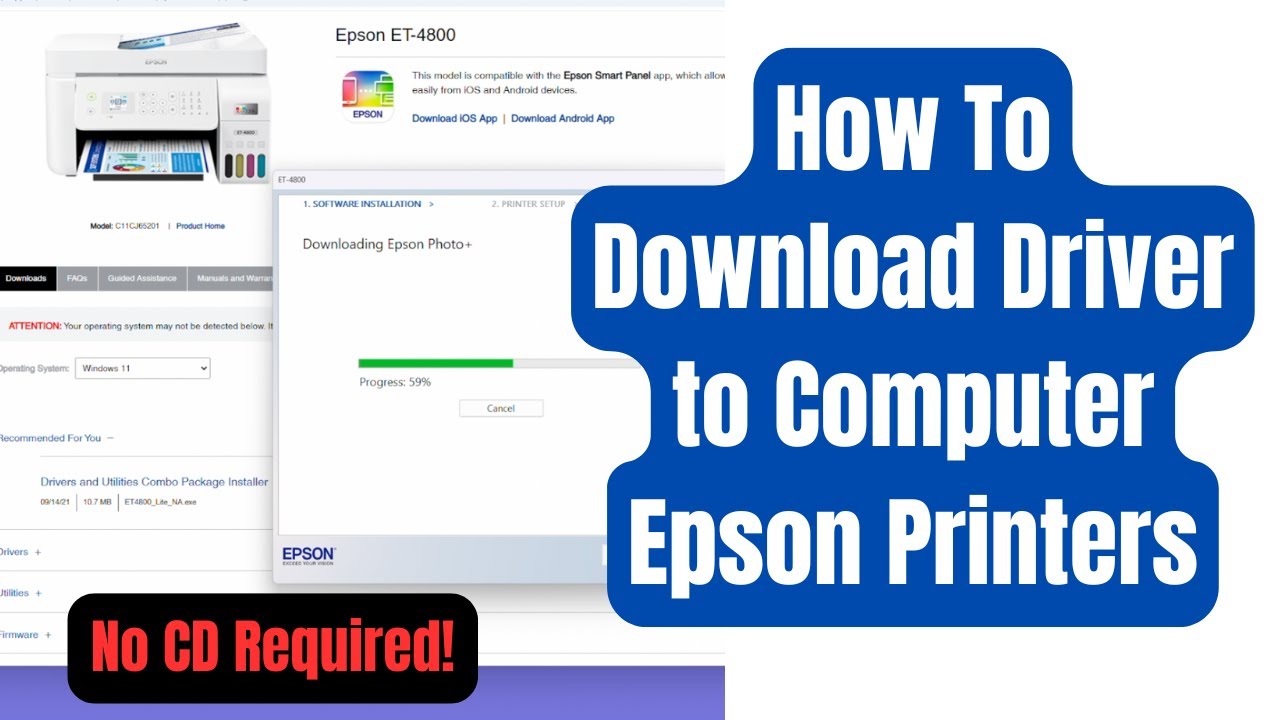
To begin, navigate to the Epson Support website and enter your specific printer model into the search bar. It is crucial to select the exact model to avoid driver conflicts.
Once you locate your device’s support page, navigate to the Downloads section. Here, you will typically find a “Drivers and Utilities Combo Package” tailored to your operating system.
Downloading this package replaces the original CD entirely and is widely considered the most reliable installation method today because it includes the latest bug fixes and feature enhancements directly from the manufacturer.
(Having the latest bug fixes and and feature enhancements instantly available on your system is the most important reason to understand how to install Epson printer without cd today!)
After the download completes, open the installer file and follow the on-screen prompts. The setup wizard will guide you through the process, prompting you to connect your printer at the appropriate time.
This seamless digital delivery is why physical discs are largely obsolete in modern computing.
Installing Using Windows Built-in Driver Detection
Modern operating systems are incredibly adept at managing hardware without external software. If you prefer a quick setup, Windows offers a robust built-in detection system that can often configure your printer automatically.
First, ensure your printer is powered on and connected to your computer, either via a USB cable or the same local network.
Next, open your computer’s Settings menu and navigate to the “Printers & scanners” section. Click the option to add a printer or scanner.
Windows will scan your environment for available devices. When your Epson printer appears in the list, select it and click “Add device.”
The operating system will automatically search its extensive driver database and install the necessary software.
According to Microsoft’s official guidance, Windows supports most printers out of the box, meaning special printer drivers or software often do not need to be installed separately.
This method is a fantastic way to bypass the need for third-party downloads, making it a favourite among users seeking simplicity.
Installing the Epson Printer Using a USB Connection
Sometimes, the most reliable connection is a physical one.
Using a USB cable provides a stable, direct link between your computer and printer, which is especially useful if your Wi-Fi network is unstable or if you are setting up the device in an area with poor signal strength.
To install your printer using a USB cable, start by turning on the printer. Connect one end of the USB cable to the printer and the other end directly to a USB port on your computer.
In many cases, your operating system will instantly recognize the new hardware and begin installing the basic drivers automatically.
If the automatic installation does not trigger, you can manually add the printer through your system settings.
This direct connection method ensures immediate communication between devices, bypassing potential network configuration hurdles and providing a foolproof setup experience.
Installing the Epson Printer Over Wi-Fi
Wireless printing offers unparalleled convenience, allowing you to send documents from anywhere in your home or office. Setting up your Epson printer over Wi-Fi without a CD is highly achievable and provides long-term flexibility.
Begin by using the printer’s control panel to navigate to the network or Wi-Fi settings.
Select the Wi-Fi Setup Wizard, which will scan for available wireless networks. Choose your network from the list and enter your Wi-Fi password.
Once the printer establishes a connection to your network, return to your computer. Open the printer settings and choose to add a new device.
Your computer should detect the printer on the network. Select it to complete the installation.
This method works exceptionally well because it leverages your existing network infrastructure, allowing multiple devices, including smartphones and tablets, to access the printer seamlessly without needing direct physical connections.
How to Install Epson Printer Without CD Using Epson Smart Panel
For users who prefer managing their devices via mobile, the Epson Smart Panel app offers a modern, intuitive setup experience that completely eliminates the need for a computer or CD during the initial configuration.
Download the Epson Smart Panel app from your smartphone’s app store.
Ensure your mobile device is connected to your home Wi-Fi network and that Bluetooth is enabled. Open the app, and it will automatically begin searching for nearby unconfigured printers.
Follow the conversational, step-by-step instructions provided within the app interface. The application will securely transfer your Wi-Fi credentials to the printer, connecting it to your network.
This method is incredibly popular because it transforms a traditionally complex setup process into a simple, guided experience directly from the palm of your hand, proving that modern installations are designed with user convenience in mind.
For a visual walkthrough of the driver download process, this helpful YouTube tutorial on installing Epson printer drivers without a CD covers the steps clearly (and is hopefully embedded below), providing an excellent visual reference if you prefer watching over reading.
Common Causes of Installation Failures
Even with the best methods, you might encounter occasional hiccups. Understanding the common causes of installation failures can save you significant time and frustration.
One frequent issue is an unstable internet connection during the driver download process, which can lead to corrupted installation files.
Always ensure your connection is reliable before starting the download.
Another common culprit is an outdated operating system; older versions of Windows or macOS might struggle to recognize newer printer models or communicate effectively with modern drivers.
Additionally, conflicting software, such as overly aggressive antivirus programs or residual files from previously installed printers, can block the new installation.
Finally, simple hardware oversights, like a faulty USB cable or attempting to connect to a 5GHz Wi-Fi network when the printer only supports 2.4GHz, are common reasons setups fail.
(The table below summarizes the common causes of installation failures. Even though they may sound off putting, they should not stop you attempting to understand how to install Epson printer without cd because as you will see they are each easily fixed!)
| Cause | Why It Happens | Quick Fix |
| Corrupted download | Unstable internet connection | Re-download on a stable connection |
| Outdated OS | Incompatibility with newer drivers | Run Windows or macOS updates |
| Antivirus blocking install | Security software flags the installer | Temporarily disable antivirus during setup |
| Wrong Wi-Fi band | Printer only supports 2.4GHz | Switch router to 2.4GHz or use USB |
| Faulty USB cable | Physical connection failure | Replace the cable and retry |
Advanced Troubleshooting When You Install Epson Printer Without CD
When standard methods do not yield results, it is time to employ advanced troubleshooting techniques to resolve persistent installation problems.
Run Installer as Administrator
If the installer fails to run, try running the downloaded file as an administrator.
Right-click the installer and select “Run as administrator” to grant the software the necessary permissions to modify system files, which often clears basic installation roadblocks.
Clear the Print Spooler
If your computer detects the printer but refuses to print, you may need to clear the print spooler.
This involves stopping the Print Spooler service in your system settings, deleting the temporary files in the spooler directory, and restarting the service to clear out stuck print jobs.
Perform a Clean Reinstallation
For deeply entrenched issues, completely removing all existing Epson software and drivers from your system before attempting a fresh installation can often clear hidden conflicts.
This “clean slate” approach ensures no legacy files interfere with the new setup process.
Edge Cases in Epson Printer Installation
Occasionally, users face highly specific scenarios that require tailored solutions beyond standard troubleshooting.
For instance, if you are attempting to install an older legacy printer on a brand-new operating system, official drivers might no longer exist.
In such cases, installing generic printer drivers provided by the operating system can restore basic printing functionality, even if advanced features remain unavailable.
Another edge case involves enterprise or university networks, which often employ strict security protocols that block automatic device discovery.
In these environments, you may need to manually input the printer’s IP address into your computer’s settings to establish a connection, bypassing the automated discovery tools entirely.
Prevention Tips for Future Setups
Taking proactive steps now can ensure that future hardware installations are smooth and stress-free.
Always keep your operating system updated to ensure maximum compatibility with new devices.
It is also wise to regularly check the manufacturer’s website for firmware updates for your printer, as these updates often resolve known bugs and improve overall stability.
When you successfully download a driver package, consider saving a copy to a reliable cloud storage service or an external hard drive; this creates a personal backup, ensuring you never have to hunt for the correct software again if you need to reinstall the printer on a different machine.
Final thoughts on How to install Epson printer without cd
Mastering how to install Epson printer without cd empowers you to handle your hardware with confidence.
By utilising official downloads, built-in system tools, or modern mobile applications, you can ensure your printer is always ready when you need it, proving that the absence of a physical disk is no longer a barrier to productivity.
FAQ About How To Install Epson Printer Without CD
Can I install an Epson printer if my laptop has no CD drive?
Yes, you can easily install your printer by downloading the official drivers from the Epson website or by using your computer’s built-in device detection features.
Is it safe to download printer drivers from the internet?
It is completely safe as long as you download the software directly from the official Epson Support website. Avoid third-party driver hosting sites to prevent malware.
Why is my computer not finding my printer over Wi-Fi?
Ensure both your computer and the printer are connected to the exact same Wi-Fi network. Also, verify that your router is broadcasting a 2.4GHz signal, as many printers do not support 5GHz networks.
How to Install Your Epson Printer Digitally
Follow these simple steps to get your printer running without the original disk.
Step 1: Identify Your Model
Locate the exact model number printed on the front or back of your Epson printer.
Step 2: Visit the Support Site
Navigate to the official Epson support website using your computer’s web browser.
Step 3: Download the Software
Search for your printer model and download the Drivers and Utilities Combo Package for your operating system.
Step 4: Run the Installer
Open the downloaded file and follow the on-screen instructions to complete the setup process.
Finally be sure to check out our Tech Troubleshooting FAQ or our Printer Troubleshooting Tips pages for even more general tips that cover a wide range of technical problems and solutions.
(If after reading the above article you still have a problem understanding how to install Epson printer without cd, then you might find a much less obvious solution on the above tech pages!)