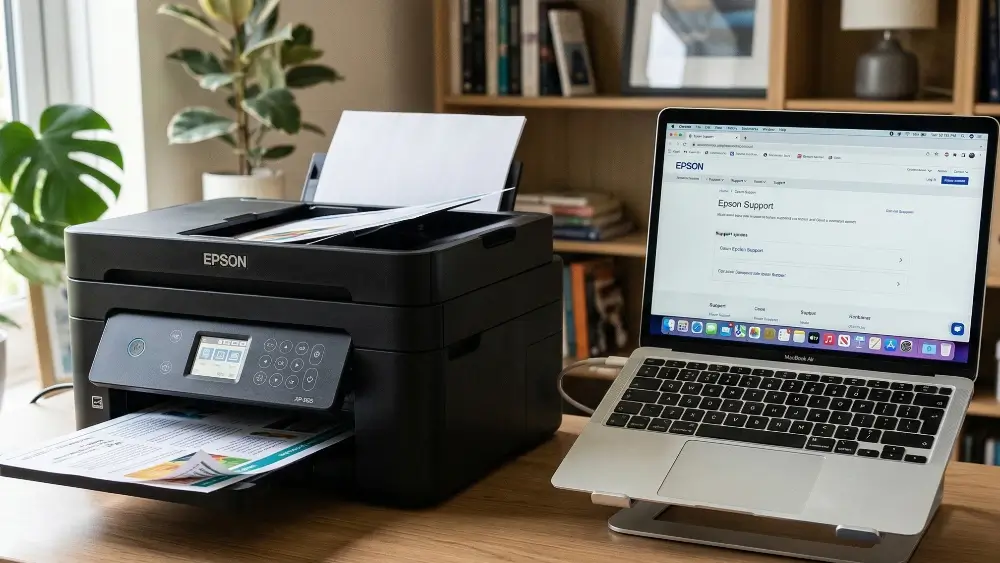
Dealing with Epson printer error code 000041 is a common challenge, but it is one that you can overcome with the right approach.
If your Epson printer has suddenly stopped working and is displaying this error message on the screen, you are not alone.
The good news is that you are in the right place to get your printer back up and running quickly and easily.
000041 ERRORS AT A GLANCE
Epson printer error code 000041 usually indicates a paper jam or a mechanical failure related either to the printhead carriage or to the paper feed mechanism.
This means the printer senses an obstruction or a failure in movement.
The good news is that you can fix this issue at home by clearing jams, cleaning the encoder strip, or checking the printhead lock.
Understanding Epson Printer Error Code 000041
When you see this specific error code, your printer is essentially telling you that something is physically preventing its internal components from moving as they should.
Unlike software glitches, this is a hardware-level alert.
(Before you read further, just know it probably is a paper jam somewhere – so please take off the back cover that you probably did not know even existed and check for a paper jam way at the back of the printer!)
The printer’s internal sensors, specifically the encoder sensor, monitor the movement of the printhead carriage.
If the carriage tries to move but the sensor does not detect the expected motion, the system assumes there is a jam or a blockage and triggers the error to prevent further damage to the motors.
This error is often referred to as a 0x29 error in technical terms, which points directly to the printhead carriage’s home position.
In other models, particularly the ET-8550, it can point to a PF (Paper Feed) PID Excess Load Error, meaning the paper feed motor stopped unexpectedly.
Understanding this helps you realise that the printer is trying to protect itself.
Common Causes Of Epson Printer Error Code 000041
To effectively fix the issue, you need to know what causes it.
Here are the most frequent culprits that trigger this frustrating error.
1. Paper Jams and Foreign Objects
As written above the most common and straightforward cause is a physical obstruction like a paper jam.
Even a tiny scrap of torn paper, a stray paperclip, or dust buildup inside the printer can block the printhead carriage or the paper feed rollers.
When the mechanism hits this obstacle, it stops, and the error appears.
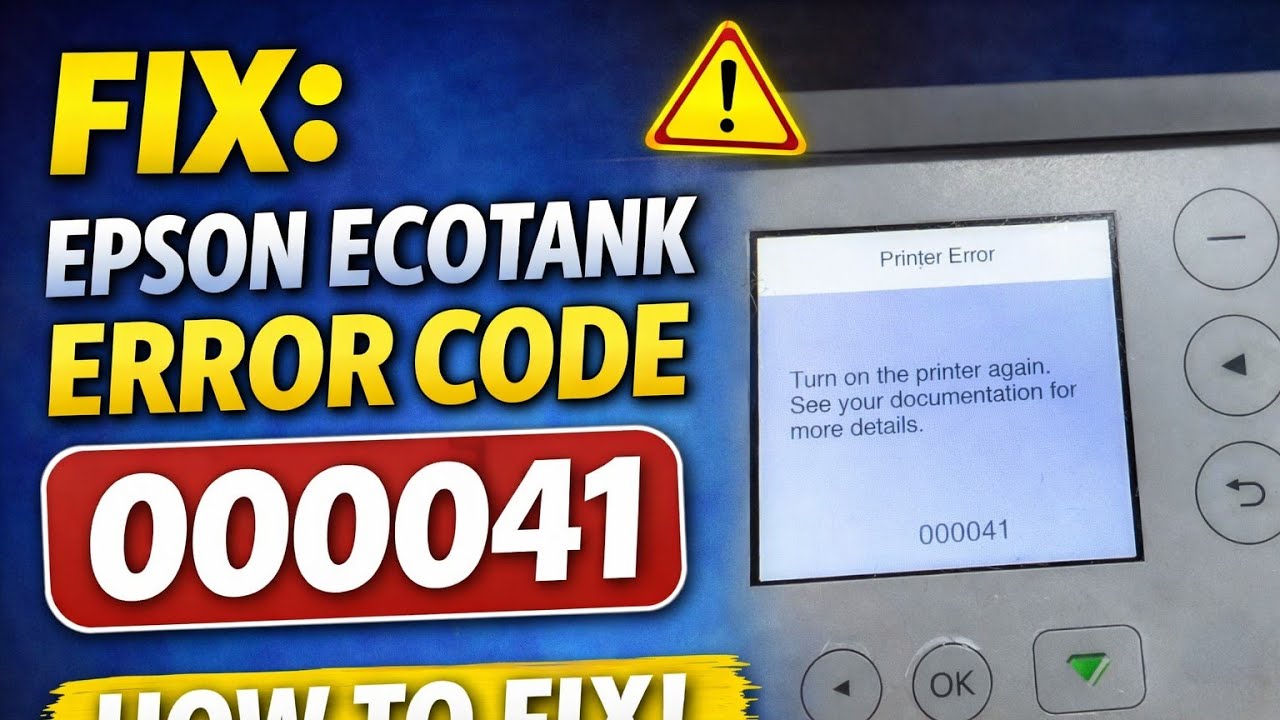
This simple video demonstrates how to fix Epson printer error code 000041 by clearing a paper jam and shows you the inside of a printer in very good detail (and is also embedded below hopefully!)
2. Dirty or Misaligned Encoder Strip
The encoder strip is a clear plastic band that runs behind the printhead carriage. It has microscopic lines that the printer reads to know exactly where the printhead is located.
If this strip gets smeared with ink, covered in dust, or accidentally unhooked, the printer loses track of the carriage’s position.
You can learn more about how the printer operates by checking the Epson official support page for general troubleshooting tips.
3. Printhead Lock Malfunction
Many Epson models, such as the EcoTank series, use a small lock mechanism with a tension spring to secure the printhead when the printer is off.
If this tiny spring detaches or stretches, the lock may not disengage properly when you turn the printer on.
The carriage tries to move, hits the locked mechanism, and immediately throws the error.
4. Excessive Load from Specialty Paper
If you are using thick art paper or cardstock that the printer struggles to pull through, the paper feed motor might experience an excessive load.
The motor works too hard, stops to prevent burning out, and triggers the error.
This is especially common when using the rear feeder for heavy media.
Step-by-Step Fixes For Epson Printer Error Code 000041
Now that we know what causes the problem, let us walk through the practical steps to resolve it.
Start with the simplest solutions before moving on to more advanced troubleshooting.
Basic Troubleshooting: The Power Reset
Sometimes, the printer’s internal memory gets confused and needs a fresh start.
- Turn off the printer using the power button.
- Unplug the power cord from the wall outlet.
- Wait for at least 3 minutes to let the internal capacitors discharge completely.
- Plug the printer back in and turn it on.
If the error clears, it was likely a temporary glitch. If it returns, proceed to the next step.
Clearing Physical Obstructions
You need to inspect the printer thoroughly for anything that should not be there.
- Open the main scanner unit or top cover to access the inside of the printer.
- Use a flashlight to look for any small pieces of paper, dust bunnies, or foreign objects along the carriage path and inside the paper feed tray.
- Gently remove any debris you find using tweezers, being careful not to scratch any internal parts.
- Check the rear paper feed slot as well, as thick paper can sometimes leave residue or get stuck partially.
Cleaning the Encoder Strip
If the path is clear but the error persists, the encoder strip might be dirty. This is a delicate operation, so proceed with caution.
- Ensure the printer is unplugged.
- Locate the encoder strip – the clear plastic band running behind the printhead carriage.
- Lightly dampen a lint-free cloth or a specialized cleaning wipe with a few drops of isopropyl alcohol or Epson ink cleaning solution. Do not soak the cloth.
- Gently pinch the encoder strip between your fingers using the cloth and wipe it from the center to the right, then from the center to the left.
- Never pull hard on the strip, as it can easily detach or stretch.
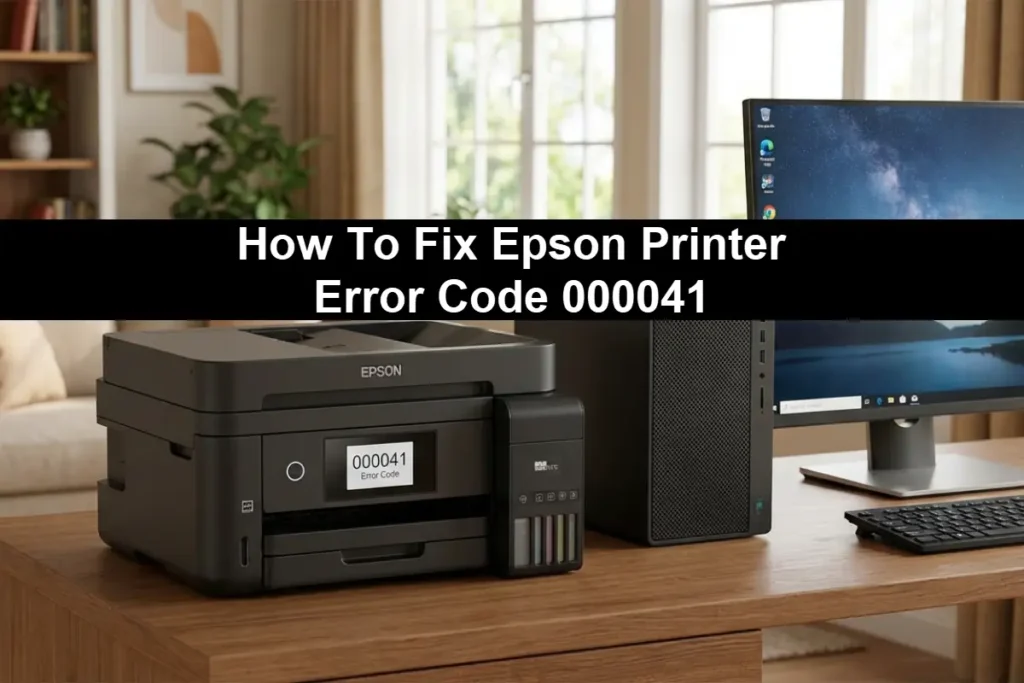
Advanced Troubleshooting For Epson Printer Error Code 000041
If the basic fixes have not resolved the issue, we need to look deeper into the mechanical components.
Inspecting the Printhead Lock Spring
This is a common issue for many EcoTank models.
If you have recently moved the printer or cleared a severe jam, the tiny spring controlling the printhead lock might have popped off.
- Look closely at the far right side of the printer interior, where the printhead rests (the home position).
- Inspect the white plastic locking mechanism. You should see a very small tension spring attached to it.
- If the spring is missing, loose, or lying in the bottom of the printer, it needs to be reattached.
- Reattaching it requires patience and a pair of fine tweezers. If the spring is stretched or damaged, you may need to order a replacement part from a specialist supplier like BCH Technologies.
Checking the Paper Feed Motor and Gear Assembly
If you encounter this error while trying to print on thick paper, the issue might be with the paper feed motor.
- Remove any specialty paper from the rear feeder.
- Inspect the visible gears on the side of the paper feed mechanism for any signs of skipping, broken teeth, or misalignment.
- Try printing a standard piece of plain paper from the main cassette. If it prints fine, the issue is likely that the specialty paper is too thick or heavy for the printer’s specifications, causing the motor to overload.
Reseating the Ink Cartridges
While less common for this specific error, an improperly seated ink cartridge can sometimes interfere with the carriage movement.
- Open the cover and wait for the carriage to move to the replacement position (if the printer allows it).
- Press down firmly on each cartridge to ensure it clicks into place.
- Close the cover and restart the printer.
Less Common Causes And When To Seek Professional Help
In rare instances, Epson printer error code 000041 can indicate a more severe hardware failure.
FFC (Flexible Flat Cable) Disconnection
The flat white cables connecting the printhead and sensors to the mainboard can sometimes become loose or damaged.
If you have recently disassembled the printer, ensure all cables are seated firmly in their connectors.
Main Board Failure
If you have tried all the steps above, the carriage moves freely by hand (when the printer is off), the encoder strip is spotless, and the lock mechanism is intact, the main motherboard might be failing to interpret the sensor signals correctly.
This usually requires professional diagnosis and potentially a board replacement.
Prevention Tips
To avoid encountering Epson printer error code 000041 in the future, follow these simple maintenance tips:
- Always use high-quality paper that meets the printer’s weight specifications.
- Keep the printer covered when not in use to prevent dust accumulation on the encoder strip and gears.
- Never forcefully pull jammed paper out of the printer; always pull it gently in the direction of the paper path.
- Perform regular maintenance checks, including running the printhead cleaning utility from the software.
Final Thoughts On Epson Printer Error Code 000041
Encountering a mechanical error can be stressful, but it does not always mean your printer is broken beyond repair.
By methodically checking for obstructions, cleaning the sensors, and inspecting the lock mechanisms, you can often resolve Epson printer error code 000041 on your own.
Remember to handle internal components gently, especially the encoder strip and small springs.
With a little patience, your printer will be back to producing high-quality documents and photos in no time.
FAQ’s On 000041 Error Codes
What does Epson printer error code 000041 mean?
It indicates a mechanical issue, usually that the printhead carriage or paper feed mechanism is blocked or cannot move properly.
Can a paper jam cause error 000041?
Yes, even a tiny scrap of paper or a foreign object blocking the carriage path can trigger this error.
How do I clean the encoder strip?
Unplug the printer, lightly dampen a lint-free cloth with isopropyl alcohol, and gently wipe the clear plastic strip behind the carriage from the center outwards.
Why does my printer show this error with thick paper?
Thick paper can cause excessive load on the paper feed motor, prompting the printer to stop and display the error to prevent motor damage.
How to Fix Epson Printer Error Code 000041
Follow these steps to resolve the carriage or paper feed issue causing the error.
1. Perform a Power Reset
Turn off the printer, unplug it from the wall for 3 minutes, then plug it back in and turn it on to clear temporary glitches.
2. Check for Physical Obstructions
Open the printer cover and use a flashlight to locate and gently remove any jammed paper, dust, or foreign objects blocking the carriage path.
3. Clean the Encoder Strip
Lightly dampen a lint-free cloth with isopropyl alcohol and gently wipe the clear plastic strip located behind the printhead carriage to remove ink smears or dust.
4. Inspect the Printhead Lock Spring
Look at the resting position of the printhead on the right side. Ensure the tiny tension spring on the white locking mechanism is attached and not stretched.
5. Test with Standard Paper
If the error occurred while using thick specialty paper, remove it and try printing a test page using standard plain paper from the main tray.
Finally be sure to check out our Tech Troubleshooting FAQ or our Printer Troubleshooting Tips pages for even more general tips that cover a wide range of technical problems and solutions.
(If after reading the above article you still have an “Epson Printer Error Code 000041” issue, then you might find a much less obvious solution on the above tech pages!)