It’s a familiar scenario: you’re ready to print an important document, but you suddenly get a Brother printer toner error message flashing up, bringing everything to a standstill.
This frustrating issue can be caused by several factors, from a poorly installed cartridge to a simple communication glitch.
Because of this, it’s important to know that you don’t have to be a tech expert to solve it.
In most cases, a few simple troubleshooting steps can get you back to printing in no time.
This article will guide you through the most common causes of a toner error message and provide clear, step-by-step solutions to resolve it.
Article at a Glance: Your Quick Fix Guide
The Problem: Your Brother printer is displaying a “Toner Error,” “No Toner,” or “Replace Toner” message, preventing you from printing.
The Solution: This guide provides a series of troubleshooting steps, starting with basic checks like reseating the toner cartridge and cleaning the contacts, and moving to more advanced solutions like resetting the toner counter and updating the firmware.
Who It’s For: Anyone experiencing a toner-related error on their Brother laser printer who wants to resolve the issue themselves before calling for technical support.
Common Causes Of A Brother Printer Toner Error
Understanding why your printer is showing a toner error is the first step toward fixing it.
In many situations, the problem is not with the toner cartridge itself but with the communication between the cartridge and the printer.
Here are some of the most common culprits.
Incorrect Toner Cartridge Installation
One of the most frequent reasons for a Brother printer toner error is that the toner cartridge is not seated correctly in the drum unit or the drum and toner assembly is not properly installed in the printer.
If the cartridge is even slightly misaligned, the printer’s sensors won’t be able to detect it, leading to an error message.
This can happen after replacing a cartridge or if the printer has been moved.
Using a Non-Genuine or Partially Used Cartridge
Brother printers are designed to work best with genuine Brother toner cartridges.
While third-party or refilled cartridges can be more affordable, they sometimes cause compatibility issues.
The chip on a non-genuine cartridge may not communicate correctly with the printer.
Or a partially used cartridge from another machine may not be recognised as new, leading to a persistent “Replace Toner” message, a point confirmed by Brother’s official support documentation.
Dirty Electrical Contacts
Over time, dust and toner residue can accumulate on the metal contacts on the toner cartridge and inside the printer.
These contacts are crucial for the printer to recognise the cartridge.
If they are dirty, the connection can be interrupted, triggering a toner error.
According to Brother, a simple cleaning with a dry, lint-free cloth can often resolve this issue.
Outdated Printer Firmware
Printer firmware is the software that controls your printer’s functions.
Manufacturers like Brother periodically release firmware updates to improve performance and fix bugs.
An outdated firmware version can sometimes lead to communication problems with newer toner cartridges.
Therefore, keeping your printer’s firmware up to date is an important, though often overlooked, troubleshooting step, as outdated firmware can cause communication issues.
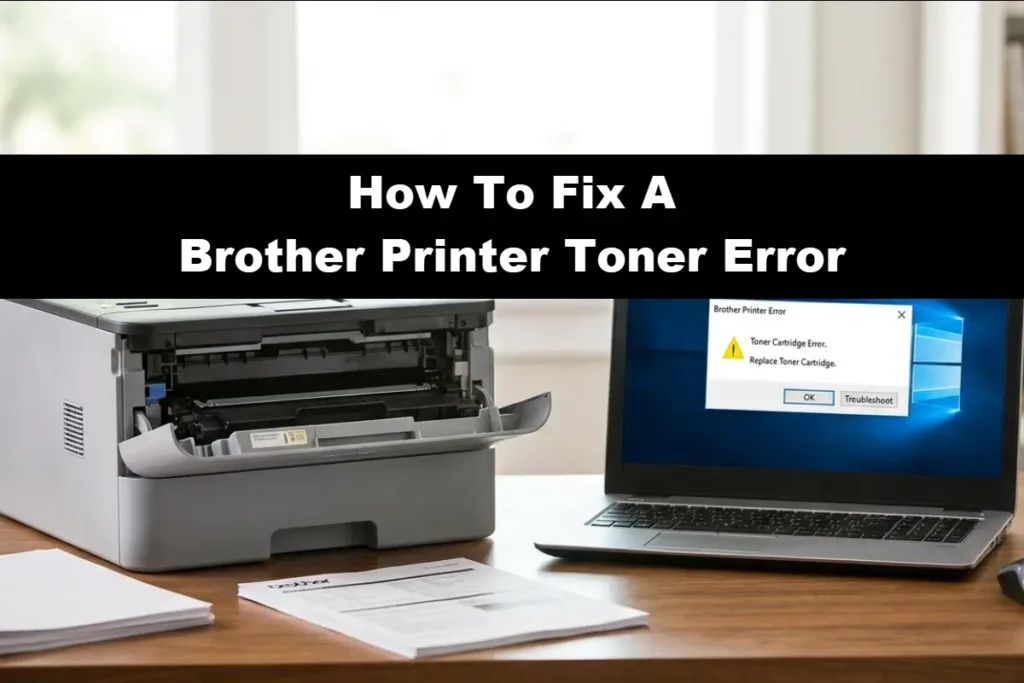
Step-By-Step Troubleshooting For A Brother Printer Toner Error
Now that you understand the common causes, let’s walk through the solutions.
Start with the first step and only move to the next if the issue is not resolved.
Basic Checks and Reseating the Cartridge
First, perform a simple power cycle.
Turn off your printer, unplug it from the power source, wait for about a minute, and then plug it back in and turn it on.
This can often clear temporary glitches.
If the error persists, the next step is to reseat the toner cartridge.
- Open the front cover of your Brother printer.
- Carefully remove the drum unit and toner cartridge assembly.
- Separate the toner cartridge from the drum unit by pressing the green or blue lock lever.
- Gently rock the toner cartridge from side to side a few times to distribute the toner evenly.
- Re-insert the toner cartridge into the drum unit until you hear it click into place.
- Slide the entire assembly back into the printer, ensuring it is fully seated.
- Close the front cover securely.
Cleaning the Toner Cartridge and Printer Contacts
If reseating the cartridge doesn’t work, the next step is to clean the electrical contacts.
You will need a dry, lint-free cloth.
- Following the steps above, remove the drum and toner assembly and separate the toner cartridge.
- Locate the metal contacts on the side of the toner cartridge and the corresponding contacts inside the printer.
- Gently wipe the contacts on both the cartridge and the printer to remove any dust or toner residue.
- While you have the drum unit out, it’s also a good idea to clean the corona wire by sliding the green or blue tab back and forth a few times.
- Reassemble and reinstall the drum and toner, then check if the error is gone.
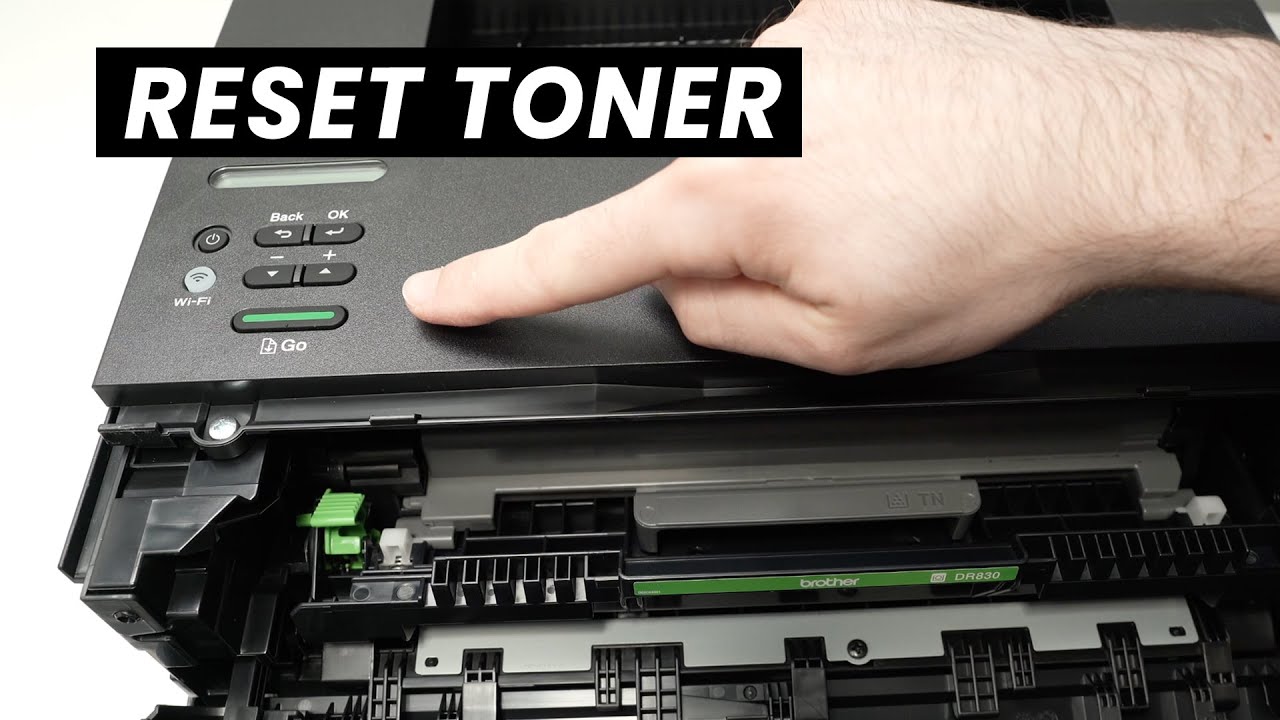
How to Reset the Toner Counter
In some cases, particularly after replacing a toner cartridge, the printer may not automatically reset its toner counter.
This can lead to a “Replace Toner” message even with a full cartridge.
A manual reset can often solve this problem.
For a visual guide on how to perform a toner reset on a Brother printer, you can watch a helpful tutorial on the process (which is also embedded below hopefully!)
The exact steps can vary depending on your printer model, but the general process is often similar.
Advanced Troubleshooting For A Brother Printer Toner Error
If the basic steps haven’t resolved the issue, it’s time to look at some more advanced solutions.
These scenarios are less common but are important to consider before concluding that your printer needs professional service.
Dealing with a “No Toner” Message After Replacement
A “No Toner” message is slightly different from a general toner error and usually points to a specific problem.
It almost always means the printer cannot detect the cartridge at all.
After ensuring you have removed all the orange or blue protective packaging from a new cartridge, this error often comes back to the cartridge not being installed correctly.
Or it could be a problem with the chip on the cartridge, as noted in Brother’s troubleshooting guide.
Double-check that you are using the correct toner cartridge model for your printer and that it is a new, genuine Brother cartridge for the best results.
The Importance of Firmware Updates
As mentioned earlier, outdated firmware can cause a variety of issues, including a persistent Brother printer toner error.
A firmware update can patch bugs that prevent the printer from communicating correctly with the toner cartridge.
You can check for the latest firmware for your specific model on the Brother support website.
The update process is usually straightforward and can be done through a utility on your computer, which you can find on the official Brother support site.
Understanding the Difference Between the Toner and Drum Unit
It’s a common point of confusion, but the toner cartridge and the drum unit are two separate consumables in a Brother laser printer.
The toner cartridge contains the toner powder, while the drum unit transfers the toner to the paper.
They are installed together as a single assembly, but they are replaced at different intervals.
If you mistakenly replace the drum unit instead of the toner cartridge, it will not resolve a toner-related error, a common point of confusion Brother explains here.
Final Thoughts On The Brother Printer Toner Error Issue
A Brother printer toner error is a common issue that can usually be resolved with a few troubleshooting steps.
By starting with the basics like checking the cartridge installation and cleaning the contacts, you can solve the majority of toner-related problems.
For more stubborn errors, a toner reset or a firmware update will often do the trick.
Remember to always use new, genuine Brother cartridges for the best performance and to avoid compatibility issues.
With these tips, you can minimise downtime and keep your printer running smoothly.
Frequently Asked Questions
Why does my Brother printer say no toner when I just replaced it?
This often happens if the toner cartridge is not installed correctly or if you are using a non-genuine or partially used cartridge.
The printer’s internal counter may also need to be manually reset.
Ensure the cartridge is seated properly and that all protective packaging has been removed.
Can I use a third-party toner in my Brother printer?
While you can use third-party toners, they can sometimes cause issues.
Brother printers are designed to work with genuine Brother cartridges, and using non-genuine ones may lead to error messages, poor print quality, or even damage to the printer.
For reliable performance, it is always recommended to use genuine supplies.
How do I know if I need to replace the toner or the drum?
Your printer will display a specific message indicating which consumable needs to be replaced.
A “Toner Low” or “Replace Toner” message means you need a new toner cartridge.
A “Drum End Soon” or “Replace Drum” message means the drum unit is nearing the end of its life.
How To Fix A Brother Printer Toner Error
This guide provides a step-by-step process to troubleshoot and fix a common Brother printer toner error.
Total Time: 15 minutes
Tools:
- A dry, lint-free cloth
Supplies:
- A new, genuine Brother toner cartridge (if replacement is needed)
Steps:
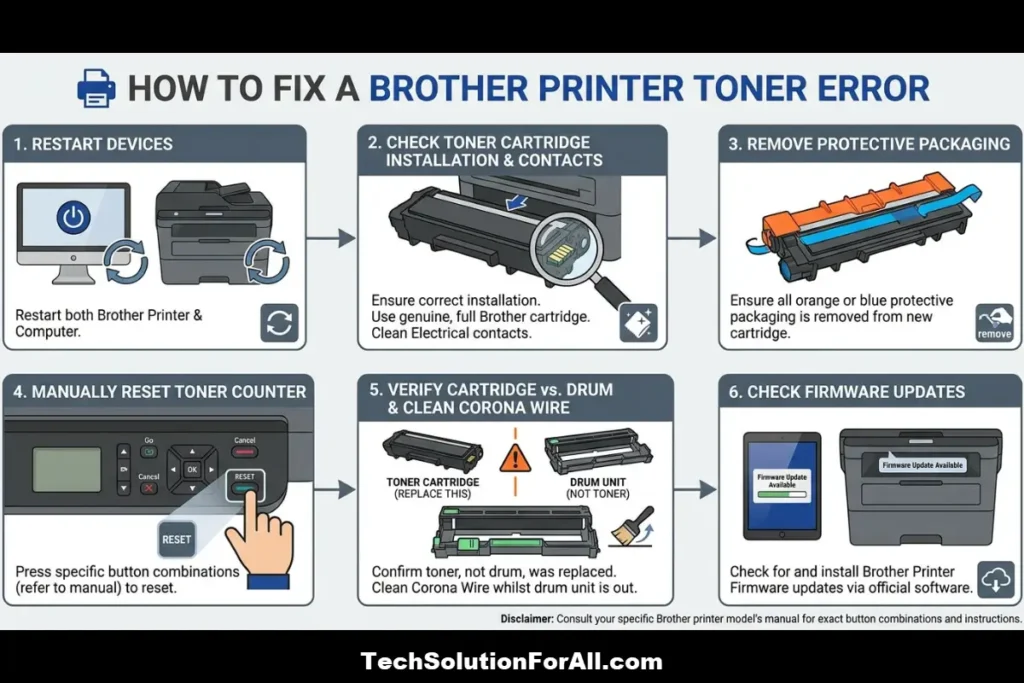
- Power Cycle the Printer:
Turn the printer off, unplug it for 60 seconds, then plug it back in and turn it on. - Reseat the Toner Cartridge:
Open the printer cover, remove the drum and toner assembly, separate the toner cartridge, and then reinstall it, ensuring it clicks into place. - Clean the Contacts:
With the cartridge removed, gently wipe the metal contacts on the cartridge and inside the printer with a dry, lint-free cloth. - Clean the Corona Wire:
While the drum unit is out, slide the green or blue tab on the drum unit back and forth several times to clean the corona wire. - Check for Firmware Updates:
Visit the Brother support website to see if there is a firmware update available for your printer model and install it if needed.
Finally be sure to check out our Tech Troubleshooting FAQ or our Printer Troubleshooting Tips pages for even more general tips that cover a wide range of technical problems and solutions.
(If after reading the above article you still have a “Brother Printer Toner Error” issue, then you might find a much less obvious solution on the above tech pages!)