When your printer won’t print, won’t connect to Wi-Fi, or shows a confusing error message, it doesn’t take long for frustration to build. This page of Printer Troubleshooting Tips organizes clear, step-by-step guides to fix the most common printer problems at home. Each guide explains the cause of the issue, what to check first, and the exact steps to get your printer working again.
Choose the guide below that matches your printer model or the type of issue you’re experiencing:
Common Printer Issues and How to Fix Them
- HP OfficeJet 3830 Not Printing
A troubleshooting guide to diagnose print queue issues, ink problems, wireless communication faults, and connection errors.
Read the guide → https://www.techsolutionforall.com/blog/hp-officejet-3830-not-printing/ - HP OfficeJet 4500 Not Printing
Covers jam checks, cartridge alignment resets, wireless setup, and driver configuration.
Read the guide → https://www.techsolutionforall.com/blog/facing-issues-hp-officejet-4500/ - Brother Printer Won’t Connect to Wi-Fi
A step-by-step walkthrough for reconnecting your Brother printer to your network and resolving wireless errors.
Read the guide → https://www.techsolutionforall.com/blog/brother-printer-not-connecting-to-wifi/ - Epson Printer Error 000041
Explains what this error means and how to reset the ink cartridge system so printing resumes normally.
Read the guide → https://www.techsolutionforall.com/blog/how-to-fix-epson-printer-error-code-000041/
When to Try These Fixes
These guides are helpful if your printer is:
- Showing an error code
- Not printing despite being connected
- Stuck in a print queue
- Not communicating with your computer
- Failing to connect to Wi-Fi
- Printing blank or faint pages
If you are unsure which guide applies, start with the one closest to your printer model or the type of problem you’re facing.
General Printer Troubleshooting Tips
1. Restart Everything
Turn off the printer, your computer, and your Wi-Fi router. Wait 60 seconds, then power them back on.
2. Check the Ink / Toner
Make sure ink levels are not low or empty. Replace cartridges if necessary.
3. Confirm the Printer is on the Same Wi-Fi Network
Printers and computers must share the same Wi-Fi network to communicate properly.
4. Update or Reinstall the Printer Drivers
Out-of-date drivers can prevent printing even if everything appears connected.
Frequently Asked Questions (FAQ)
Why does my printer say it’s connected but won’t print?
This is usually caused by a print queue blockage or communication error. Try restarting the printer and computer, and clear the print queue.
Why does my printer keep going offline?
This often happens when the printer loses its Wi-Fi connection. Re-run the wireless setup and make sure both devices are on the same network.
Why am I getting an ink or cartridge error?
Cartridges may not be seated correctly, may be expired, or the printer may need a firmware reset to re-detect them.
Further Printer Troubleshooting Tips:
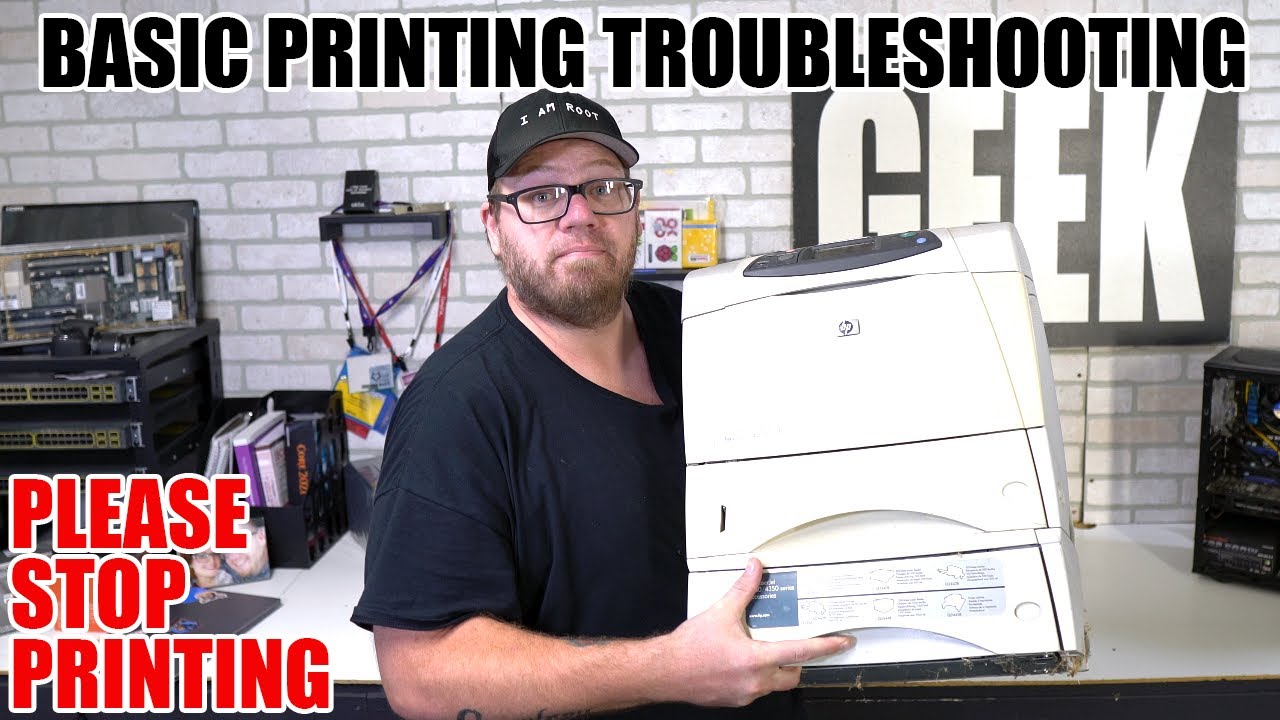
The following Printer Troubleshooting tips articles will also be of help to you:
Fix printer connection and printing problems in Windows
https://support.microsoft.com/en-gb/windows/fix-printer-connection-and-printing-problems-in-windows-fb830bff-7702-6349-33cd-9443fe987f73
How to Fix Common HP Printer Problems
https://www.hp.com/us-en/shop/tech-takes/how-to-fix-common-hp-printer-problems
3 ways to troubleshoot common printing problems
https://www.xerox.co.uk/en-gb/small-business/insights/common-printer-problems
13 Common Printer Problems and How to Fix Them
https://www.ldproducts.com/blog/troubleshooting-printer-problems/