A uniquely frustrating experience is when your printer stops working because your printer firmware update failed.
One moment, you are installing the update; the next, your machine is unresponsive, displaying a cryptic error, or stuck in an endless loop.
It can feel like you’ve been punished for following the manufacturer’s advice and installing a recommended printer firmware update to improve performance and security, leaving you with a non-functional device and an urgent need for a fix.
This guide cuts through the technical jargon to give you the solutions you need.
We will diagnose the most common failure points in the update process and provide clear, step-by-step instructions to resolve them.
Why Did My Printer Firmware Update Fail?
Understanding why a printer firmware update fails is the first step toward fixing it.
The process involves downloading a software file and writing it to your printer’s internal memory.
If this delicate operation is interrupted or corrupted, the printer can be left in an unstable state.
Let’s explore the most common causes of the frustrating times when a printer firmware update failed.
1. Power or Connection Loss
The most frequent cause of a failed printer firmware update is an interruption.
This can be a brief power flicker, someone accidentally unplugging the printer, or a dropped Wi-Fi signal.
The firmware file is written in a specific sequence, and if that sequence is broken, the printer’s operating system can become corrupted, much like a computer that shuts down during a critical Windows or macOS update.
2. Unstable Network Connection
Even without a complete disconnection, an unstable network can corrupt the firmware file during download.
Packet loss or high latency can cause the data being sent to the printer to arrive incomplete or out of order.
The printer may not always detect this corruption, leading it to try installing a damaged file.
For this reason, a stable, wired Ethernet connection is always preferable to Wi-Fi when performing a printer firmware update.
3. Incorrect Firmware File
Downloading the firmware for the wrong printer model is a less common but critical error.
While many manufacturers have safeguards, it’s sometimes possible to initiate an update with an incompatible file, especially when doing it manually.
This can lead to unpredictable behaviour or a completely unresponsive printer, as the hardware receives instructions it cannot understand.
4. Third-Party Ink Cartridge Conflicts
Some printer manufacturers, like HP, use firmware updates to enforce what they call “dynamic security measures.”
These updates can sometimes block the use of third-party or refilled ink cartridges.
If an update is installed on a printer using such cartridges, it may result in the printer refusing to print, displaying a cartridge error message, and effectively being “bricked” until genuine cartridges are installed.
How To Fix A Failed Printer Firmware Update
When an update goes wrong, don’t panic.
Even if you seemingly have a printer firmware update stuck in limbo, all is not lost as you shall discover below.
Start with the simplest fixes first.
These steps resolve a surprising number of issues without requiring deep technical intervention.
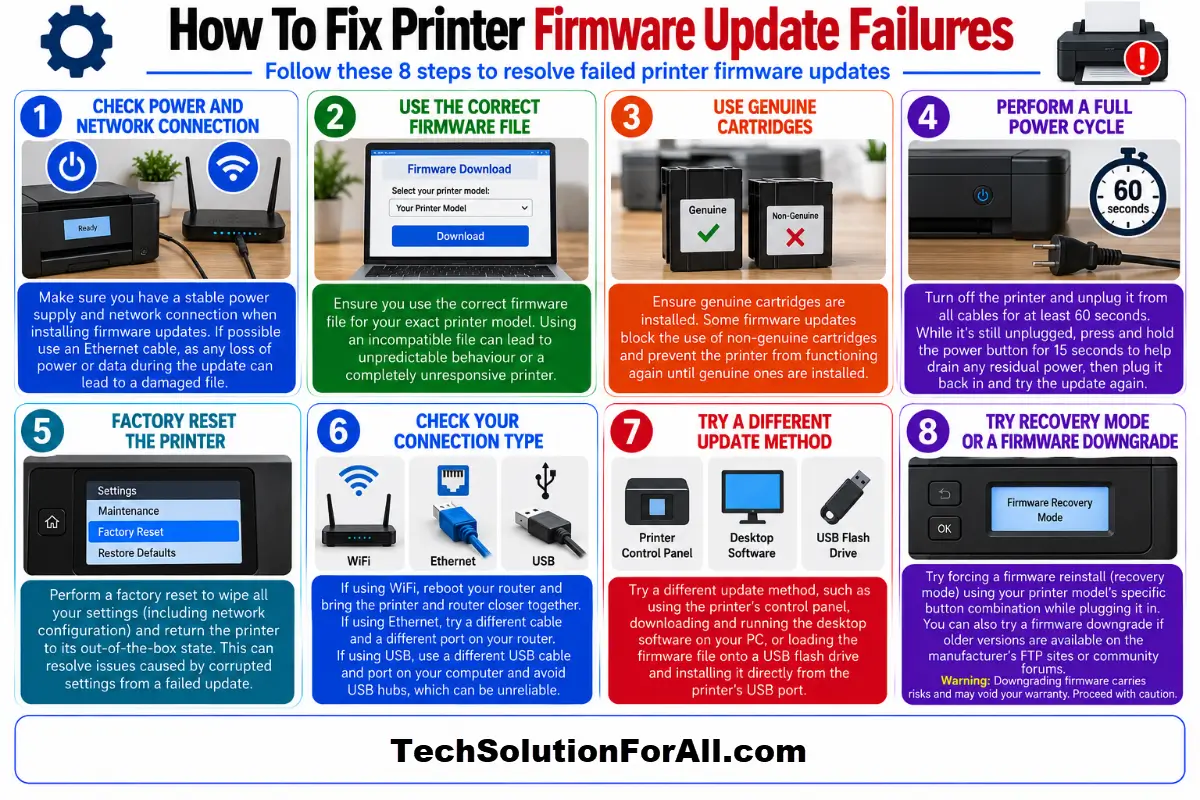
Step 1: The Full Power Cycle
This is more than just turning the printer off and on again.
A full power cycle clears the printer’s temporary memory and can reset a stuck process.
- Turn the printer off using its power button.
- Unplug the printer from the wall outlet.
Do not just unplug it from the power brick. - Wait at least 60 seconds.
This gives the internal capacitors time to fully discharge. - Press and hold the power button for 15 seconds while it’s still unplugged.
This helps drain any residual power. - Plug the printer back in and turn it on.
Why this works:
A full power cycle forces a complete reboot of the printer’s hardware and software, clearing any corrupted data stuck in its volatile memory from the failed update attempt.
Step 2: Check Network and USB Connections
If the printer is stuck or the update tool can’t see it, a faulty connection is a likely suspect.
- For Wi-Fi:
Reboot your router.
Even if other devices are online, the router might not be assigning an IP address to the printer correctly.
Try moving the printer closer to the router to rule out a weak signal. - For Ethernet:
Switch to a different Ethernet cable and a different port on your router.
A faulty cable or port can cause intermittent connection drops. - For USB:
Use a different USB cable and a different USB port on your computer.
Avoid using USB hubs, which can be unreliable for high-bandwidth data transfers like a firmware update.
Why this works:
A stable, clean connection is non-negotiable for a successful firmware transfer.
Eliminating the connection as a variable is a crucial diagnostic step.
Step 3: Try a Different Update Method
Manufacturers often provide multiple ways to perform a printer firmware update.
If one fails, another might succeed.
- If you used the printer’s control panel:
Try using the manufacturer’s desktop software (e.g., HP Smart, Epson Software Updater) to initiate the update from your computer. - If you used desktop software:
Try downloading the firmware file directly from the manufacturer’s support website (like the ones from Canon or Epson) and running the update utility manually. - Use a USB Drive:
Some printers allow you to load the firmware file onto a USB flash drive and install it directly from the printer’s USB port.
This is often the most reliable method as it removes network instability from the equation.
Why this works:
Different update methods use different communication protocols and pathways.
A failure over the network might be bypassed by a direct USB connection, which is a more stable and direct data transfer method.
Advanced Fixes When A Printer Firmware Update Fails
If the basic steps don’t work, your printer may be in a more serious error state.
These advanced methods have a higher chance of recovery but may require more technical confidence.
1. Forcing a Firmware Reinstall (Recovery Mode)
Many printers have a hidden “recovery” or “service” mode.
The exact steps to access it vary wildly between brands and models, but the general process involves pressing a specific combination of buttons while plugging the printer in.
A quick search for “[Your Printer Model] recovery mode” or “firmware emergency update” will often yield the correct sequence.
Once in recovery mode, the printer is in a state where it is waiting for a firmware file.
You can then use the manufacturer’s firmware update utility to try sending the file again.
This mode often bypasses the normal startup checks that might be preventing the printer from booting.
2. Attempting a Firmware Downgrade
If a new firmware version is causing the problem (especially with third-party cartridges), you may want to revert to an older version.
This can be challenging, as manufacturers often discourage or block downgrades.
However, you can sometimes find older firmware versions on the manufacturer’s FTP sites or through community forums.
The process is similar to a manual update, but you use the older file instead.
Warning:
Downgrading firmware carries risks and may void your warranty.
Proceed with caution.
3. Performing a Factory Reset
A factory reset will wipe all your settings (including network configuration) and return the printer to its out-of-the-box state.
This can sometimes clear a corrupted firmware state.
The method for a factory reset is specific to your model and can usually be found in the printer’s support manual or through its on-screen menu under a “Settings” or “Maintenance” section.
Less Common Causes Of Printer Firmware Update Failure And What To Do
- Update Freezes at a Certain Percentage:
If the update consistently freezes (e.g., at 90%), it could indicate a problem with the printer’s internal memory.
Try a different USB drive or a different computer to rule out external factors.
If it still fails, this may indicate a hardware fault. - “Firmware Corrupt, Ready 2 Download”:
This specific printer firmware update error, common on some HP models, is a clear sign of a failed update.
It is essentially the printer’s recovery mode.
Following the steps to reinstall the firmware via USB is the correct path to a solution.
How To Prevent Future Printer Firmware Update Failures
Prevention is always better than a cure.
Follow these best practices for a smooth update process every time.
- Use a Wired Connection:
If possible, always connect your printer via an Ethernet cable for firmware updates. - Don’t Interrupt the Process:
Once an update starts, do not turn off or unplug the printer for any reason. - Check for Known Issues:
Before updating, do a quick search for your printer model and “firmware update issues” to see if other users are reporting problems. - Consider Disabling Automatic Updates:
If you rely on third-party ink or toner, it may be wise to disable automatic firmware updates in your printer’s settings to avoid being locked out unexpectedly.
Final Thoughts On The “Printer Firmware Update Failed” Issue
A failed printer firmware update can feel like a disaster, but it is often recoverable.
By working through these troubleshooting steps methodically, from the simple power cycle to more advanced recovery techniques, you can diagnose the cause and apply the correct fix.
Remember to prioritise a stable connection and an uninterrupted process to ensure your next update goes smoothly.
Frequently Asked Questions About Failed Printer Firmware Updates
Q: Can a firmware update brick my printer?
A: Yes, in rare cases, a severely corrupted or interrupted firmware update can leave a printer unresponsive, or “bricked.”
However, most printers have a recovery mode that allows you to reinstall the firmware and restore functionality.
A truly permanent brick is very uncommon.
Q: How long should a printer firmware update take?
A: This varies by model and the size of the firmware file, but most updates take between 5 and 20 minutes.
If the process seems stuck for over an hour, it has likely failed.
Q: Will a firmware update fix my printer’s paper jamming issue?
A: It might.
Firmware updates often include fixes for a wide range of issues, including paper handling, print quality, and connectivity.
Check the release notes for the firmware version on the manufacturer’s website to see what specific problems it addresses.
Q: My printer is working fine. Should I still update the firmware?
A: It is generally recommended to keep your firmware up to date for security patches and performance improvements.
However, if you use third-party cartridges, you may want to research the specific update first to ensure it won’t cause compatibility issues.
How To Safely Perform A Printer Firmware Update
This guide provides a step-by-step process to safely update your printer’s firmware and prevent common failures.
Time required: 15 minutes
Tools:
- Computer or mobile device
- Printer
- Ethernet cable (recommended)
Steps:
- Prepare for the Update:
Ensure your printer is connected to a stable network.
A wired Ethernet connection is highly recommended over Wi-Fi.
Check the manufacturer’s support website for any known issues with the latest firmware version. - Initiate the Update:
Use the printer’s built-in menu, the manufacturer’s desktop software (like HP Smart or Epson Software Updater), or download the firmware file directly from the official support page.
Start the update process. - Do Not Interrupt:
Once the update begins, do not turn off, unplug, or otherwise interact with the printer.
The process can take several minutes, and the printer may restart on its own.
The screen may go blank or change colours; this is normal. - Verify the Update:
After the printer restarts and returns to its normal idle screen, print a configuration or system report from the settings menu.
Check the firmware version listed on the report to confirm that the new version has been installed successfully.
Finally be sure to check out our Tech Troubleshooting FAQ or our Printer Troubleshooting Tips pages for even more general tips that cover a wide range of technical problems and solutions.
(If after reading the above article you still have a “printer firmware update failed” issue, then you might find a much less obvious solution on the above tech pages!)