There’s nothing more disruptive than when your wifi keeps disconnecting and you are in the middle of a video call, streaming a movie or finalising an important document.
The icon changes, the pages stop loading, and you’re left with the frustrating reality that your digital world has come to a screeching halt.
It’s a modern-day problem that can feel both mysterious and infuriating, turning a simple task into a battle against your own network.
This guide cuts through the technical jargon to give you the solutions you actually need.
We will systematically diagnose the root of your connection instability and provide clear, actionable fixes that restore your wifi for good.
Understanding Why Your Wifi Keeps Disconnecting
A stable wifi connection depends on a complex chain of events working perfectly, from your internet service provider (ISP) to the device in your hands.
When your wifi keeps disconnecting, it’s a sign that one of the links in that chain is broken.
The cause can be as simple as a loose cable or as complex as radio frequency interference in your home.
Before we dive into advanced fixes, it’s essential to cover the most common culprits.
These issues account for the vast majority of wifi dropouts and are often the easiest to resolve.
By working through them methodically, you can quickly rule out the simple problems before spending time on more complex troubleshooting.
Common Cause #1: Your Router and Modem Need a Reboot
Your router and modem are small computers, and just like any computer, they can develop temporary glitches, memory leaks, or performance issues over time, as explained in detailed troubleshooting guides.
When your wifi keeps disconnecting, the simplest and most effective first step is always to perform a power cycle.
This process clears their internal memory and allows them to re-establish a fresh connection to your ISP and your devices.
Why this works:
Rebooting forces the hardware to flush out any software-related hiccups that may have accumulated.
It’s a clean slate that resolves countless transient network problems without any complex configuration changes.
How to fix it:
- Unplug both your modem and your router from the power outlet.
- Wait for at least 60 seconds.
This gives the internal components enough time to fully power down. - Plug the modem back in first and wait for its lights to stabilise (usually, the power, receive, send, and online lights should be solid).
- Once the modem is fully online, plug your router back in and wait for its lights to indicate a successful connection.
Common Cause #2: Weak Wifi Signal and Poor Router Placement
Wifi signals are radio waves, and they have a limited range.
The farther you are from your router, the weaker the signal becomes.
Physical obstructions like walls, floors, and furniture can also significantly degrade signal strength.
Materials like metal, concrete, and even water (like in an aquarium) are particularly effective at blocking wifi signals, a common issue highlighted by internet service experts.
If your device is on the edge of your router’s range, it may connect and disconnect frequently.
Why this works:
Moving your router to a more central location or removing obstructions ensures a stronger, more consistent signal reaches all your devices.
A stronger signal is less susceptible to minor fluctuations and interference, leading to a more stable connection.
How to fix it:
- Relocate Your Router:
Place your router in a central, open area of your home, away from thick walls and large metal objects.
Avoid placing it in a cabinet or on the floor. - Elevate It:
Position the router on a shelf or table to improve its broadcast range. - Adjust the Antennas:
If your router has external antennas, try positioning one vertically and one horizontally.
This can help optimise coverage for devices on different floors.
Common Cause #3: Network Congestion
Your home network has a finite amount of bandwidth, which is shared among all connected devices.
If you have numerous devices streaming, gaming, and downloading simultaneously, you can overwhelm your router’s capacity.
This is especially true on the 2.4 GHz wifi band, which is more crowded than the 5 GHz band.
When your wifi keeps disconnecting, it might be because your router is struggling to juggle too many requests at once.
Why this works:
Reducing the number of active devices or switching to a less congested wifi band frees up bandwidth and processing power for your router.
This allows it to maintain a stable connection with your most important devices.
How to fix it:
- Disconnect Unused Devices:
Turn off wifi on any devices you aren’t actively using. - Switch to the 5 GHz Band:
If you have a dual-band router, connect your primary devices to the 5 GHz network.
It offers faster speeds and is less prone to interference, though it has a shorter range than the 2.4 GHz band. - Upgrade Your Plan:
If congestion is a constant problem, you may need to upgrade your internet plan to one with more bandwidth, a solution also recommended by Microsoft’s official support documentation.
Common Cause #4: Outdated Drivers or Firmware
Your computer’s network adapter and your router both rely on software to function.
The network adapter driver on your PC allows it to communicate with the wifi network, while the router’s firmware controls its core operations.
If this software is outdated, buggy, or corrupted, it can cause your wifi to keep disconnecting.
Why this works:
Manufacturers regularly release updates that fix known bugs, improve performance, and patch security vulnerabilities.
Keeping your drivers and firmware up-to-date ensures your hardware is running as intended and is compatible with the latest standards from organisations like the Wi-Fi Alliance.
How to fix it:
- Update Network Drivers (Windows):
Go to Device Manager, find your wireless adapter under “Network adapters,” right-click it, and select “Update driver.” - Update Router Firmware:
Log in to your router’s administration page (usually by typing its IP address into a browser) and check for a firmware update option in the settings.
Wifi Keeps Disconnecting Advanced Troubleshooting
If you’ve tried the common fixes and your wifi still keeps disconnecting, it’s time to investigate some deeper technical issues.
These problems are less frequent causes of persistent wifi disconnections but can be the root cause of stubborn connection instability.
Advanced Fix #1: Change Your Wifi Channel
Wifi routers operate on specific channels within the 2.4 GHz and 5 GHz frequency bands.
If you live in an apartment building or a densely populated area, it’s likely that many nearby wifi networks are using the same channel as yours.
This co-channel interference can cause your connection to drop unexpectedly.
Why this works:
Imagine several people trying to talk in the same small room – it gets chaotic.
By switching your router to a less crowded channel, you reduce interference from neighbouring networks, giving your signal a clearer path to your devices.
How to fix it:
- Use a wifi analyzer app on your phone or computer to see which channels are most congested in your area.
- Log in to your router’s admin settings.
- Navigate to the wireless settings and manually change the 2.4 GHz channel to 1, 6, or 11, as these are the only non-overlapping channels.
- For the 5 GHz band, select a channel that appears to be less used.
Advanced Fix #2: Disable Wifi Adapter Power Management
To save energy, Windows has a feature that can automatically turn off your wifi adapter when it thinks it’s not in use.
While well-intentioned, this power-saving setting can be overly aggressive and is a notorious cause of random wifi disconnections, especially on laptops.
Why this works:
By disabling this feature, you prevent Windows from ever powering down your wifi adapter.
This ensures it’s always ready to send and receive data, providing a more stable and persistent connection at the cost of slightly higher power consumption.
How to fix it (Windows):
- Open Device Manager (you can search for it in the Start Menu).
- Expand the Network adapters section.
- Right-click your wireless adapter and select Properties.
- Go to the Power Management tab.
- Uncheck the box that says, “Allow the computer to turn off this device to save power.”
- Click OK and restart your computer.
Advanced Fix #3: Check for Cable and ISP Issues
Sometimes, the problem isn’t with your wifi at all, but with the physical connection coming into your home.
A damaged, loose, or poorly configured coaxial or fiber cable can cause intermittent signal loss to your modem.
Similarly, your Internet Service Provider (ISP) could be experiencing a service outage in your area.
Why this works:
Ensuring a clean, stable physical connection from your ISP is the foundation of a reliable home network.
If the signal coming into your modem is faulty, no amount of wifi tweaking will fix the underlying issue.
How to fix it:
- Inspect Your Cables:
Check that the coaxial cable is screwed on tightly to both the wall outlet and your modem.
Ensure your Ethernet cables are clicked securely into place. - Check for ISP Outages:
Visit your ISP’s website or use their mobile app to check for reported outages in your area.
You can also use third-party sites like Downdetector. - Contact Your ISP:
If you suspect a problem with the line coming into your home, contact your ISP.
They can run remote diagnostics and send a technician if necessary.
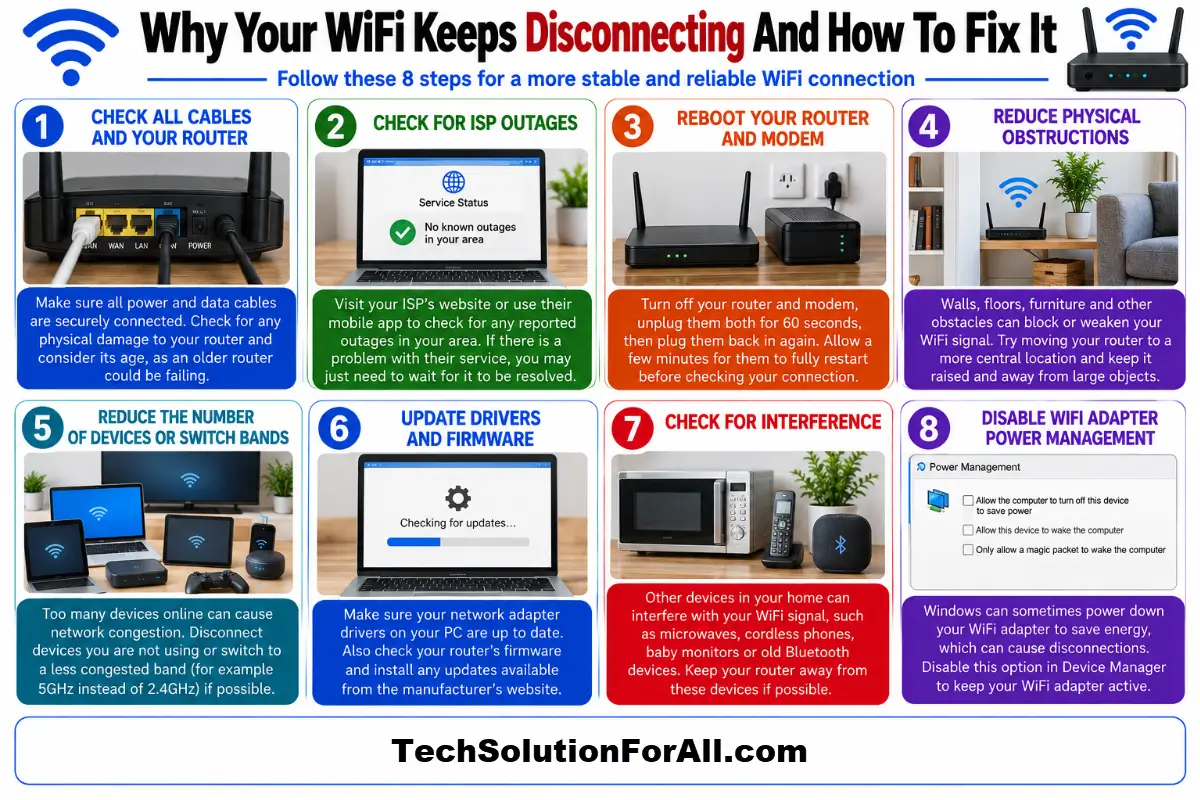
Uncommon Causes Of Wifi Keeps Disconnecting Problem And Future Prevention
Even after extensive troubleshooting, some rare issues can cause your wifi to keep disconnecting.
These include a failing router that is nearing the end of its life, or interference from non-wifi devices like microwaves, cordless phones, or even old Bluetooth devices.
For a deeper dive into how wireless standards work, the IEEE 802.11 standards provide the technical foundation for all wifi devices.
To prevent future issues, consider investing in a modern mesh wifi system if you have a large home, as this provides seamless coverage without the dead zones that can cause disconnections.
Regularly updating your firmware and drivers should also be part of your routine maintenance.
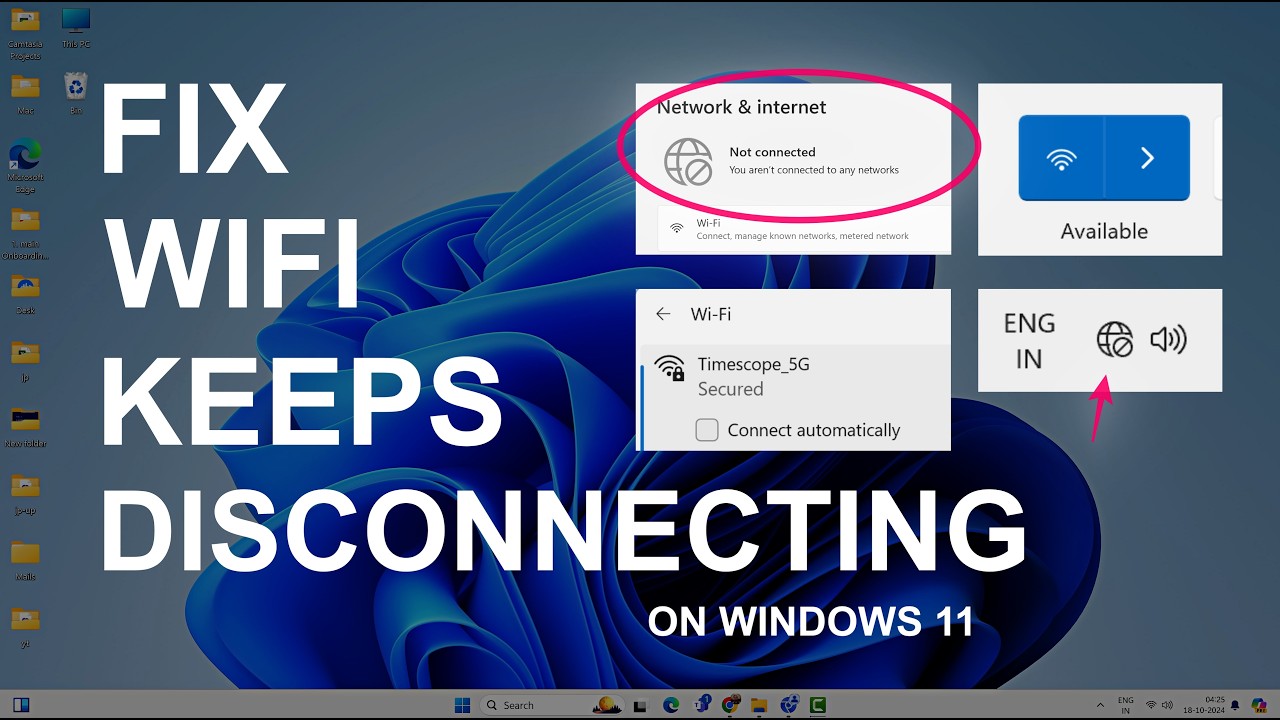
For a visual guide on fixing common wifi issues, this YouTube video entitled WiFi keeps disconnecting on Windows 11 can be a helpful resource (and is also hopefully embedded below!):
Final Thoughts On Why Your Wifi Keeps Disconnecting
Dealing with a wifi connection that constantly drops is incredibly disruptive, but the solution is often within your reach.
By starting with the simplest fixes – like rebooting your equipment and checking your router’s placement – and then moving on to more advanced steps like changing channels and updating drivers, you can systematically eliminate the causes of the problem.
Remember that a stable connection is a product of a healthy network, from the provider’s line to the device in your hand.
With a little patience and methodical troubleshooting, you can put an end to the frustration of your wifi keeps disconnecting and enjoy a smooth, reliable internet experience.
Frequently Asked Questions On Why Your Wifi Keeps Disconnecting
Q: Why does my wifi keep disconnecting and reconnecting?
A: This often points to a weak wifi signal, network congestion, or an issue with your device’s power management settings.
Your device may be on the edge of your wifi range, causing it to drop and re-establish the connection.
It can also happen if your router is overwhelmed with too many devices or if your computer is turning the wifi adapter off to save power.
Q: Can a bad modem cause wifi to disconnect?
A: Absolutely.
The modem is the gateway between your home network and your internet provider.
If the modem is faulty, overheating, or has a poor connection to your ISP, it will cause your entire internet connection – including your wifi – to drop intermittently.
Q: How do I know if my router is the problem?
A: A good way to test this is to connect your computer directly to the modem with an Ethernet cable.
If the internet connection is stable with a wired connection but drops on wifi, the problem is likely with your router or the wifi signal itself.
Frequent reboots, overheating, and an inability to handle multiple devices are also signs of a failing router.
Q: Does changing the wifi channel really help?
A: Yes, especially in crowded areas like apartment buildings.
Many routers default to the same channel, and when multiple networks compete for that channel, it causes interference that can lead to dropped connections.
Moving to a less crowded channel can significantly improve stability.
How To Fix Your Wifi Connection
Here is a step-by-step guide to resolving the most common causes of wifi disconnections.
Step 1: Power Cycle Your Network Equipment
Unplug your modem and router from power.
Wait 60 seconds before plugging the modem back in.
Once the modem’s lights are stable, plug the router back in.
Step 2: Check Router Placement
Ensure your router is in a central, elevated location in your home, away from obstructions like thick walls or large metal objects.
Step 3: Reduce Network Congestion
Disconnect any devices that are not in use.
If you have a dual-band router, connect your main devices to the 5 GHz band for a faster, less crowded connection.
Step 4: Update Drivers and Firmware
Check for and install the latest network drivers for your computer and firmware for your router.
This ensures you have the latest bug fixes and performance improvements.
Step 5: Disable Wifi Power Saving (Windows)
Go to Device Manager > Network adapters > Properties > Power Management and uncheck “Allow the computer to turn off this device to save power.”
Finally be sure to check out our Tech Troubleshooting FAQ or our Printer Troubleshooting Tips pages for even more general tips that cover a wide range of technical problems and solutions.
(If after reading the above article you still have a problem where your “Wifi Keeps Disconnecting”, then you might find a much less obvious solution on the above tech pages!)