Are you plagued by a “Canon Printer Error 5B00” and don’t know what it means?
Well, if your Canon printer has suddenly stopped working and shows error 5B00 (or flashes P07 on models without a screen), you are not alone.
This error completely stops the printer from working and usually appears without much warning.
The good news is that, in many cases, you can clear the error yourself without replacing the printer or paying for a repair straight away.
This issue affects many PIXMA MG, TS, TR, and MX series printers and often behaves the same way across different models.
In many cases, you can reset that counter using a button sequence or service software and get the printer working again within minutes.
If there are no signs of ink leakage, there is a good chance the printer can still be safely used.
If your Canon printer shows P07 instead of 5B00, or displays E08 (1700), you are dealing with the same waste ink absorber system.
The fixes below apply to all of these variations.
What The Canon 5B00 Error Actually Means (And Why It Stops Printing)
Inside your Canon printer is a waste ink absorber pad.
This felt-like pad collects excess ink produced during printhead cleaning cycles, startup purges, and maintenance operations.
Canon tracks this using an internal software counter.
When the counter reaches a predefined limit, the printer locks itself and displays Canon printer error 5B00.
On some models without a screen, the same condition appears as P07.
One important thing to understand is that the printer usually does not physically measure the ink level inside the absorber pad.
The system is based on estimated usage, not an actual liquid sensor.
Every cleaning cycle increases the stored counter value by a fixed amount.
Once the threshold is reached, printing is disabled to reduce the risk of ink overflowing inside the printer.
That is why some printers can continue working normally after a reset for months or even years.
The counter may have reached its limit before the absorber pad was physically saturated.
Critical Warning Before You Attempt Any Canon Printer Error 5B00 Fix
WARNING: If you can see wet ink underneath the printer, heavy staining inside the chassis, or ink pooling near the parking area, do not simply reset the counter and continue printing. The absorber pad may genuinely be saturated and could leak further ink.
Before attempting any reset, unplug the printer and inspect it carefully.
Check:
- The underside of the printer
- Around the printhead parking area
- Inside the paper feed path
- Around the rear access panel if your model has one
A torch helps here.
Small dried ink marks are common and not always a problem, but fresh wet ink or visible pooling is a sign that the absorber pad may actually need replacing.
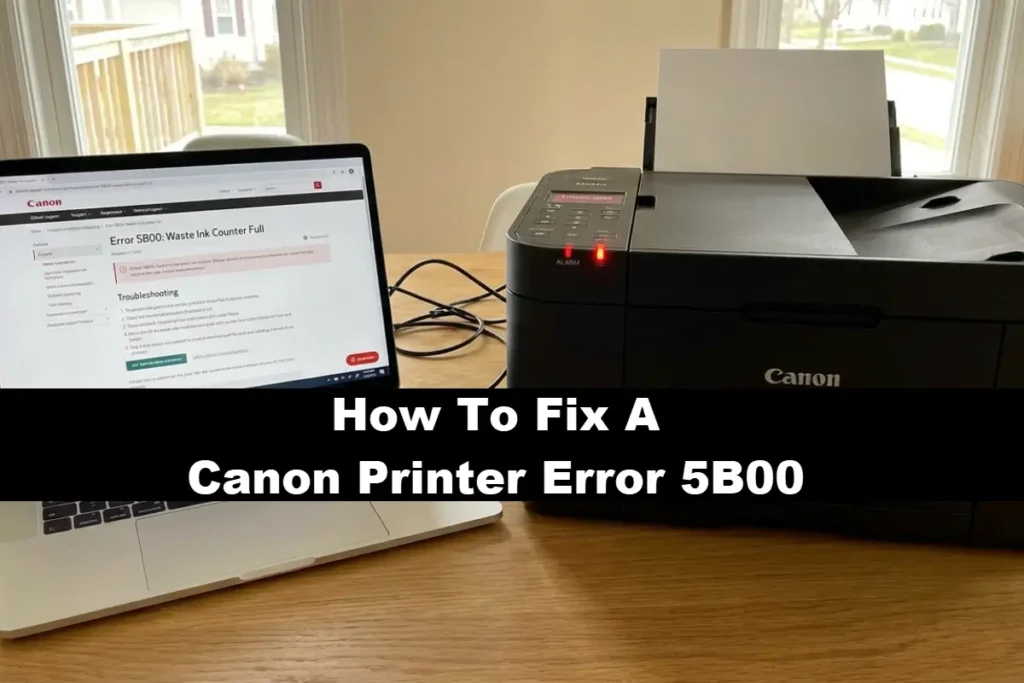
Common Causes Of 5B00 On Canon PIXMA Printers
Understanding what causes the error helps reduce the chances of it returning quickly after a reset.
Excessive printhead cleaning cycles
This is the most common cause by far.
Every time you run a cleaning or deep cleaning cycle from the printer maintenance menu, ink is flushed through the printhead and into the waste absorber system.
Running repeated cleaning cycles in an attempt to fix poor print quality can raise the counter surprisingly quickly.
It is very common for users to run five or six deep cleans in a row while troubleshooting streaks or missing colours.
Unfortunately, this accelerates wear on the waste ink system.
Frequent power cycling that triggers automatic cleaning
Canon printers often perform automatic maintenance cycles during startup.
If the printer is regularly unplugged from the wall or switched off at a power strip, it may perform a cleaning routine every time it powers back on.
Over time, these startup purges add significantly to the absorber counter.
Using the printer’s own power button instead of disconnecting power abruptly can help reduce unnecessary cleaning cycles.
Infrequent printer use
Printers that sit unused for weeks at a time tend to develop partially dried ink inside the printhead nozzles.
When printing resumes, the printer usually performs more aggressive cleaning cycles to restore ink flow.
Ironically, people who print only occasionally often reach the 5B00 error sooner than regular users because the printer spends more time cleaning itself.
Refilled or third-party cartridges
Refilled cartridges and some low-cost third-party cartridges can occasionally introduce air into the ink system or deliver inconsistent ink flow.
When this happens, the printer may trigger additional purge and maintenance cycles.
This does not mean third-party cartridges always cause 5B00, but heavily refilled systems generally produce more cleaning activity over time.
Long-term wear and accumulated usage
Sometimes the printer has simply reached the expected service interval for the absorber system.
Many Canon consumer printers hit the waste ink counter limit after several years of use, especially in households that print photos, schoolwork, or frequent documents.
Higher page counts naturally mean more maintenance cycles and more waste ink accumulation.
Method 1 – Reset The 5B00 Error Using Button Sequence (No Tools)
This is the quickest method to try first and works on many PIXMA MG, TS, and TR series models.
The exact sequence can vary slightly between printers, but this procedure works on a large number of Canon models.
Canon 5B00 button reset sequence
- Turn the printer on
- Press and hold the Stop button (red triangle inside a circle)
- While holding Stop, press and hold the Power button
- Keep holding Power and release the Stop button
- Press the Stop button twice while still holding Power
- Release the Power button
- Wait while the printer enters service mode
- Once the light becomes steady, press the Stop button four times
- Press the Power button once to confirm and restart the printer
The printer should reboot normally.
After startup, print a nozzle check or test page.
If the error returns immediately, the counter likely needs to be reset using the Service Tool instead.
For a great visual guide on how to fix a Canon printer error 5B00 easily right now via button presses this video is well worth watching (and is hopefully embedded below!)
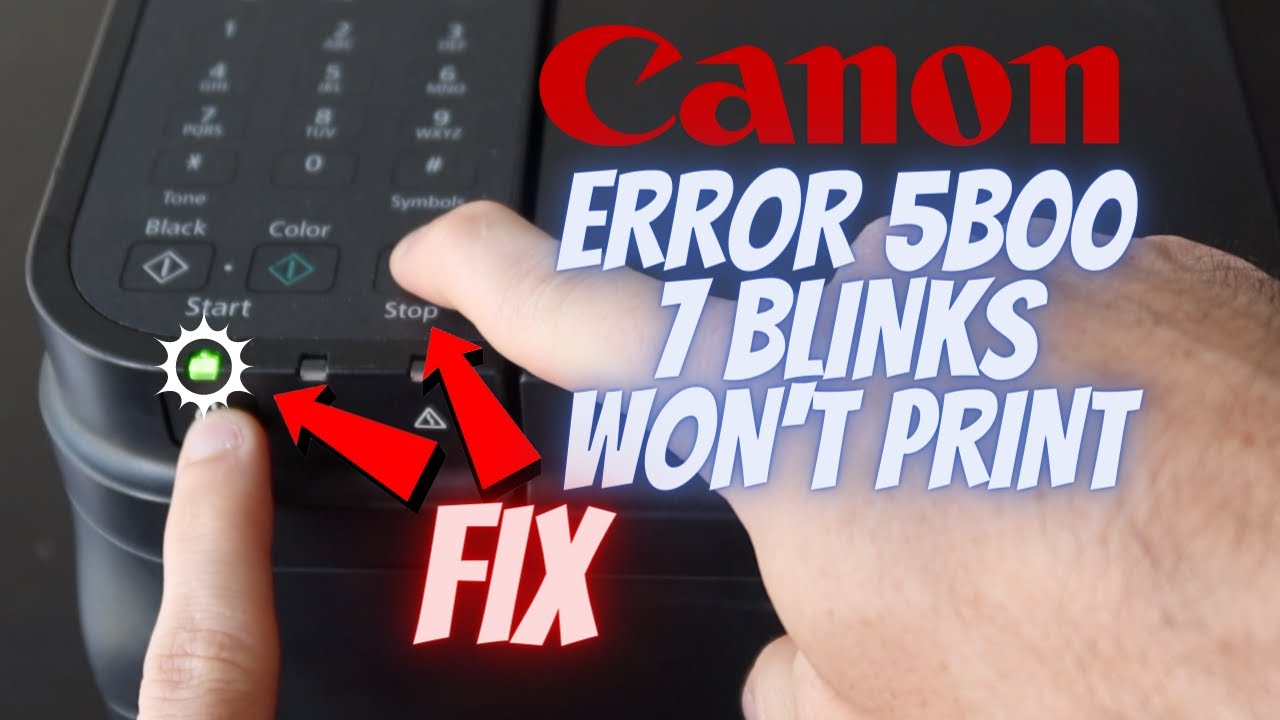
Some newer Canon models block partial resets using button combinations alone, so do not be surprised if this method only works temporarily or fails entirely.
Method 2 – Reset 5B00 Using Canon Service Tool (Advanced)
The Canon Service Tool is the method most repair technicians use to clear the waste ink counter properly.
This utility communicates directly with the printer’s service functions and resets the absorber counter stored in EEPROM memory.
WARNING: As the Canon Service Tool is now reserved only for certified professionals, home users are not (normally) able to download it.
However, Canon will offer their IJ Printer Assistant Tool as an alternative, though this does naturally provide different features and (usually) will not fix the Canon Printer Error 5B00 in itself.
There are also a couple of paid tools called the WIC Reset Utility (Waste Ink Counter) and also the WicReset Connect tool that do the same reset job as the original Canon Service Tool did.
Please note that any download you find online of any tool not directly from Canon is at your own risk and is not supported by Canon nor recommended by us.
What you need
- A Windows PC
- A USB cable
- Canon Service Tool software (commonly v2000, v3400, or v4720)
- The printer connected directly by USB
Do not attempt this reset over Wi-Fi.
The Service Tool works far more reliably over a direct USB connection.
Important notes before starting
- Different Canon models work with different Service Tool versions
- Some antivirus programs incorrectly flag Service Tool files because they are unofficial utilities
- Newer Canon firmware revisions occasionally block older Service Tool releases
- Mac support is extremely limited and generally unreliable for this process
Step-by-step Canon Service Tool reset
- Download a suitable Canon Service Tool version for your printer model (assuming you can find a “safe” one!)
- Extract the files if they arrive in a ZIP archive
- Right-click the Service Tool executable and select Run as Administrator
- Connect the printer to your PC using USB
- Turn the printer on and allow Windows to detect it
- Place the printer into service mode if required by your model
- In the Service Tool window, select the correct USB printer entry
- Locate the option labelled Waste Ink Counter, Ink Absorber Counter, or similar wording
- Click Set, Main, or Clear
- Wait for the process to finish completely
- Restart the printer
After rebooting, the 5B00 error should disappear.
Important warning about Service Tool misuse
The Service Tool gives access to low-level service functions. Avoid changing:
- Region settings
- EEPROM data
- Destination configuration
- Print alignment calibration values
Changing the wrong setting can leave the printer unusable or cause permanent firmware issues.
WIC Reset Utility
As mentioned above there is a paid tool available called the WIC Reset Utility (Waste Ink Counter Reset Tool) that should work on various Canon printers.
For a visual guide on resetting Canon waste ink counters via button presses in combination with a reset tool this YouTube video is a must watch and is (hopefully) embedded below.
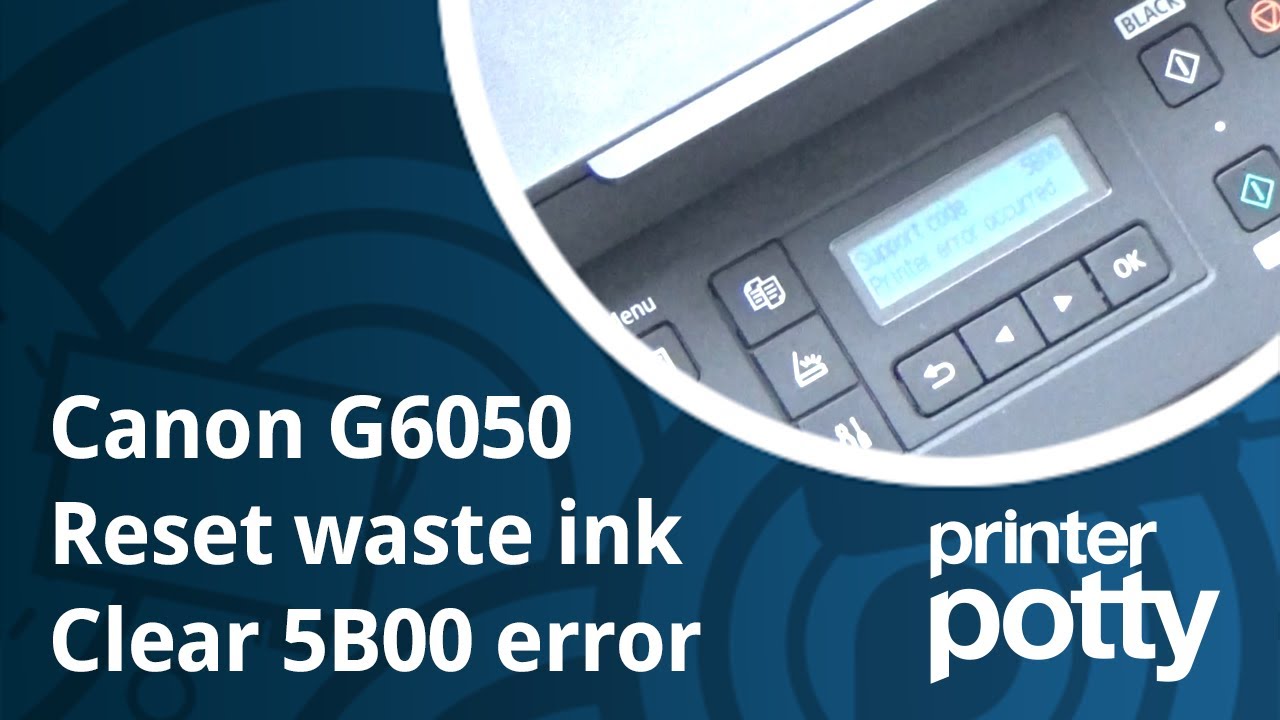
However once again we must point out that tools of the kind mentioned in the video above are not officially supported by Canon and using them will void your warranty!
Method 3 – Professional Service (Physical Absorber Replacement)
A software reset only resets the counter.
It does not physically clean or replace the waste ink absorber.
If your printer has heavy ink buildup or repeated 5B00 errors, professional servicing may be the safer long-term solution.
When professional service makes sense
Consider proper absorber replacement if:
- Ink is visibly leaking
- The error returns very quickly after resets
- The printer has already been reset multiple times
- The printer is still under warranty
- You use the printer heavily for photos or colour printing
What a technician normally does
A repair technician typically:
- Opens the printer chassis
- Removes the absorber assembly
- Cleans excess waste ink
- Replaces or washes the absorber pads
- Cleans the purge unit if needed
- Resets the internal counter using Service Tool software
This restores both the physical absorber system and the software counter together.
Average repair cost
Independent repair shops usually charge:
- Around $60-120 (£45-90) for labour and cleaning
- More for high-end photo printers with complex disassembly
On lower-cost printers, repair pricing can approach the cost of a replacement printer, so it is worth comparing options before proceeding.
DIY absorber replacement (advanced users only)
If you are comfortable opening electronics, replacement is possible at home, although it is messy and time-consuming.
General process:
- Search for a teardown video for your exact printer model
- Unplug the printer
- Remove cartridges and paper
- Open the outer casing carefully
- Locate the absorber pads beneath the purge station
- Remove and replace or thoroughly clean the pads
- Allow cleaned pads to dry fully before reinstalling
- Reassemble the printer
- Reset the waste ink counter using the Service Tool
Wear gloves and protect your work surface. Waste ink stains easily and is difficult to remove from fabric or wood.
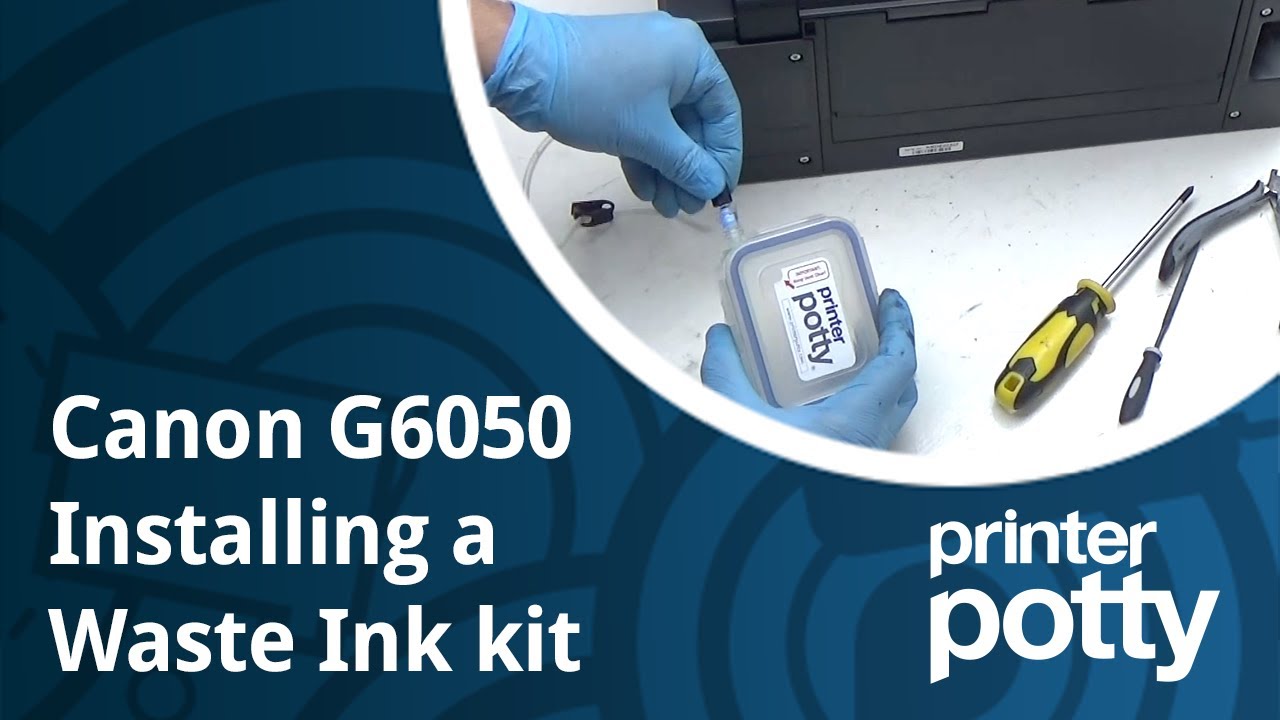
It is worth pointing out here that the same company that provides the WIC Reset Tool mentioned earlier also has an ingenious product called the “Printer Potty”.
Using a Printer Potty avoids the need for the standard Canon waste ink absorber pad and could potentially expand the life of your printer.
(They also give you a WIC Reset Utility license code when you purchase the Printer Potty.)
However the process is not for the faint hearted (due to the amount of cutting a drilling that installation requires) and absolutely will void the warranty on your Canon printer!
For a visual guide on how to fix error 5B00 via a Printer Potty installation you should watch this video (hopefully also embedded below.)
How To Tell If Your 5B00 Error Is Something More Serious
In a small number of cases, the problem is not the absorber counter itself.
Watch for these warning signs:
- The error changes to 5B02, 5B03, or another related code
- The printer fails immediately after a successful reset
- The printer makes loud grinding or clicking noises
- The carriage does not move normally during startup
- The printer powers off unexpectedly during initialization
These symptoms can point to:
- EEPROM corruption
- Purge unit failure
- Logic board problems
- Mechanical jams near the service station
If the logic board has failed, repair is often not economical on entry-level printers.
Replacement boards can cost nearly as much as the printer itself once labour is included.
Advanced Troubleshooting For Canon 5B00
If the standard reset methods fail, these additional steps may help.
Try a different Service Tool version
Compatibility matters more than many people realise.
Some MG series printers work only with older Service Tool versions, while newer TS and TR series models may require later releases.
If one version fails to detect the printer, try another version rather than assuming the printer is permanently locked.
It is also a good idea to reboot the PC between attempts.
Use a direct motherboard USB port
Avoid:
- USB hubs
- Front-panel PC ports
- Long extension cables
Service mode communication can be unstable over poor USB connections.
A short cable connected directly to a rear motherboard USB port is usually the most reliable setup.
Reinstall the printer driver after reset
Occasionally, Windows keeps the printer in an error state even after the counter reset succeeds.
If the printer appears offline after clearing 5B00:
- Remove the printer from Windows
- Disconnect the USB cable
- Restart the computer
- Reinstall the Canon driver package
- Reconnect the printer
This is especially common after failed Service Tool attempts.
Hidden service menu reset (supported on some models)
Some Canon printers include a hidden maintenance menu.
General entry method:
- Turn the printer off
- Hold Stop
- Press and hold Power
- Release Stop
- Press Stop five times
- Release Power
If supported, the printer enters service mode or displays hidden maintenance options.
Menu wording varies heavily between models, so navigation instructions are not universal.
For a list of printer models and their various sequences of button presses to enter the service menu and reset the waste ink counter (assuming you even can reset it with a tool) there is another site worth mentioning next.
Alternative WIC Reset Tool
As well as the WICReset tool mentioned earlier, there is also a paid tool called “WicReset Connect” from WicReset.Info.
We do not recommend such paid reset tools, but at least that site has most of the Canon printers and their button sequences listed there.
EEPROM replacement or reprogramming
This is strictly for electronics hobbyists and repair technicians.
The waste ink counter is stored in EEPROM memory.
Advanced users sometimes reset the counter by:
- Reprogramming the EEPROM chip
- Replacing the chip entirely
- Flashing corrected EEPROM data externally
This requires soldering equipment, EEPROM programmers, and experience working with surface-mounted electronics.
For most users, it is not practical or worth the risk.
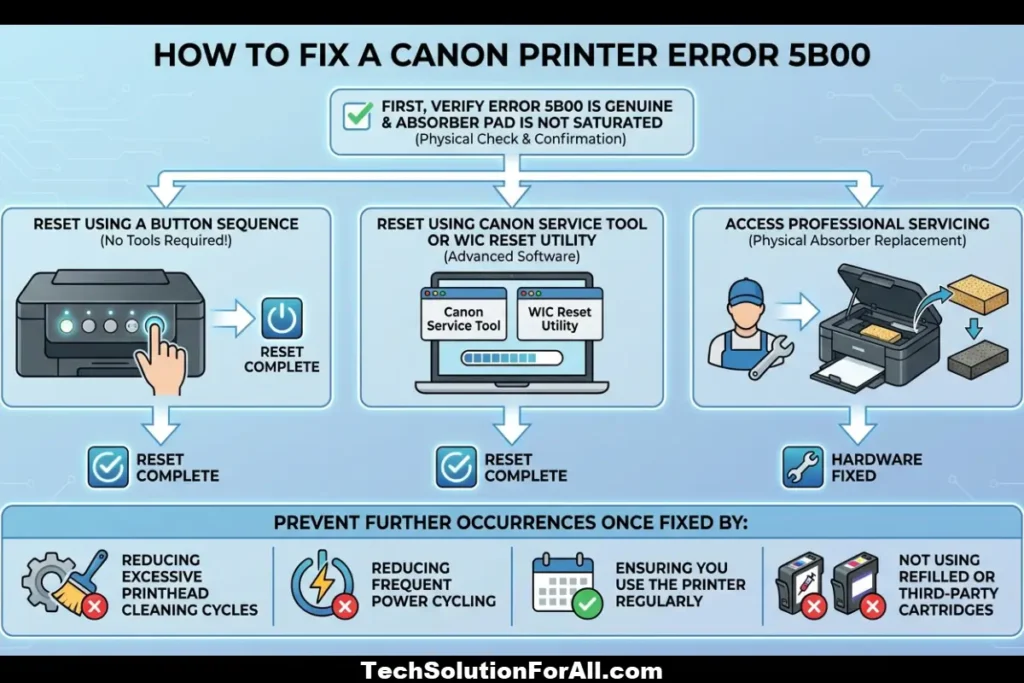
Prevention Tips (Avoiding Canon Printer Error 5B00 In The Future)
Once your printer is working again, a few habits can help slow down future waste ink counter increases.
Print something regularly
Printing a small colour page once a week helps keep ink moving through the printhead and reduces aggressive cleaning cycles caused by dried nozzles.
Even a simple nozzle check pattern is enough.
Avoid repeated deep cleaning cycles
If print quality is poor, avoid running endless cleaning cycles back-to-back.
Two cleaning cycles are usually reasonable.
Beyond that, it is often better to:
- Clean the printhead manually
- Inspect cartridges
- Check for air leaks
- Replace problematic cartridges
Repeated deep cleans waste a large amount of ink and accelerate absorber wear.
Shut down the printer properly
Always use the printer’s own power button rather than unplugging it from the wall while active.
Improper shutdowns can trigger additional startup cleaning cycles the next time the printer powers on.
Keep the printer in a stable environment
Very dry rooms or extremely warm environments can cause ink to dry faster inside the printhead, increasing maintenance activity.
If possible, keep the printer:
- Indoors
- Away from radiators
- Out of direct sunlight
- In a room with moderate humidity
Use reliable cartridges
Good-quality cartridges help maintain stable ink flow and reduce unnecessary purge cycles.
That does not automatically mean you must avoid all third-party ink, but very cheap cartridges often cause more cleaning activity and clogging issues over time.
Final Thoughts On Canon Printer Error 5B00
Canon printer error 5B00 looks serious because it completely locks the printer, but in many cases it is still recoverable.
Most printers displaying this error simply reached the software limit for the waste ink absorber counter.
If there are no signs of actual ink overflow, resetting the counter is usually safe and often restores full printing functionality immediately.
However, treat repeated 5B00 errors seriously.
If the absorber system is genuinely saturated, continuing to reset the printer indefinitely can eventually lead to internal leaks and damaged surfaces around the printer.
Canon’s official waste ink absorber page is not very helpful as it simply informs you that you will need to replace the printer and provides you with the link to confirm your warranty (and thereby confirm whether you are entitled to free service or not).
But if you do have an expensive printer still under warranty you might wish to make use of their service department.
FAQ’s About The Canon Printer Error 5B00
Q: What does Canon printer error 5B00 mean?
A: It means the internal waste ink counter has reached its programmed limit.
The printer disables printing to reduce the risk of waste ink overflowing inside the machine.
In many cases, the absorber pad still has remaining capacity because the system is estimate-based rather than sensor-based.
Q: Is 5B00 the same as P07 or 5B01?
A: Yes.
P07 is commonly the LED indicator version shown on printers without a display screen.
5B01 is closely related and generally refers to the same waste ink absorber condition.
Some printers may also show E08 (1700) as an earlier warning before full lockout.
Q: Can I fix Canon printer error 5B00 for free?
A: Usually, yes.
Many users successfully clear the error using the built-in button reset sequence or the Canon Service Tool software without paying for repairs.
Q: Will resetting 5B00 damage my printer?
A: Not normally, provided the absorber pad is not physically overflowing.
If you see fresh ink leaks or heavy internal staining, the pad should be serviced or replaced before continuing to print.
Q: How many times can I reset 5B00?
A: There is no fixed number, but many home users manage two or three resets before the absorber pad genuinely requires cleaning or replacement.
Q: Does Canon cover 5B00 under warranty?
A: If the printer is still within Canon’s warranty period, waste ink absorber servicing may be covered depending on the region and model.
Contact Canon support directly to confirm eligibility.
How To Fix The Canon Printer Error 5B00
How to reset Canon printer error 5B00 using Service Tool
Total time: 10 minutes
Supplies: None required
Tools: Windows PC, USB cable
Steps:
- Download a compatible Canon Service Tool version for your printer model
- Extract the software and run it as Administrator
- Connect the printer to the PC using a USB cable
- Turn the printer on and place it into service mode if required
- Select the correct USB printer entry inside the Service Tool
- Locate the Waste Ink Counter or Ink Absorber Counter option
- Click the reset or clear option and wait for the process to complete
- Restart the printer and print a test page
Finally be sure to check out our Tech Troubleshooting FAQ or our Printer Troubleshooting Tips pages for even more general tips that cover a wide range of technical problems and solutions.
(If after reading the above article you still have a “Canon printer error 5B00” issue, then you might find a much less obvious solution on the above tech pages!)