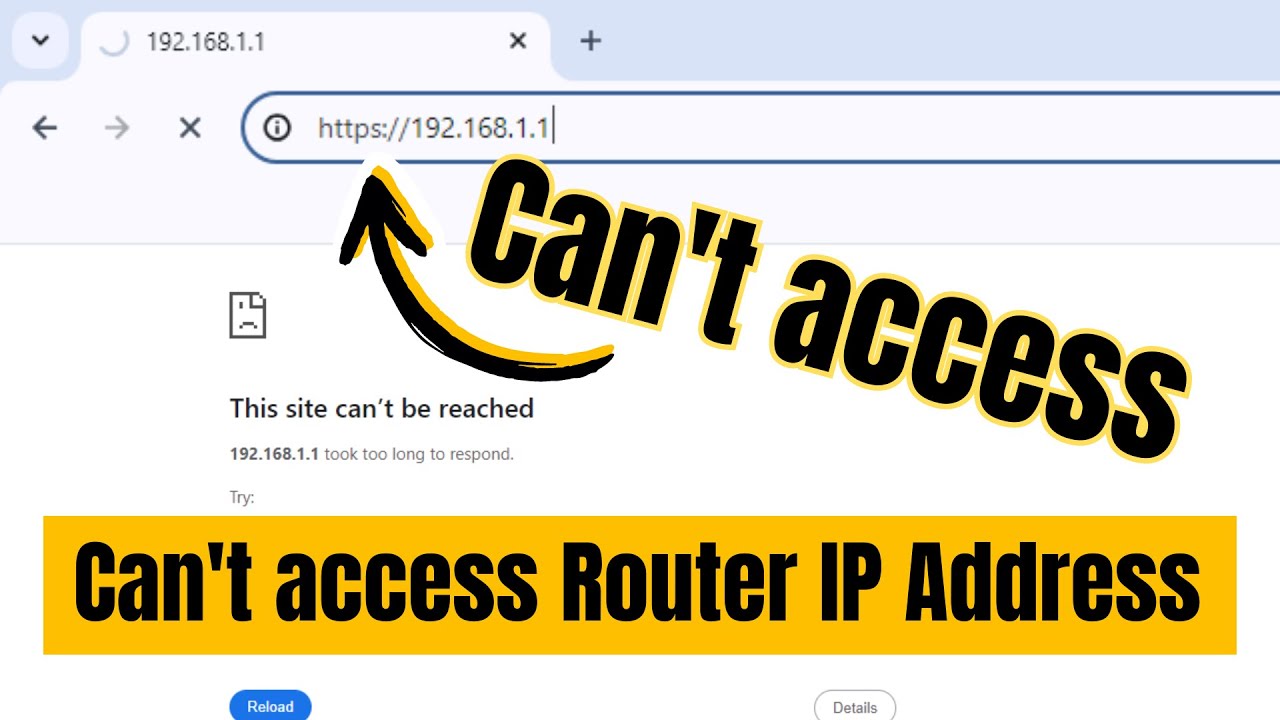
It’s a frustratingly common scenario: you need to adjust a setting on your home network, but when you type your router IP address into your browser to login, you’re met with an error page.
This inability to connect often comes down to an issue with the router IP address, leaving you feeling stuck and unable to manage your own network.
You’re not alone in this, and the good news is that the fix is usually straightforward.
This guide cuts through the technical jargon to deliver clear, actionable solutions.
We will walk you through diagnosing the problem and applying the correct fix, getting you back into your router’s settings in minutes.
Understanding The Router IP Address Problem
Every device on your local network, including your router, has a unique private IP address.
The router’s address acts as the gateway – the central point that manages all traffic between your local devices and the wider internet.
To change settings like your WiFi password, set up port forwarding, or update firmware, you must first connect to this address through your web browser.
When you can’t connect, it means your computer can’t find or communicate with that gateway address, effectively locking you out of your own network’s control panel.
Common Causes for Router IP Address Issues
Before diving into fixes, understanding the root cause can make the troubleshooting process much smoother.
Most access problems stem from a handful of realistic issues that users encounter every day.
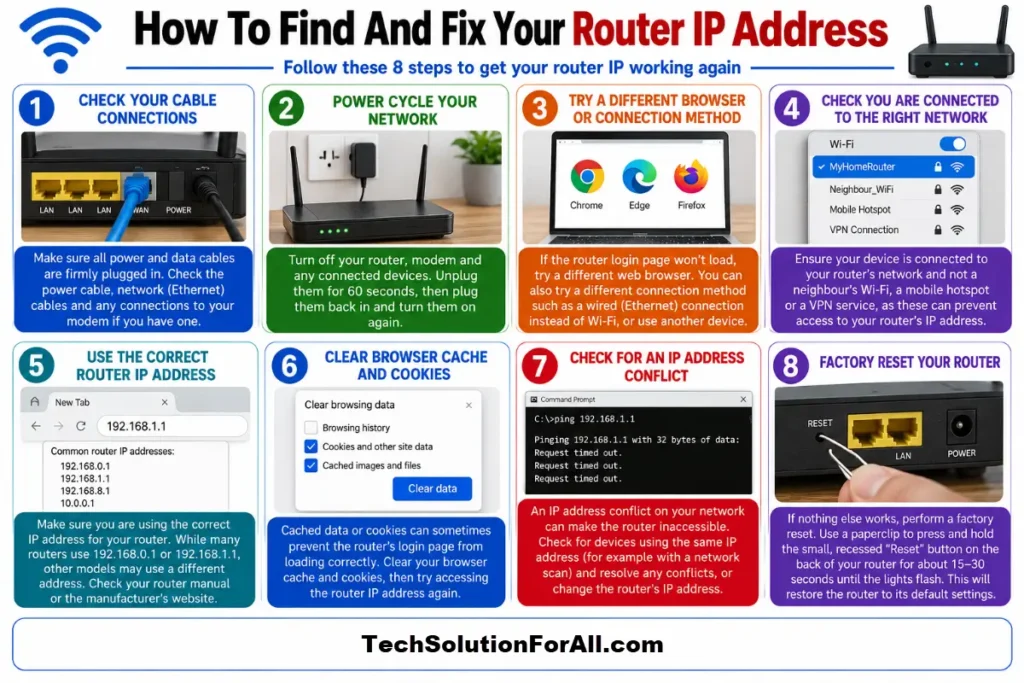
You’re Not Connected to the Right Network
This is the most frequent and simplest cause.
Your computer can only communicate with the router if it’s connected to that router’s network.
If you are accidentally connected to a neighbour’s WiFi, a mobile hotspot, or a VPN service, you won’t be able to reach your local router’s private IP address.
It’s a simple oversight but a critical first check.
Using an Incorrect Router IP Address
While many routers use default addresses like 192.168.1.1 or 192.168.0.1, this isn’t universal.
Your router model might use a different one, or the address may have been changed previously.
Typing the wrong address is like dialling the wrong phone number – the connection will simply fail.
This is a very common reason why people have trouble with their router IP address.
Browser Cache and Cookie Problems
Your web browser stores data from previous sessions to load pages faster.
Sometimes, this cached data can become outdated or corrupted, causing connection errors when you try to access your router’s login page.
Your browser might be trying to load an old, incorrect version of the page or using invalid data, preventing a successful connection.
Clearing this data often resolves mysterious access issues.
You can find instructions for your specific browser from authoritative sources like Google for Chrome or Mozilla for Firefox.
IP Address Conflicts
An IP address conflict occurs when two devices on the same network are assigned the exact same IP address.
This is like two houses on the same street having the same address – mail delivery would become chaotic.
As explained in-depth by networking experts at Auvik, this can happen if you manually set a static IP on a device that is already in use, or if the router’s DHCP server (which automatically assigns IPs) malfunctions.
When a conflict involves the router IP address, it can make the router completely inaccessible.
Step-By-Step Guide To Fixing Your Router IP Address Access
Let’s walk through the solutions, starting with the simplest and most common fixes.
Step 1: Verify Your Network Connection
First, ensure your computer is connected to the correct network.
Check your WiFi icon in the system tray (Windows) or menu bar (macOS) and confirm you are connected to your home WiFi network.
If you are using a wired connection, ensure the Ethernet cable is securely plugged into both your computer and one of the router’s LAN ports (not the WAN/Internet port).
Step 2: Find the Correct Router IP Address
If you’re still unable to connect, the next step is to find the correct address.
Don’t just guess.
Every major operating system provides a simple way to find this address, often called the “Default Gateway.”
- On Windows:
Open the Command Prompt, type ipconfig, and press Enter.
Look for the “Default Gateway” address. - On macOS:
Go to System Settings > Network, select your active connection, click “Details…”, and find the “Router” address under the TCP/IP tab. - On Mobile Devices:
For iOS and Android, you can find this information in your WiFi network’s advanced settings.
A detailed guide from ProtonVPN covers finding the gateway on all major platforms.
Step 3: Power Cycle Your Network
A classic for a reason – restarting your devices can resolve a surprising number of temporary glitches.
Unplug both your modem and your router from power.
Wait about 60 seconds, then plug the modem back in first.
Wait for its lights to stabilise (usually 1-2 minutes), then plug your router back in and wait for its lights to become stable.
This process clears out temporary memory and re-establishes connections, often fixing the problem.
Step 4: Try a Different Browser or Connection Method
If the issue persists, try accessing the router IP address using a different web browser to rule out browser-specific issues.
If you are on WiFi, try connecting with an Ethernet cable directly to the router.
A direct wired connection is more reliable and bypasses any potential wireless interference or configuration problems.
Advanced Troubleshooting For Your Router IP Address
If the basic steps didn’t work, it’s time to look at some less common but still solvable problems.
Dealing with IP Address Conflicts
If you suspect an IP conflict, the easiest fix is to turn off all other connected devices on your network (phones, tablets, smart TVs, etc.).
With only your computer and router running, try accessing the router’s IP again.
If it works, you can turn devices back on one by one to find the culprit.
The conflicting device will need its network settings reset or changed to obtain a new IP address automatically.
When The Router IP Address Itself Has Changed
Some routers will automatically change their own IP address if they detect a conflict.
For example, if your modem and router both use 192.168.1.1, the router might switch to 192.168.2.1 to avoid a conflict.
Always use the ipconfig or system settings method to confirm the current gateway address rather than relying on what you think it should be.
For a visual walkthrough of some of the above information, this YouTube video on accessing your router online can be a helpful resource (and is hopefully also embedded below):
The Ultimate Fix: A Factory Reset
When all else fails, a factory reset is your last resort.
This will revert all router settings to their factory defaults, including the IP address, WiFi name, and password.
You will need a paperclip or similar object to press and hold the small, recessed “Reset” button on the back of the router for about 15-30 seconds.
After it reboots, you will be able to connect using the default IP and credentials printed on the router’s label.
Final Thoughts On Router IP Address Issues
Dealing with a non-responsive router IP address can be a significant roadblock, but it’s rarely an insurmountable one.
By working through these diagnostic and troubleshooting steps methodically, from simple connection checks to more advanced conflict resolution, you can almost always restore access.
Remember to start with the easiest fixes first and have patience.
Taking a calm, structured approach is the key to getting back in control of your network.
Frequently Asked Questions On Router IP Address Access
Q: Why is my router IP address not working?
A: The most common reasons include being connected to the wrong network, typing the incorrect IP address, browser cache issues, or an IP address conflict with another device on your network.
Start by verifying your connection and finding the correct gateway address in your device’s network settings.
Q: How do I find my router’s correct IP address?
A: On Windows, use the ipconfig command in the Command Prompt and look for the “Default Gateway.”
On macOS, it’s listed as “Router” in your active network connection’s details.
This is the most reliable way to find the correct address.
Q: Can I change my router’s IP address?
A: Yes, you can change your router’s IP address from within its administration settings, typically under a “LAN” or “Network” section.
However, you should only do this if you have a specific reason, such as resolving an IP conflict with your modem.
Q: Does resetting my router change the IP address?
A: A factory reset will change the router’s IP address back to its factory default setting.
A simple restart or power cycle will not change the router’s private IP address, though it may cause your ISP to assign you a new public IP address.
How To Fix Router IP Address Access
This guide shows you how to find your router’s correct IP address and regain access to its settings page.
Time: 5 minutes
Tools:
- Computer (Windows or macOS)
Supplies:
- None required
Steps:
- Check Network Connection:
Ensure your computer is connected to your router via WiFi or an Ethernet cable. - Find the Default Gateway on Windows:
Open Command Prompt, type ipconfig, and press Enter.
Note the IP address next to “Default Gateway.” - Find the Default Gateway on macOS:
Open System Settings > Network.
Select your connection, click “Details…”, and note the IP address next to “Router.” - Access the Router:
Open a web browser and type the Default Gateway / Router IP address into the address bar. - Power Cycle if Needed:
If you still can’t connect, unplug your router from power for 60 seconds, plug it back in, and try again after it fully restarts.
Finally be sure to check out our Tech Troubleshooting FAQ or our Printer Troubleshooting Tips pages for even more general tips that cover a wide range of technical problems and solutions.
(If after reading the above article you still have a “Router IP Address” problem, then you might find a much less obvious solution on the above tech pages!)