If you’re facing the dreaded “Canon printer not detected on Mac” issue, don’t worry.
This problem is often solvable with a series of logical troubleshooting steps.
Whether your printer is connected via USB or wirelessly, this guide will help you diagnose the root cause and get you back to printing smoothly.
In a Rush? Here’s the Quick Fix
The most common reason a Canon printer is not detected on a Mac is a faulty connection or a software glitch.
First, check your USB or Wi-Fi connections and restart both your Mac and printer. If that doesn’t work, the next step is to remove and re-add the printer in your Mac’s System Settings.
This article provides detailed instructions for these steps and more advanced solutions if the problem persists.
Common Causes Of A Canon Printer Not Detected On Mac
Understanding why your Mac can’t find your Canon printer is the first step toward fixing it.
In most cases, the issue falls into one of a few categories, ranging from simple physical connection problems to more complex software conflicts.
By systematically checking these common culprits, you can often resolve the issue quickly.
Basic Connection and Power Issues
Before diving into more complex troubleshooting, it’s essential to rule out the simplest potential problems.
These issues are surprisingly common and can often be the source of the “Canon printer not detected on Mac” error.
A loose cable or a printer that isn’t fully powered on can prevent your Mac from seeing the device.
For example, ensure that the USB cable is securely plugged into both the printer and your Mac.
If you’re using a USB hub, try connecting the printer directly to your Mac, as the hub itself could be the issue.
Similarly, for wireless printers, a weak Wi-Fi signal or an incorrect network password can cause the connection to fail.
A simple restart of your router can often resolve these wireless communication problems.
Outdated or Corrupted Printer Drivers
Printer drivers are the software that allows your Mac to communicate with your Canon printer.
If these drivers are outdated, corrupted, or incompatible with your version of macOS, your Mac may not be able to detect the printer.
This is a frequent problem, especially after a major macOS update, as older drivers may no longer be supported.
Canon regularly releases new drivers to ensure compatibility with the latest operating systems and to fix known bugs.
Therefore, it’s crucial to check for and install the latest drivers for your specific Canon printer model.
You can typically find these on the official Canon support website.
For a more in-depth guide on updating your printer software, Apple provides helpful instructions on their support page.
Network Configuration and Firewall Problems
For wireless printers, network configuration is a primary source of detection issues.
If your Mac and your Canon printer are not on the exact same Wi-Fi network, they won’t be able to communicate.
This can happen if you have multiple Wi-Fi networks in your home or office, such as separate 2.4 GHz and 5 GHz bands.
Additionally, firewall software on your Mac or router can sometimes mistakenly block the connection to your printer.
Your Mac’s built-in firewall or third-party security software might see the printer as an unrecognized device and prevent it from connecting.
Temporarily disabling the firewall can help you determine if this is the cause of your “Canon printer not detected on Mac” problem.
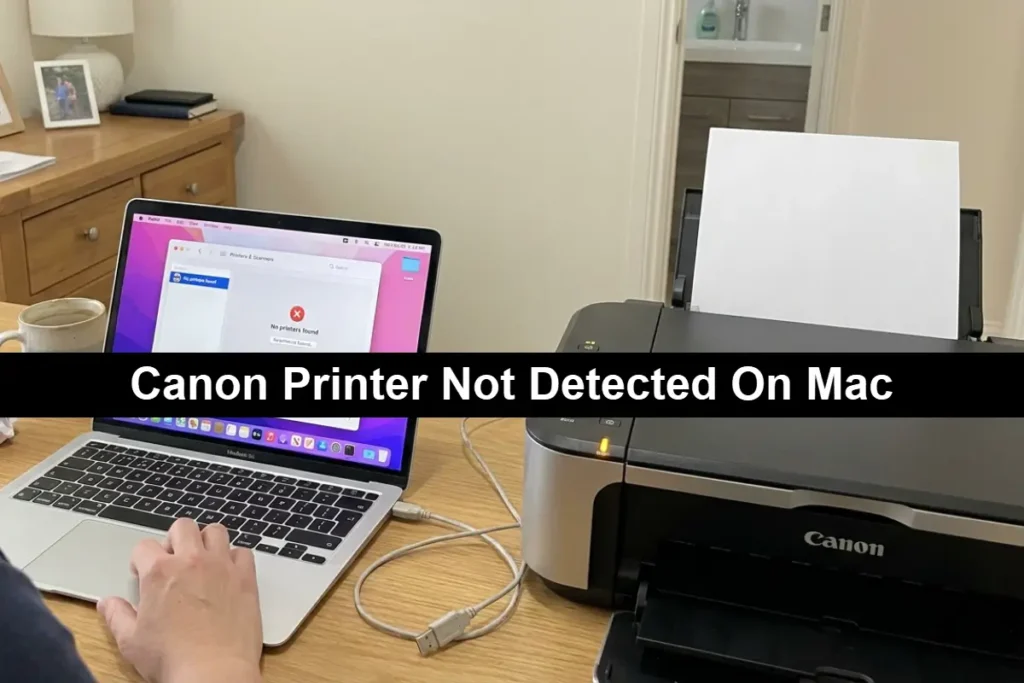
Step-By-Step Troubleshooting For A Canon Printer Not Detected On Mac
Now that we’ve covered the common causes, let’s walk through the solutions.
Start with the first step and proceed in order, as the initial fixes are the easiest and most likely to resolve the issue.
If one step doesn’t work, move on to the next.
1. Perform Basic Checks and Restart Devices
First, let’s cover the fundamentals.
A simple restart can often clear up temporary glitches that prevent your Mac from detecting your printer.
- Check Physical Connections:
If you’re using a USB cable, ensure it’s firmly connected to both your Mac and your printer. Try using a different USB port on your Mac and, if possible, a different USB cable to rule out a faulty cable. - Verify Power:
Make sure your Canon printer is turned on and not in sleep or error mode. Check the printer’s display for any error messages or blinking lights. - Restart Everything:
Turn off your Canon printer and your Mac. If you have a wireless printer, restart your Wi-Fi router as well. Wait for about a minute, then turn everything back on in this order: router, printer, and finally, your Mac.
2. Remove and Re-Add the Printer on Your Mac
If the basic checks don’t work, the next step is to reset the printer’s configuration on your Mac.
This process removes the potentially corrupted printer profile and allows your Mac to set it up from scratch.
- Go to the Apple menu > System Settings.
- Click on Printers & Scanners in the sidebar.
- Select your Canon printer from the list and click the Remove Printer, Delete Printer, or – button.
- Click the Add Printer, Scanner, or Fax or + button to add it back.
- Your Mac will search for available printers. Select your Canon printer from the list and click Add. For a detailed walkthrough on adding a printer via USB, Canon offers a helpful guide.
3. Update Printer Drivers and macOS
Outdated software is a common culprit. Ensuring both your macOS and your Canon printer drivers are up to date can resolve many compatibility issues.
- Update macOS:
Go to System Settings > General > Software Update to check for and install any available macOS updates. - Update Canon Drivers:
Visit the official Canon support website and search for your printer model to download and install the latest drivers. If you’re having trouble with wireless connections, Canon’s Wi-Fi Connection Assistant can be a useful tool.
For those who want a visual guide on how to add a Canon printer on a Mac, this helpful YouTube video provides a clear, step-by-step tutorial that covers the process of adding any Canon printer in detail:
Watch a step-by-step guide on adding your Canon printer to a Mac (also hopefully embedded below!)
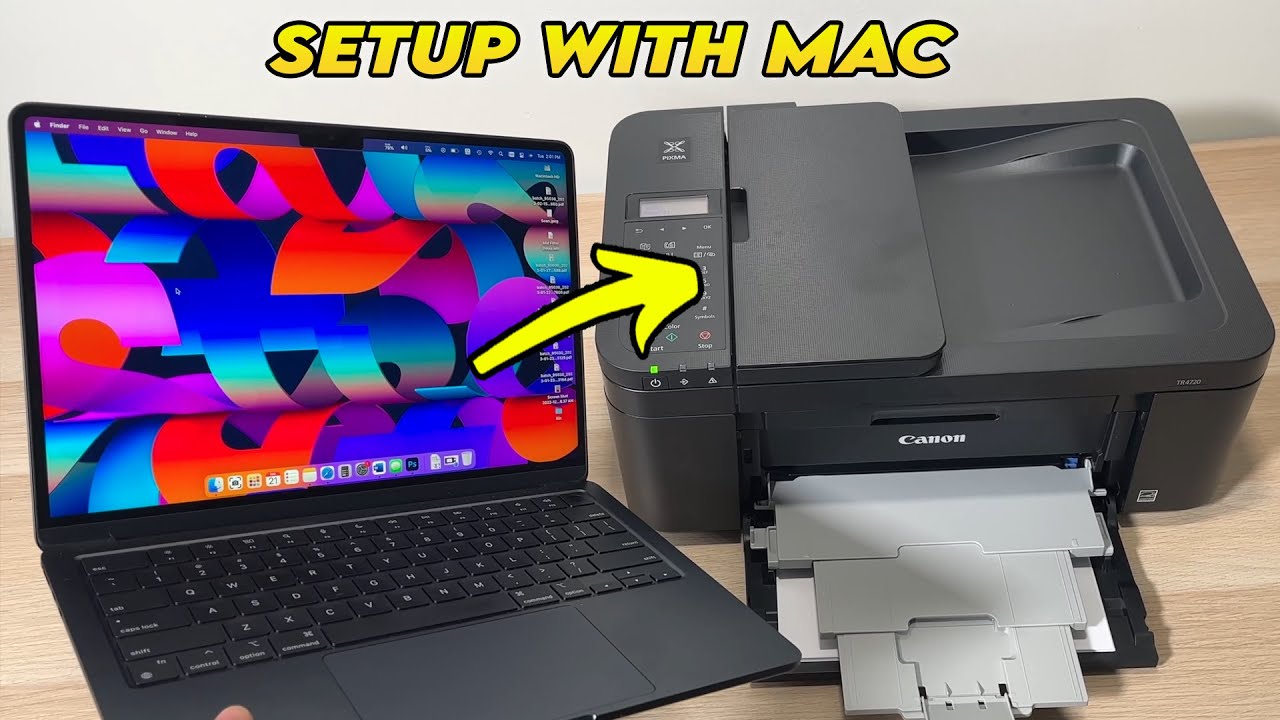
Advanced Troubleshooting For A Canon Printer Not Detected On Mac
If you’ve tried all the steps above and your Mac still can’t find your Canon printer, it’s time to move on to some more advanced solutions.
These steps involve digging a bit deeper into your Mac’s settings and can often resolve more stubborn issues.
Resetting the Mac Printing System
When all else fails, resetting the entire printing system on your Mac can be a powerful solution.
This action removes all printers, print jobs, and presets, effectively giving you a clean slate.
It’s a drastic step, so make sure you’ve exhausted all other options first.
To reset the printing system:
- Go to System Settings > Printers & Scanners.
- Control-click (or right-click) in the blank space of the printers list.
- Select Reset Printing System from the context menu and confirm. After the reset, you will need to add your Canon printer again. Apple provides a detailed guide on this process.
Checking for Network and Firewall Conflicts
As mentioned earlier, network issues can be a major roadblock. If you suspect a network or firewall issue, here are a few things to try:
- Check Network Bands:
Ensure your Mac and Canon printer are on the same Wi-Fi network and band (2.4 GHz or 5 GHz). Some older printers only support the 2.4 GHz band. - Disable Firewall:
Temporarily disable your Mac’s firewall (System Settings > Network > Firewall) and any third-party security software to see if that resolves the issue. If it does, you’ll need to add an exception for your printer in the firewall settings.
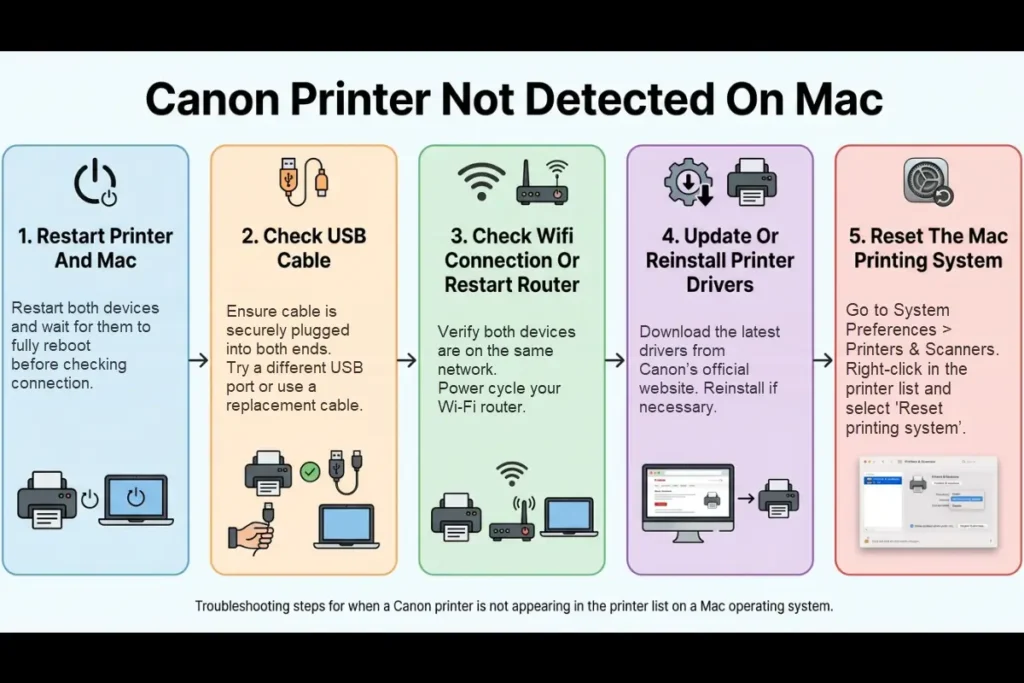
5 Steps to Fix a Canon Printer Not Detected on Mac
- Restart Printer and Mac: Turn off both devices. Wait for a few moments, then power them back on and wait for a full reboot before checking the connection.
- Check USB Cable: Ensure the cable is securely plugged into both ends. Try a different USB port on your Mac or use a replacement cable if necessary.
- Check Wi-Fi Connection or Restart Router: Verify that both devices are on the same network. If they are, power cycle your Wi-Fi router to refresh the signal.
- Update or Reinstall Printer Drivers: Download the latest drivers from Canon’s official website. Uninstall old software and perform a clean reinstall.
- Reset the Mac Printing System: Go to System Preferences > Printers & Scanners. Right-click in the printer list and select ‘Reset printing system’.
Final Thoughts On Canon Printer Not Detected On Mac
Dealing with a Canon printer that’s not detected on your Mac can certainly be a test of patience, but in most cases, the solution is within reach.
By working through the troubleshooting steps methodically, from basic connection checks to more advanced driver updates and system resets, you can identify and resolve the underlying issue.
Remember to be patient and to restart your devices after making changes to ensure they take effect.
To prevent this issue from recurring, it’s a good practice to periodically check for and install updates for both your macOS and your Canon printer drivers.
Keeping your software current is one of the best ways to ensure smooth and reliable communication between your devices.
With these tips in hand, you’ll be well-equipped to handle any future printing problems that come your way.
Frequently Asked Questions
Why is my Mac not finding my wireless Canon printer?
This often happens if your Mac and printer are on different Wi-Fi networks.
Ensure both devices are connected to the same network, and check that you’ve entered the correct Wi-Fi password on your printer.
Restarting your router can also help re-establish the connection.
Do I need to install drivers for my Canon printer on a Mac?
While macOS has built-in support for many printers through AirPrint, installing the official Canon drivers can provide better performance and access to more features.
If you’re experiencing issues, downloading the latest drivers from the Canon support website is a recommended step.
How do I fix my Canon printer when it says it’s offline on my Mac?
First, make sure your printer is on and connected to the same network as your Mac.
Then, go to System Settings > Printers & Scanners, select your printer, and see if there’s an option to bring it online.
If not, removing and re-adding the printer often resolves the “offline” status.
How To Reset The Printing System On A Mac
This guide explains how to reset the printing system on a Mac, which can resolve persistent printing issues by removing all printers, print jobs, and presets.
Total Time: 5 minutes
Tools:
- Mac computer
Steps:
- Open System Settings
Navigate to the Apple menu in the top-left corner of your screen and select System Settings. - Go to Printers & Scanners
In the System Settings window, scroll down the left sidebar and click on Printers & Scanners. - Reset the Printing System
In the Printers & Scanners pane, Control-click (or right-click) on any printer in the list, or in the empty space if no printers are listed. Select Reset Printing System from the menu that appears. - Confirm the Reset
A confirmation dialog will appear, warning you that this will delete all your printers. Click Reset to proceed. - Re-add Your Printer
After the reset is complete, the printer list will be empty. Click the Add Printer, Scanner, or Fax button to add your Canon printer back.
Finally be sure to check out our Tech Troubleshooting FAQ or our Printer Troubleshooting Tips pages for even more general tips that cover a wide range of technical problems and solutions.
(If after reading the above article you still have a “Canon Printer Not Detected on Mac” issue, then you might find a much less obvious solution on the above tech pages!)