It’s a familiar and frustrating scenario: you need to print an important document, but your computer insists your canon printer shows offline.
You’ve checked the power, and the printer seems perfectly fine, yet it refuses to communicate with your device.
This common problem can bring your productivity to a halt, but the good news is that you can usually resolve it with a few targeted troubleshooting steps.
In a Rush? Here’s the Quick Fix
When your Canon printer appears offline, the issue is almost always a communication breakdown between your printer and your computer.
The most effective solution is to systematically restart your devices – printer, computer, and router – and then verify your printer’s network connection.
This article provides detailed, step-by-step instructions for Windows and Mac users to diagnose and resolve the problem for good.
Common Causes Why a Canon Printer Shows Offline
Understanding why your canon printer shows offline is the first step toward fixing it. In most cases, the problem isn’t with the printer itself but with the connection between the printer and your computer.
Here are some of the most common culprits.
Connectivity Issues
Connectivity problems are the number one reason a printer will appear offline. This can be due to a variety of factors, from a loose cable to a weak Wi-Fi signal.
For example, if your printer is connected via Wi-Fi, interference from other devices or a weak signal can cause the connection to drop.
Similarly, a damaged or improperly connected USB cable can prevent your computer from detecting the printer.
According to HP Support, it’s also a good practice to plug your printer directly into a wall outlet rather than a power strip, as this can sometimes cause power-related issues that affect connectivity.
Incorrect Printer Configuration
Sometimes, the problem lies within your computer’s settings. For instance, if you have multiple instances of the same printer installed, your computer might be trying to send the print job to the wrong one.
Additionally, Windows has a “Use Printer Offline” mode that can sometimes be enabled by mistake. When this setting is active, your computer will not attempt to communicate with the printer, even if it is properly connected and powered on.
Microsoft’s official support guide provides detailed instructions on how to check for and disable this setting.
Print Spooler Service Errors
The Print Spooler is a service on your Windows computer that manages print jobs. If this service encounters an error or stops running, it can cause your printer to appear offline.
This is a common issue, and restarting the Print Spooler service is often a quick and effective solution. The service can be accessed through the “Services” application in Windows, where you can stop, start, or restart it as needed.
Basic Troubleshooting Steps For Your Offline Canon Printer
Before diving into more advanced solutions, it’s always a good idea to start with the basics. These simple steps can often resolve the “Canon Printer Shows Offline” issue without the need for more complex troubleshooting.
1. Restart Everything
It might sound cliché, but restarting your devices is often the most effective first step. A simple reboot can clear temporary glitches and re-establish communication between your printer, computer, and router.
- Turn off your Canon printer.
- Shut down your computer.
- Unplug your router for about 60 seconds, then plug it back in.
- Wait for your router to fully restart and for your internet connection to be restored.
- Turn your printer back on.
- Finally, turn your computer back on.
Once everything has restarted, try printing a test page to see if the issue is resolved.
2. Check Physical Connections
Next, ensure that all physical connections are secure.
If you’re using a USB cable, make sure it’s firmly plugged into both the printer and the computer.
If possible, try using a different USB port on your computer or a different USB cable altogether to rule out a faulty port or cable.
For wireless printers, make sure the printer’s Wi-Fi is enabled and that it’s connected to the correct network.
You can usually verify this by checking the network settings on the printer’s display.
3. Set Your Canon Printer as the Default
If you have multiple printers installed, your computer might be trying to send the print job to the wrong one. To prevent this, make sure your Canon printer is set as the default printer.
- On Windows: Go to Settings > Bluetooth & devices > Printers & scanners. Select your Canon printer, and then click Set as default.
- On Mac: Go to System Settings > Printers & Scanners. Control-click your Canon printer in the list, and then choose Set default printer from the context menu.
4. Check the “Use Printer Offline” Setting (Windows)
As mentioned earlier, Windows has a setting that can manually put your printer in offline mode. To check this:
- Go to Settings > Bluetooth & devices > Printers & scanners.
- Select your Canon printer, and then click Open print queue.
- In the print queue window, click the Printer menu.
- Make sure that Use Printer Offline is unchecked.
Advanced Troubleshooting for When a Canon Printer Shows Offline
If the basic steps didn’t solve the problem, it’s time to move on to some more advanced troubleshooting.
These steps involve checking your printer’s network settings, restarting the Print Spooler service, and reinstalling the printer driver.
Re-establishing a Wireless Connection
For wireless printers, a stable network connection is crucial.
If you keep having an issue where your Canon Printer Shows Offline, it may be that your printer is having trouble maintaining its connection to your Wi-Fi network.
Canon’s official support site offers a comprehensive guide to troubleshooting wireless connectivity issues.
One of the key recommendations is to print a network configuration report from your printer.
This report will show you the printer’s IP address, signal strength, and other important network settings.
If the signal strength is low, you may need to move your printer closer to your router.
For a more in-depth visual guide on re-establishing a wireless connection, you can watch this helpful YouTube video (also hopefully embedded below) that walks you through the process of reinstalling your Canon printer to fix Wi-Fi issues.
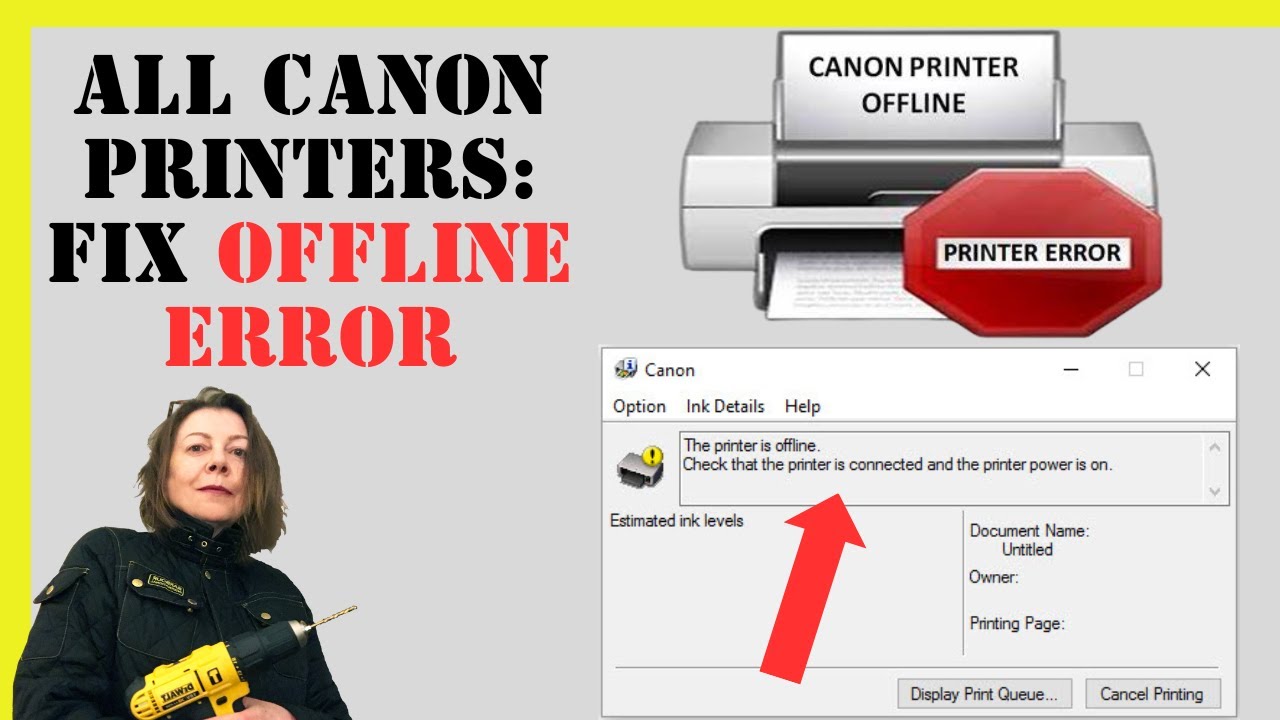
Restarting the Print Spooler Service (Windows)
If the Print Spooler service has stalled, it can prevent print jobs from being sent to the printer. Restarting this service can often get things moving again.
- Press the Windows key + R to open the Run dialog box.
- Type services.msc and press Enter.
- In the Services window, scroll down and find the Print Spooler service.
- Right-click on Print Spooler and select Restart.
After restarting the service, try printing again.
Reinstalling the Printer Driver
If all else fails, reinstalling the printer driver can often resolve persistent offline issues. A corrupt or outdated driver can cause a variety of problems, including the “printer offline” error.
- First, you’ll need to uninstall the existing driver. On Windows, you can do this from Settings > Bluetooth & devices > Printers & scanners. Select your printer, and then click Remove.
- Next, download the latest driver for your Canon printer model from the official Canon Support website.
- Finally, run the installer and follow the on-screen instructions to install the driver.
Final thoughts on Canon printer shows offline error
Dealing with a printer that constantly shows as offline can be incredibly frustrating, but as we’ve seen, the problem is usually solvable.
By working through the troubleshooting steps in this guide, from the simple restarts to the more advanced driver reinstallation, you should be able to get your Canon printer back online and working reliably.
Remember to be patient and methodical in your approach, as this will give you the best chance of identifying and fixing the root cause of the problem.
To prevent the issue from recurring, it’s a good idea to periodically check for and install any available firmware updates for your printer and to ensure that your printer driver is kept up to date.
By taking these proactive steps, you can help to ensure a stable and reliable connection between your printer and your computer.
Frequently Asked Questions
Why does my Canon printer say it’s offline when it’s connected to Wi-Fi?
This usually happens due to a communication issue between your printer and your computer.
It could be caused by a weak Wi-Fi signal, an incorrect printer configuration on your computer, or an error with the Print Spooler service on Windows.
Restarting your printer, computer, and router is often the first and most effective step to resolve this.
How do I get my Canon printer back online?
Start by checking the basics: ensure the printer is powered on, all cables are securely connected, and the printer is connected to the same Wi-Fi network as your computer.
If that doesn’t work, try restarting your printer and computer, and check the “Use Printer Offline” setting in Windows.
For more persistent issues, you may need to restart the Print Spooler service or reinstall the printer driver.
Can a VPN cause my printer to go offline?
Yes, a VPN can sometimes interfere with the communication between your computer and your printer, causing the printer to appear offline.
This is because a VPN routes your computer’s internet traffic through a different server, which can prevent it from seeing other devices on your local network, like your printer.
If you’re using a VPN, try disconnecting from it and then see if your printer comes back online.
How to Fix a Canon Printer Shows Offline Issue
Here is a step-by-step guide to troubleshooting and fixing a Canon printer that appears offline.
Estimated Time: 15 minutes
Supplies:
- Canon Printer
- Computer (Windows or Mac)
- Wi-Fi Router
Steps:
- Restart Devices: Turn off your Canon printer, computer, and unplug your router for 60 seconds. Then, plug the router back in, wait for it to restart, and turn on your printer and computer.
- Check Physical Connections: Ensure all cables are securely plugged in. For wireless printers, verify the Wi-Fi connection on the printer’s display.
- Set as Default Printer: In your computer’s settings, make sure your Canon printer is set as the default printer to avoid sending print jobs to the wrong device.
- Check ‘Use Printer Offline’ Setting (Windows): In the print queue settings, ensure that the ‘Use Printer Offline’ option is not checked.
- Restart Print Spooler Service (Windows): Open the Services application, find the Print Spooler service, and restart it.
- Reinstall Printer Driver: Uninstall the current printer driver, download the latest version from the Canon Support website, and install it.
Finally be sure to check out our Tech Troubleshooting FAQ or our Printer Troubleshooting Tips pages for even more general tips that cover a wide range of technical problems and solutions.
(If after reading the above article you still have a problem where your Canon Printer Shows Offline, then you might find a much less obvious solution on the above tech pages!)