It’s a familiar scenario for many: you have an important document to print, but suddenly find your reliable Epson printer printing faded pages.
This issue of an Epson printer producing faint, streaky, or incomplete pages is not just an inconvenience; it can disrupt your workflow and cause unnecessary stress.
Whether you’re printing a critical report for work, a school assignment, or a cherished family photo, faded prints are a frustrating obstacle.
You’re not alone in this, and the good news is that most of the time, the problem is something you can fix yourself without needing a technician.
The Bottom Line Up Front
If your Epson printer is printing faded pages, the most likely culprits are clogged printhead nozzles, low ink levels, or incorrect print settings.
This article provides a comprehensive guide for everyday users to diagnose and resolve these issues, starting with simple software-based solutions like running a nozzle check and printhead cleaning, and progressing to more advanced troubleshooting steps.
By following these instructions, you can restore your printer’s performance and get back to producing crisp, clear prints.
Common Causes Of An Epson Printer Printing Faded Pages
Understanding why your Epson printer is printing faded pages is the first step toward a solution.
In most cases, the problem can be traced back to a few common culprits.
By systematically checking each of these, you can often identify and resolve the issue quickly.
Clogged Printhead Nozzles
One of the most frequent causes of faded prints is clogged printhead nozzles.
This happens when small particles of dried ink block the tiny openings through which ink is sprayed onto the paper.
Clogs can occur if the printer hasn’t been used for a while, allowing the ink to dry up.
Even with regular use, microscopic debris can cause blockages over time.
The result is gaps in the printout, leading to a faded or streaky appearance.
To fix this, you can use your printer’s built-in utility to run a nozzle check and a head cleaning cycle.
Low Ink Levels
It may seem obvious, but low ink levels are a primary reason for an Epson printer printing faded pages.
As an ink cartridge or tank runs low, the printer can no longer supply a consistent flow of ink to the printhead.
This results in progressively lighter prints until the pages are nearly blank.
While your printer’s software should alert you when ink is low, it’s always a good idea to visually inspect the ink levels in your printer if you have a model with transparent tanks.
Incorrect Print Settings
Sometimes, the problem isn’t with the printer’s hardware but with the software settings.
If you’ve selected a low-quality or “draft” mode to save ink, your prints will naturally appear lighter.
Additionally, the paper type setting in your printer driver must match the paper you are using.
Printing on photo paper with plain paper settings, for example, can lead to poor ink absorption and faded colors.
Always double-check your print settings before you start a print job to ensure they are appropriate for your desired output.
Using Non-Genuine Ink Cartridges
While it can be tempting to save money with third-party ink, non-genuine cartridges are a common cause of faded prints.
Epson printers are designed and calibrated to work with the specific chemical composition of genuine Epson inks.
In contrast, third-party inks can have different viscosity and drying properties, which may lead to poor print quality, color inaccuracies, and even damage to the printhead over time.
If you’ve recently switched to a non-genuine ink and are experiencing issues, it’s a good idea to switch back to genuine Epson cartridges to see if that resolves the problem.
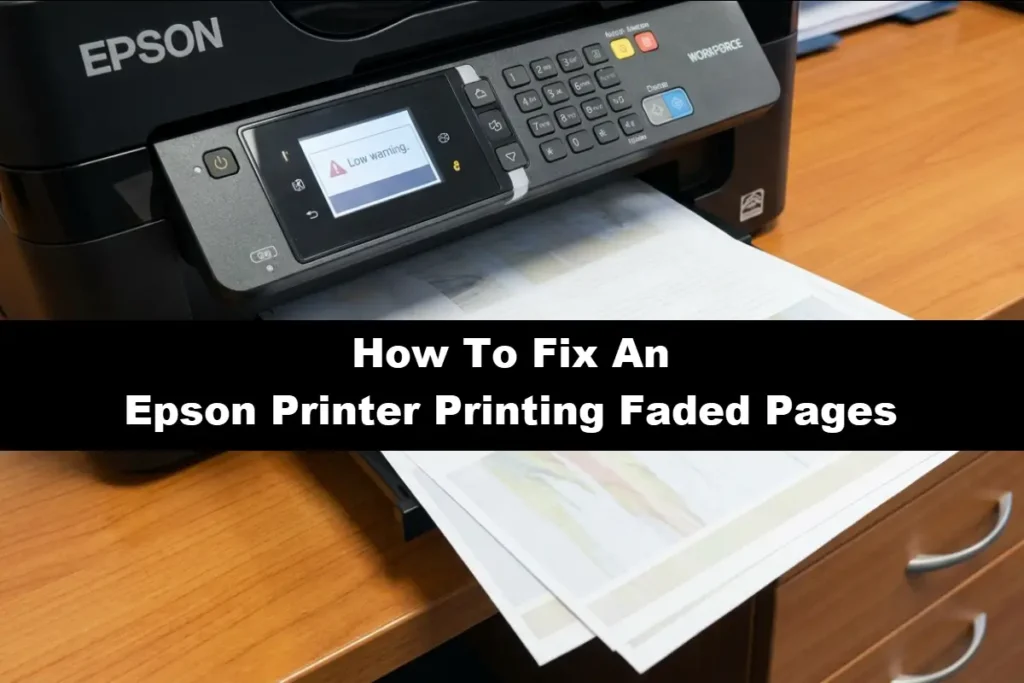
The Importance Of Paper And Media Quality
Beyond the printer itself, the paper you use plays a critical role in the final print quality.
Using the wrong type of paper, or paper that is old or damaged, can lead to a host of issues, including faded prints.
Mismatched Paper Type
Different types of paper are designed to absorb ink in different ways.
For instance, glossy photo paper has a special coating that allows for vibrant, high-resolution images, while plain office paper is more absorbent and better suited for text documents.
If you print a high-resolution photo on plain paper, the ink may bleed and appear dull.
Conversely, printing a simple text document on expensive photo paper can be a waste of resources.
Always make sure to select the correct paper type in your printer settings to match the paper you have loaded.
Poor Paper Condition
Paper is susceptible to environmental conditions.
If stored in a damp or humid environment, paper can absorb moisture, which can cause the ink to spread and appear faded.
Similarly, paper that is old, curled, or wrinkled will not feed through the printer correctly, leading to misaligned and poor-quality prints.
To avoid these issues, always store your paper in a cool, dry place, and make sure it is flat and in good condition before loading it into the printer.
Advanced Troubleshooting For An Epson Printer Printing Faded Pages
If the basic checks don’t resolve the issue, it’s time to move on to more advanced troubleshooting.
These steps involve a deeper dive into your printer’s maintenance features and settings.
While they may require a bit more effort, they are often effective in resolving stubborn cases of an Epson printer printing faded pages.
Performing a Power Cleaning Cycle
For severe clogs that a standard head cleaning can’t fix, Epson printers offer a “Power Cleaning” utility.
This function performs a much more intensive cleaning of the printhead, forcing a larger amount of ink through the nozzles to clear out stubborn blockages.
However, this process consumes a significant amount of ink, so it should only be used as a last resort when other cleaning methods have failed.
If you haven’t used your printer in a long time, a Power Cleaning cycle can be particularly effective at restoring print quality.
Aligning the Printhead
Misaligned printheads can also cause blurry or faded prints.
If you notice that vertical lines in your prints are not straight or that there are white or dark bands in the printout, a printhead alignment is necessary.
This process corrects the alignment of the printhead nozzles to ensure that ink is fired onto the paper with precision.
You can initiate a printhead alignment through your printer’s software or control panel.
The printer will print a test sheet, and you will be asked to select the best-aligned patterns to calibrate the printhead.
Checking and Replacing Old or Incorrect Ink
Using old or non-genuine ink cartridges can significantly impact print quality.
Ink has a shelf life, and expired ink can change in consistency, leading to clogs and faded colors.
Epson recommends using ink cartridges before the date printed on the package and using them within six months of opening.
Furthermore, while third-party inks may be cheaper, they are not always formulated to the same standards as genuine Epson inks.
For a deeper understanding of how to properly clean and maintain your printhead, you can watch a really helpful YouTube tutorial on how to easily unclog your Epson printer, which provides a visual guide to the process (and is hopefully also embedded below!)
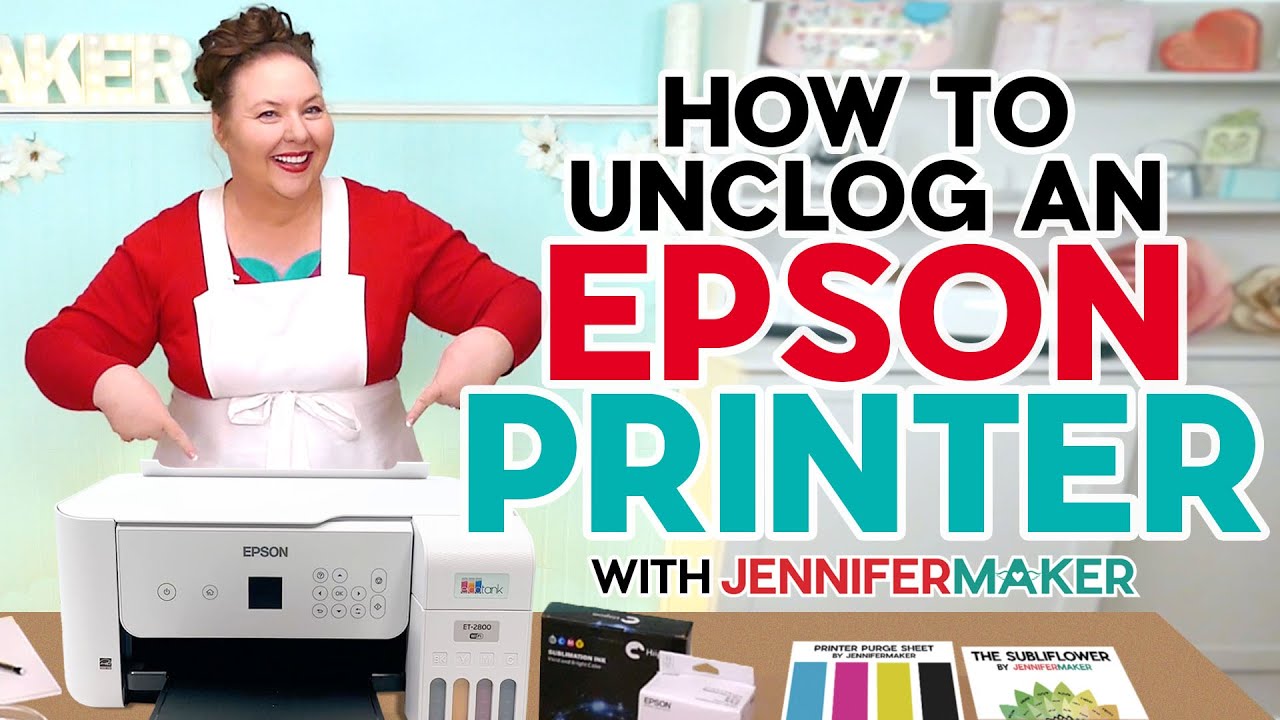
(The fantastic video above at 25 minutes in length is perhaps one of the most detailed you will ever find on Youtube, although the impatient amongst you might want to speed through some of the less vital info. Also most of that YouTube channel is focused on Crafts rather than Printers/Printing as such.)
Updating Printer Drivers and Software
Outdated printer drivers or software can sometimes cause communication issues between your computer and your printer, leading to a variety of problems, including faded prints.
Manufacturers regularly release driver updates to fix bugs, improve performance, and ensure compatibility with new operating systems.
You can check for the latest drivers for your Epson printer on the official Epson support website.
Simply search for your printer model, and you will find the latest drivers and software available for download.
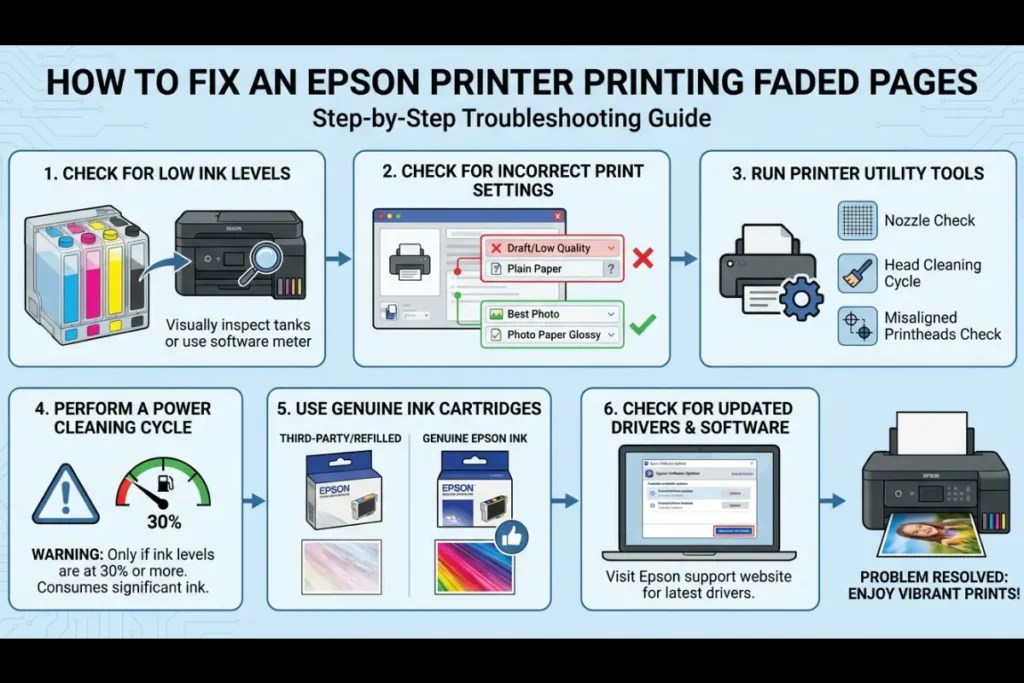
Final Thoughts On Epson Printer Printing Faded Pages
Dealing with an Epson printer printing faded pages can be a frustrating experience, but it’s a problem that can usually be solved with a bit of patience and troubleshooting.
By working through the steps outlined in this guide, from the simple checks to the more advanced solutions, you can systematically identify and fix the root cause of the issue.
Remember to always start with the most common and least invasive solutions, such as checking your ink levels and running a nozzle check, before moving on to more ink-intensive procedures like a Power Cleaning.
With these tips, you can get your Epson printer back to producing the high-quality prints you expect.
Frequently Asked Questions
Why are my prints faded even with new ink cartridges?
If you’ve just replaced your ink cartridges and your prints are still faded, the most likely cause is a clogged printhead.
Ink can dry in the nozzles if the printer isn’t used regularly.
Run a head cleaning cycle from your printer’s maintenance menu to clear the blockage.
Can the type of paper I use affect print quality?
Yes, absolutely.
Using the wrong paper type setting for the paper you’ve loaded can result in faded or smudged prints.
For example, if you’re printing on glossy photo paper but the printer is set to “plain paper,” the ink may not adhere correctly.
Always ensure your paper type setting matches the media you’re using.
How often should I use my printer to prevent clogs?
To prevent ink from drying in the printhead nozzles, it’s a good practice to print a page or two at least once a week.
This keeps the ink flowing and helps prevent the formation of clogs.
If you know you won’t be using your printer for an extended period, consider running a nozzle check before and after the period of inactivity.
How To Fix Faded Prints On An Epson Printer
This section provides a step-by-step guide to fixing faded print quality on an Epson printer.
Name:
How to Fix Faded Prints on an Epson Printer
Description:
A step-by-step guide to fixing an Epson printer printing faded pages.
Total Time:
15 minutes
Supplies Needed:
- Genuine Epson Ink Cartridges (if low)
- Plain white paper
Tools Required:
- Epson Printer Software
Step-by-Step Instructions:
- Run a Nozzle Check:
Use the printer’s utility software to print a nozzle check pattern. This will show you if any of the printhead nozzles are clogged. - Clean the Printhead:
If the nozzle check pattern shows gaps, run a head cleaning cycle. This will force ink through the nozzles to clear any clogs. You may need to run this cycle 2-3 times. - Check Ink Levels:
Visually inspect your printer’s ink tanks or check the ink levels in the printer software. If any colors are low, replace the corresponding ink cartridges. - Align the Printhead:
If your prints are blurry or have vertical banding, run a printhead alignment. This will recalibrate the printhead for more precise printing. - Run a Power Cleaning Cycle:
For stubborn clogs, use the Power Cleaning utility. This is a more intensive cleaning process, so only use it if standard head cleanings have not worked.
Finally be sure to check out our Tech Troubleshooting FAQ or our Printer Troubleshooting Tips pages for even more general tips that cover a wide range of technical problems and solutions.
(If after reading the above article you still have an “Epson Printer Printing Faded Pages” issue, then you might find a much less obvious solution on the above tech pages!)