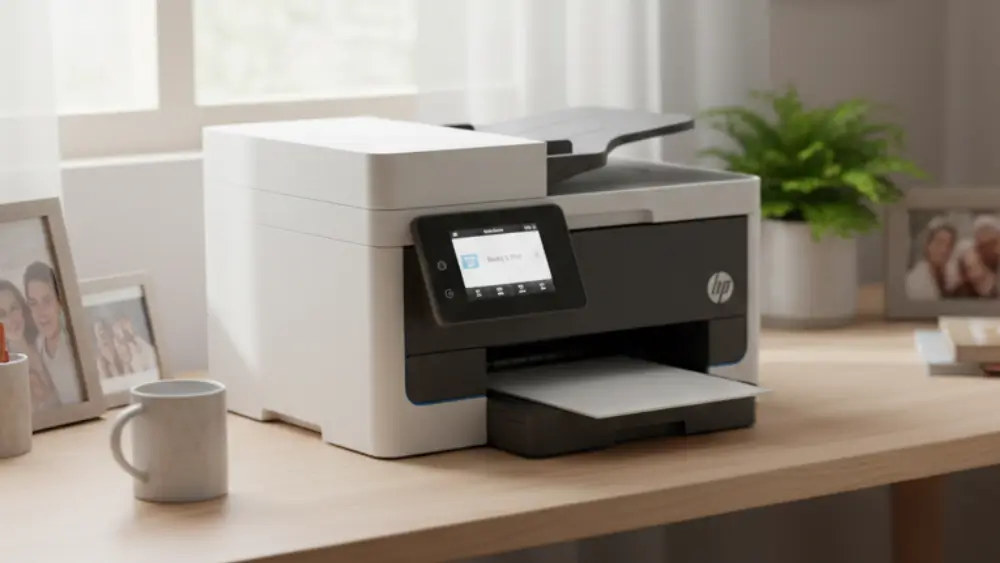
Finding the Resume button on your HP printer is a common frustration because HP has changed the icon, appearance, and placement of it repeatedly over the years.
On some models it is a triangle.
On others it is a square inside a circle.
In some cases, there is no dedicated icon at all because the Resume function shares a button with Cancel.
The good news is that once you know what to look for, the Resume button is usually easy to identify.
On most HP printers it sits in the same general area of the control panel, typically on the far right or lower-right side.
By the end of this guide, you will know where to find the Resume button on your HP printer and understand why pressing it resolves so many common HP printer interruptions.
That light is the printer’s way of telling you it needs user intervention.
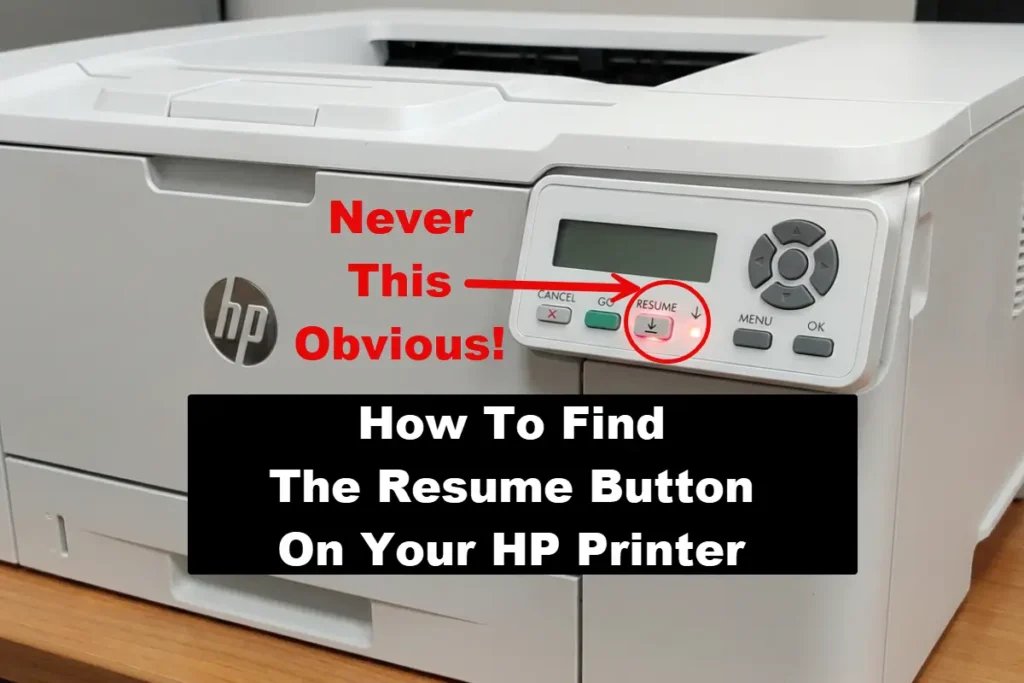
The button directly below it or immediately beside it is usually the Resume button.
Pressing it tells the printer: “I have addressed the problem. Continue printing.”
Why You Cannot See The Resume Button On Your HP Printer
The biggest source of confusion is that HP rarely prints the word “Resume” on modern consumer printers.
If you are searching for a button that literally says “Resume,” there is a good chance you will overlook it completely.
HP expects users to recognise the icon rather than read a label.
Common Icons That Could Be The Resume Button On Your HP Printer
- The Triangle (Play Symbol):
This is the most common Resume icon on modern HP printers. It looks like the play button on a media player and points to the right. - The Square Inside a Circle:
Common on older DeskJet models. Depending on the model, it may resemble a stop or pause-style symbol while still serving as the Resume function during certain printer states. - The Document with a Magnifying Glass:
Less common, but found on some OfficeJet Pro models. It may be used to represent Resume, Continue, or Attention Required functions. - No Icon, Just a Light:
On some LaserJet models, including parts of the M207-M212 series, the Resume function may be integrated into a simple control button with an adjacent status light, often labelled “Resume/Cancel.”
Find The Resume Button On Your HP Printer In 10 Seconds
Look at your printer right now.
Do not reach for the manual yet.
Start with the control panel itself.
- Look for the blinking light.
The Resume button is often located directly below or immediately beside the light that is flashing. - Look to the far right.
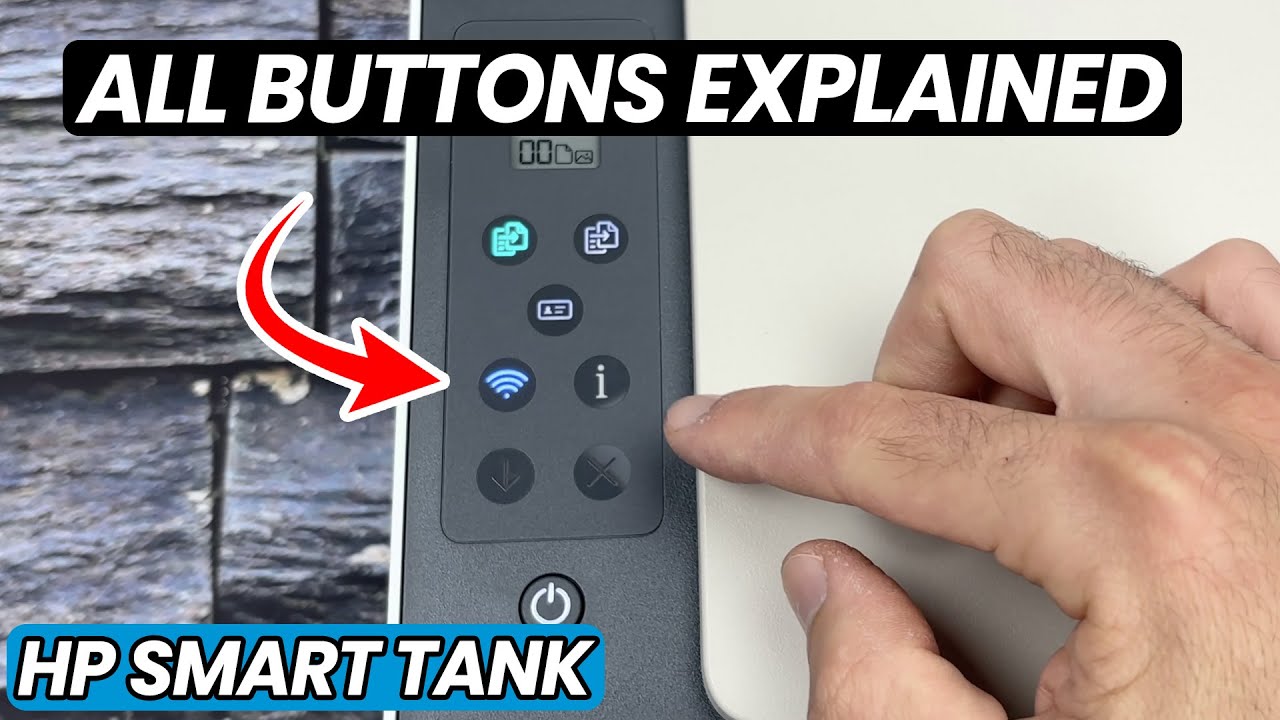
On most HP DeskJet, ENVY, and OfficeJet models, the Resume button is positioned at the far right of the control panel. - Look for the “X”.
If you can identify the Cancel button marked with an “X,” the Resume button is often located immediately beside it, usually to the left.
For a handy visual guide to what the buttons on an HP printer do (including an example of the down arrow Resume button icon) you should check out this YouTube video hopefully also embedded below:
Finding The Resume Button On Your HP Printer Regardless Of Model
HP has produced hundreds of printer models over the years, but the Resume button follows a few common design patterns.
Find your printer family below and use the matching description.
Resume Button On Your HP Printer: HP DeskJet 2800, 4200, and 4900 Series (Modern)
These are among the most common home printers sold through major retailers.
- Location:
Far right side of the control panel. - Icon:
A right-pointing triangle (play symbol). - Behaviour:
The light above the button typically flashes amber or orange when the printer requires attention, such as when it is out of paper or waiting for a user action.
Why this works:
On these models, printing pauses completely when an error is detected.
Pressing the Resume button tells the printer to re-check its sensors.
If the paper has been loaded, the jam removed, or the issue corrected, the printer recognises the change and continues printing.
Resume Button On Your HP Printer: HP ENVY 5000, 6000, and 7000 Series
Many ENVY models use capacitive touch controls rather than traditional physical buttons.
- Location:
Usually at the bottom-right corner of the touch panel or capacitive control strip. - Icon:
Commonly a glowing triangle or a triangle enclosed within a rounded shape. - The frustration:
Because there is no physical button movement, users often brush the icon without activating it.
A deliberate tap works more reliably.
Edge case:
If the printer has entered sleep mode, tapping Resume may have no effect.
Press the Power button first to wake the printer fully, then try Resume again.
Resume Button On Your HP Printer: HP OfficeJet Pro (8720, 9010, 9020 Series)
These models rely almost entirely on a colour touch screen.
- Location:
On-screen rather than on the printer body. - Icon or label:
Look for “Resume” or “Continue” displayed as part of the error message.
The trick:
If the display is dark, wake the printer first.
Depending on the model, you may need to tap the screen or press the Home button.
The Resume option generally appears only when the printer is waiting for user confirmation after an error.
Real-world troubleshooting:
If you press Resume and nothing happens, the problem may not be inside the printer at all.
OfficeJet models frequently pause because of a stalled print job on the computer.
In that case, clear the print queue on the PC before trying again.
Resume Button On Your HP Printer: HP LaserJet (M109, M207, M209, M3000 Series)
Many LaserJet models combine Resume and Cancel into a single multi-function button.
- Location: Usually on the lower-right area of the control panel.
- Label: Often marked “Resume/Cancel” or represented by a document, play, or cancel-style icon.
The double-function behaviour:
- A short press typically resumes printing.
- A long press usually cancels the active print job.
M109 and M112 note:
If the Attention light is flashing rapidly, pressing the Resume/Cancel button may print a configuration or information page.
This diagnostic page often explains why the printer stopped.
Resume Button On Your HP Printer: Older Models (DeskJet 6540, F4100, Business Inkjet 2600)
Older HP printers were generally more straightforward.
- Location:
Usually a raised physical button near the Power button. - Label:
Many models actually displayed the word “RESUME” beside the button.
Additional function:
Holding the Resume button for several seconds often prints a self-test report, status page, or demonstration page.
Important note:
On many of these older printers, simply loading paper is not enough to clear an error.
If the Resume light is flashing because of an out-of-paper condition or paper jam, you must press the Resume button to acknowledge the issue before printing can continue.
Platform-Specific Issues With The Resume Button On Your HP Printer
Sometimes the printer accepts the Resume command, but the computer still shows an error.
In those cases, the issue is often related to communication between the printer and the operating system rather than the button itself.
Windows (WSD Port vs. Standard TCP/IP) HP Printer Resume Button Issues
The problem:
Windows frequently installs network printers using WSD (Web Services for Devices).
While convenient, WSD can occasionally cause status reporting problems.
You press Resume, the printer returns to a ready state, but Windows continues displaying an error or paused condition.
The fix:
Consider using a standard TCP/IP port instead.
- Open Settings > Bluetooth & devices > Printers & scanners.
- Select your HP printer.
- Open Printer properties.
- Select the Ports tab.
- If available, switch from a WSD port to a Standard TCP/IP Port.
Why this can help:
Standard TCP/IP communication is generally more predictable and often updates printer status more reliably than WSD connections.
Mac (AirPrint and IPP) HP Printer Resume Button Issues
The problem:
macOS commonly uses AirPrint or IPP (Internet Printing Protocol).
When the printer reports an error, the Mac may pause the print queue until it receives confirmation that printing can continue.
The frustration:
You clear the paper jam and press Resume on the printer, but the print job remains paused on the Mac.
The fix:
- Open System Settings > Printers & Scanners.
- Select your HP printer.
- Open the print queue.
- Click Resume if the queue remains paused.
The physical Resume button clears the printer-side error, while the software Resume option clears the paused queue on the Mac.
The Resume Button On Your HP Printer Does Nothing
You found the button.
You pressed it.
The light stopped blinking briefly and then started flashing again.
In most cases, the printer still detects an unresolved problem.
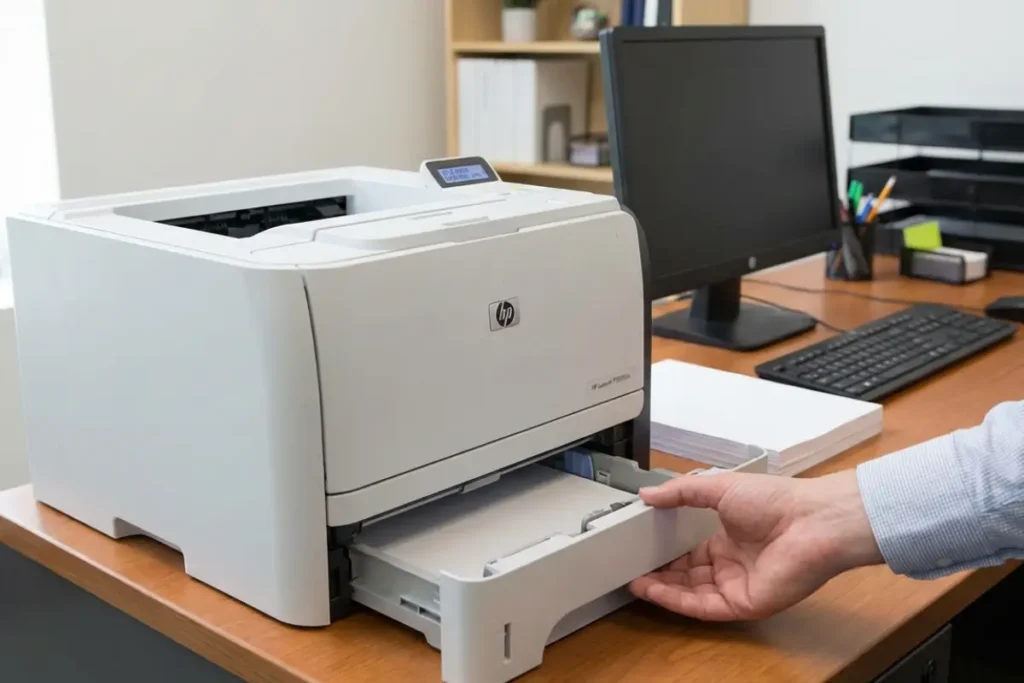
1. The Paper Jam Is Hidden
The Resume button can only clear an error if the underlying issue is actually gone.
Diagnosis:
- Check the rear access door as well as the front paper path.
- Use a flashlight if necessary.
- Inspect around the pickup rollers and paper sensors.
Why Resume fails:
Even a tiny scrap of paper can keep a sensor triggered.
The printer attempts to continue, immediately detects the blockage again, and returns to the error state.
2. Low Ink Detection And HP Printer Resume Button Issues
Many HP printers stop or pause printing when a cartridge reaches a critically low level.
The symptom:
The Resume light flashes, the printhead moves briefly, and then the printer stops again.
What is happening:
The printer is asking you to acknowledge the low-ink condition before continuing.
Possible workaround:
On some DeskJet 2700 and 4100 series printers, pressing and holding the Resume button for 10-15 seconds may allow the current print job to continue.
Behaviour varies by model and firmware version.
3. Paper Size Mismatch And HP Printer Resume Button Issues
Your computer may be set to one paper size while the printer is loaded with another.
The symptom:
- The printer starts processing.
- Paper does not feed correctly.
- The Resume light flashes.
Why it happens:
The printer detects a mismatch between the print job settings and the loaded paper.
This commonly occurs between A4 and Letter paper.
The fix:
Depending on the model, pressing Resume may allow the printer to continue with the loaded paper size.
However, correcting the paper size settings in the print dialog is the more reliable long-term solution.
4. Sleep Mode vs. Hard Lockup And HP Printer Resume Button Issues
If the Power light is dim, pulsing, or showing a sleep-state indicator, the printer may not be fully awake.
The mistake:
Pressing Resume before the printer has fully woken up.
The fix:
Press the Power button first.
Wait for the printer to become fully responsive, then press Resume.
Some HP Smart Tank models can take a few seconds to exit deep sleep mode before other controls become active.
5. VPN or Firewall Interference (Network Printers) And HP Printer Resume Button Issues
This issue is common in home-office environments.
The problem:
Your printer is connected to your local network, but your computer traffic is being routed through a corporate VPN.
The printer and computer may no longer communicate properly.
Examples:
Cisco AnyConnect, Zscaler, and other enterprise VPN platforms can sometimes interfere with local printer communication.
The fix:
- Temporarily disconnect from the VPN and test printing again.
- If possible, enable local LAN access within the VPN settings.
- Alternatively, connect the printer via USB.
This is a network routing issue rather than a fault with the Resume button or the printer itself.
Resume Button On Your HP Printer: Advanced Troubleshooting
If the Resume button is physically damaged, unresponsive, or the printer remains stuck in an error state, a hard reset can often clear temporary faults and force the printer to start fresh.
Total Time: 2 minutes
Supplies: None
Tools: None
Step 1: Disconnect the printer
Unplug the power cable from the back of the printer.
Do not simply turn the printer off using the Power button, as some components may remain energised.
Step 2: Wait 60 seconds
Leave the printer unplugged for at least 60 seconds.
This allows residual power stored in internal components to dissipate.
Step 3: Discharge residual power
While the printer remains unplugged, press and hold the Power button for 10-15 seconds.
This helps discharge any remaining electrical charge stored within the printer.
Step 4: Reconnect power
Reconnect the power cable and allow the printer to start normally.
Step 5: Allow full initialisation
Do not press the Resume button immediately.
Wait until the printer completes its startup sequence.
You may hear the printhead move, perform alignment checks, or carry out normal calibration routines.
Step 6: Send a new print job
Once the printer reaches a Ready state, send a new document to print.
Why this works:
A hard reset clears temporary data stored in volatile memory and forces the printer to rebuild its current status information.
If the original error was caused by a stuck print job or temporary firmware issue, the printer may return to normal operation without requiring the Resume button at all.
Edge Cases: When The Resume Button On Your HP Printer Is Digital
Some HP models rely heavily on software controls rather than dedicated Resume buttons.
If your printer relies on HP Smart controls, install or update the HP Smart app from HP’s official support resources.
HP Tango and Certain Smart Tank Models HP Printer Resume Button Function
Depending on the model and firmware version, the Resume function may be handled through the HP Smart app rather than a traditional physical control.
The reality:
These printers are designed to work closely with HP Smart and may display error recovery prompts inside the application.
How to resume printing:
- Open the HP Smart app on your phone, tablet, or computer.
- Locate the printer status message.
- Look for an “Attention Required,” “Resume,” or “Continue” notification.
- Follow the prompt to clear the error and continue printing.
A common frustration:
If the HP Smart app cannot locate the printer, check that Bluetooth, Wi-Fi, and local network permissions are enabled.
On Android and iOS devices, location permissions may also be required for device discovery functions.
How To Reduce The Need For The Resume Button On Your HP Printer – Once You Find It!
Most users should not need to press the Resume button regularly.
If you find yourself doing it every few days, there is often an underlying issue that can be corrected.
Disable Quiet Mode
Quiet Mode slows certain printer operations to reduce noise.
While useful in some environments, it can occasionally affect paper feeding reliability on certain models.
If you experience frequent paper pickup issues, try disabling Quiet Mode through the HP Smart app or printer settings.
Keep Firmware Updated
HP periodically releases firmware updates that can improve printer stability, error handling, connectivity, and compatibility.
If your printer repeatedly reports false paper jams or remains stuck in an error state, check for firmware updates for your exact model.
Outdated firmware can sometimes contribute to false paper jam warnings, cartridge detection problems, or repeated pause conditions.
Use Reliable Ink Cartridges
Cartridges with faulty or poorly programmed chips can cause repeated low-ink warnings and interruption messages.
While many third-party cartridges work perfectly well, persistent cartridge recognition problems are often worth investigating if Resume-related errors occur regularly.
Assign a Static IP Address
For network printers, a changing IP address can occasionally create communication issues between the printer and the computer.
Assigning a static IP address through your router or printer settings can improve reliability and reduce connection-related printing problems.
Final Thoughts on How To Find The Resume Button On Your HP Printer
Finding the Resume button is usually a matter of recognising the correct icon rather than locating a button labelled “Resume.”
If you see a flashing attention light, start by looking at the buttons immediately beside or below it.
On touchscreen models, look for a “Resume” or “Continue” message on the display.
On older printers, the button may be clearly labelled.
It is also important to remember that the Resume button does not fix the underlying problem.
It simply tells the printer to check whether the problem has been resolved.
If the light immediately starts flashing again, focus on the original fault, whether that is a paper jam, paper size mismatch, cartridge issue, or communication problem.
Most HP printers are designed to recover once the issue has been corrected.
A blinking Resume light rarely means the printer has failed completely.
In most cases, it is simply waiting for confirmation that the problem has been addressed so printing can continue.
FAQ’s About The Resume Button On Your HP Printer
Q1: My HP printer has a touch screen. Where is the Resume button?
On touchscreen models, the Resume button is usually displayed only when an error occurs.
When the printer runs out of paper, encounters a jam, or requires user attention, a “Resume” or “Continue” option typically appears on the display.
If the screen is asleep, wake the printer first before looking for the option.
Q2: I pressed the Resume button, but the light keeps flashing. What should I do?
The printer still detects an unresolved problem.
Check for small scraps of paper in the paper path, ensure cartridges are installed correctly, and verify that all access doors are fully closed.
The flashing light usually indicates that the original error condition remains active.
Q3: Is the Resume button the same as the Cancel button on HP LaserJets?
On some LaserJet models, Resume and Cancel share the same button.
A short press generally resumes printing, while a longer press cancels the current job.
Refer to your model documentation if you are unsure how the button behaves.
Q4: Why does my HP printer require me to press Resume every time I print?
This often happens when a cartridge is reporting a very low ink level, when the printer detects a paper-related warning, or when another condition requires user acknowledgement before printing continues.
Replacing the cartridge or correcting the underlying issue usually resolves the behaviour.
Q5: My HP ENVY does not have a physical Resume button. Is it broken?
No. Many HP ENVY models use capacitive touch controls rather than traditional buttons.
The Resume icon may only illuminate when needed, and some models display Resume options directly on the control panel or touchscreen.
Q6: Can I bypass the Resume button if it is physically broken?
In many cases, yes.
The HP Smart app can often send the same Resume or Continue command digitally.
A hard reset may also clear temporary errors without requiring the button itself.
How To Force Printing To Continue Without The Resume Button On Your HP Printer
Total Time: 5 minutes
Supplies: None required
Tools: None required
Step 1: Clear the physical obstruction
Open the printer and inspect the paper path thoroughly.
Remove any paper, torn scraps, or debris from the input area, output area, and rear access door.
Step 2: Perform the power drain
Disconnect the printer from both the wall outlet and the rear power connection.
Wait 60 seconds.
While unplugged, press and hold the Power button for approximately 15 seconds.
Step 3: Perform a cold boot
Reconnect power and switch the printer on.
Allow the startup sequence to finish completely before pressing any buttons or sending any print jobs.
Step 4: Clear the print queue
On your computer, open the printer queue and remove any stalled or failed print jobs.
Leaving failed jobs in the queue can cause the printer to re-enter the same error condition.
Step 5: Send a fresh test page
Print a new test document rather than attempting to resume the previous job.
This allows the printer to evaluate its current status from scratch and often clears temporary errors.
Finally be sure to check out our Tech Troubleshooting FAQ or our Printer Troubleshooting Tips pages for even more general tips that cover a wide range of technical problems and solutions.
(If after reading the above article you still have an issue “Finding The Resume Button On Your HP Printer”, then you might find a much less obvious solution on the above tech pages!)