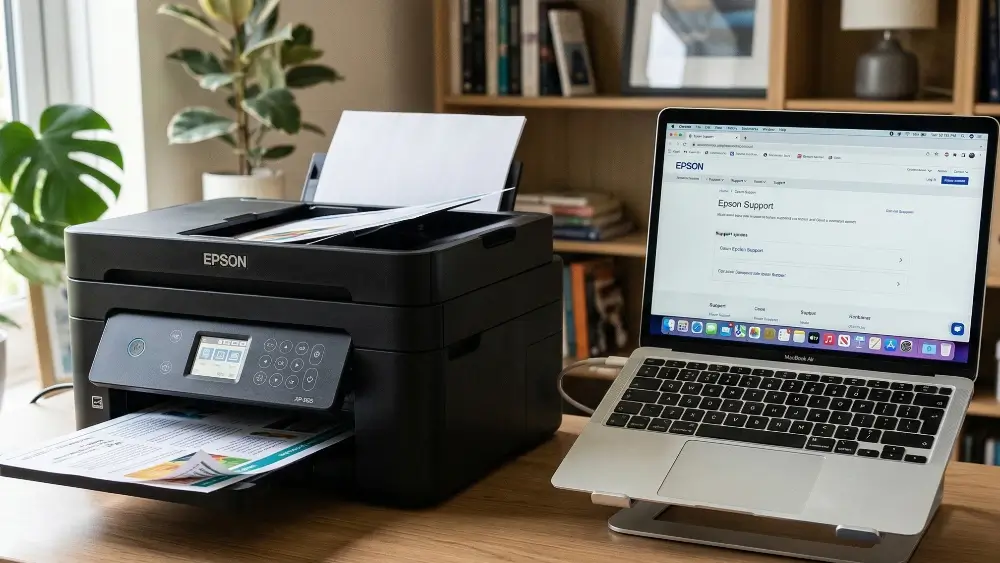
It’s a familiar scenario for many: you have an important document to print, but you suddenly see an “Epson Printer Error E-01” message and can go no further.
This common yet frustrating error can bring your productivity to a halt, leaving you searching for answers.
While the issue often points to a simple paper jam, it can sometimes indicate a more complex problem within the printer’s hardware.
In this guide, we will walk you through everything you need to know to diagnose and resolve this error, from basic troubleshooting to more advanced fixes.
In a Hurry? Here’s the Bottom Line:
The Epson Printer Error E-01 is a common but solvable problem that usually signals a paper jam, a dirty sensor, or a carriage obstruction.
This article is for any Epson user who needs to get their printer working again quickly.
We’ll guide you through simple power cycles, detailed cleaning procedures, and advanced troubleshooting steps to fix the error for good.
Common Causes Of Epson Printer Error E-01
Understanding what triggers the Epson Printer Error E-01 is the first step toward fixing it.
While it’s easy to assume the worst, the cause is often something you can resolve at home without needing a technician.
In most cases, the error is related to a physical obstruction or a component that needs cleaning.
Let’s explore the most frequent culprits.
Paper Jams and Foreign Objects
The most frequent trigger for the Epson Printer Error E-01 is a straightforward paper jam.
Even a small, torn piece of paper lodged deep inside the printer can block the paper path and prevent the mechanism from operating correctly.
Similarly, foreign objects like paper clips, staples, or even dust balls can find their way into the printer and cause an obstruction.
When the printer detects that something is blocking the movement of the paper or the printhead carriage, it will stop all operations and display the E-01 error to prevent further damage.
A thorough inspection of the paper path is always the best first step in troubleshooting this issue.
Paper Jam Not The Cause? Try These Steps Next
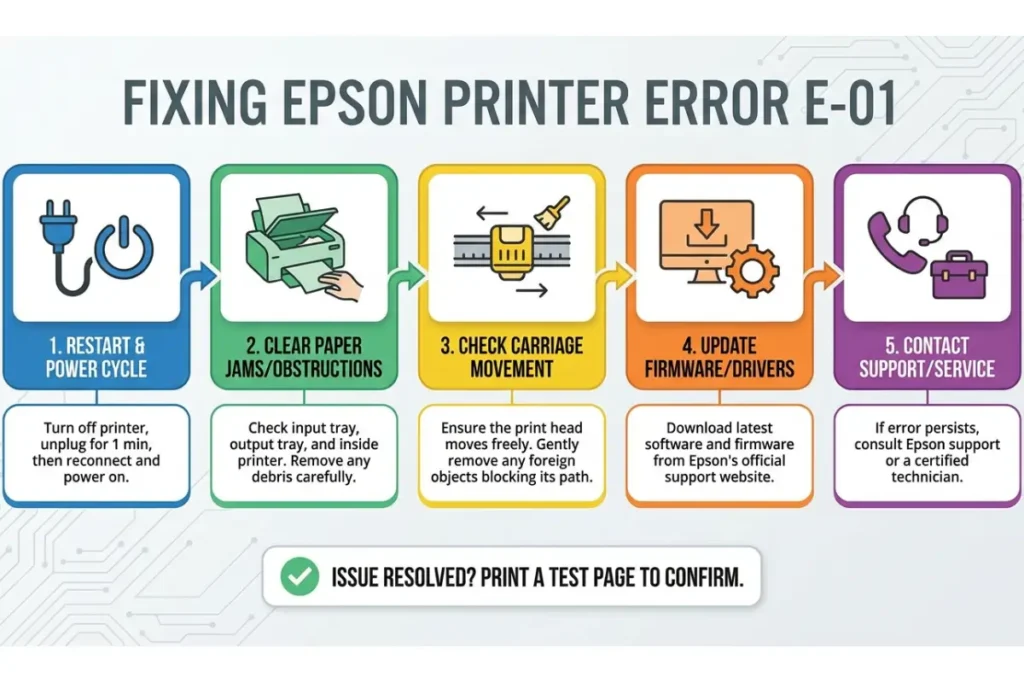
Dirty Printhead and Clogged Nozzles
Another common reason for the E-01 error is a dirty or clogged printhead.
Over time, ink residue can dry and build up on the printhead nozzles, obstructing the flow of ink.
When the printer attempts to run a self-test or a cleaning cycle, it may detect an issue with the printhead and trigger the error.
This is particularly common in printers that are not used frequently, as the ink has more time to dry and clog the nozzles.
While a standard head cleaning cycle can often resolve minor clogs, more stubborn blockages may require manual cleaning to fully resolve the error.
Printhead Carriage Obstruction
The printhead carriage is the component that moves back and forth across the paper, depositing ink as it goes.
If this carriage is unable to move freely, the printer will register a fatal error, often displaying the E-01 code.
The obstruction could be a severe paper jam that has crumpled and blocked the carriage’s path, or it could be an internal component that has become dislodged.
In some cases, if you are using a Continuous Ink Supply System (CISS), the ink tubes can get in the way of the carriage’s movement if they are not installed correctly.
It is crucial to ensure the carriage can move smoothly from one side to the other without any resistance.
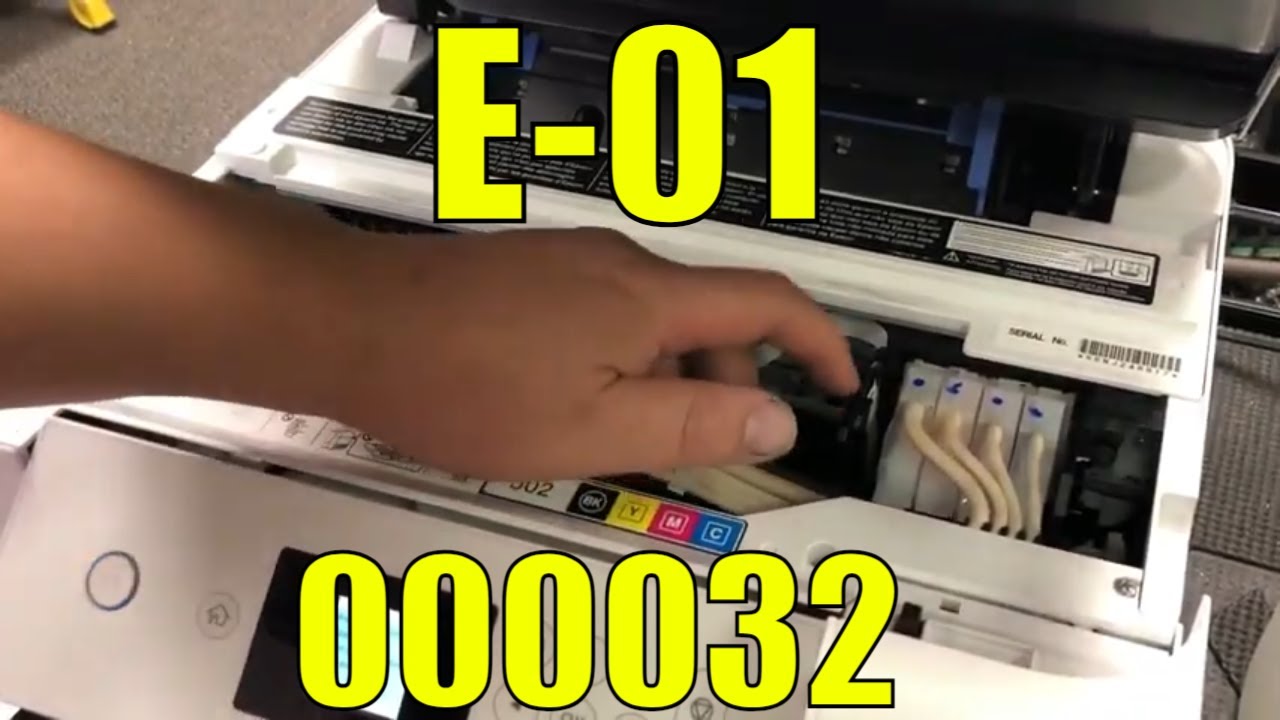
For a visual guide to working with printer internal components check out this YouTube video on fixing an error E-01 in an Epson EcoTank Printer (which is also embedded below hopefully!)
The video not only features some good printer advice from a great YouTube channel, but is also part of an important fundraiser and includes pie based jokes too!
Advanced Troubleshooting For Epson Printer Error E-01
If the basic checks for paper jams and printhead cleaning don’t resolve the Epson Printer Error E-01, it’s time to investigate some of the more complex hardware components.
These advanced steps require a bit more care, but they can often uncover the root cause of a persistent error.
From dirty sensors to loose cables, these less common issues can prevent your printer from completing its startup self-test, leading to a fatal error.
Let’s explore these advanced troubleshooting scenarios in more detail.
Dirty or Faulty Sensors
Modern printers are equipped with numerous optical sensors that monitor everything from paper position to carriage movement.
These sensors are crucial for the printer’s self-tests and normal operation.
However, they are also susceptible to dust and ink buildup.
A small amount of debris on a critical sensor can be enough to block its view, causing it to send an incorrect signal to the printer’s mainboard.
This can lead the printer to believe there is a paper jam or another mechanical issue when there isn’t one.
The paper path, for example, has sensors that can be blocked by dust, preventing the printer from detecting paper correctly.
Cleaning these sensors, along with the encoder strip and disc encoder, can often resolve stubborn E-01 errors that don’t respond to other troubleshooting steps.
Dirty Encoder Strip
The encoder strip, also known as the carriage scale, is a semi-transparent plastic strip that runs the length of the printer, just behind the printhead carriage.
This strip has thousands of fine vertical lines that are read by a sensor on the carriage to determine its precise position.
If the encoder strip becomes smudged with ink, dust, or grease, the sensor can no longer read the lines accurately.
This can cause the printhead to stop unexpectedly or fail to find its home position, which in turn triggers the E-01 error.
Cleaning the encoder strip is a delicate but often necessary procedure for resolving persistent carriage-related errors.
Epson provides official guidance on how to perform this maintenance, which you can find in their guide on Cleaning the Encoder Strip (Carriage Scale).
Damaged or Disconnected FFC Cable
The Flexible Flat Cable (FFC) is a critical component that connects the printhead to the printer’s mainboard, transmitting both data and power.
If this cable becomes damaged, disconnected, or even slightly loose, it can interrupt the communication between these two essential components.
This interruption can cause the printer to fail its startup self-test, resulting in the E-01 error.
The FFC cable can be damaged during a severe paper jam or if the printhead carriage is moved manually with too much force.
A visual inspection of the cable for any signs of wear, tear, or disconnection is a crucial step in advanced troubleshooting.
If the cable is damaged, it will need to be replaced.
You can find more information on this from resources like this BCH Technologies guide.
Final Thoughts On Epson Printer Error E-01
Encountering the Epson Printer Error E-01 can certainly be a frustrating experience, but as we’ve seen, it’s often a problem that can be resolved with a bit of patience and methodical troubleshooting.
By starting with the most common causes, such as paper jams and dirty printheads, you can quickly rule out the simple issues.
If the problem persists, moving on to advanced steps like cleaning the encoder strip and checking internal cables will help you identify the root cause.
Remember to always consult your printer’s manual and official support resources, like the Epson support page, for guidance specific to your model.
With these tips, you’ll be well-equipped to tackle this error and get your printer back in working order.
Frequently Asked Questions (FAQ)
Q: What does the Epson Printer Error E-01 mean?
A: The Epson Printer Error E-01 is a fatal error that occurs when the printer cannot complete its startup self-test. This is most commonly caused by a paper jam, an obstruction in the printhead carriage path, or a dirty sensor that is preventing the printer from confirming its operational status.
Q: Can I fix the Epson E-01 error myself?
A: Yes, in many cases, you can fix the E-01 error at home without professional help. Simple steps like power cycling the printer, clearing any paper jams, and running a printhead cleaning cycle can often resolve the issue. For more persistent errors, cleaning internal components like the encoder strip may be necessary.
Q: Is it safe to clean the inside of my Epson printer?
A: Yes, it is generally safe to clean the inside of your printer as long as you follow the correct procedures. Always turn off and unplug the printer before you begin. Use a soft, lint-free cloth and be gentle when cleaning sensitive components like the encoder strip and optical sensors. Avoid touching the carriage shaft or other mechanical parts with your bare hands.
Q: When should I contact Epson support for an E-01 error?
A: If you have tried all the troubleshooting steps in this guide, including checking for paper jams, cleaning the printhead, and cleaning the encoder strip, and the error still persists, it is time to contact Epson official support. The issue may be related to a more serious hardware failure, such as a faulty mainboard or a damaged motor, that requires professional repair.
How To Clear A Paper Jam In Your Epson Printer
Clearing a paper jam is often the quickest way to resolve the Epson Printer Error E-01. Follow these steps carefully to safely remove any jammed paper and get your printer running again.
What You’ll Need:
- Lint-free cloth
- Tweezers (optional)
- Flashlight
Estimated Time: 10 minutes
Step 1: Power Down the Printer
Turn off your Epson printer and unplug it from the power outlet. This is a critical safety step to prevent electrical shock and protect the printer’s internal components from damage while you work. Additionally, powering down the printer releases the printhead carriage lock, making it easier to access jammed paper.
Step 2: Access the Printer Internals
Open the main printer cover and, if applicable, the scanner unit. This will give you a clear view of the paper path and the printhead carriage. On many Epson models, lifting the scanner unit provides better access to the internal mechanisms where paper jams typically occur.
Step 3: Locate and Remove Jammed Paper
Using a flashlight, carefully inspect the paper path for any visible pieces of jammed paper. Gently pull out any paper in the direction of the paper path to avoid tearing it further. If the paper tears, use tweezers to remove any small, remaining scraps. Be thorough in this step, as even tiny pieces of paper can prevent the printer from operating correctly.
Step 4: Check the Printhead Carriage Path
Gently try to move the printhead carriage by hand from left to right. If it does not move smoothly, check for any hidden paper or foreign objects obstructing its path and remove them. The carriage should glide easily without any resistance. If you feel any stiffness or hear grinding noises, there may be additional obstructions that need to be cleared.
Step 5: Inspect the Rear Paper Feed
If your printer has a rear paper feed, check it for any jammed paper. You may need to remove a rear access panel to get a clear view. Paper can sometimes get stuck in this area, especially if you were printing on thicker media or envelopes. Make sure to check both the front and rear paper paths thoroughly.
Step 6: Power Up and Test
Once you are certain all obstructions have been removed, close all covers and panels securely. Plug the printer back in and turn it on. The printer should initialize without the E-01 error. If the error persists, you may need to move on to more advanced troubleshooting steps, such as cleaning the encoder strip or checking the FFC cable.
Finally be sure to check out our Tech Troubleshooting FAQ or our Printer Troubleshooting Tips pages for even more general tips that cover a wide range of technical problems and solutions.
(If after reading the above article you still have an “Epson Printer Error E-01” issue, then you might find a much less obvious solution on the above tech pages!)