If when you have an important document to print you are met with a stubborn “printer offline” error message, then you need to know how to fix printer offline errors quickly and easily.
It might be that your printer is on, is securely connected via a cable connection and has paper in it, but your computer still refuses to “see” it.
Whatever the reason behind this common problem, it can bring your productivity to a halt.
The good news is that most causes are straightforward to fix.
This guide cuts through the confusion, providing clear, actionable steps to resolve the issue quickly.
We focus on the real-world causes and proven fixes that get your printer reconnected and back to work in minutes.
How To Fix Printer Offline Errors When All My Printer Says Is It’s Offline?
Understanding why your printer has dropped its connection is the first step toward a lasting fix.
The “printer offline” status isn’t a single error but a symptom that can point to several different root causes.
It simply means your computer can no longer communicate with your printer.
Let’s explore the most common culprits.
How To Fix Printer Offline Errors – Solving Basic Connection Problems First
The most frequent reason for a printer offline message is the simplest: a physical connection issue.
For wired printers, a USB cable could be loose at either end – the printer or the computer.
It might seem obvious, but it happens more often than you’d think.
For wireless printers, the problem is often a lost connection to your WiFi network.
The printer might be too far from the router, or a momentary network hiccup could have knocked it offline.
How To Fix Printer Offline Errors – Solving WiFi And Network Glitches
Wireless networks are complex, and many things can disrupt the signal between your computer and printer.
Your printer may have disconnected from the WiFi, or your computer may have switched to a different network (like a guest network or a mobile hotspot).
Sometimes, a simple router restart is all that’s needed to refresh the network and allow all devices to reconnect properly.
Interference from other electronic devices can also play a role in weakening the WiFi signal.
How To Fix Printer Offline Errors – Using The “Use Printer Offline” Setting
Windows has a specific setting that allows you to pause printing by manually taking the printer offline.
This is useful if you want to queue up documents to print later.
However, if this mode is activated by mistake, your computer will not send any print jobs, reporting the printer as offline even if it’s fully connected.
This is a purely software-based issue within the operating system and is a very common oversight.
How To Fix Printer Offline Errors – Clearing A Jammed Print Queue
A stuck print job can throw the entire printing system into chaos.
If a document becomes corrupted or fails to print for any reason, it can get stuck in the print queue.
When this happens, all subsequent print jobs get backed up behind it, and Windows may report the printer as offline because it cannot process any new requests.
Clearing this digital logjam is often essential to restoring communication.
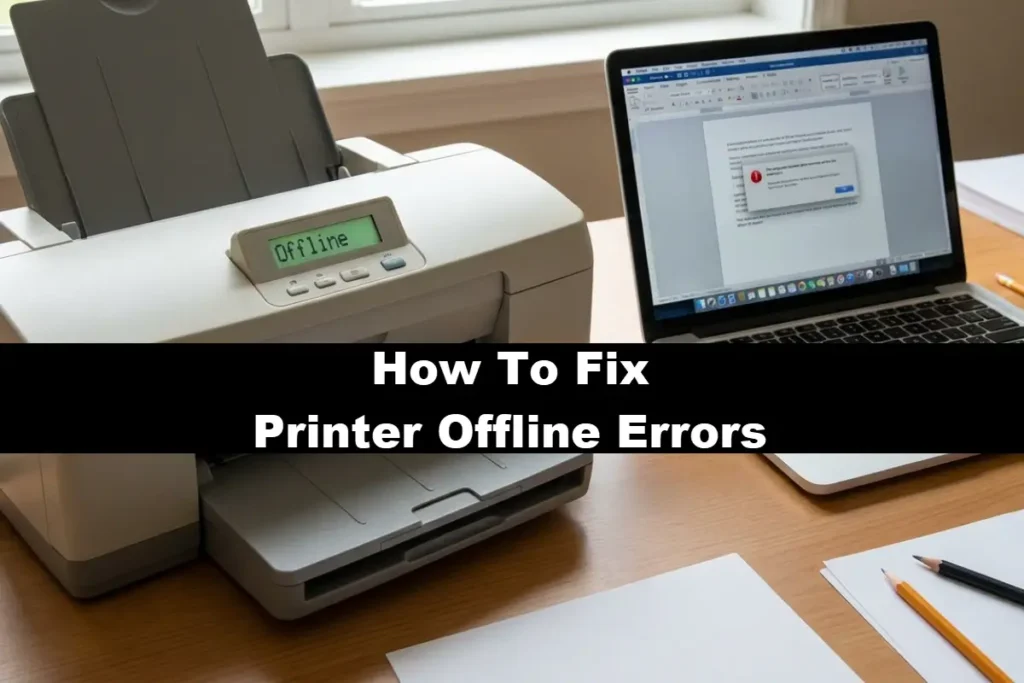
Step-By-Step How To Fix Printer Offline Errors To Get Your Printer Back Online
Now that we’ve covered the likely causes, let’s walk through the solutions.
Start with step one and move to the next only if the problem persists.
Most offline issues are solved with these foundational checks.
Step 1: The Universal Reboot
It’s a classic for a reason – it works.
Restarting your devices can clear temporary glitches, reset network connections, and resolve countless minor software conflicts.
Follow this specific order for the best results:
- Turn Off Your Printer:
Use the power button to shut down the printer completely.
Don’t just let it go to sleep.
Unplug it from the power outlet for about 60 seconds to ensure a full power cycle. - Restart Your Computer:
While the printer is off, restart the computer you are trying to print from. - Restart Your Router (for wireless printers):
Unplug your internet router from the power outlet.
Wait 60 seconds before plugging it back in.
Give it a few minutes to fully boot up and re-establish the internet connection. - Power Up and Reconnect:
Plug your printer back in and turn it on.
Once it has fully started and reconnected to the network, try printing a test page.
This sequence ensures that every component in the chain gets a fresh start, which often resolves the communication breakdown.
Step 2: Check Your Connections (The Right Way)
If a reboot didn’t work, it’s time to verify the physical and wireless connections with more focus.
- For USB Printers:
Unplug the USB cable from both the printer and the computer.
Plug it back in firmly.
If possible, try a different USB port on your computer.
A faulty port can mimic a printer problem.
If you have a spare USB printer cable, try swapping it out to rule out a damaged cable. - For Wireless Printers:
Confirm that your printer is connected to the correct WiFi network.
You can usually print a network configuration page from the printer’s control panel.
This report will show the connected network name (SSID) and the printer’s IP address.
Ensure the SSID matches the Wi-Fi network your computer is using.
If it doesn’t, use the printer’s wireless setup wizard to reconnect to the correct network.
Step 3: How to Fix the “Use Printer Offline” Setting
If your printer is physically connected but still showing as offline, a manual setting in Windows might be the culprit.
Here’s how to check and disable it.
- Open the Control Panel on your computer.
You can search for it in the Start Menu. - Go to Devices and Printers.
- Find your printer in the list. Right-click on its icon and select See what’s printing.
- In the new window that opens, click on the Printer menu at the top.
- Look for an option named Use Printer Offline.
If there is a checkmark next to it, click on it to remove the checkmark.
This simple action immediately tells Windows to re-establish an active connection with the printer.
According to Microsoft’s official support guide, this is a critical check that is often overlooked.
Step 4: Clearing the Print Spooler and Queue
A stuck job can grind your printing to a halt.
The Print Spooler is the Windows service that manages print jobs, and resetting it can clear a corrupted queue.
- Press the Windows Key + R to open the Run dialog.
- Type services.msc and press Enter.
- In the Services window, scroll down and find Print Spooler.
- Right-click on Print Spooler and select Stop.
- Leave the Services window open. Open File Explorer and navigate to:
C:\Windows\System32\spool\PRINTERS.
You may need to grant administrator permission to access this folder. - Delete all files inside this folder. This clears the print queue.
- Go back to the Services window, right-click on Print Spooler, and select Start.
After restarting the spooler service, your print queue is now empty and ready for a new job.
Try printing again.
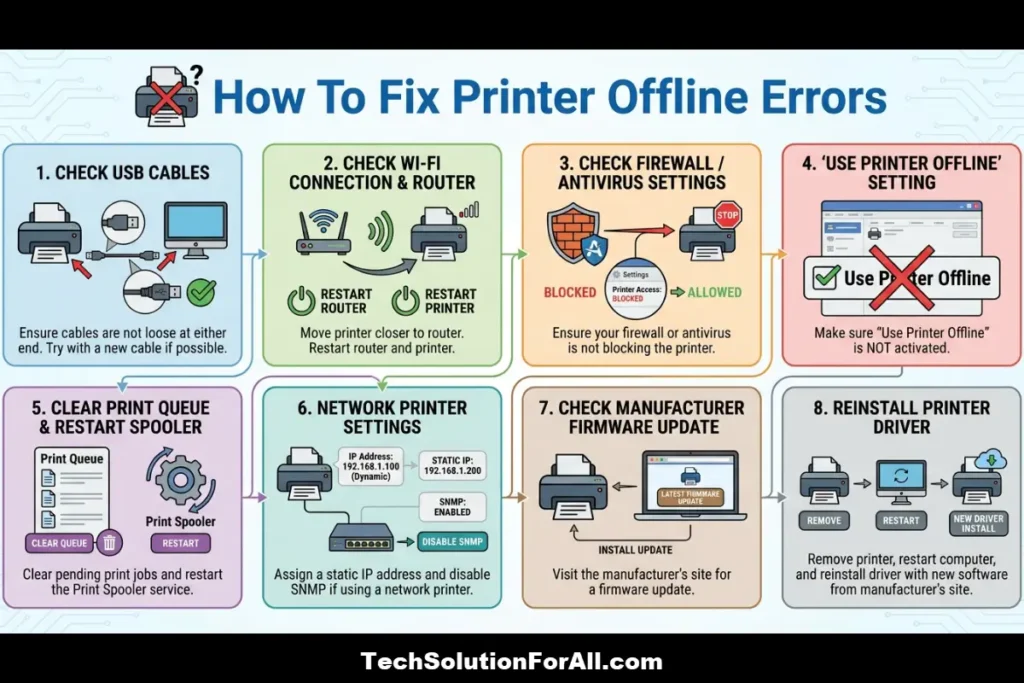
Advanced Troubleshooting For Persistent Printer Offline Issues
If you’ve worked through the basic steps and your printer is still offline, it’s time to investigate some deeper, more technical causes.
These issues often involve network settings and driver configurations that can create stubborn communication problems.
The Dynamic IP Address Dilemma
On most home networks, your router uses something called DHCP (Dynamic Host Configuration Protocol) to assign temporary IP addresses to your devices.
This is usually fine, but it can cause a printer offline error if the printer’s IP address changes.
Your computer may still be trying to send print jobs to the old, now-invalid address.
Why this works: Setting a static IP address ensures your printer always has the same address on your network, so your computer never loses track of it.
It’s like giving your printer a permanent home address instead of a temporary hotel room.
There are two effective ways to solve this.
The most robust method is to assign a static IP address to your printer from within your router’s settings.
This process varies by router manufacturer but generally involves logging into your router’s admin panel and reserving an IP address for your printer’s MAC address.
A simpler alternative, as recommended by experts at Xerox Support, is to change the printer port configuration on your computer to use the printer’s network name (hostname) instead of its IP address.
The hostname doesn’t change, even if the IP address does.
Disabling SNMP for a Stable Connection
SNMP (Simple Network Management Protocol) is a feature that allows network devices to share status information.
While useful in large corporate environments, it can sometimes cause network printers to incorrectly report an offline status on smaller networks.
Windows may send an SNMP request to check the printer’s status, and if it doesn’t get the expected reply in time, it marks the printer as offline.
To fix this, you can disable SNMP on the printer port:
- Go to Devices and Printers in the Control Panel.
- Right-click your printer and choose Printer properties (not “Properties”).
- Go to the Ports tab.
- Select the port that your printer is using (it will have a checkmark) and click Configure Port.
- At the bottom of the new window, uncheck the box that says SNMP Status Enabled.
- Click OK to save the changes.
This stops Windows from using SNMP to check the status, forcing it to rely on more direct communication, which often resolves the false offline error.
Reinstalling Your Printer Driver
A printer driver is the software that allows your computer to communicate with your printer.
If this driver becomes outdated or corrupted, communication can break down, leading to the offline error.
A clean reinstallation can resolve these deep-seated software conflicts.
- Remove the Printer:
In Devices and Printers, right-click your printer and select Remove device. - Remove the Driver:
With the printer selected, click on Print server properties in the top menu bar.
Go to the Drivers tab, select the driver for your printer, and click Remove.
Choose to “Remove driver and driver package.” - Download the Latest Driver:
Do not use the CD that came with your printer.
Go directly to the manufacturer’s website (e.g., HP, Canon, Epson) and download the latest and most complete driver package for your specific printer model.
Major manufacturers like HP provide dedicated support pages to help you find the right software. - Install the New Driver:
Run the downloaded installer and follow the on-screen instructions carefully.
It will guide you through connecting the printer at the appropriate time.
This process ensures that you have the most current, uncorrupted software managing your printer, which is critical for stable performance.
How to Prevent Your Printer from Going Offline Again
Fixing the problem is great, but preventing it from happening again is even better.
A few proactive steps can dramatically improve your printer’s reliability.
- Use a Static IP Address:
As mentioned in the advanced section, this is the single most effective way to prevent network-related offline issues. - Keep Firmware Updated:
Regularly check your printer manufacturer’s website for firmware updates.
Firmware is the printer’s internal software, and updates often include bug fixes and connectivity improvements. - Check Your Wi-Fi Signal:
If your printer is far from your router, consider moving them closer or using a Wi-Fi extender to ensure a strong, stable signal. - Configure Your Firewall:
Security software can sometimes be too aggressive and block printer communication.
Check your firewall or antivirus settings and ensure that your printer and its related software are listed as trusted.
For a visual walkthrough of some of the steps in this post, this video on how to fix printer offline errors in Windows provides a helpful guide (and is hopefully also embedded below!)
Final Thoughts On How To Fix Printer Offline Errors
Dealing with a printer offline error is undoubtedly a common modern frustration, but it is almost always solvable.
By working through these steps methodically – from the simple reboot to the more advanced network configurations – you can diagnose and fix the underlying cause.
The key is to understand that the error is about a communication breakdown.
By patiently re-establishing that connection, you can turn that dreaded offline message into a successful printout.
Frequently Asked Questions About How To Fix Printer Offline Errors
Why does my printer say it’s offline when it’s on?
This usually means there’s a communication breakdown between your computer and printer.
Common causes include Wi-Fi connection issues, a stuck print job in the queue, or a Windows setting called “Use Printer Offline” being accidentally enabled.
Start by checking your network connection and restarting both devices.
Can a firewall cause my printer to go offline?
Yes, absolutely.
Security software, including Windows Firewall and third-party antivirus programs, can mistakenly block the network communication required for printing.
This can make the printer appear offline.
You may need to configure your firewall to create an exception for your printer.
How do I get my printer back online permanently?
To prevent recurring offline issues, assign your printer a static IP address.
This stops its network address from changing, which is a common cause of lost connections.
Also, regularly update your printer’s drivers and firmware from the manufacturer’s website to ensure optimal performance and compatibility.
How-To: Fix the “Use Printer Offline” Setting
This is one of the most common and easily fixable causes of the printer offline error.
Follow these simple steps to check and disable the “Use Printer Offline” mode in Windows.
Estimated Time: 2 minutes
What You’ll Need: A Windows PC (no physical supplies required)
Step 1: Open Control Panel
Find and open the Control Panel using the Windows Start Menu search bar.
Simply type “Control Panel” and click on the app when it appears.
Step 2: Navigate to Devices and Printers In the Control Panel window, locate and click on “Devices and Printers.”
This will show you all the printers installed on your computer.
Step 3: Open the Print Queue Find your printer in the list of devices. Right-click on its icon and select “See what’s printing” from the context menu. This opens the print queue window.
Step 4: Access the Printer Menu
In the print queue window that appears, click on the “Printer” menu item at the top of the window.
This will reveal a dropdown menu with several options.
Step 5: Disable “Use Printer Offline” Mode
Look for the option labeled “Use Printer Offline” in the dropdown menu.
If there is a checkmark next to it, click on it to remove the check.
This immediately sets the printer back to online status and allows print jobs to be sent.
Finally be sure to check out our Tech Troubleshooting FAQ or our Printer Troubleshooting Tips pages for even more general tips that cover a wide range of technical problems and solutions.
(If after reading the above article you still need more information on “How To Fix Printer Offline Errors”, then you might find a much less obvious solution on the above tech pages!)