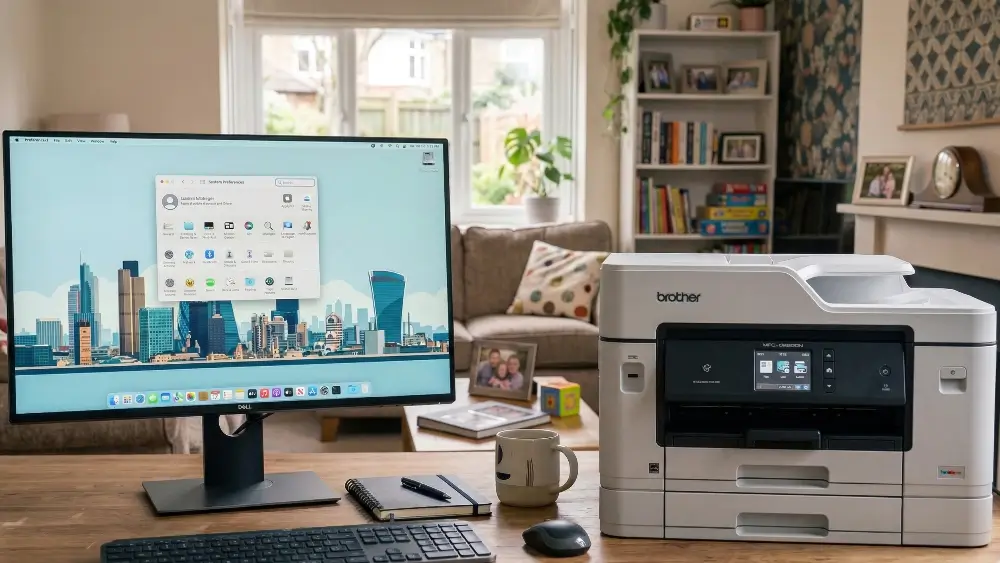
It is so annoying when you need to print something but your machines screen is blank, leaving you wondering how to get Brother printer out of sleep mode without restarting everything.
While this power-saving feature is designed to reduce energy consumption and extend the life of your machine, it can sometimes trap the device in a deep slumber, blocking communication with your computer or network.
Fortunately, waking it up and preventing the issue from happening again is a straightforward process once you know which settings to adjust.
AT A GLANCE:
If your printer refuses to wake up, the quickest fix is pressing the power button once or sending a test print directly from the control panel.
For a permanent solution, you must access the machine’s internal settings to extend the sleep timer or disable the deep sleep feature entirely.
Following these steps will ensure your device remains connected and ready to print whenever you need it.
Understanding Why Your Brother Printer Won’t Wake Up
Before diving into the solutions, it helps to understand why this happens.
Sleep mode is a normal function built into modern electronics to save electricity.
However, when you are trying to figure out how to get Brother printer out of sleep mode, you are usually dealing with a breakdown in communication rather than a broken machine.
Several common causes can prevent the device from waking up when a print job is sent.
First, the power save settings might be configured too aggressively, forcing the machine into a deep sleep state that ignores incoming network traffic.
Second, outdated printer firmware can cause glitches in the power management system.
Third, network communication delays between your router and the printer can result in the wake-up signal being dropped before it reaches the device.
Finally, if you are using a wired connection, USB communication problems or faulty cables can stop the computer from sending the correct activation command.
Quick Methods: How To Get Brother Printer Out Of Sleep Mode
When you need to print immediately, you do not always have time to dig through complex menus. Here are the fastest ways to wake your machine right now.
Wake the Printer Using the Control Panel
The most direct method is interacting with the physical machine. Simply press the Power button or the OK button on the control panel.
On touchscreen models, tapping the display firmly should instantly wake the device. If the screen lights up and the machine makes a warming-up sound, you have successfully restored its active state.
Send a Test Print to Wake the Device
Sometimes, the printer needs a localized command rather than a network signal.
You can force the machine to wake by printing a settings report directly from its menu. Navigate to the Machine Info or Print Reports section on the control panel and select Network Configuration.
The physical act of processing a local job often clears the sleep state and restores network visibility.
Restarting the Printer
If the control panel is completely unresponsive, a hard reset is required.
Turn off the printer using the power button, unplug it from the wall outlet, and wait for 60 seconds. This drains any residual power and clears the temporary memory.
Plug it back in and turn it on. While this is a temporary fix, it is highly effective when you are stuck wondering how to get brother printer out of sleep mode during an emergency.

Advanced Troubleshooting: Fixing The Root Cause
If you find yourself constantly battling this issue, you need to adjust the internal configuration to prevent the machine from dropping off the network.
Adjusting the Printer Sleep Timer
The most effective long-term solution is changing how quickly the machine goes to sleep. By extending the timeout period, you keep the printer active longer.
- Press the Menu button on the printer.
- Navigate to General Setup and press OK.
- Select Ecology or Power Save and press OK.
- Choose Sleep Time.
- Use the keypad to enter a higher number, such as 50 or 60 minutes, and press OK.
- Press Stop/Exit to return to the main screen.
This ensures the machine remains awake during your busiest working hours.
Disabling Deep Sleep Mode
Many models feature a “Deep Sleep” state that consumes even less power but is notoriously difficult to wake from over a Wi-Fi connection.
Disabling this specific feature is often the key to solving the problem.
To turn it off, navigate to the Sleep Time menu as described above.
While the sleep time is displayed on the screen, press the Start and Options buttons simultaneously (or Down Arrow and Cancel, depending on your model).
A hidden menu will appear saying “Deep Sleep.” Change this setting to Off and press OK.
Checking USB and Network Connections
If the printer wakes up when you press a button but ignores print jobs from your computer, the connection is the culprit.
For USB setups, try plugging the cable into a different port on your computer, avoiding USB hubs.
For wireless setups, log into your router and assign a static IP address to the printer.
A static IP ensures your computer always knows exactly where to send the wake-up signal, bypassing DNS resolution delays that often cause offline errors.
If you are unsure how to manage your network, you can find detailed guidance on router configuration and static IPs to stabilize your connection.
Updating Printer Firmware
Manufacturers regularly release software updates to fix known bugs, including power management issues.
If your machine is running outdated software, it may struggle to process network wake commands.
Visit the official support page for your specific model, download the latest firmware update tool, and run it on a computer connected to the same network.
Keeping the software current is a critical step when learning how to get Brother printer out sleep mode permanently.
You can easily download the correct files directly from the official Brother support center.
How To Get Brother Printer Out Of Sleep Mode Edge Cases – When Standard Fixes Fail
In rare situations, the standard troubleshooting steps might not resolve the issue.
If you are using a Windows computer, the operating system’s own power management settings might be turning off the USB root hub to save power, which prevents the computer from waking the printer.
To fix this, open the Device Manager, locate the Universal Serial Bus controllers, right-click the USB Root Hub, and uncheck the option that allows the computer to turn off the device to save power.
Additionally, if you are using a third-party print server or a mesh Wi-Fi system, the wake-on-LAN packets might be getting blocked by the network hardware.
In these cases, connecting the printer directly to the main router via an Ethernet cable often provides a much more stable connection than wireless.
For deeper insights into managing print spoolers and Windows communication errors, the Microsoft support documentation offers excellent advanced diagnostic steps.
Prevention Tips
To avoid struggling with how to get Brother printer out of sleep mode in the future, follow these best practices:
- Keep the firmware updated: Check for updates every six months.
- Use a static IP address: This is the single best way to maintain a stable wireless connection.
- Leave the printer on: Do not turn the printer off at the wall; let it manage its own power state using the extended sleep timer you configured.
- Print regularly: Sending a small job once a week prevents the print heads from drying out and keeps the network connection active.
Final Thoughts On How To Get Brother Printer Out Of Sleep Mode
Dealing with an unresponsive printer can disrupt your entire workflow, but it does not have to be a permanent problem.
By understanding that this is usually a communication delay rather than a hardware failure, you can take control of the situation.
Whether you use the quick fix of pressing the control panel or take the time to adjust the internal ecology settings and disable deep sleep, you now have the tools to keep your device online.
Remember that maintaining a stable network connection with a static IP and keeping your firmware updated are the best ways to ensure your machine is always ready when you hit print.
Frequently Asked Questions
Why does my Brother printer go offline when it sleeps?
When the printer enters a deep sleep state, it powers down its network card to save energy. If your router drops the connection during this time, the printer will appear offline to your computer and fail to wake up when a job is sent.
Can I completely disable sleep mode on a Brother printer?
You cannot completely disable the standard sleep mode on most modern models due to energy regulations. However, you can extend the timer to its maximum limit and disable the “Deep Sleep” function, which usually solves the problem.
How do I wake up my printer from my computer?
If the network connection is stable, simply sending a print job should wake it automatically. If it does not, you may need to assign a static IP address to the printer so the computer can reliably locate it on the network.
Does unplugging the printer reset the sleep settings?
No. Unplugging the printer performs a hard reset that clears temporary memory and immediate errors, but your custom sleep timer and network configurations are saved in the internal memory and will remain intact.
Why won’t the power button wake my printer?
If pressing the power button does not wake the machine, it may be frozen due to a firmware glitch or a power surge. In this case, you must unplug the power cord from the wall for 60 seconds to force a complete reboot.
How To Adjust The Sleep Timer On A Brother Printer
Follow these simple steps to extend the time before your printer goes to sleep, ensuring it stays awake during your workday.
Time required: 3 minutes
Tools needed: None
Supplies needed: None required
Step 1: Access the Main Menu
Press the “Menu” button on the printer’s control panel to open the settings interface.
Step 2: Navigate to General Setup
Use the arrow keys to scroll down to “General Setup” and press the “OK” button to select it.
Step 3: Open Ecology Settings
Scroll through the options until you find “Ecology” or “Power Save” (depending on your model) and press “OK”.
Step 4: Select Sleep Time
Choose the “Sleep Time” option from the list to view the current timeout duration.
Step 5: Increase the Timer
Use the numeric keypad to enter a higher value, such as 50 or 60 minutes. Press “OK” to save the new setting.
Step 6: Exit the Menu
Press the “Stop/Exit” button to return to the main home screen. Your printer will now stay awake longer.
Finally be sure to check out our Tech Troubleshooting FAQ or our Printer Troubleshooting Tips pages for even more general tips that cover a wide range of technical problems and solutions.
(If after reading the above article you still have a problem with understanding “How to Get Brother Printer Out Of Sleep Mode”, then you might find a much less obvious solution on the above tech pages!)