When urgent printing jobs pile up and you discover you suddenly have an HP OfficeJet Pro ink system error it can be frustrating to say the least!
This error usually signals a problem with the printhead or ink cartridges, which halts printing and requires a careful fix.
Don’t worry; most causes are straightforward to diagnose and resolve once you know where to look.
HP OFFICEJET PRO INK SYSTEM ERROR ARTICLE AT A GLANCE
Getting stuck with ink system error messages can feel overwhelming, but relief is close.
By focusing on printhead cleaning or cartridge checks, you’ll quickly identify and fix underlying issues, returning your OfficeJet Pro to full printing capacity.
You’re exactly where you need to be to troubleshoot this problem effectively.
Which HP OfficeJet Pro Models Are Affected?
The HP OfficeJet Pro ink system error is common across multiple model series, not confined to one generation. Notably affected models include:
- OfficeJet Pro 8600
- OfficeJet Pro 8700
- OfficeJet Pro 9000
- OfficeJet Pro 9010e
- OfficeJet Pro 9020e
- OfficeJet Pro 9120e
- OfficeJet Pro 9130e
While these printers differ in features and age, they all rely on integrated printheads with similar ink delivery mechanisms, which can trigger the same error codes.
Before You Begin: Identify the Exact Error Message
Accurately recording the error code displayed on your printer’s control panel or software is critical. Different codes point to different problems:
- Codes beginning with 0xc19a (e.g., 0xc19a0013) generally indicate printhead failure or communication errors between the printhead and printer.
- Other ink system error variations might signal issues with ink supply paths, cartridge recognition, or the carriage mechanism.
Identifying the exact code lets you target your troubleshooting rather than guessing the cause.
In addition to writing down the full error code, take note of any accompanying messages or blinking indicator lights on the printer.
This detailed information can be useful when searching HP support resources or contacting customer service for help.
You might also want to check your printer’s software or HP Smart app, which sometimes provides expanded descriptions or guidance based on the error detected.
Having the precise error details ready will save time and help ensure you apply the most effective fix.
Why The HP OfficeJet Pro Ink System Error Occurs
Your printer’s printhead is a consumable part that holds microscopic nozzles responsible for precise ink placement on paper.
Over time, ink can dry out, electrical contacts can corrode, or bubbles can interfere with ink flow.
Common causes include:
- Air bubbles trapped in ink cartridges or tubing disrupting steady ink flow
- Dried ink clogging nozzles or electrical contacts impairing communication
- Failures in cartridge-chip recognition due to incompatible or refilled cartridges
- Printhead hardware failures after prolonged inactivity or heavy use
In addition, environmental factors like temperature and humidity changes can hasten ink drying or cause rapid buildup of residue that affects nozzle performance.
The printer’s firmware and sensor systems detect these conditions and, upon identifying irregularities in ink delivery or communication, trigger the ink system error to prevent damage or poor print quality.
Electrical issues inside the printer, such as worn wiring or faulty cartridge interface boards, can also cause intermittent or persistent errors.
Recognising these multiple pathways to failure explains why some fixes work initially but problems might recur if the underlying cause isn’t addressed.
Understanding these fundamentals highlights why cleaning and proper cartridge use often resolve the error.
What HP Says About The Ink System Error
HP acknowledges that printhead issues cause ink system errors and provides official guidance for printhead cleaning and replacement.
Their TECH TAKES site details recommended cleaning practices, their support site details how to replace printheads and their shopping site offers genuine printhead replacements specific to your model.
(HP seems to change their links often, so by the time you read this those links above might be broken, but just search their site for what you need and you will find it!)
Staying within HP’s official instructions can prevent warranty voids and ensures proper repairs.
They also emphasise the importance of using genuine HP cartridges to maintain printer performance and avoid errors related to cartridge authentication restrictions.
HP provides detailed pages on ink cartridge compatibility to help users select the correct cartridges for their printer model.
This information is crucial because using third-party or refilled cartridges is a leading cause of ink system errors.
You can view the HP cartridge compatibility overview for your specific model.
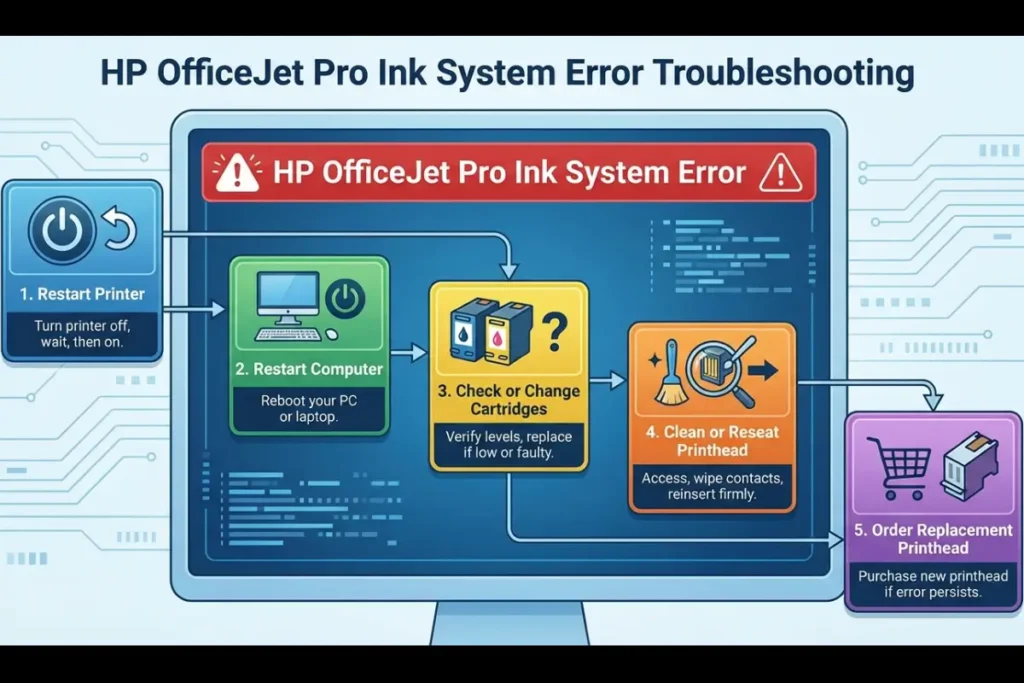
Common Causes Of HP OfficeJet Pro Ink System Error
Incompatible or Refilled Cartridges (HP Dynamic Security)
HP printers use dynamic security to detect cartridge authenticity.
Using refilled or third-party ink cartridges may trigger the error because the printer cannot verify the cartridge chip, blocking print operations.
This security prevents poor-quality inks or counterfeit supplies from harming your printhead but also causes frequent headaches for users who opt for cheaper alternatives.
If you have recently switched cartridge brands and the error appeared shortly after, this is very likely the cause.
Switching back to genuine HP cartridges is the quickest way to confirm and resolve it.
Dirty Cartridge or Printhead Electrical Contacts
Ink residue, dust, or oils on electrical contacts between cartridges and the printhead disrupt data signals, triggering communication errors.
Over time, even normal handling can transfer oils from fingertips onto these contacts, degrading the connection.
Cleaning these contacts gently with isopropyl alcohol and a lint-free cloth restores connectivity and error-free printing.
This is one of the most effective and low-risk fixes available before considering any part replacement.
Air Trapped in the Ink Supply System
During cartridge changes or if the printer sits idle, air pockets may form inside the ink channels or tubing.
These pockets prevent ink from flowing smoothly to the print nozzles, causing the printer to detect an unsafe or incomplete ink supply.
Running a printhead cleaning cycle is usually sufficient to purge trapped air and restore normal ink flow.
If the problem recurs, it may indicate a poorly seated cartridge or a worn ink channel seal that needs attention.
Printhead Failure After Prolonged Inactivity
Leaving your OfficeJet Pro unused for extended periods can dry out the printhead nozzles or cause internal printhead electrical faults.
Ink that sits stagnant in the nozzles gradually thickens and eventually hardens, blocking the microscopic channels through which ink must pass.
Once this level of damage occurs, cleaning cycles may not help, and replacement becomes necessary.
Printing at least once a week is the simplest way to prevent this from happening.
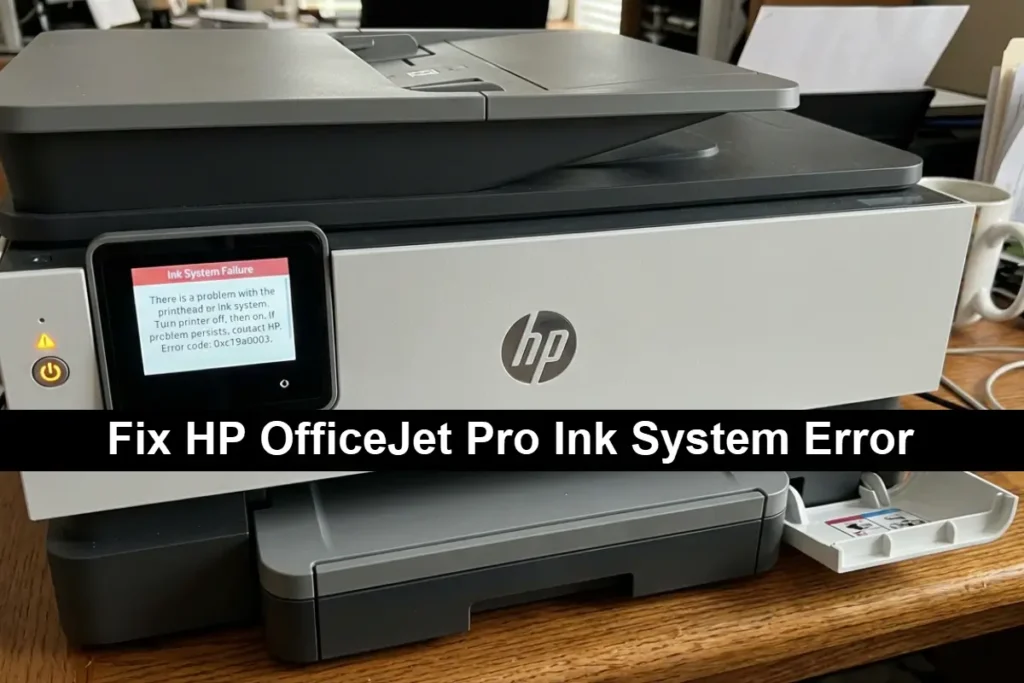
Advanced Troubleshooting: HP OfficeJet Pro Ink System Error Fixes
Running Printhead Cleaning Cycles from the Control Panel
Your printer offers automatic cleaning routines that attempt to clear clogs or ink flow issues.
Access the maintenance or tools menu on the printer screen and run a printhead cleaning cycle.
This flushes injection nozzles using internal pumps to re-establish ink flow and can resolve minor blockages.
Running two or three cycles typically improves results.
Removing, Cleaning Electrical Contacts, and Reseating the Printhead
If errors persist, power off your printer and open the printhead access door.
Remove the cartridges and printhead carefully.
Using lint-free cloths dampened with 90%+ isopropyl alcohol, clean the copper-coloured electrical contacts on both printhead and cartridge.
This restores signal transmission.
Reseat the printhead firmly and reinsert cartridges.
Cleaning contacts mitigates communication errors causing many ink system problems.
Full Printhead Replacement
When cleaning fails to solve the error, replacing the printhead is often the final solution. Order an OEM printhead specific to your model, for example:
- 8600 series > HP 8600 printhead (part number: CH563-67002)
- 9000 series > HP 9000 printhead (part number: CH704A)
Replacing the printhead removes hardware faults from clogged nozzles or damaged circuits permanently.
Follow HP’s installation guides precisely to ensure compatibility and avoid damaging sensitive components.
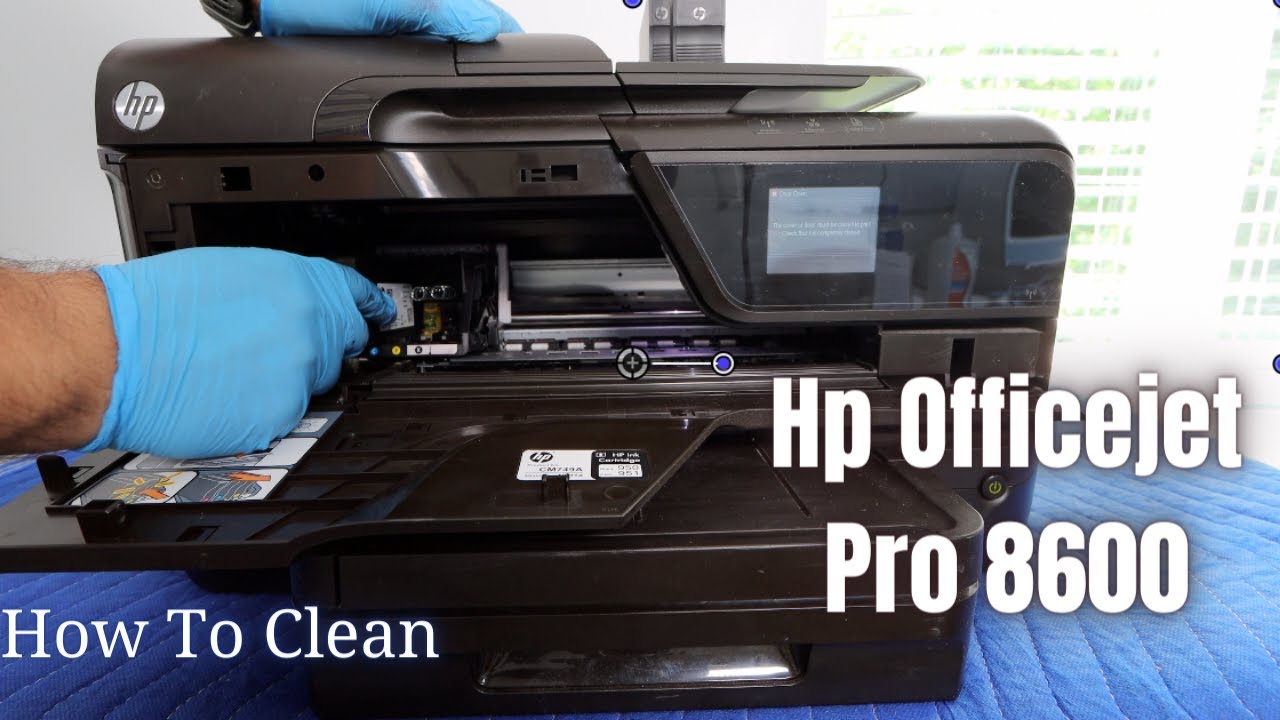
For a detailed walkthrough on removing and cleaning the printhead on a HP Printer watch this official video demonstration (which is also embedded below hopefully!)
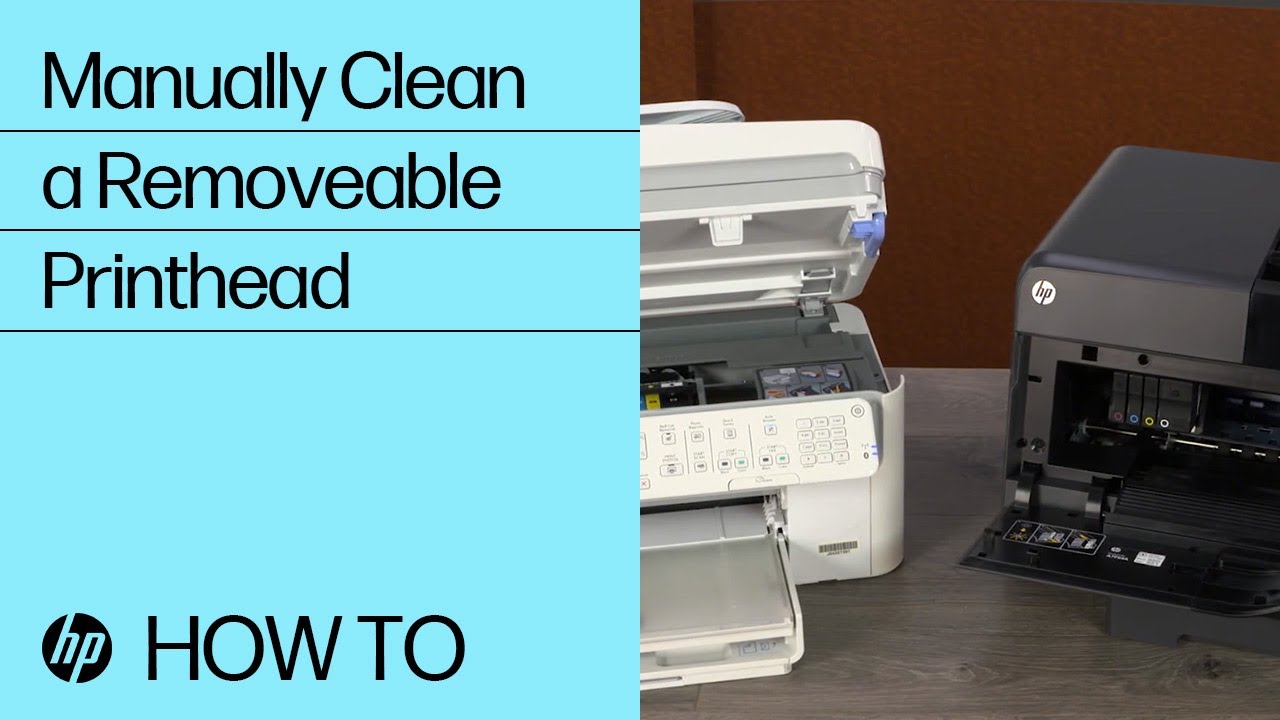
However I prefer the more detailed video on cleaning an HP Officejet Pro printhead from The Printer Guy on YouTube as he demonstrates it better and uses custom made cleaning kits. (His video is also embedded below hopefully!)
Less Common Causes And Prevention Tips
Prevention is often the best cure for recurring ink system errors with your OfficeJet Pro printer.
Regular use of the printer helps keep ink flowing smoothly in the nozzles and prevents drying or clogging that can trigger errors.
If a printer remains inactive for long periods, consider running printhead cleaning cycles or printing a test page once a week to maintain ink circulation inside the system.
Avoid using refilled, remanufactured, or unsupported ink cartridges as these frequently cause chip recognition failures and disable printer functionality through HP’s dynamic security measures.
While such cartridges may seem cost-effective, in the long run they can shorten printhead life and increase maintenance time.
Always using genuine HP ink supplies minimises the risk of hardware failures and error triggering.
Additionally, keeping the printer in a clean and dust-free environment protects sensitive electrical contacts and internal sensors from contamination.
Always handle cartridges and printheads carefully to prevent damage to delicate contacts and seals during installation or removal.
If you notice persistent errors despite regular maintenance, it may be worthwhile to consult professional repair services, as uncommon hardware issues like circuit board faults or carriage misalignments can underlie the problem.
By combining these daily habits – regular printing, genuine cartridges, clean surroundings, and careful handling – you extend the life of your OfficeJet Pro’s printhead and reduce the likelihood of encountering frustrating ink system errors.
Final Thoughts On HP OfficeJet Pro Ink System Error
Encountering an ink system error in your OfficeJet Pro is inconvenient, but most issues boil down to routine maintenance or replacing a consumable like the printhead.
Diagnosing with the exact error code and methodically cleaning and replacing parts restores reliable printing.
Stay patient and follow these practical steps to get back on track swiftly.
Frequently Asked Questions
Q: What does the ink system error on my OfficeJet Pro mean?
A: It usually indicates printhead or cartridge problems affecting ink delivery or communication between parts.
Q: How do I identify the error code?
A: Check the printer’s display or software message exactly; codes starting with 0xc19a suggest printhead failures.
Q: Can I fix the error without replacing parts?
A: Yes, running cleaning cycles and cleaning electrical contacts often resolves the problem if hardware isn’t damaged.
Q: Why won’t my refilled cartridges work?
A: HP Dynamic Security blocks unsupported cartridge chips as a safety feature, causing errors.
Q: How do I replace the printhead?
A: Order the official part for your printer model and follow HP’s instructions carefully to install it safely.
How To Fix HP OfficeJet Pro Ink System Error
Description:
Step-by-step instructions to diagnose and resolve ink system errors on HP OfficeJet Pro printers by cleaning and replacing printhead components.
Estimated total time:
30 minutes
Supplies needed:
- Genuine HP replacement printhead (model-specific)
- Isopropyl alcohol (90% or higher)
- Lint-free cloth or cotton swabs
- Gloves (optional)
Tools needed:
- None specific; just a clean workspace
Steps:
- Identify the error code on your printer’s display to confirm the cause.
- Run the printhead cleaning cycle using your printer’s control panel menu to clear minor blockage.
- Turn off the printer and disconnect power. Open the cartridge access door.
- Remove ink cartridges carefully and set aside.
- Lift out the printhead according to your printer model’s instructions.
- Clean electrical contacts on printhead and cartridges with a cloth dampened with isopropyl alcohol.
- Reseat the printhead firmly and reinstall ink cartridges. Close door and power on printer.
- Print a test page to check if the error persists.
- If the error continues, order and install a genuine printhead replacement using manufacturer instructions.
Finally be sure to check out our Tech Troubleshooting FAQ or our Printer Troubleshooting Tips pages for even more general tips that cover a wide range of technical problems and solutions.
(If after reading the above article you still have an “HP OfficeJet Pro Ink System Error”, then you might find a much less obvious solution on the above tech pages!)