An HP scanner not working can bring your productivity to a halt, turning a simple task into a major headache. Whether it’s a vague error message, a complete lack of response, or a connection failure, the frustration is real.
But don’t worry – in most cases, you can resolve these issues yourself without needing a technical expert.
In a Nutshell: Why Your HP Scanner Isn’t Working and How to Fix It
This article is for anyone with a HP scanner not working, whether it’s a standalone device or part of an all-in-one printer.
We’ll explore the most common causes – from simple software glitches and driver conflicts to more complex hardware and network problems.
By following our guided steps, you’ll learn how to diagnose the root cause and apply the right fix, saving you time and a potential support call.
Common Causes of an HP Scanner Not Working
Understanding why your scanner has stopped functioning is the first step toward fixing it.
In many situations, the problem isn’t a catastrophic failure but a simple miscommunication between your devices. Because of this, identifying the root cause is essential.
Let’s break down some of the most frequent culprits.
Software and Driver Conflicts
Software is often the primary source of an HP scanner not working.
Your computer relies on specific drivers and applications to communicate with your HP scanner, and when something is amiss, the connection breaks. For example, a recent OS update can often be the trigger.
- Outdated or Corrupted Drivers:
Drivers are the software bridge between your operating system and your scanner. If a driver is outdated, corrupted, or was not installed correctly, your computer may not be able to detect or use the scanner.
This is a very common reason for an HP scanner not working after a Windows or macOS update, as the old driver may no longer be compatible. - Firewall or Antivirus Interference:
In many cases, security software designed to block unauthorized network communications can be overzealous.
Your firewall or antivirus program might mistakenly block the scanning software, preventing it from connecting to the scanner, especially over a Wi-Fi network. This happens because the software’s communication pattern can sometimes resemble a threat. - Issues with the HP Smart App:
The HP Smart app is a powerful tool, but it can also encounter problems. A glitch within the app, an incomplete installation, or a pending update can all lead to scanning failures.
For this reason, it is always best to ensure you have the latest version, which you can find by visiting the official HP support page for scanning issues. - Conflicting TWAIN Drivers:
TWAIN is a standard protocol that allows software to communicate with imaging devices.
If you have multiple scanners or all-in-one printers installed, their TWAIN drivers can sometimes conflict with each other, causing one or more devices to fail. In this situation, the computer gets confused about which device to listen to.
Connectivity and Network Problems
Your scanner’s physical or wireless connection to your computer is another critical point of failure. Without a stable link, your computer simply can’t send or receive the data needed for a scan.
Therefore, checking the connection is a crucial diagnostic step.
- Unstable Wi-Fi Connection:
For wireless scanners, a weak or unstable Wi-Fi signal is a frequent cause of issues.
If the scanner keeps disconnecting or your computer can’t find it on the network, the problem likely lies with your wireless connection. You might also be on a different network band (e.g., 5 GHz vs. 2.4 GHz) than the scanner supports. - Faulty USB Cable or Port:
If you use a USB connection, the problem could be as simple as a bad cable or a malfunctioning USB port.
These components can wear out over time, leading to intermittent or complete connection loss. Additionally, connecting through a USB hub instead of directly to the computer can sometimes cause power or data issues. - Incorrect Network Configuration:
If your printer’s IP address has changed or your computer is on a different network (for example, a guest network vs. your main network), they won’t be able to communicate.
This is a common oversight in many home and office environments, especially after a router reset or network change.
Physical Hardware Issues
While less common, the hardware itself can sometimes be the source of the HP scanner not working problem.
A message like “Scanner Failure” often points directly to a hardware or internal power issue, rather than a connection problem. According to HP, these errors are distinct from connectivity issues and require a different troubleshooting approach.
- Scanner Bar Jam or Malfunction:
The scanner bar is the component with the light that moves across the glass.
If it’s jammed, stuck, or the bulb has burned out, the scanner cannot capture an image. You might hear a grinding noise or see no movement at all when you try to copy a document. - Power Supply Problems:
An inadequate or failing power supply can prevent the scanner from initializing correctly.
This could be due to using a surge protector that’s limiting power or an internal electrical fault within the printer itself. HP often recommends plugging the device directly into a wall outlet to rule this out. - Dirty or Obstructed Scanner Glass:
Sometimes, the issue is as simple as a dirty scanner glass or a foreign object obstructing the calibration area. This can cause the scanner to fail its initial self-test, resulting in an error message before you even begin scanning.
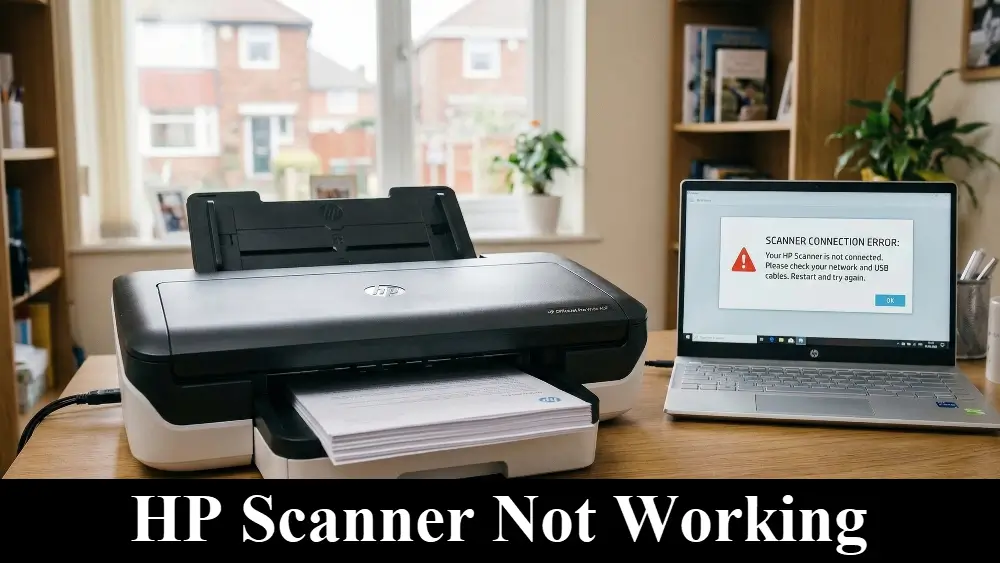
Basic Troubleshooting for an HP Scanner Not Working
Before diving into more complex solutions, it’s always a good idea to start with the basics. These simple steps resolve a surprising number of scanning issues and can save you a lot of time.
In most cases, one of these will get you back on track.
- Restart Everything:
This is the oldest trick in the tech support book for a reason – it works. Power down your computer, your printer/scanner, and your router. Wait about 60 seconds before turning them all back on.
This process can clear temporary glitches in memory and re-establish a clean connection between all your devices. - Check All Physical Connections:
If you’re using a USB cable, ensure it is securely plugged into both the scanner and the computer.
Try using a different USB port on your computer, and if possible, test with a different USB cable to rule out a faulty wire. For network printers, ensure the Ethernet cable is clicked in securely. - Run the HP Print and Scan Doctor (Windows Only):
HP provides a fantastic free tool called the HP Print and Scan Doctor. It automatically diagnoses and resolves common printing and scanning problems.
If you’re on Windows, this should be one of your first steps. It can identify driver issues, connectivity problems, and more, often fixing them with a single click. - Test with a Different Application:
Try scanning from a different program. For instance, if you’re using the HP Smart app, try using the built-in Windows Scan app or macOS’s Image Capture utility.
This helps determine if the problem is with the scanner itself or just the specific software you’re using.
Advanced Troubleshooting for an HP Scanner Not Working
If the basic steps didn’t solve your problem, it’s time to move on to more advanced diagnostics. These solutions address deeper software conflicts, network intricacies, and less obvious connection issues that can cause a persistent HP scanner not working error.
Reinstalling and Updating Scanner Drivers
A fresh driver installation is one of the most effective solutions for a stubborn scanning problem. Over time, drivers can become corrupted, and a clean install often sets things right. This process ensures you have the correct, most up-to-date software for your hardware.
- Uninstall Existing HP Software:
First, completely remove all existing HP printer and scanner software from your computer.
On Windows, go to “Apps & features,” find your HP printer software, and uninstall it. On a Mac, you can typically drag the HP application to the Trash. - Remove the Printer from Your Devices:
Next, go to your system’s printer settings. In Windows, this is “Printers & scanners,” and on macOS, it’s also under “Printers & Scanners.” Remove your HP printer from the list of devices. - Download the Latest Software:
Go directly to the official HP Support website and download the latest, full-featured software package for your specific printer model. Importantly, avoid using old installation CDs, as their drivers are almost certainly outdated. - Install and Reconnect:
Run the installer and follow the on-screen instructions carefully. Only connect your printer when the installer prompts you to do so. This ensures the drivers are installed in the correct order before the hardware is detected.
For a visual walkthrough of this process, this helpful video from HP Support (also hopefully embedded below) guides you through the steps to fix a scanner failure error, which often involves a software reinstall.
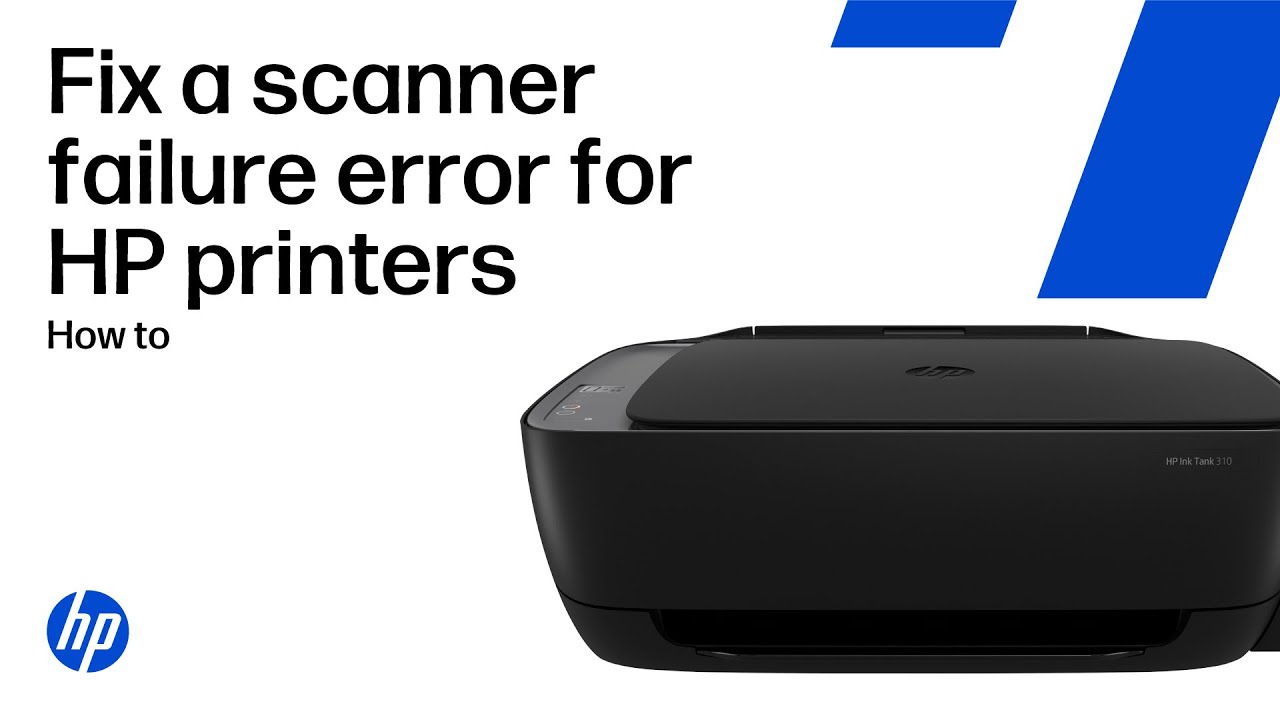
Checking Windows Services and macOS Permissions
Sometimes, the background services that manage scanning can be stopped or misconfigured. Similarly, modern operating systems have strict permissions that can block scanner software from working correctly. Ensuring these are set properly is a crucial step.
- For Windows Users (WIA Service):
The Windows Image Acquisition (WIA) service is essential for scanner operation. If it’s not running, your computer can’t communicate with the scanner.- Press Windows Key + R, type services.msc, and press Enter.
- Scroll down and find “Windows Image Acquisition (WIA).”
- Ensure its status is “Running” and the startup type is set to “Automatic.” If not, right-click it, go to Properties, and change the settings accordingly. Then, restart the service.
- For macOS Users (Permissions):
Newer versions of macOS have strict security permissions. You may need to ensure your scanning application has permission to access files and folders.- Go to “System Settings” > “Privacy & Security.”
- Check the permissions for “Files and Folders” and “Full Disk Access” to make sure your HP software isn’t being blocked. You may need to add the HP Smart app or other scanning software to the list of allowed applications.
Resolving an HP Scanner Not Working Due to Network Issues
For wireless or networked scanners, the problem often lies in the network configuration. A common symptom is the printer working one day and not the next, which can happen if the printer’s IP address changes.
- Assign a Static IP Address:
By default, most routers assign IP addresses dynamically. If your printer’s IP address changes, your computer may lose track of it.
To prevent this, you can assign a static (fixed) IP address to your printer through your router’s administration settings. This ensures your computer always knows where to find the scanner on the network. - Check Your Network Profile:
Windows has different network profiles (Public and Private). A “Public” profile is more restrictive and can block device discovery, which is necessary for your computer to find the scanner. Ensure your home or office network is set to “Private” to allow for proper device communication.
Addressing Hardware-Specific Scanner Failures
If you see a “Scanner Failure” message on your printer’s screen, the issue is likely internal hardware. The official HP guide on scanner failures suggests a few steps before you need to call for service.
- Perform a Hard Reset:
Unplug the printer from the power source (directly from the wall, not a power strip) and wait for at least 60 seconds before plugging it back in. This can sometimes reset the internal scanner mechanism and clear the error. - Check the Scanner Bar:
Carefully lift the scanner lid and start a copy job. Watch to see if the scanner bar lights up and moves across the glass.
If it doesn’t light up, makes a grinding noise, or gets stuck, it indicates a mechanical or electrical failure that will likely require professional repair.
Final thoughts on HP Scanner Not Working
Dealing with an HP scanner not working can certainly be a test of patience, but most issues are solvable with a bit of systematic troubleshooting.
By starting with simple restarts and connection checks before moving on to more advanced steps like driver re-installations and network configurations, you can isolate and fix the problem efficiently.
Remember to be methodical and test the scanner after each major step to see if the issue is resolved.
As a preventative measure, it’s wise to periodically update your printer’s firmware and software directly from the HP website. This ensures you have the latest bug fixes and compatibility updates, which can prevent many problems from occurring in the first place.
And if you ever encounter a true hardware failure, don’t hesitate to reach out to HP Support for service options.
Frequently Asked Questions (FAQ)
Q: Why does my HP scanner say it’s not connected to the computer when it is?
A: This is a classic communication error. It’s often caused by a faulty USB cable, an unstable Wi-Fi connection, or a software driver issue.
Start by restarting your devices and checking the physical connection. If that doesn’t work, running the HP Print and Scan Doctor or reinstalling the drivers is your best bet.
Q: Can a Windows update cause my HP scanner to stop working?
A: Absolutely. Major operating system updates can sometimes cause driver incompatibilities. If your scanner stopped working right after a Windows or macOS update, the most likely solution is to visit the HP support website and install the latest drivers designed for your new OS version.
This is a known issue with some Windows 11 updates, affecting multiple printer brands, as noted by manufacturers like Brother.
Q: My printer copies documents fine, but it won’t scan to my computer. What’s wrong?
A: This is a strong indicator that the scanner hardware itself is working, but the problem lies with the connection or software on your computer.
The issue could be a firewall blocking the connection, a stopped Windows service (like WIA), or a corrupted driver. Focus your troubleshooting on the software and connection aspects, not the printer hardware.
Q: What does a “Scanner Failure” error mean on my HP printer?
A: A “Scanner Failure” message typically points to a hardware problem with the scanner unit itself, not a software or connection issue. This could be a jammed scanner bar, a burnt-out bulb, or an internal power problem.
A hard reset is the first thing to try, but if the problem persists, it may require professional service.
How to Reinstall Your HP Scanner Driver on Windows
Here is a step-by-step guide to completely uninstalling and reinstalling your HP scanner driver on a Windows computer to fix common scanning problems.
- Uninstall Existing HP Software:
Open ‘Apps & features’ in Windows Settings. Find all software related to your HP printer, select it, and click ‘Uninstall’. Follow the prompts to remove the software completely. - Remove the Printer from Devices:
Go to ‘Printers & scanners’ in Windows Settings. Select your HP printer from the list and click ‘Remove device’. Confirm the removal. - Restart Your Computer:
After uninstalling the software and removing the device, restart your computer to ensure all components are fully removed from the system’s memory. - Download the Latest Driver:
Open a web browser and navigate to the official HP Support website. Enter your printer model to find and download the latest full-featured software and driver package. - Install the New Driver:
Run the downloaded installer. Follow the on-screen instructions carefully. Do not connect the USB cable or attempt a wireless connection until the installer specifically prompts you to do so. - Test the Scanner:
Once the installation is complete, try scanning a document using the HP Smart app or another scanning application to confirm the issue is resolved.
Finally be sure to check out our Tech Troubleshooting FAQ or our Printer Troubleshooting Tips pages for even more general tips that cover a wide range of technical problems and solutions.
(If after reading the above article you still have a “HP Scanner Not Working” problem, then you might find a much less obvious solution on the above tech page!)