Is there ever a good time to experience an HP Smart App printer not found?
Well maybe when you have time to fix it.
But definitely not when you are in a rush to print something and are hurriedly opening up the HP Smart app.
But instead of seeing your printer status as expected, you see the dreaded message: “Printer not found.”
You restart the app.
You check that the printer has power.
Maybe you even reboot your phone or computer.
Still nothing.
The HP Smart app simply refuses to detect your HP DeskJet, ENVY, OfficeJet, LaserJet, Smart Tank, or Tango printer.
This problem is far more common than most people realise, and the cause is not always obvious.
The good news is that, in most cases, the issue can be fixed without replacing the printer or spending hours with support.
You’re in the right place.
Most “HP Smart app printer not found” errors come from just three things:
A Wi-Fi band mismatch, a firewall blocking the app, or the printer having a different IP address than the app expects.
We’ll walk through each one like a real technician would – starting with what actually works first.
Why “HP Smart App Printer Not Found” Happens (Real Causes)
Before jumping into the fixes, it helps to understand what the HP Smart app is actually doing behind the scenes.
The app discovers printers using local network discovery protocols such as mDNS (Bonjour on Apple devices), WSD (Web Services for Devices), and direct IP scanning.
When the app says “printer not found,” it usually means the discovery request never reached the printer or the printer failed to respond in time.
Here are the most common real-world causes.
Dual-band Wi-Fi confusion
Your phone or computer may be connected to the 5GHz band while the printer is connected to 2.4GHz.
Many HP printers – including older DeskJet 2700, ENVY 6000, ENVY 6400, OfficeJet 5200, and Tango models – only support 2.4GHz Wi-Fi.
Even if both networks share the same Wi-Fi name (SSID), some routers isolate traffic between bands, which prevents HP Smart from discovering the printer properly.
Printer sleep or deep sleep mode
Many HP printers use aggressive power-saving settings.
In deep sleep mode, the wireless adapter may stop responding to network discovery traffic entirely.
The printer still appears powered on, but the HP Smart app cannot wake it reliably.
This is especially common with HP ENVY, OfficeJet Pro, and Smart Tank models left idle overnight.
Firewall or antivirus blocking HP Smart
Windows Defender, Norton, McAfee, Bitdefender, Avast, and similar security tools can silently block local network discovery traffic.
HP Smart needs permission to communicate across your local network.
If discovery packets are blocked, the app cannot locate the printer even though the printer is online.
VPNs and guest Wi-Fi networks
VPN services route network traffic away from your local network, which can prevent discovery requests from reaching the printer.
Guest Wi-Fi networks can cause similar problems because many routers intentionally isolate devices connected to guest mode so they cannot communicate with one another.
DHCP lease changes or IP address conflicts
Most printers receive their IP address automatically from the router using DHCP.
If the router later assigns a different IP address, HP Smart may continue trying to contact the old address stored in its cache.
This is one of the most common reasons the printer works one day and disappears the next.
Bonjour, WSD, or Web Services disabled
Some HP LaserJet and business-oriented models allow Bonjour, WSD, or Web Services to be disabled manually.
If these discovery services are turned off, HP Smart often cannot find the printer automatically.
HP Smart app cache corruption
Corrupted app data is another common cause, especially on Android and Windows systems after updates.
Cached network information can become outdated, causing HP Smart to repeatedly search for a printer that no longer exists at the same address.
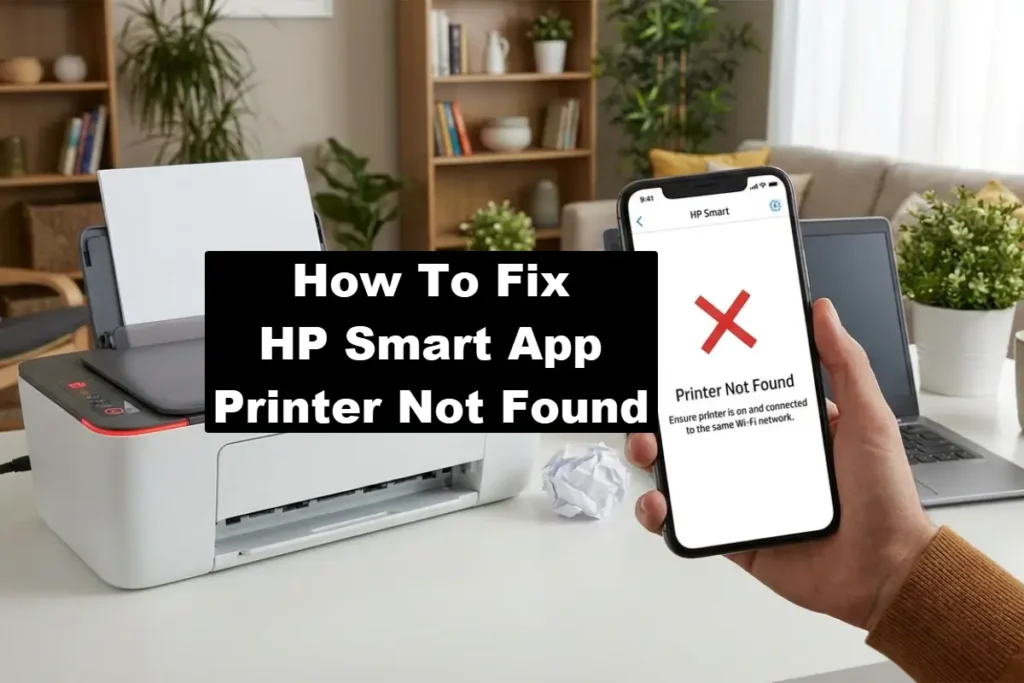
Quick Checks (Do These First)
The first thing you should do is visit the official HP “Printer Not Found” Troubleshooting Page to see their latest advice on this common problem.
The second thing you should do is go through some basic steps.
These basic checks solve a surprising number of HP Smart discovery problems and only take a few minutes.
Fully power cycle the printer
Turn the printer off completely.
Unplug the power cable from the wall for at least 30 seconds.
Plug it back in and wait for the printer to finish booting before reopening HP Smart.
Why this works: it clears temporary network stack problems and resets the printer’s wireless connection internally.
Check the Wi-Fi light status
Look at the printer’s wireless indicator.
- Solid blue light: connected normally
- Slow blinking blue: attempting to connect to Wi-Fi
- Fast blinking blue: WPS pairing mode
- No wireless light: wireless connection lost
On HP ENVY Inspire and Smart Tank models, the wireless light behaviour can vary slightly, but a solid wireless light generally indicates a stable connection.
Print a network configuration page
On most HP printers:
- Press the Information button (small “i” icon)
- Or go to Setup > Network > Print Network Configuration
Check the following:
- Current IP address
- Signal strength
- Network name (SSID)
- Bonjour/mDNS status
- Web Services status
If mDNS or Bonjour shows as disabled, HP Smart discovery may fail immediately.
Force close and reopen HP Smart
Sometimes the app itself is stuck with stale network information.
iPhone or iPad
Swipe up from the bottom of the screen and remove HP Smart from recent apps.
Android
Go to:
Settings > Apps > HP Smart > Force Stop
Windows
Right-click the HP Smart icon in the system tray and select Quit before reopening the app.
For a useful visual guide to some of the steps involved in solving the HP smart app printer not found issue, you should watch the YouTube video (hopefully) embedded below:
Platform-Specific Fixes
HP Smart behaves differently depending on whether you’re using Windows, macOS, Android, or iPhone.
Focus on the section that matches the device you normally use with the printer.
Windows: HP Smart App Printer Not Found
Before you attempt any of the fixes below, you should check the Microsoft Windows Printer Detection Troubleshooting page for their latest advice on the issue.
Fix 1: Allow HP Smart through Windows Defender Firewall
Windows updates and antivirus software can reset firewall permissions without warning.
HP Smart needs access to local network discovery traffic.
Steps:
- Open Windows Security
- Select Firewall & network protection
- Click Allow an app through firewall
- Select Change settings
- Find HP Smart in the list
If HP Smart is missing:
- Select Allow another app
- Browse for the application manually
On some systems the Microsoft Store app location is hidden inside:
C:\Program Files\WindowsApps\
You may need administrator permission to access this folder.
Make sure both:
- Private networks
- Public networks
are checked, although Private is the most important setting for home Wi-Fi.
Why this works: Windows can block Store apps from local device discovery even while allowing internet access.
Fix 2: Temporarily disable IPv6
Some routers handle IPv6 poorly with WSD printer discovery.
Steps
- Open Control Panel
- Go to Network and Sharing Center
- Select Change adapter settings
- Right-click your Wi-Fi adapter
- Select Properties
- Uncheck Internet Protocol Version 6 (TCP/IPv6)
- Click OK
Restart HP Smart afterward and test discovery again.
Fix 3: Reinstall HP Smart properly
Using the Reset option alone does not always clear corrupted printer discovery data.
Steps
- Open Settings > Apps
- Uninstall HP Smart completely
- Restart the computer
- Install a fresh copy from the Microsoft Store
- Open HP Smart and choose Add Printer
Allow the app to perform a completely fresh network scan.
HP has more advice on setting up HP apps here.
macOS: HP Smart App Printer Not Found
Mac systems rely heavily on Bonjour for printer discovery.
If Bonjour becomes unstable, HP Smart may stop detecting printers entirely.
Fix: Reset the Bonjour cache
Steps
- Quit HP Smart completely
- Open Terminal (Applications > Utilities)
- Enter:
sudo dscacheutil -flushcache; sudo killall -HUP mDNSResponder
- Press Enter
- Type your Mac administrator password
- Reopen HP Smart
This forces macOS to rebuild its local Bonjour discovery cache.
Fix: Verify the printer appears in Printers & Scanners
- Open Apple menu > System Settings
- Select Printers & Scanners
If the printer appears here but not in HP Smart, the issue is usually with HP Smart’s discovery layer rather than the printer itself.
In some cases, resetting the Mac printing system helps.
To reset the printing system
- Open Printers & Scanners
- Right-click in the printer list
- Choose Reset printing system
- Re-add the printer using the + button
Be aware this removes all saved printers temporarily.
Android and iPhone: HP Smart App Printer Not Found
Mobile devices often fail to detect printers because of permissions, battery optimisation, or Wi-Fi isolation.
Fix 1: Grant location permission
Android requires location access for Wi-Fi scanning, even though HP Smart is not using GPS tracking for printing.
Android steps
Settings > Apps > HP Smart > Permissions > Location
Choose:
- Allow while using the app
- Or Allow all the time
Without this permission, Android may block network scanning entirely.
Fix 2: Disable Private Wi-Fi Address on iPhone
Apple’s “Private Wi-Fi Address” feature randomises your device MAC address.
On some routers, this interferes with printer discovery.
Steps:
- Open Settings > Wi-Fi
- Tap the (i) beside your Wi-Fi network
- Turn off Private Wi-Fi Address
- Reconnect to the network
Fix 3: Disable battery optimisation temporarily
Aggressive battery-saving settings can interrupt network discovery in the background.
iPhone
Settings > Battery > turn off Low Power Mode temporarily
Android
Settings > Apps > HP Smart > Battery
Choose:
Unrestricted
Advanced Troubleshooting (When Standard Fixes Fail)
If you still experience “HP Smart app printer not found” after the basic fixes, move through these advanced steps in order.
Each one targets a specific networking failure that commonly affects HP printers.
1. Assign a Static IP Address to the Printer
This is one of the most reliable long-term fixes.
Most HP printers use DHCP, meaning the router automatically assigns an IP address.
The problem is that the address can change later, while HP Smart continues trying to connect to the old one.
How to assign a static IP
- Print the network configuration page
- Write down the printer IP address (example: 192.168.1.45)
- Open a browser on a device connected to the same network
- Enter the IP address into the browser address bar
- Open the printer Embedded Web Server (EWS)
You may be asked for:
- Admin credentials
- A printer PIN
- The printer administrator password
On many home HP printers, the password may still be blank unless previously configured.
Inside the printer web interface
Navigate to:
Network > Advanced > TCP/IP > IPv4
Change:
DHCP > Manual or Static
Keep the same IP address already assigned if possible.
Typical values:
- IP address: 192.168.1.45
- Subnet mask: 255.255.255.0
- Gateway: usually your router address (such as 192.168.1.1)
Save the changes and reboot the printer.
Why this works: HP Smart always knows exactly where to find the printer because the address no longer changes.
Models commonly affected by DHCP issues include:
- HP OfficeJet Pro 9010
- HP ENVY 6400
- HP LaserJet MFP M234
- HP Smart Tank 7000 series
2. Separate 2.4GHz and 5GHz Wi-Fi Bands
Many modern routers use “band steering,” where both wireless bands share the same Wi-Fi name.
That sounds convenient, but some HP printers struggle with it.
Budget and older models – including DeskJet 2700, DeskJet 4100, ENVY 5000 series, and HP Tango printers – often work more reliably when connected only to a dedicated 2.4GHz network.
Method A: Temporarily disable 5GHz
- Log into your router
- Open Wireless Settings
- Disable the 5GHz band temporarily
- Connect both the printer and your phone or computer to 2.4GHz
- Run HP Smart setup again
Once setup finishes, you can usually turn 5GHz back on.
Method B: Create separate Wi-Fi names
A more permanent solution is to split the wireless bands into separate names.
Example:
- HomeWiFi-2G
- HomeWiFi-5G
Connect the printer to the 2.4GHz network only.
Important note about guest networks
Some routers isolate devices connected to guest Wi-Fi from each other entirely.
If you use a guest network for the printer, make sure “Allow devices to communicate” or “AP isolation” is disabled.
Otherwise HP Smart still will not detect the printer.
3. Disable VPNs and Network Filtering
VPN software is one of the biggest causes of sudden HP Smart discovery failures.
This includes:
- Corporate VPN clients
- Cloudflare WARP
- NordVPN
- ExpressVPN
- AdGuard DNS
- NextDNS filtering apps
Even when internet access still works normally, local network traffic can be blocked or redirected.
Turn off the VPN fully
Do not simply pause it.
Disconnect it completely before testing HP Smart again.
iPhone
Settings > VPN & Device Management
Android
Settings > Connections > VPN
Windows
Disconnect from the VPN client entirely and close the application.
Check for AP Isolation or Client Isolation
Some routers include settings called:
- AP Isolation
- Client Isolation
- Wireless Isolation
When enabled, wireless devices cannot communicate with one another.
Disable these settings inside the router admin panel if present.
Less Common Cases: Smart Tank, LaserJet, and Older HP Models
Some HP printer families have their own recurring discovery problems.
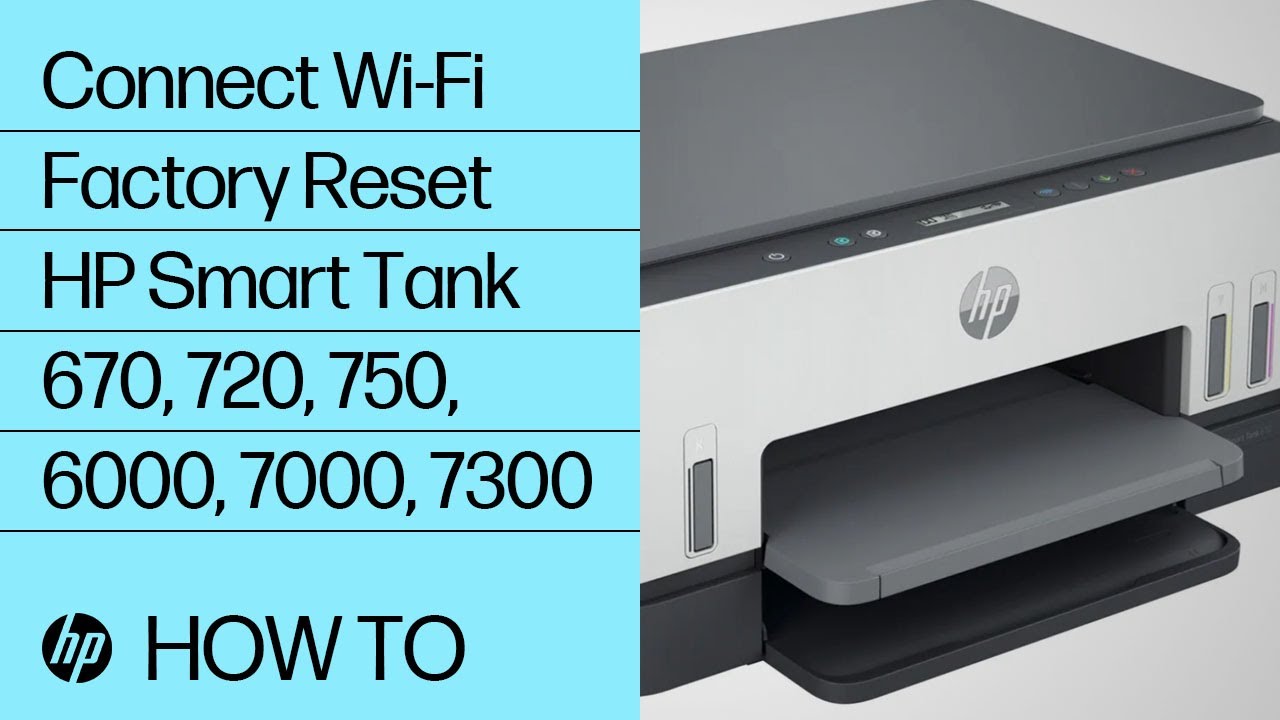
HP Smart Tank Series (5100, 6100, 7000)
These models occasionally require a full wireless reset after firmware updates or failed setup attempts.
Reset procedure
Press and hold:
- Wireless button
- Cancel button
for approximately five seconds.
The printer will restart and erase its stored Wi-Fi configuration.
You can then reconnect it using HP Smart setup again.
For a useful visual guide to performing a reset on HP Smart Tank printers you should watch the video (hopefully) embedded below that specifically mentions it helps with the HP smart app printer not found issue:
HP LaserJet MFP Models (M29, M30, M234)
Some LaserJet models ship with Web Services disabled or partially configured.
Without Web Services or mDNS enabled, HP Smart may never discover the printer properly.
Enable Web Services
On the printer control panel:
Setup > Service > Web Services Setup > Enable
Restart the printer afterward and try discovery again.
HP ENVY 6000 and 7000 Series
There is a known issue on some firmware versions where the printer stops responding to mDNS requests after waking from sleep.
A short restart often is not enough.
Better reset method
- Unplug the printer completely
- Leave it disconnected for five full minutes
- Plug it back in
- Wait for Wi-Fi reconnection
- Reopen HP Smart
The longer power drain helps fully reset the network hardware.
HP DeskJet 2700 and 4100 Series
These printers are known for weak wireless performance during setup.
Temporary placement matters more than many people expect.
Setup tip
Move the printer within 10 feet of the router during initial setup and pairing.
Once setup completes successfully, you can usually move it back to its normal location.
Prevention: Stop It From Happening Again
Once the printer is working again, spending a few minutes on prevention can save a lot of frustration later.
Reduce or disable deep sleep mode
On many HP printers:
Settings > Power Management > Sleep Mode
Increase the sleep timer to 30 minutes or longer.
Some OfficeJet Pro models hide this inside Eco Settings.
Deep sleep is one of the most common reasons printers disappear from HP Smart overnight.
Reserve the printer IP address in the router
This is often easier than manually configuring a static IP directly on the printer.
Inside the router settings, look for:
- DHCP Reservation
- Address Reservation
- Static Lease
Enter:
- Printer MAC address
- Current printer IP address
The router will then permanently reserve that address for the printer.
Keep router firmware updated
Older router firmware can cause unreliable mDNS handling, especially with mesh Wi-Fi systems.
If your printer disconnects regularly across multiple devices, router firmware is worth checking.
Keep HP Smart permissions enabled
After operating system updates, especially on Android and Windows, permissions can reset silently.
If the printer suddenly disappears again after an update, revisit:
- Firewall permissions
- Local network permissions
- Location permissions
- Battery optimisation settings
Final Thoughts On HP Smart App Printer Not Found
Experiencing “HP Smart app printer not found” right before you need to print something important is incredibly frustrating.
But in most situations, the printer itself is not broken.
The issue usually comes down to local network communication: mismatched Wi-Fi bands, blocked discovery traffic, stale IP addresses, VPN interference, or aggressive power-saving behaviour.
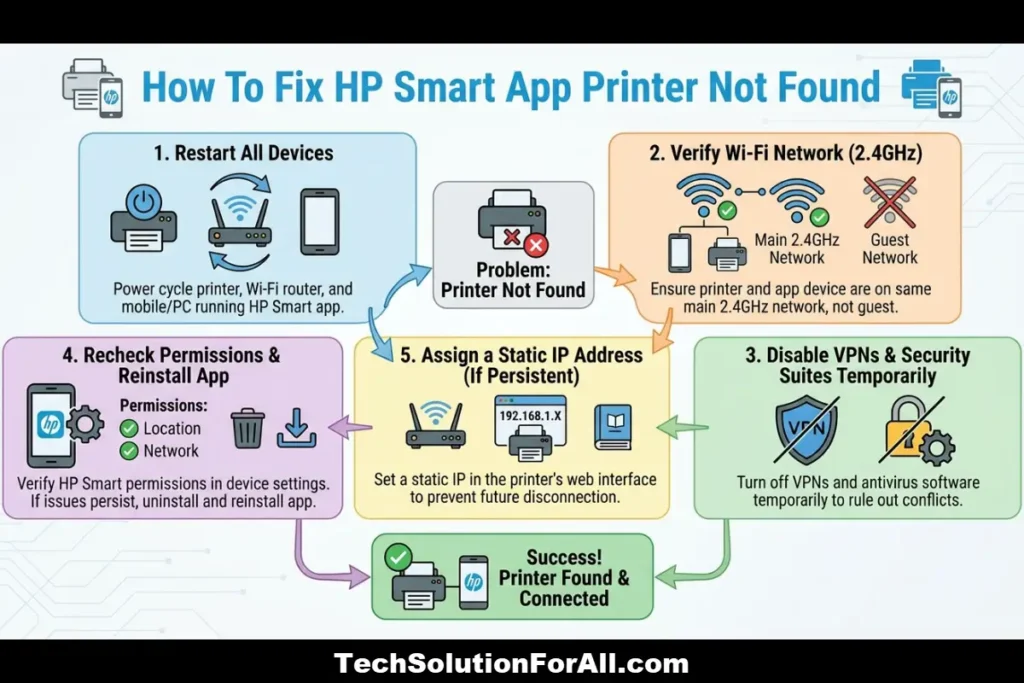
For most people, the fastest recovery path is:
- Restart the printer and router
- Make sure both devices are on 2.4GHz Wi-Fi
- Disable VPNs temporarily
- Recheck HP Smart permissions
- Assign a static IP address if the problem keeps returning
Work through the fixes one step at a time and skip anything that clearly does not apply to your setup.
Once the network communication issue is corrected, HP Smart usually reconnects immediately.
FAQ’s About HP Smart App Printer Not Found
Q1: Why does my HP Smart app see the printer one day and not the next?
Most often, the printer received a new IP address from the router after a DHCP renewal, or the printer entered deep sleep mode and stopped responding to discovery requests.
Reserving the printer IP address or assigning a static IP usually prevents the problem from returning.
Q2: Can I use HP Smart without an internet connection?
Yes, but only after the initial setup process.
HP Smart normally requires internet access the first time you sign in and register the printer.
After setup, scanning and printing can usually work entirely across your local Wi-Fi network.
Q3: Will restarting my router fix the “printer not found” error?
Sometimes.
Restarting the router refreshes network connections and DHCP assignments, which can temporarily restore communication.
However, the underlying problem is often related to firewall permissions, Wi-Fi band separation, printer sleep settings, or stale IP information.
Q4: Does HP Smart work with USB-connected printers?
Not reliably.
HP Smart is designed primarily for network-connected printers discovered over Wi-Fi or Ethernet.
For USB-only connections, the standard HP printer driver or the Windows printer setup tools generally work better.
Q5: Why does my HP LaserJet appear in Windows but not in HP Smart?
Windows can communicate using traditional TCP/IP printer ports or WSD, while HP Smart depends more heavily on mDNS, Bonjour, and HP Web Services.
If Web Services are disabled on the printer, HP Smart discovery may fail even though Windows printing still works.
Q6: My HP Smart app finds the printer but says “offline” instead. Is the fix the same?
Usually yes.
“Offline” typically means the app can still see the printer on the network but cannot maintain stable communication with it.
Static IP assignment, reducing sleep mode aggressiveness, and checking firewall permissions are the most effective fixes.
How To Fix The HP Smart App Printer Not Found Error
A step-by-step troubleshooting process for restoring printer discovery in the HP Smart app.
Total time: 12 minutes
Supplies: None required
Tools: Phone, tablet, or computer with HP Smart installed, HP printer powered on
Steps
- Print a network configuration page from the printer control panel and locate the current IP address.
- Restart the router by unplugging it for 30 seconds. While the router reboots, also power off the printer. Turn the router back on first, wait for the internet and Wi-Fi lights to stabilise, then power the printer back on.
- Temporarily disable any VPN software, antivirus firewall, ad-blocking DNS app, or network filtering service on the phone or computer running HP Smart.
- Open HP Smart and choose Add Printer instead of refreshing the existing connection. Allow the app to perform a fresh network scan.
- If the printer still is not detected, open a browser and enter the printer IP address from step 1. Inside the printer web interface, change DHCP to Manual or Static while keeping the same IP address.
- Print a test page from HP Smart. Once the printer works again, re-enable any firewall, VPN, or security software you disabled earlier.
Finally be sure to check out our Tech Troubleshooting FAQ or our Printer Troubleshooting Tips pages for even more general tips that cover a wide range of technical problems and solutions.
(If after reading the above article you still have a “HP Smart app printer not found” issue, then you might find a much less obvious solution on the above tech pages!)