A common problem caused by a print spooler error is a printer that refuses to print.
And nothing is more frustrating than that (well almost nothing!)
You send a document, the printer whirs to life, but does not print.
The job vanishes from the queue, or it sits there indefinitely, a digital ghost haunting your workflow.
This is a surprisingly frequent issue that can bring productivity to a screeching halt.
We understand the headache this causes, and we are here to help you fix it for good.
We will walk you through the exact steps to restart the print spooler, clear out corrupted print jobs, and fix the underlying driver conflicts that cause the service to fail.
Follow these instructions, and you will be back to printing in minutes.
What Is The Print Spooler And Why Does It Fail?
The Print Spooler is a small but essential background program in your Windows operating system.
Think of it as a traffic controller for your printer.
When you click “Print”, the spooler takes the data from your application, organises it into a language the printer understands, and then feeds it to the printer one job at a time.
This process allows you to continue working on your computer without waiting for the printer to finish its physical task.
A print spooler error occurs when this traffic controller breaks down.
The service might crash, a print job might get corrupted and create a blockage, or the spooler’s files might become damaged.
When this happens, the flow of information stops, and your documents are left in limbo, unable to reach the printer.
Common Causes of a Print Spooler Error
Understanding why the spooler fails is the first step to fixing it.
While it can feel random, the issue usually traces back to a few common culprits.
Corrupted Print Jobs
A single corrupted print job is one of the most frequent causes.
This can happen for many reasons – a temporary network glitch, a problem with the document itself, or an interruption during the data transfer.
This bad job gets stuck at the front of the line, preventing any other documents from printing.
It’s like a stalled car blocking a one-lane tunnel; nothing else can get through.
Outdated or Incompatible Printer Drivers
Printer drivers are the software that allows your computer to communicate with your printer.
If your driver is outdated, corrupted, or incompatible with a recent Windows update, it can send garbled instructions to the spooler service, causing it to crash.
This is especially common after major operating system updates, which can create new compatibility issues with older hardware.
The Print Spooler Service Has Stopped
Sometimes, the Print Spooler service itself simply stops running.
It can crash due to a software conflict, a lack of system resources, or an unexpected error.
When the service isn’t running, there is no mechanism to manage the print queue, and any new print jobs will fail immediately.
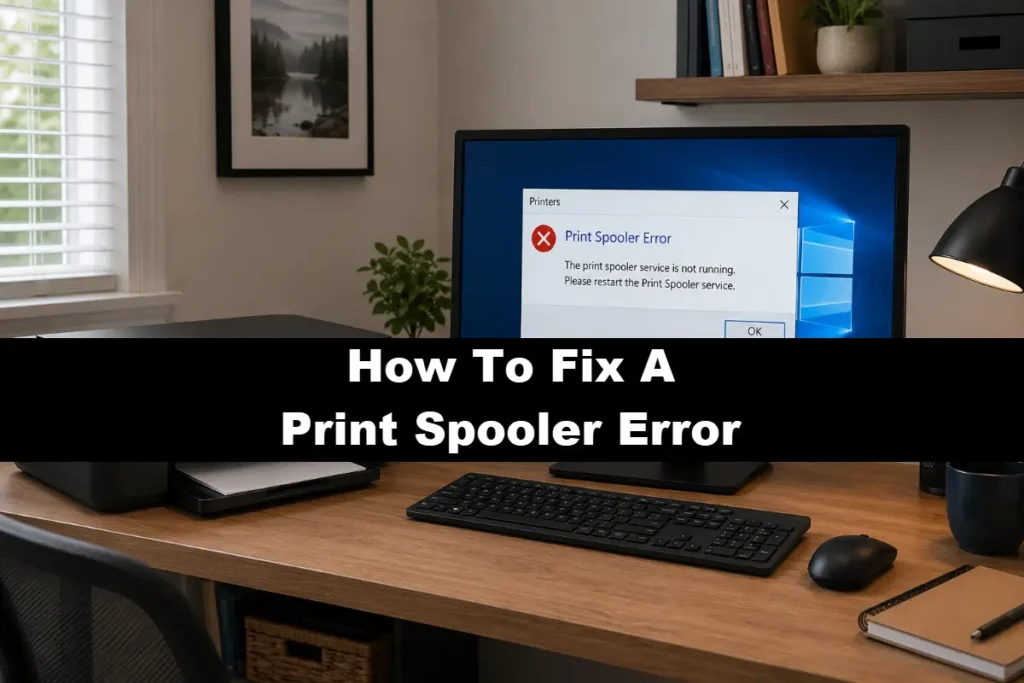
You might see an error message explicitly stating that the service is not running.
Conflicts with Windows Updates
While Windows updates are crucial for security and performance, they can sometimes inadvertently disrupt the printing process.
A new update might change system files that the print spooler depends on, or introduce a bug that causes the service to become unstable.
Many users report a sudden onset of a print spooler error immediately following a system update.
Step-By-Step Fixes For Your Print Spooler Error
Now, let’s get to the solutions.
Start with the first fix and move to the next only if the problem persists.
In most cases, one of these first three steps will resolve your issue.
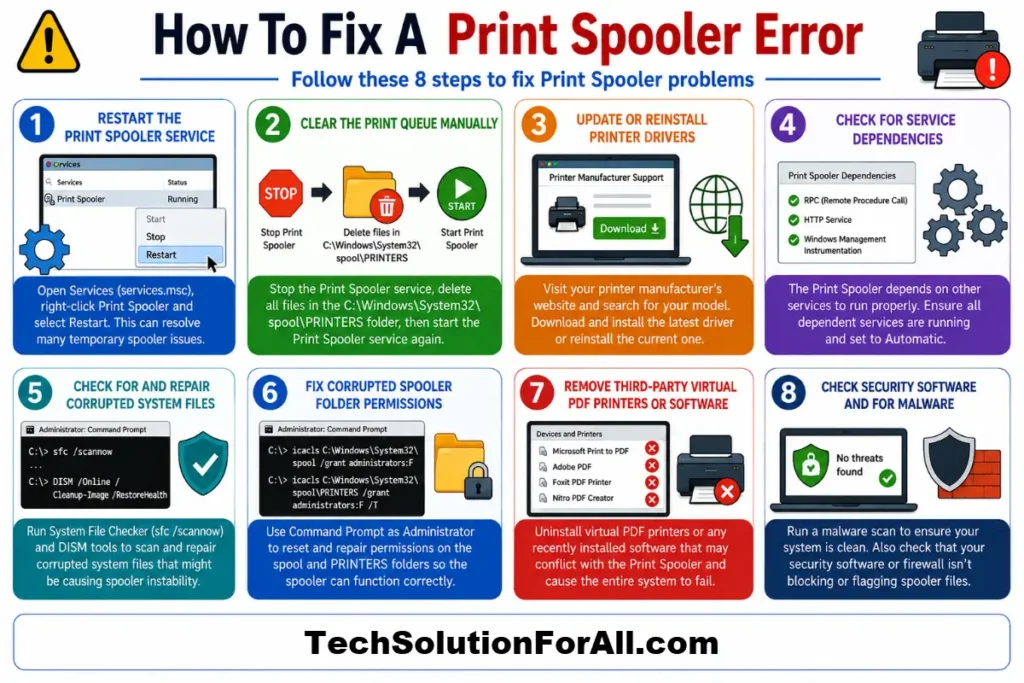
Fix 1: The Classic Restart – Restarting the Print Spooler Service
This is the simplest and often most effective solution.
Restarting the service clears out temporary glitches and forces it to start fresh.
It’s the equivalent of turning it off and on again.
- Open the Services window:
Press the Windows key + R to open the Run dialog.
Type services.msc and press Enter. - Find the Print Spooler:
In the Services window, scroll down the list to find “Print Spooler”. - Restart the service:
Right-click on “Print Spooler” and select “Restart”.
If “Restart” is grayed out, click “Start” instead.
After restarting, try printing a test page.
If it works, you’re all set!
If not, proceed to the next fix.
Fix 2: Clearing the Print Queue Manually
If a corrupted job is blocking the queue, you need to remove it manually. Restarting the spooler doesn’t always clear these stuck files.
- Stop the Print Spooler Service:
Follow steps 1 and 2 from the previous fix, but this time, right-click “Print Spooler” and select “Stop”. - Navigate to the Spool Folder:
Open File Explorer and go to the following directory:
C:\Windows\System32\spool\PRINTERS.
You may need to enable viewing of hidden files to see this folder. - Delete the Queue Files:
Once inside the PRINTERS folder, delete all the files within it.
Don’t worry – these are just temporary spool files, not your original documents.
You are simply clearing the backlog. - Restart the Print Spooler Service:
Go back to the Services window, right-click “Print Spooler”, and select “Start”.
This process, detailed in guides from manufacturers like Dell, effectively gives the spooler a clean slate.
Your stuck print job is gone, and new jobs can be processed.
Fix 3: Updating or Reinstalling Printer Drivers
If the issue is a faulty driver, you’ll need to update or reinstall it.
This ensures your computer has the correct, uncorrupted software to communicate with your printer.
- Open Device Manager:
Press the Windows key + X and select “Device Manager” from the menu. - Find Your Printer:
Expand the “Printers” or “Print queues” category.
Right-click your printer and select “Update driver”.
Choose to search automatically for drivers. - If updating fails, reinstall:
If Windows can’t find a new driver, you should reinstall it completely.
First, go to your printer manufacturer’s website (e.g., HP, Brother, Canon, Epson etc.) and download the latest driver for your specific model. - Uninstall the old driver:
In Device Manager, right-click your printer again and choose “Uninstall device”.
Make sure to check the box that says “Delete the driver software for this device”. - Install the new driver:
Run the driver file you downloaded from the manufacturer’s website and follow the installation instructions.
Advanced Troubleshooting For A Persistent Print Spooler Error
If the basic fixes didn’t work, don’t despair.
The problem might be deeper, but it’s still solvable.
These advanced steps tackle more complex causes of the print spooler error.
Advanced Fix 1: Checking for Service Dependencies (Error 1068)
Sometimes, the Print Spooler won’t start because other services it depends on are not running.
This often results in “Error 1068: The dependency service or group failed to start.”
The primary dependency is the Remote Procedure Call (RPC) service.
- Open Services:
Type services.msc in the Run dialog (Windows key + R). - Check Dependencies:
Find and right-click “Print Spooler”, then select “Properties”.
Go to the “Dependencies” tab.
You will see a list of required services.
For most systems, this will include “Remote Procedure Call (RPC)” and the “DCOM Server Process Launcher”. - Verify Dependency Services:
Go back to the main Services list and ensure these dependency services are running and their Startup Type is set to “Automatic”.
If they are not running, start them manually. - Restart Print Spooler:
Once you’ve confirmed the dependencies are active, try starting the Print Spooler service again.
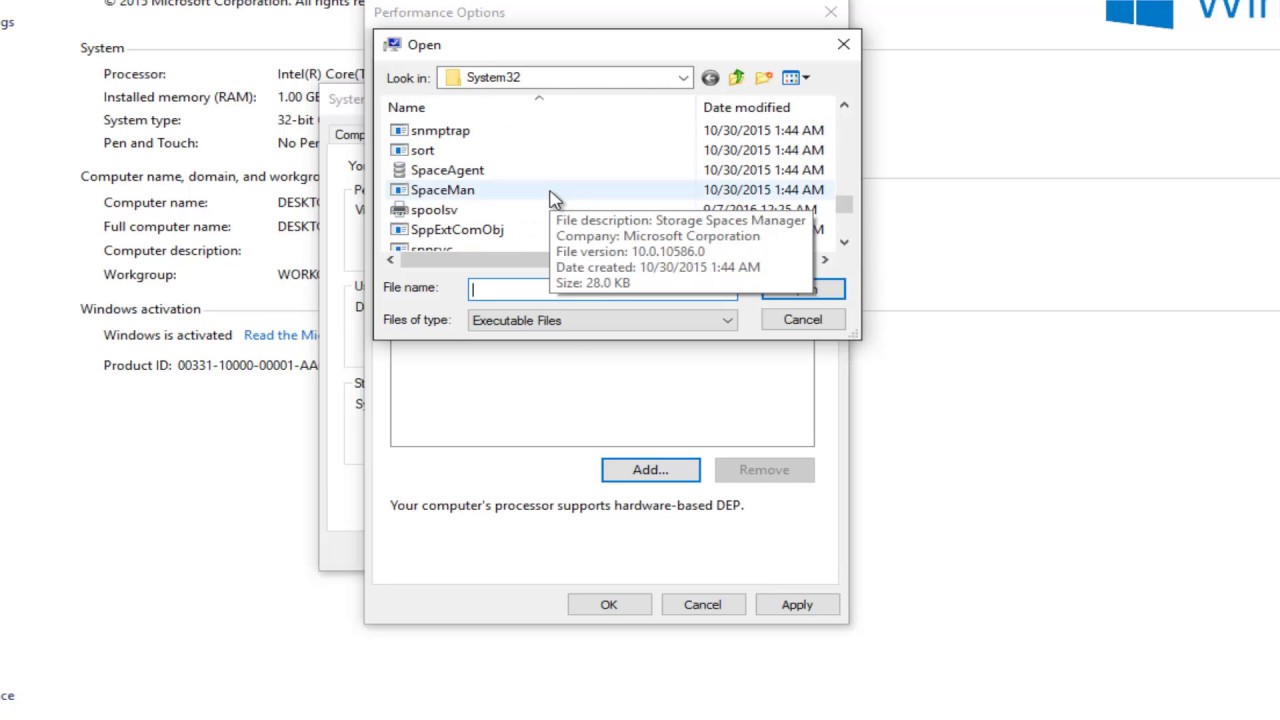
For a visual walkthrough of this process, this really helpful video on how to fix a Print Spooler Service when it is not running explains how to resolve dependency errors (and is hopefully also embedded below!):
Advanced Fix 2: Repairing Corrupted System Files
If core Windows files related to printing have become corrupted, the spooler will be unstable.
Windows has built-in tools to scan for and repair these files.
- Open Command Prompt as Administrator:
Search for “cmd” in the Start Menu, right-click “Command Prompt”, and select “Run as administrator”. - Run the System File Checker (SFC):
In the command prompt window, type sfc /scannow and press Enter.
This command will scan all protected system files and replace corrupted ones with a cached copy.
The process can take some time. - Run the DISM Tool:
If SFC finds errors but cannot fix them, or finds no errors, run the Deployment Imaging Service and Management Tool (DISM).
Type DISM /Online /Cleanup-Image /RestoreHealth and press Enter.
This tool can repair deeper corruption in the Windows system image. - Restart your computer after the scans are complete and try printing again.
Advanced Fix 3: Fixing Corrupted Spooler Folder Permissions
This is a more obscure but powerful fix, especially if you’ve used aggressive system cleaning tools in the past.
The spool folder requires very specific security permissions to function.
If these are changed, the spooler service can’t access the files it needs and will crash, often with an “Access Violation” error in the Event Viewer.
As discovered by users in the HP Support Community, you can fix this by restoring the default permissions.
- Stop the Print Spooler service:
(services.msc > right-click Print Spooler > Stop). - Open Command Prompt as Administrator.
- Take ownership of the folder:
Type takeown /F C:\Windows\System32\spool\PRINTERS /R /A and press Enter. - Reset permissions:
Type icacls C:\Windows\System32\spool\PRINTERS /grant Administrators:F /T and press Enter.
Then, type icacls C:\Windows\System32\spool\PRINTERS /grant System:F /T and press Enter. - Restart the Print Spooler service and test printing.
Print Spooler Error Edge Cases And Specific Scenarios
Sometimes, the print spooler error appears in specific contexts that require a slightly different approach.
Print Spooler Error on a Network Printer
The problem might not be on your computer but on the host machine (the computer or server the printer is directly connected to).
If you are printing over a network, try these steps on the host computer first, as a spooler issue there will affect everyone connected to it.
Issues with Third-Party PDF Printers or Software
Virtual printers, like those used to create PDF files, also use the spooler service.
A conflict with a PDF printer driver can cause the entire spooler system to fail, affecting your physical printers too.
If you recently installed or updated such software, try uninstalling it temporarily to see if that resolves the physical printer issue.
How To Prevent Future Print Spooler Errors
Once you’ve fixed the problem, you can take steps to prevent it from happening again.
- Update Drivers Regularly:
Check for new printer drivers every few months, especially after a major Windows update. - Be Careful with System Cleaners:
Avoid using overly aggressive settings in system cleaning utilities that might tamper with system file permissions. - Clear the Queue Before Shutting Down:
If you have a long list of documents in the queue, it’s a good practice to let them finish printing before shutting down your computer to avoid creating corrupted spool files. - Set the Spooler to Recover Automatically:
In the Services window, right-click the Print Spooler, go to Properties > Recovery tab.
Set the “First failure” and “Second failure” dropdowns to “Restart the Service”.
This tells Windows to automatically try and fix the problem if the service crashes.
You can find more details on this in the official Microsoft documentation.
Final Thoughts On The Printer Spooler Error
A print spooler error is a disruptive but highly solvable problem.
By working through these diagnostic and repair steps systematically – from the simple service restart to the more advanced permission fixes – you can identify and resolve the root cause.
Patience is key.
Remember to test printing after each major step.
With these tools and knowledge, you are now well-equipped to tackle this common frustration and keep your printing workflow smooth and uninterrupted.
Frequently Asked Questions About The Printer Spooler Error
Q: Why does my print job disappear from the queue?
A: This is a classic symptom of a printer spooler error.
It often happens when the spooler service crashes right after processing your job, or when a corrupted driver or file causes the job to be deleted silently.
The service essentially fails before it can properly hand off the job to the printer.
Q: Can a virus cause the printer spooler to fail?
A: While less common, it is possible.
Some malware can interfere with essential Windows services, including the Print Spooler.
Additionally, some anti-virus programs can be overly aggressive and mistakenly flag spooler components as malicious, causing conflicts.
If you suspect an infection, run a full system scan with your security software.
Q: Is it safe to delete the files in the PRINTERS folder?
A: Yes, it is completely safe.
The files located in C:\Windows\System32\spool\PRINTERS are temporary files that hold the data for print jobs currently in the queue.
Deleting them simply clears out all pending and stuck jobs.
Your original documents on your computer are not affected.
Q: Why does the printer spooler error keep happening after a Windows update?
A: Windows updates can change core system files, and sometimes these changes create an incompatibility with your existing printer drivers.
The old driver may not know how to communicate with the updated spooler service, leading to repeated crashes.
The best solution is to check your printer manufacturer’s website for an updated driver designed for the new version of Windows.
How To Fix A Print Spooler Error
Step 1: Restart the Print Spooler Service
Open the Services application by typing services.msc in the Run box (Windows key + R).
Find “Print Spooler” in the list, right-click it, and select “Restart”.
This simple action resolves most temporary glitches.
Step 2: Manually Clear the Print Queue
If restarting doesn’t work, stop the Print Spooler service.
Then, navigate to C:\Windows\System32\spool\PRINTERS in File Explorer and delete all the files inside this folder.
This removes any corrupted print jobs that are causing a blockage.
Step 3: Start the Print Spooler Service
After clearing the queue, return to the Services application, right-click “Print Spooler”, and select “Start”.
This reactivates the service with a clean slate.
Step 4: Update Your Printer Driver
If the problem persists, it is likely a driver issue.
Go to your printer manufacturer’s official website, download the latest driver for your specific model, and install it.
This ensures compatibility with your operating system, especially after a Windows update.
Finally be sure to check out our Tech Troubleshooting FAQ or our Printer Troubleshooting Tips pages for even more general tips that cover a wide range of technical problems and solutions.
(If after reading the above article you still have a “Print Spooler Error”, then you might find a much less obvious solution on the above tech pages!)