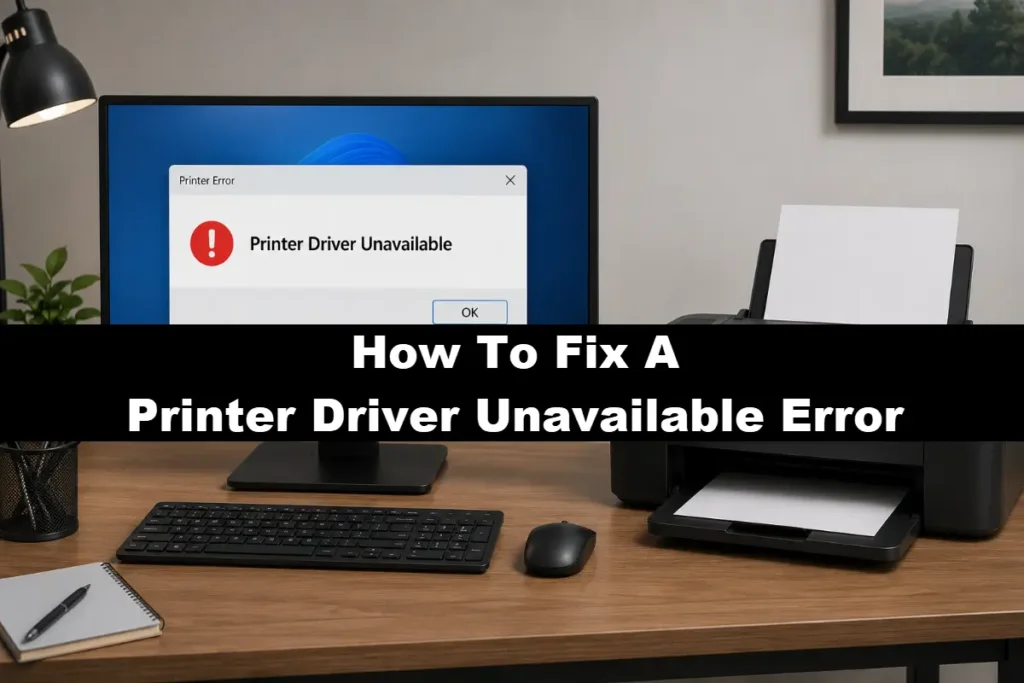
It’s a frustratingly common scenario: you need to print an important document, but your computer displays a cryptic “printer driver unavailable” message.
This error brings your productivity to a sudden halt, leaving you with a device that’s connected but completely unresponsive.
You’re not alone in this experience, and the good news is that resolving this issue is usually much simpler than it sounds.
We’ll walk you through the exact steps to force Windows to find the correct driver, clearing the error and getting your printer back online.
You are in the right place to solve this problem for good.
Why Does My PC Say Printer Driver Is Unavailable?
A printer driver is a crucial piece of software that acts as a translator between your computer and your printer.
When you click “print,” the driver converts the document into a language the printer can understand.
If this driver is missing, corrupted, or incompatible, your computer can’t communicate its instructions, resulting in the “printer driver is unavailable” error.
Understanding the specific cause is the first step toward a lasting fix.
1. Outdated or Corrupted Printer Drivers
This is the most frequent culprit.
Over time, driver files can become damaged, or they can become outdated, especially after a major Windows update.
An old driver might not be compatible with new operating system features, causing a communication breakdown.
2. Windows Update Conflicts
While Windows updates are essential for security, they can sometimes create unforeseen conflicts.
A recent update might have replaced your stable printer driver with a generic or incorrect version, or introduced a change that makes your current driver obsolete.
This is why the error can appear suddenly, even if your printer was working perfectly yesterday.
3. The Print Spooler Service is Stuck
The Print Spooler is a Windows service that manages the queue of print jobs.
If this service crashes or gets clogged with a corrupted print job, it can prevent the system from accessing the printer driver correctly.
A faulty print spooler can cause a range of printing and communication problems and Dell Support explain quickly and simply how to delete files from the Windows Print Spooler Directory and stop and restart the print spooler.
4. Incorrect Printer Installation
If the printer wasn’t installed correctly in the first place, Windows may struggle to locate the right driver.
This can happen if you plug in a new printer and let Windows automatically install a driver without using the manufacturer’s official software, which is always recommended for ensuring full functionality.
How To Fix The Printer Driver Unavailable Error: A Step-By-Step Guide
Work through these solutions in order, from the simplest to the more involved.
In most cases, one of the first few steps will resolve your issue.
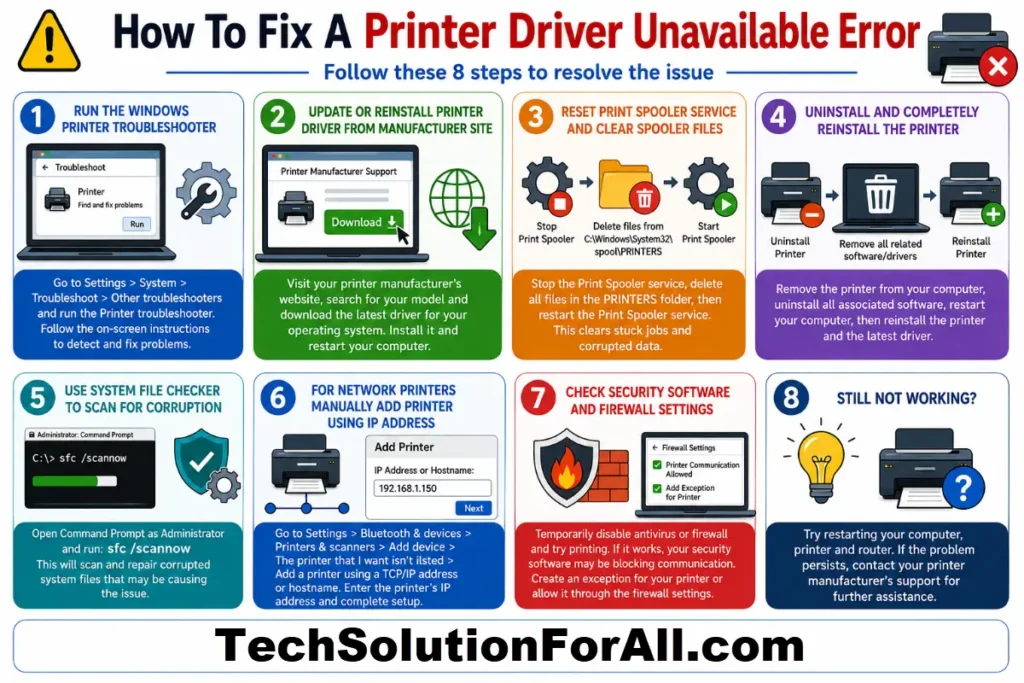
Step 1: Run the Windows Printer Troubleshooter
Before diving into manual fixes, let Windows try to diagnose the problem itself.
The built-in troubleshooter is surprisingly effective at identifying and resolving common driver and spooler issues.
- Click the Start Menu and go to Settings (the gear icon).
- Select Update & Security > Troubleshoot.
- Click on Additional troubleshooters.
- Select Printer and click Run the troubleshooter.
Follow the on-screen prompts. If the troubleshooter finds a problem, it will often fix it automatically or provide instructions on what to do next.
Step 2: Update Your Printer Driver
An outdated driver is a primary cause of the “printer driver unavailable” message.
There are two main ways to update it.
Option A: Use Windows Update
Windows Update is the most reliable way to get Microsoft-approved drivers.
- Go to Settings > Update & Security > Windows Update.
- Click Check for updates. Even if it says you’re up to date, it’s worth checking.
- If any optional updates are found, click View optional updates.
- Expand the Driver updates section, check the box next to your printer’s driver, and click Download and install.
Option B: Manually Download from the Manufacturer
Sometimes, the very latest driver is only available directly from the source.
This is the best method to ensure you have the correct and most feature-complete driver.
- Visit the official support website for your printer brand.
Here are the links for the major manufacturers: - Search for your exact printer model.
- Download the latest driver package for your version of Windows (e.g., Windows 11, 64-bit).
- Run the installer and follow the instructions carefully.
Step 3: Completely Reinstall the Printer
If updating the driver doesn’t work, the existing driver files may be corrupted.
A clean reinstallation removes all traces of the old driver and installs a fresh copy.
This is one of the most effective solutions for the “printer driver unavailable” error.
- Disconnect your printer from the computer (unplug the USB cable or disconnect from Wi-Fi).
- Go to Settings > Devices > Printers & scanners.
- Click on your printer and select Remove device.
- Now, we need to remove the old driver from the system.
Press the Windows key + R, type printui /s /t2, and press Enter.
This opens the Print Server Properties. - Find your printer in the list, select it, and click Remove.
Choose Remove driver and driver package. - Restart your computer.
This is a critical step to ensure all old files are cleared. - Once your PC has rebooted, run the manufacturer’s installer you downloaded in the previous step.
Only reconnect your printer when the installer prompts you to do so.
For a visual walkthrough of some of the above process (including even more technical steps you can try), this video on fully uninstalling a printer in Windows provides a clear demonstration (and is hopefully embedded below also):
Advanced Troubleshooting For A Stubborn Printer Driver Unavailable Error
If the issue persists, it’s time to look at deeper system-level causes.
These steps are more technical but can solve the most persistent problems.
Advanced Fix 1: Restart the Print Spooler and Clear Its Cache
A corrupted print job stuck in the queue can cause the spooler service to fail, which in turn makes the driver appear unavailable.
Clearing it out can reset the system.
- Press the Windows key + R, type services.msc, and press Enter.
- Scroll down to find Print Spooler.
Right-click it and select Stop. - Leave the Services window open.
Open File Explorer and navigate to:
C:\Windows\System32\spool\PRINTERS. - Delete all files inside this folder.
This will clear any stuck print jobs. - Go back to the Services window, right-click Print Spooler, and select Start.
Try printing again. This process forces the print system to start fresh.
Advanced Fix 2: Check for System File Corruption
If core Windows files related to printing are damaged, it can lead to driver errors.
The System File Checker (SFC) tool can find and repair these files.
- Type cmd in the Start Menu search bar.
- Right-click on Command Prompt and select Run as administrator.
- In the black command window, type sfc /scannow and press Enter.
- The process will take some time.
If it finds and repairs any errors, restart your computer and test the printer.
Advanced Fix 3: Manually Add the Printer Using its IP Address (Network Printers)
For network printers, Windows can sometimes fail to locate the device correctly.
Manually adding it via its IP address creates a more direct and stable connection.
- First, find your printer’s IP address.
You can usually find this in the printer’s network settings menu on its own display screen. - Go to Settings > Devices > Printers & scanners.
- Click Add a printer or scanner.
- After a moment, a link will appear that says The printer that I want isn’t listed.
Click it. - Select Add a printer using an IP address or hostname and click Next.
- Enter the printer’s IP address and let Windows search for the driver.
This method often successfully finds the correct driver when the automatic search fails.
Printer Driver Unavailable Edge Cases And Prevention
- ARM-based PCs (like Copilot+ PCs):
Some newer Windows on ARM devices have trouble with standard installers.
Microsoft Support advises using the “Add device” button in Settings instead of the manufacturer’s setup file. - Third-Party Antivirus/Firewall:
In rare cases, security software can block the communication between the PC and the printer.
Try temporarily disabling your firewall to see if it resolves the issue.
If it does, add an exception for your printer in the firewall settings.
To prevent the “printer driver unavailable” error from returning, make it a habit to check for driver updates via the manufacturer’s website every few months and always install optional driver updates offered through Windows Update.
Final Thoughts On Printer Driver Unavailable
The “printer driver is unavailable” error is a software problem, not a hardware one.
It’s a sign of a communication breakdown between your computer and your printer.
By methodically working through troubleshooting steps – from basic updates to a full reinstallation and clearing the print spooler – you can almost always restore this communication.
Patience is key.
By taking the time to perform a clean installation, you not only fix the immediate problem but also create a stable foundation that helps prevent future driver conflicts.
Frequently Asked Questions About Printer Driver Unavailable Errors
Q: Why did my printer driver suddenly become unavailable?
A: This usually happens after a Windows update, which can cause a conflict with your existing driver.
It can also be caused by a corrupted driver file or a problem with the Windows Print Spooler service.
Q: Can I use a generic driver for my printer?
A: While Windows may install a generic driver that provides basic functionality, it is always best to use the official driver from your printer’s manufacturer.
This ensures you have access to all features, such as scanning, ink level monitoring, and different print quality settings.
Q: Does “printer driver unavailable” mean my printer is broken?
A: No, this is a software error on your computer, not a hardware failure of the printer itself.
The printer is likely fine; your computer just can’t communicate with it correctly.
How To Fix A Printer Driver Unavailable Issue
Here is a step-by-step guide to performing a clean reinstallation of your printer driver, the most effective fix for the “printer driver unavailable” error.
Step 1: Remove the Device
Disconnect the printer from your PC.
Go to Settings > Devices > Printers & scanners, select your printer, and click “Remove device.”
Step 2: Remove the Old Driver Package
Press Windows key + R, type printui /s /t2, and press Enter.
In the Print Server Properties window, find your printer, select it, and click “Remove.”
Choose to “Remove driver and driver package.”
Step 3: Restart Your Computer
Reboot your PC to ensure all remnants of the old driver are gone.
Step 4: Install the New Driver
Run the official driver installer you downloaded from the printer manufacturer’s website.
Do not reconnect the printer until the installer tells you to.
Step 5: Reconnect and Test
Follow the final on-screen prompts to reconnect your printer and print a test page to confirm the issue is resolved.
Finally be sure to check out our Tech Troubleshooting FAQ or our Printer Troubleshooting Tips pages for even more general tips that cover a wide range of technical problems and solutions.
(If after reading the above article you still have a “Printer Driver Unavailable” problem, then you might find a much less obvious solution on the above tech pages!)