Printer error codes are one of the most frustrating interruptions to a productive day.
One moment you’re ready to print an important document, and the next, your device is flashing a meaningless string of numbers or a vague, unhelpful message.
It’s a universal experience that leaves many feeling powerless and annoyed.
But what if you could solve that printer error code yourself, without calling for expensive IT support or endlessly searching forums for answers?
We will walk you through a universal troubleshooting process that works for any brand – from HP and Canon to Brother and Epson.
By following these steps, you can systematically identify the root cause and apply a reliable fix to get your printer back online.
Understanding The Language Of Printer Error Codes
Before diving into fixes, it helps to understand what a printer error code is trying to tell you.
These codes are your printer’s way of communicating a problem, but their language can often feel cryptic.
They can appear as numeric codes (like “Error 79”), alphanumeric strings (like “B200”), or plain text messages (“Printer Offline”).
Each manufacturer, from HP and Canon to Brother and Epson, uses its own unique set of codes, which is why a universal troubleshooting approach is so effective.
The code itself is a pointer to a category of problem.
For example, many codes in the 50s range on HP printers relate to the fuser unit, while a 5100 error on a Canon printer often points to a carriage jam.
Instead of getting bogged down trying to find a specific definition for every single code, it’s more practical to follow a logical diagnostic sequence that addresses the most common failure points first.
The First Response: Universal Troubleshooting For All Printer Error Codes
No matter the brand or the specific message on the screen, these initial steps resolve a surprisingly high percentage of printer errors.
They are simple, non-destructive, and should always be your first course of action.
Think of this as the essential first aid for your printer.
Step 1 – The Power Cycle Reset
This is more than just turning it off and on again.
A proper power cycle, often called a “hard reset,” clears the printer’s internal memory (RAM) of any temporary glitches or residual data from a failed print job that might be causing the error.
It forces the internal components to reinitialise their startup sequence from a clean slate.
Here’s how to do it correctly:
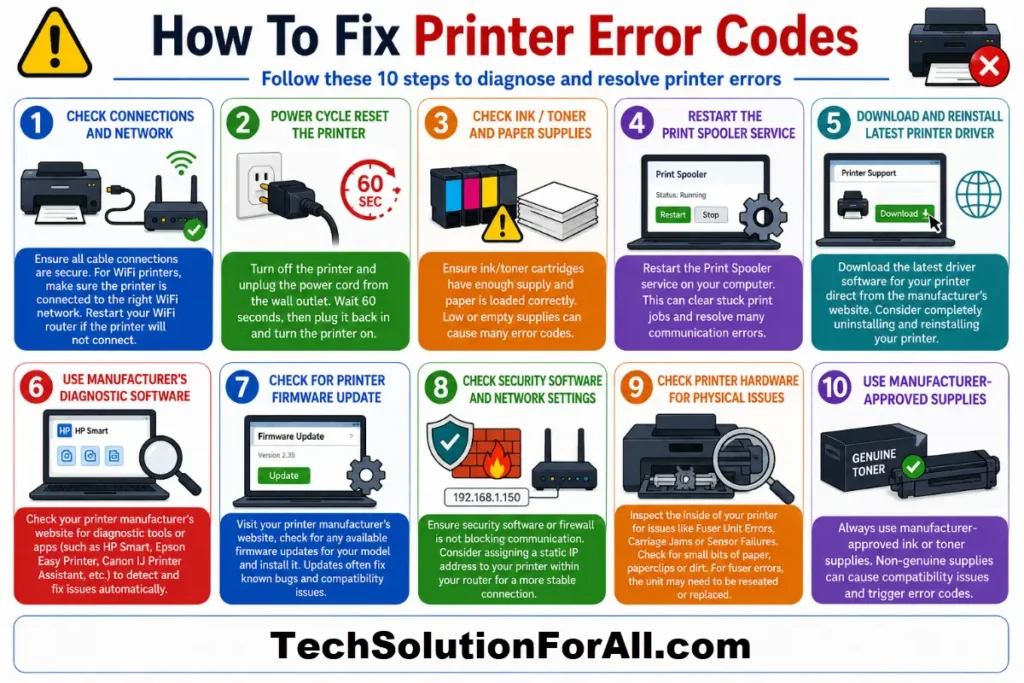
- With the printer turned on, disconnect the power cord directly from the back of the printer.
- Disconnect the other end of the power cord from the wall outlet.
- Wait at least 60 seconds. This gives the internal capacitors time to fully discharge, ensuring all volatile memory is cleared.
- Plug the power cord back into the wall outlet first, then reconnect it to the printer.
- Turn the printer back on and wait for it to complete its startup sequence before trying to print again.
Step 2 – Check All Physical Connections
A loose cable is a classic culprit that is often overlooked.
A poor connection can interrupt the data flow between your computer and printer, triggering a communication error.
Be methodical here:
- Wired Printers (USB or Ethernet):
Unplug the data cable from both the printer and the computer (or router).
Inspect the cable for any visible damage, like kinks or frayed wires.
Plug it firmly back in to both ports.
If possible, try using a different USB port on your computer. - Wireless Printers:
Connectivity issues are a major source of a frustrating printer error code.
First, check the printer’s own control panel to confirm it is still connected to your Wi-Fi network.
Then, restart your router.
Just like the printer, your router can benefit from a reboot to clear out any network traffic jams or IP address conflicts.
Step 3 – Examine Consumables: Ink, Toner, and Paper
Printers are physical machines, and the most common errors often stem from the physical materials they use.
A quick inspection can save you a lot of headaches.
- Ink and Toner:
Is a cartridge low or empty?
Many printers will stop all functions until a depleted cartridge is replaced.
Remove and reseat all ink or toner cartridges to ensure they are properly installed and making good contact.
If you recently installed a new cartridge, make sure you removed any protective seals or tabs.
Some printers are also sensitive to third-party or refilled cartridges, which can sometimes cause a printer error code. - Paper:
A paper jam is an obvious showstopper.
Open all access doors and look carefully for any stuck or torn pieces of paper.
Use both hands to pull jammed paper out slowly and evenly to avoid tearing it.
Also, check your paper tray. Is it overloaded? Is the paper aligned correctly?
Using the wrong paper type or size for the job can also trigger an error.
Step 4 – Restart the Print Spooler Service
When you print a document, it doesn’t go directly to the printer.
It first goes to a program on your computer called the Print Spooler, which manages the queue of print jobs.
If this service crashes or a single document in the queue becomes corrupted, it can put your printer into an error state.
Restarting it clears the queue and resolves the issue.
For a detailed, step-by-step guide on managing this service, you can follow the official instructions provided by Microsoft for Windows users.
The general process is:
- Open the Services app on your computer.
- Scroll down and find “Print Spooler.”
- Right-click it and select “Stop.”
- Wait about 30 seconds, then right-click it again and select “Start.”
This simple fix is incredibly effective, especially for errors where print jobs seem to disappear into the void.
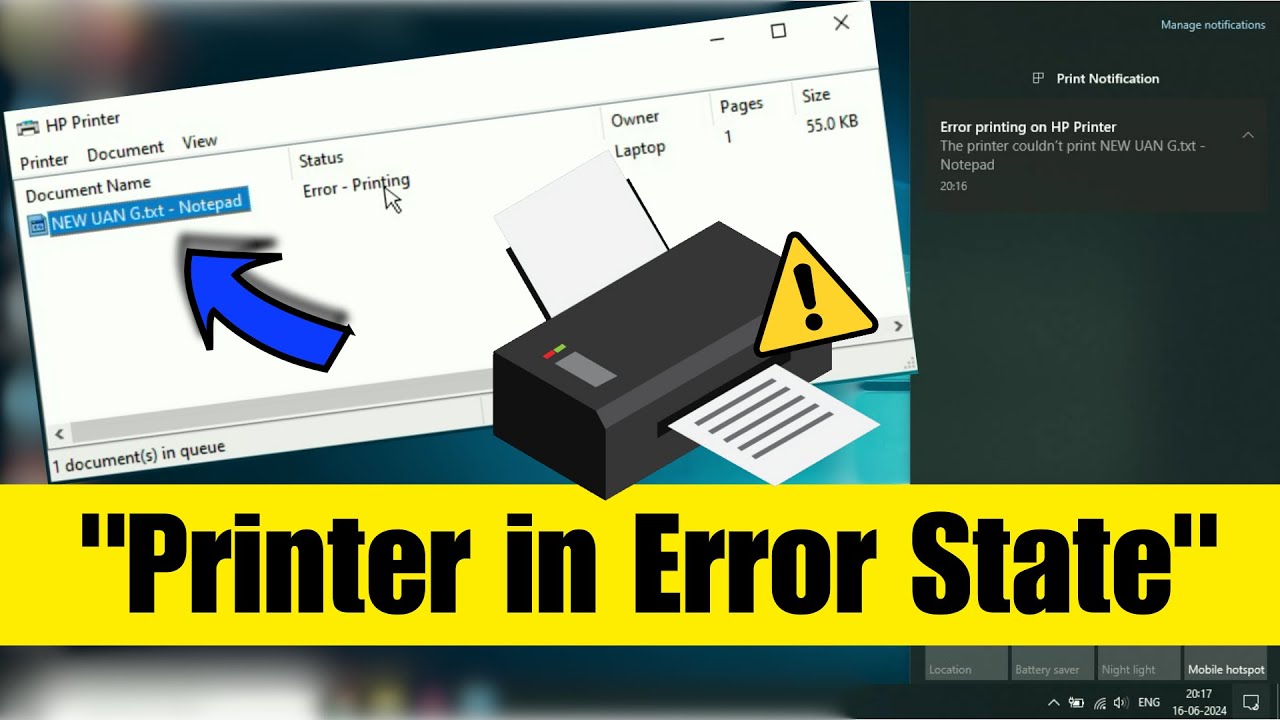
For a visual guide to working with the Print Spooler you can watch this YouTube video on fixing a printer in error state which covers several useful tips (and is also embedded below hopefully!)
Common Causes Of Persistent Printer Error Codes
If the initial steps didn’t work, your printer error code is likely pointing to a more specific, underlying issue.
By diagnosing these common causes, you can move from general fixes to targeted solutions.
Cause 1 – Outdated or Corrupt Printer Drivers
A printer driver is a piece of software that translates the data from your computer into a format your printer can understand.
If this driver is outdated, corrupted, or incompatible with a recent operating system update, it can cause a wide range of communication errors.
This is one of the most common reasons for a persistent printer error code.
The Fix:
Do not rely on your operating system’s automatic updates for this.
Go directly to the support section of your printer manufacturer’s official website (like the HP Official Support page) and search for your specific printer model.
Download and install the latest driver package.
This ensures you have the most stable and secure software controlling your device.
Cause 2 – Network and Connectivity Conflicts
For networked printers, the problem might not be the printer itself, but how it communicates with your network.
A firewall or antivirus program can mistakenly identify printer communication as a threat and block it.
Similarly, an IP address conflict – where two devices on the same network are assigned the same address – can cause the printer to drop offline intermittently.
The Fix:
- Firewall:
Temporarily disable your firewall or antivirus software and try to print.
If it works, you’ve found the culprit.
You will need to go into your security software’s settings and create an exception or rule to allow your printer’s traffic. - IP Address:
Assigning a static IP address to your printer is a more advanced but highly effective solution.
This prevents the router from assigning it a new, potentially conflicting address every time it restarts.
You can find guides for this in your printer’s user manual or on the manufacturer’s support site.
Cause 3 – Hardware Malfunctions
Sometimes, a printer error code is a legitimate warning of a hardware failure.
Components wear out over time, and an error message is the first sign that a part needs attention.
Common hardware failures include:
- Fuser Unit Errors:
The fuser is the part in a laser printer that uses heat to bond toner to the paper.
An error here (like a Sharp H4-00) means it’s failing to heat up correctly. - Carriage Jams:
The carriage holds the ink cartridges and moves back and forth across the paper.
An obstruction or mechanical failure can cause it to get stuck (like a Canon 5100 error). - Sensor Failures:
Modern printers are filled with sensors that detect paper, open doors, and monitor ink levels.
If a sensor is dirty or broken, it can send a false error signal.
The Fix:
For hardware issues, start by turning off and unplugging the printer.
Open it up and perform a thorough visual inspection.
Look for any obvious obstructions, like a stray paperclip or a torn piece of paper blocking the carriage path.
Gently wipe down any accessible sensors with a lint-free cloth.
For fuser errors, the unit may need to be reseated or replaced, which can often be a user-serviceable task on many office printers.
Advanced Troubleshooting For Stubborn Printer Error Codes
When printer error codes refuse to go away, it’s time to bring out the more powerful solutions.
These steps are more involved but are often what’s needed to resolve deep-seated software conflicts or firmware issues.
Advanced Fix 1 – Reinstalling the Printer from Scratch
This is more than just updating the driver; it’s about completely removing every trace of the printer from your operating system and starting fresh.
This process eliminates any corrupted files or incorrect configuration settings.
- Go to your computer’s settings for printers and devices and remove the printer.
- Open the “Print Server Properties” (you can search for this in the Windows Start Menu) and go to the “Drivers” tab.
Select your printer’s driver and click “Remove,” choosing to remove the driver and the driver package. - Restart your computer.
- Download the latest, full software package from the manufacturer’s website.
- Follow the installation instructions precisely, only connecting the printer when the software prompts you to do so.
Advanced Fix 2 – Updating the Printer Firmware
Firmware is the printer’s internal operating system, stored on its own memory.
Manufacturers release firmware updates to fix bugs, improve performance, and patch security vulnerabilities.
An outdated firmware can cause conflicts that manifest as printer error codes.
You can find firmware updates on the same support page where you find drivers.
Be sure to follow the instructions carefully, as a failed firmware update (for instance, if the power goes out mid-update) can render the printer unusable.
Advanced Fix 3 – Using Built-in Diagnostic Tools
Many manufacturers provide free diagnostic software to help you solve problems.
The HP Smart App, for example, is an excellent utility that automatically diagnoses and fixes a wide range of printing and scanning issues.
It can check for connectivity problems, driver conflicts, and stuck print jobs, often resolving them with a single click.
Check your printer manufacturer’s website to see if they offer a similar tool.
How To Prevent The Printer Error Code From Returning
Fixing the error is great, but preventing it is even better.
A few simple maintenance habits can dramatically reduce the frequency of printer problems:
- Use Quality Consumables:
While third-party ink and paper can be cheaper, they are a common source of errors, poor print quality, and even hardware damage.
Sticking to manufacturer-approved supplies is a reliable investment in your printer’s health. - Keep it Clean:
Dust and paper debris are the enemies of a printer.
Periodically open it up and gently clean the interior with a can of compressed air and a lint-free cloth. - Perform Regular Updates:
Don’t wait for an error to occur.
Make a habit of checking for new drivers and firmware updates every few months. - Don’t Overload the Paper Tray:
Respect the maximum fill line on your paper tray.
Overloading it is one of the leading causes of paper jams.
Final Thoughts On Printer Error Codes
A printer error code can feel like a major technical crisis, but it rarely is.
In most cases, it’s a solvable problem that you can fix yourself with a bit of patience and a logical approach.
By working through the universal steps, diagnosing the common causes, and knowing when to apply advanced fixes, you have the power to overcome these frustrating interruptions.
A well-maintained printer is a reliable one, and these troubleshooting skills will ensure your device remains a productive tool rather than a source of stress.
Frequently Asked Questions About Printer Error Codes
Why does my printer say “Error” but not give a code?
This often happens with general communication failures or simple mechanical issues.
The best first step is a full power cycle (unplugging the printer for 60 seconds).
If that fails, check for paper jams, ensure ink/toner cartridges are seated correctly, and restart the Print Spooler service on your computer.
Can using non-brand ink or toner cause a printer error code?
Yes, absolutely.
Many printers, especially from brands like HP and Canon, use chipped cartridges that communicate with the printer.
Using third-party or refilled cartridges can trigger an “incompatible cartridge” error, stop the printer from working, and in some cases, may even void the warranty.
What is the most common cause of a printer error code?
While it varies, the most frequent causes are software-related.
These include a corrupted print job stuck in the queue (requiring a Print Spooler reset) and outdated or corrupt printer drivers.
Physical issues like paper jams and empty ink cartridges are also extremely common.
Is it safe to update my printer’s firmware?
Yes, it is safe and recommended.
Firmware updates released by the manufacturer often contain important bug fixes, security patches, and performance improvements that can resolve known error codes.
Just be sure to download the firmware from the official manufacturer website and follow the installation instructions carefully.
How To Fix A Printer Error Code: A Universal Guide
This step-by-step guide provides a universal troubleshooting method to resolve the most common printer error codes on any printer brand.
Total Time: 15 minutes
Supply:
- None required
Tool:
- Your computer
- Your printer
Steps:
- Perform a Full Power Cycle:
Disconnect the printer’s power cord from both the printer and the wall outlet.
Wait for 60 seconds before plugging it back in.
This clears temporary memory glitches. - Check All Physical Connections:
Ensure the USB or Ethernet cable is securely plugged into both the printer and the computer/router.
For wireless printers, restart your router and verify the printer’s network connection. - Inspect Consumables:
Check for paper jams in all accessible areas.
Remove and reseat all ink or toner cartridges to ensure they are installed correctly and are not empty. - Restart the Print Spooler Service:
On your computer, open the “Services” application, find the “Print Spooler” service, stop it, wait 30 seconds, and then start it again.
This clears any corrupted print jobs from the queue. - Update Printer Drivers:
If the error persists, visit your printer manufacturer’s official website, search for your model, and download and install the latest driver software.
Finally be sure to check out our Tech Troubleshooting FAQ or our Printer Troubleshooting Tips pages for even more general tips that cover a wide range of technical problems and solutions.
(If after reading the above article you still need more help with “Printer Error Codes”, then you might find a much less obvious solution on the above tech pages!)