The dreaded “printer not printing” scenario is a productivity killer that everyone faces eventually.
Whether it is a silent, unresponsive machine or a cryptic error message, the result is the same – your pages are blank, and your stress levels are rising.
You are not alone in this, and the good news is that most printing problems are solvable without calling in a tech expert.
We will provide simple, step-by-step instructions to get you back to printing, explaining not just what to do, but why it works.
Your solution is just a few paragraphs away.
First Steps: The Simple Fixes For A Printer Not Printing
Before diving into complex diagnostics, let’s cover the basics.
These simple checks resolve a surprising number of printing issues.
Think of this as the essential first-aid kit for when your printer is not printing.
1. Check Power and Physical Connections
It might sound obvious, but it is the most common culprit.
A printer that is not fully powered on or properly connected cannot receive print jobs.
- Power On:
Is the printer’s power light on and steady?
If it is off, ensure the power cable is securely plugged into both the printer and a working wall outlet.
If it is blinking, it might indicate an error state – check the printer’s display for messages like “low ink” or “paper jam.” - Cable Connection:
If you are using a USB cable, ensure it is firmly connected to both the printer and your computer.
Try a different USB port on your computer to rule out a faulty port.
A loose cable is a frequent reason for a printer not printing.
Why this works:
A printer needs a stable power supply and a solid data connection to function.
A loose cable or a power issue completely severs this link, and your computer has no way to communicate its instructions.
2. Restart Everything
The classic IT advice – “turn it off and on again” – is a powerful troubleshooting step.
A simple restart can clear temporary glitches, corrupted memory, and minor software conflicts that prevent printing.
- Save Your Work:
First, save any open documents on your computer. - Shut Down:
Turn off your printer using its power button, then shut down your computer completely. - Wait:
Leave both devices off for about 60 seconds.
This allows their internal components to fully reset. - Power Up:
Turn the printer on first and wait for it to complete its startup sequence (the lights stop blinking).
Then, turn on your computer. - Try Printing:
Attempt to print a simple test page.
Why this works:
Restarting clears the active memory (RAM) on both your computer and printer, erasing the temporary, misbehaving software states that can block print jobs.
It forces a fresh start for the entire communication process.
3. Is It the Right Printer?
In an environment with multiple printers, it is easy to send your job to the wrong device – or to a “ghost” printer that is no longer connected.
Always check that you have selected the correct, active printer.
- On Windows:
Go to Settings > Bluetooth & devices > Printers & scanners.
Your available printers will be listed.
The one you want to use should have a status like “Idle” or “Ready.”
If it says “Offline”, that is your core problem.
Right-click the correct printer and select Set as default. - On macOS:
Go to System Settings > Printers & Scanners.
Your printers are listed on the left.
Click the one you want to use and ensure it is not paused.
Why this works:
Your operating system needs to know exactly where to send the print job.
If the default printer is an old, uninstalled device or one that is currently turned off, your print job goes into a void and never reaches the intended machine.
Intermediate Troubleshooting: When The Basics Fail
If the initial checks did not solve the problem, it is time to investigate the software and settings that manage the printing process.
These steps address the most common software-related reasons for a printer not printing.
1. The Print Queue: A Common Reason a Printer is Not Printing
The print queue is a temporary holding area for all the jobs you send to the printer.
If one job gets stuck with an error, it creates a traffic jam, and nothing behind it can print.
Clearing this queue is a critical step when your printer is not printing.
- Open the Queue:
On Windows, go to Settings > Bluetooth & devices > Printers & scanners, select your printer, and click Open print queue.
On macOS, open Printers & Scanners in System Settings, select your printer, and click the Print Queue… button. - Cancel All Documents:
In the queue window, click on the Printer menu at the top and select Cancel All Documents (Windows) or delete the jobs individually (macOS).
This will attempt to clear everything.
If jobs will not clear, you may need to manually stop and restart the Print Spooler service, which we cover in the advanced section.
Why this works:
The print queue operates on a first-in, first-out basis.
A single corrupted or failed job at the front of the line acts as a roadblock, preventing all subsequent jobs from reaching the printer.
Clearing the queue removes this blockage.
For a visual guide on fixing a printer not printing this YouTube video provides some excellent hands-on advice on tackling common printer problems with simple tips like the above information (and is also embedded below hopefully):

2. Printer Drivers: A Key Fix When Your Printer is Not Printing
A printer driver is a piece of software that translates the data from your computer into a format your specific printer model can understand.
If the driver is outdated, corrupted, or incorrect, communication breaks down.
- Run the Troubleshooter:
Windows has a built-in troubleshooter that can often fix driver issues automatically.
Go to Settings > System > Troubleshoot > Other troubleshooters and run the Printer troubleshooter. - Update the Driver:
The best source for an updated driver is the printer manufacturer’s official website.
Search for your printer model on the support page for sites like HP, Canon, Brother, or Epson to download and install the latest driver package.
Why this works:
An outdated driver might not be compatible with recent operating system updates, leading to translation errors.
A fresh driver installation ensures your computer and printer are speaking the same, most current language.
3. Connectivity Issues and Your Printer Not Printing
For Wi-Fi printers, a stable network connection is non-negotiable.
If your printer is not printing over Wi-Fi, the issue often lies with the network itself.
- Check the Connection:
Does the printer’s screen show it is connected to your Wi-Fi network?
Is the signal strength strong? - Restart Your Router:
Just like your computer and printer, your router can benefit from a restart.
Unplug it from power for 60 seconds, then plug it back in.
Wait for it to fully restart before trying to print again. - Reconnect the Printer:
On your printer’s settings menu, find the network or Wi-Fi setup wizard and run it again to reconnect to your network.
Make sure you are selecting the correct network name (SSID) and entering the correct password.
Why this works:
A router can get into a bad state, or a printer can lose its IP address on the network.
Restarting the router and reconnecting the printer forces them to re-establish a clean connection and obtain a valid network address, making the printer visible to your computer again.
Advanced Solutions For A Stubborn Printer Not Printing
When your printer still refuses to print, it is time for more powerful fixes.
These steps involve system-level services and a more thorough reinstallation process.
1. Manually Resetting the Print Spooler
The Print Spooler is the Windows service that manages the print queue.
If it crashes or becomes corrupted, print jobs cannot be processed.
Manually restarting it is a highly effective fix.
- Open Services:
Press the Windows key + R, type services.msc, and press Enter. - Find the Spooler:
In the Services window, scroll down and find Print Spooler. - Stop the Service:
Right-click on Print Spooler and select Stop. - Clear the Queue Folder:
Open File Explorer and navigate to:
C:\Windows\System32\spool\PRINTERS.
You may need to show hidden files.
Delete all files inside this folder.
This manually clears the stuck queue. - Restart the Service:
Go back to the Services window, right-click Print Spooler, and select Start.
Why this works:
This process does more than just clear the queue.
It completely stops the underlying service, deletes the corrupted job files that were causing the blockage, and then restarts the service in a clean state.
It is the most definitive way to fix a stuck print queue.
2. A Full Reinstallation of Your Printer
If driver updates did not work, a complete removal and reinstallation can clear out deep-seated configuration issues.
- Remove the Device:
Go to Printers & scanners settings, select your printer, and click Remove device. - Uninstall the Software:
Go to Settings > Apps > Installed apps and uninstall any software related to your printer manufacturer (e.g., “HP Smart,” “Canon Utilities”). - Restart Your Computer:
This is a crucial step to ensure all components are fully removed. - Reinstall:
Download the latest, full software package from the manufacturer’s website and follow the installation instructions carefully.
It is often best to wait for the installer to tell you when to connect the printer cable.
Why this works:
This method removes not only the driver but also all associated software, registry entries, and configuration files.
It provides a completely fresh start, eliminating any corrupted files or settings that a simple driver update might miss.
3. Checking for Firmware Updates
Firmware is the built-in software that runs on the printer itself.
Manufacturers release firmware updates to fix bugs, improve performance, and patch security vulnerabilities.
An outdated firmware can sometimes cause compatibility issues.
- How to Update:
The process varies by manufacturer.
Many modern printers can check for updates directly from their own settings menu.
Others may require you to download a firmware utility from the manufacturer’s support website.
Why this works:
Firmware controls the printer’s core operations.
An update can resolve internal processing errors that prevent it from correctly interpreting a print job sent from the computer.
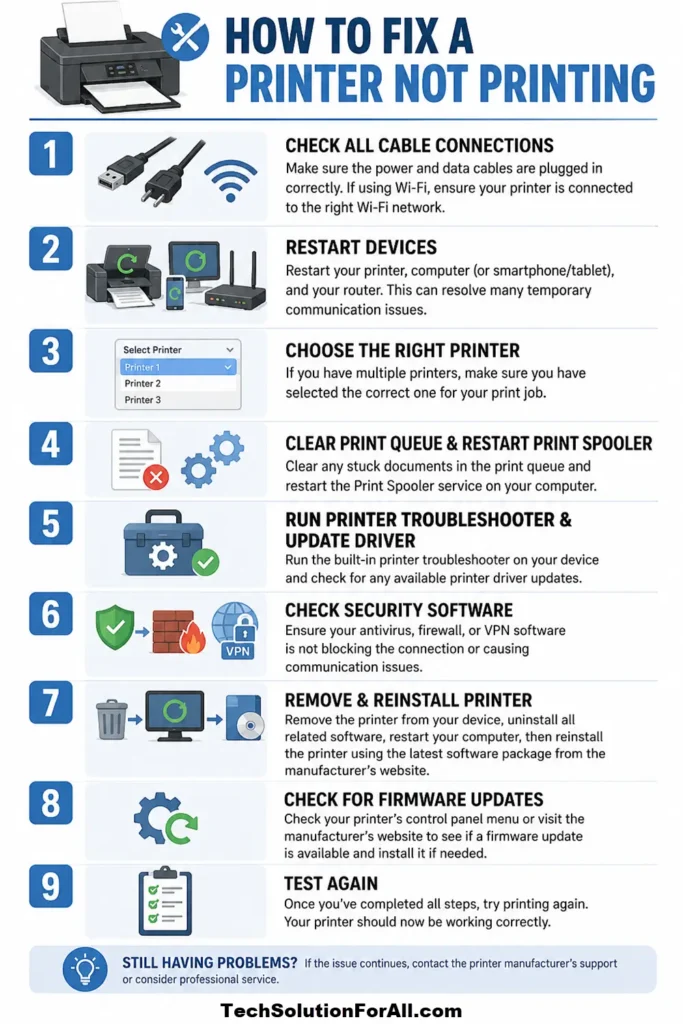
Printer Not Printing Rare Causes And Prevention
- Firewall Issues:
Sometimes, your computer’s firewall can mistakenly block communication with your printer.
Temporarily disabling your firewall (both Windows Defender and any third-party antivirus) can help diagnose this.
If printing works with the firewall off, you need to add an exception for your printer. - VPN Conflicts:
If you are connected to a VPN, it may be routing your network traffic in a way that prevents your computer from seeing local devices like your printer.
Disconnect from the VPN and try printing again. - Use Quality Consumables:
Using low-quality or refilled ink/toner cartridges can cause clogs and print quality issues that can sometimes manifest as a complete refusal to print.
Final Thoughts On A Printer Not Printing
When your printer is not printing, the solution is usually found by working through these steps methodically, from the simplest checks to the more advanced software resets.
By understanding the roles of power, connectivity, drivers, and the print queue, you are empowered to solve the problem yourself.
Patience is key – take a deep breath, follow the guide, and you will be back to printing in no time.
Frequently Asked Questions About A Printer Not Printing
Q: Why does my printer say it’s offline when it’s on?
A: This is usually a communication error.
It means your computer cannot establish a connection with the printer.
Start by restarting your printer, computer, and router.
If that fails, reinstalling the printer driver will often resolve the conflict and bring the printer back “online” for your computer.
Q: How do I clear a print job that won’t delete?
A: A stuck print job is best cleared by manually stopping and restarting the Print Spooler service.
Open the Services app in Windows, stop the “Print Spooler,” delete the files in the C:\Windows\System32\spool\PRINTERS folder, and then restart the service.
This forcefully removes the corrupted job.
Q: Can low ink stop a printer from printing anything at all?
A: Yes, many modern printers will refuse to print anything – even black and white documents – if one or more colour ink cartridges are completely empty.
This is to prevent damage to the print head.
Always replace empty cartridges to ensure uninterrupted printing.
How To Fix A Printer That Won’t Print
Here is a step-by-step guide to resolving the most common printing issues.
Time: 15 Minutes
Supplies:
- None required
Tools:
- Your computer
- Your printer
Steps:
- Check Power and Connections:
Ensure the printer is on and the USB or network cable is securely connected.
For wireless printers, confirm it is connected to the correct Wi-Fi network. - Restart Devices:
Turn off your printer and computer.
Wait one minute, then turn the printer on first, followed by your computer.
This clears temporary errors. - Check the Print Queue:
Open your printer’s queue from your computer’s settings.
If there are stuck jobs, go to the “Printer” menu and select “Cancel All Documents.” - Set as Default Printer:
In your computer’s “Printers & scanners” settings, find your printer, right-click it, and select “Set as default printer” to ensure jobs are sent to the correct device. - Update Printer Drivers:
Visit your printer manufacturer’s website, search for your model, and download and install the latest driver to fix communication issues. - Run the Troubleshooter:
Use the built-in printer troubleshooter in your operating system (Windows or macOS) to automatically diagnose and fix common problems.
Finally be sure to check out our Tech Troubleshooting FAQ or our Printer Troubleshooting Tips pages for even more general tips that cover a wide range of technical problems and solutions.
(If after reading the above article you still have a “Printer Not Printing” problem, then you might find a much less obvious solution on the above tech pages!)