It’s a scenario familiar to many: you have an important document to print, but despite making all the usual noises, you have a printer printing blank pages.
A printer that produces nothing but pristine, white sheets is one of the most common and maddening tech problems.
It feels illogical – the machine is clearly working, yet the result is a frustrating lack of ink on paper.
But don’t worry, you’re in the right place to solve it.
We will walk you through the most common causes – from empty cartridges to hidden software conflicts – and provide simple solutions that get you printing again.
Consider this your definitive roadmap to resolving the blank page problem for good.
Why Is My Printer Printing Blank Pages? Uncovering The Common Culprits
When your printer starts churning out blank pages, it’s easy to assume the worst.
However, the issue is often caused by a few common, and surprisingly simple, problems.
Before you start pricing new printers, let’s explore the most likely culprits.
Understanding why your printer is printing blank pages is the first step toward a successful fix.
Cause 1: Empty or Low Ink and Toner Cartridges
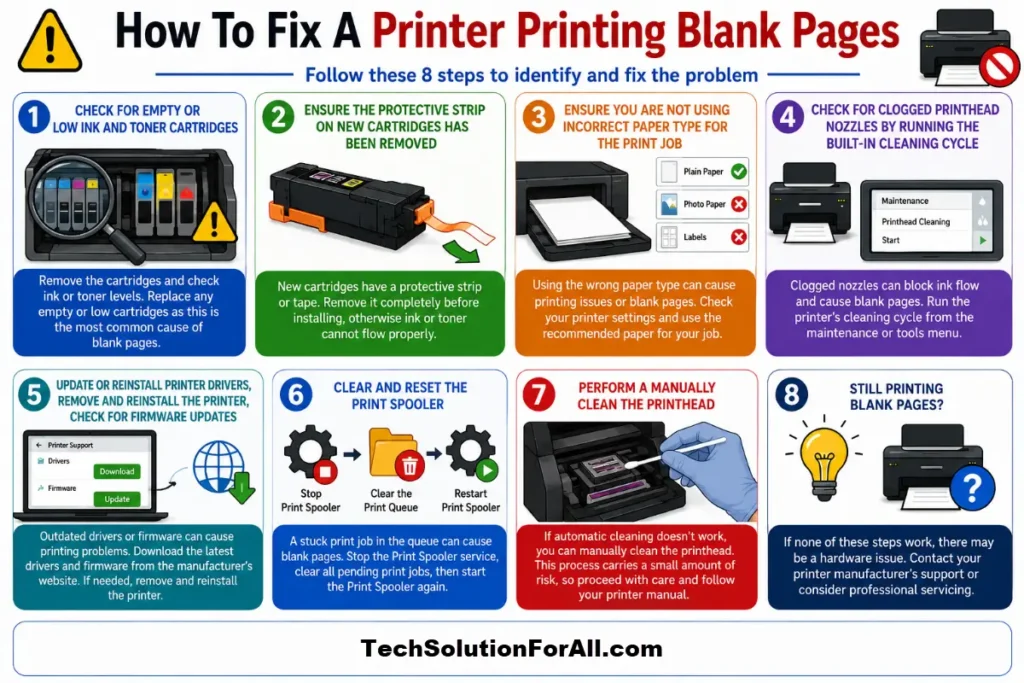
This might seem obvious, but it’s the most frequent reason for a printer printing blank pages.
Your printer’s software might incorrectly report ink or toner levels, or you might have simply forgotten to check them recently.
A completely empty cartridge means there is no ink to put on the page, no matter how perfectly the printer is operating mechanically.
Similarly, if one colour in a multicolour cartridge is empty, it can sometimes prevent the printer from printing anything at all, even in black and white, as a protective measure.
Cause 2: The Pesky Protective Strip on New Cartridges
If you’ve just installed a new ink or toner cartridge and are now facing blank pages, the cause is almost certainly a small piece of protective tape.
New cartridges are shipped with a plastic strip or seal covering the printhead nozzles or toner distribution area to prevent leaks during transit.
It’s a very common oversight to forget to remove this strip before installation.
If this seal is not removed, the ink or toner is physically blocked from reaching the paper, resulting in a perfectly blank page.
According to information supplied by Castle Ink, an independent U.S. online retailer specialising exclusively in re-manufactured printer ink and toner cartridges, this is a leading cause of issues after a cartridge replacement.
Cause 3: Clogged Printhead Nozzles
For inkjet printers, the printhead is a critical component that sprays microscopic droplets of ink onto the paper.
Over time, especially with infrequent use, ink can dry up and clog these tiny nozzles.
When the nozzles are blocked, ink cannot pass through, leading to blank or streaky pages.
This is a very common problem, as highlighted by printer maintenance experts at Cartridge World.
Even if your ink cartridges are full, a clogged printhead will prevent that ink from ever making it to the page.
Cause 4: Software Glitches and Corrupted Printer Drivers
The issue isn’t always with the printer hardware itself.
The problem can lie with the software that tells the printer what to do.
A communication breakdown between your computer and your printer can easily result in blank pages.
This can be caused by a corrupted printer driver, a recent operating system update that has created a conflict, or a glitch in the print spooler service – the Windows process that manages print jobs.
Microsoft’s own support forums contain many threads like this detailing how software issues can lead to a printer printing blank pages, often requiring a full driver reinstall, print spooler reset and more to resolve.
Your Step-By-Step Guide To Fixing The Blank Page Issue
Now that we’ve identified the likely suspects, let’s work through the solutions.
Start with the simplest fixes first and progress to the more involved steps.
In most cases, you’ll have your printer back up and running without needing to call in a professional.
Step 1: Basic Checks – The First Line of Defence
- Check Ink/Toner Levels:
Don’t rely solely on your computer’s software.
Many printers have a display screen that shows ink levels directly.
If levels are low, replace the necessary cartridges. - Inspect New Cartridges:
If you recently replaced a cartridge, remove it from the printer.
Carefully inspect it for any protective tape, seals, or plastic covers that you may have missed.
Remove them, and then reinstall the cartridge, ensuring it clicks firmly into place. - Select the Correct Printer:
Ensure you have sent the print job to the correct printer.
It’s easy to accidentally select a different printer from the dropdown menu, such as a PDF writer or a previously installed device. - Print a Test Page:
Try printing a self-test page directly from the printer’s control panel.
This bypasses the computer entirely.
If the test page prints correctly, the problem is almost certainly with your computer’s software or drivers.
If the test page is blank, the issue is with the printer hardware (cartridges or printhead).
Step 2: Running the Built-in Cleaning Cycle
If you suspect a clogged printhead, the first and easiest solution is to use your printer’s built-in cleaning function.
This utility forces a small amount of ink through the printhead in an attempt to dissolve and clear any dried-on blockages.
You can usually find this option in your printer’s software on your computer, or via the maintenance menu on the printer’s own display.
It is often recommended to run the cleaning cycle two or three times in a row for best results.
After running the cycles, print another test page to see if the quality has improved.
While this uses some ink, it’s the most effective automated method for dealing with minor clogs.
Step 3: Manually Cleaning the Printhead
If the automated cleaning cycles don’t work, a manual clean may be necessary.
This process carries a small amount of risk, so proceed with care.
For a visual guide on how to handle and clean cartridges, this YouTube video on how to fix a HP printer printing blank pages provides a helpful demonstration (and is hopefully also embedded below!)
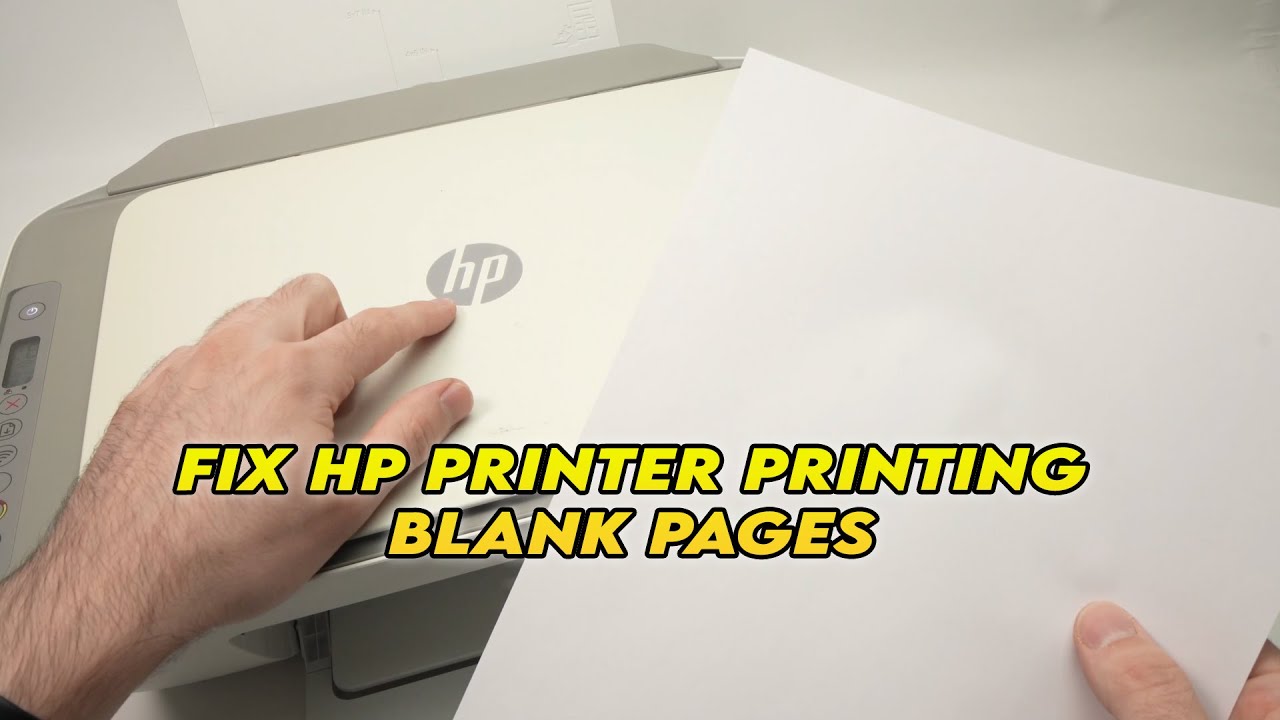
(Although the video above is titled for HP printers, the principles are similar for many brands.)
For printers with a removable printhead (often separate from the cartridges), you can gently wipe the nozzle area with a lint-free cloth dampened with distilled water.
For more stubborn clogs, some users have success soaking the printhead in about an inch of hot (not boiling) water for about 10 minutes, as suggested by HP support community experts.
Afterward, gently pat it dry with a lint-free cloth before reinstalling.
For printers where the printhead is part of the ink cartridge, you can use the same method: gently blot the nozzle plate at the bottom of the cartridge with a damp, lint-free cloth.
You should see a small smudge of ink transfer to the cloth.
If you don’t, the cartridge may be completely dried out or defective.
Step 4: Addressing Software and Driver Issues
If you’ve confirmed the printer hardware is likely not the issue (e.g., a test page printed from the printer’s menu works fine), it’s time to focus on the software.
- Restart Everything:
The classic IT solution works for a reason.
Turn off your printer and your computer completely.
Wait for a minute, then turn them back on.
This can often clear temporary glitches. - Update Your Printer Driver:
Visit your printer manufacturer’s website (e.g., HP, Canon, Epson, Brother) and navigate to their support or downloads section.
Find the latest driver for your specific printer model and operating system, and install it. - Reinstall the Printer:
In your computer’s settings, remove or delete the printer.
Then, add it again.
This process forces the computer to re-establish a clean connection and can resolve many underlying software conflicts.
Advanced Troubleshooting For A Printer Printing Blank Pages
If the basic fixes didn’t resolve the issue, don’t despair.
There are a few more advanced techniques you can try.
These steps dive a little deeper into your computer’s operating system and your printer’s internal workings.
Advanced Fix 1: Clearing and Resetting the Print Spooler (Windows)
The Print Spooler is a service in Windows that manages print jobs.
If it encounters an error, it can get “stuck” and cause all subsequent print jobs to fail, sometimes resulting in blank pages.
Resetting it can provide a clean slate.
- Stop the Print Spooler:
Press the Windows key + R, type services.msc, and press Enter.
In the Services window, scroll down to Print Spooler.
Right-click it and select Stop. - Clear the Print Queue:
With the service stopped, open File Explorer and navigate to:
C:\Windows\System32\spool\PRINTERS.
You may need to show hidden files to see this folder.
Delete all the files inside this folder.
This will clear any old, stuck print jobs. - Restart the Print Spooler:
Go back to the Services window, right-click Print Spooler, and select Start.
Then, try printing your document again.
Advanced Fix 2: Checking for Blank Pages in the Document
This may sound simple, but it happens.
Sometimes, the document you are trying to print contains unintentional blank pages.
This can be due to accidental page breaks or formatting issues.
Before you print, use the “Print Preview” function to scroll through the entire document and ensure there is content on the pages you intend to print.
This is especially common in long Word documents or Excel spreadsheets.
Advanced Fix 3: The Halfway Test for Laser Printers
If you have a laser printer that is printing blank pages, you can perform a “halfway test” to determine which component is failing.
This test can help you isolate the problem between the toner cartridge and the fuser unit.
- Send a print job to the printer.
- When the printer is halfway through the printing process (you’ll hear it working), open the toner access door to stop the print.
- Carefully remove the toner cartridge.
The paper should be stopped somewhere along the paper path.
Look at the surface of the imaging drum on the toner cartridge.
You should see the image of your document on the drum. - If the image is on the drum but the paper is blank, the problem is likely with the transfer roller, which is responsible for transferring the toner from the drum to the paper.
If there is no image on the drum, the problem is likely with the laser scanner assembly or the toner cartridge itself.
Less Common Cases When A Printer Is Printing Blank Pages
If you’ve tried everything above and are still facing issues, you might be dealing with a less common problem, also known as edge cases.
- Incorrect Paper Type:
Using a paper type that is not compatible with your printer or ink can sometimes cause issues.
For example, using glossy photo paper with settings intended for plain paper might lead to poor ink adhesion. - Faulty Sensor:
A malfunctioning sensor within the printer might incorrectly detect that there is no paper or that a door is open, preventing it from printing correctly. - Firmware Issues:
The printer’s internal software, known as firmware, can become corrupted.
Check the manufacturer’s website for any available firmware updates for your model.
How To Prevent Your Printer From Printing Blank Pages
Prevention is always better than a cure.
To avoid the frustration of a printer printing blank pages, adopt a few simple habits.
Try to print at least one colour page per week to keep the ink flowing and help prevent the printhead nozzles from clogging.
When you can, stick with genuine, manufacturer-approved cartridges for the best performance.
Always use the power button to turn off your printer, which allows it to properly “park” and seal the printhead.
Finally, periodically check for and install the latest drivers and software for your printer to ensure continued compatibility and performance.
Final Thoughts On A Printer Printing Blank Pages
Dealing with a printer that’s producing blank pages can be incredibly frustrating, but as we’ve seen, the solution is often within reach.
By systematically working through the potential causes – from the simple oversight of an empty ink cartridge to the more technical fix of a print spooler reset – you can diagnose and resolve the issue yourself.
Remember to perform regular maintenance and use quality supplies to keep your printer in good working order, saving you from future headaches.
With a little patience and troubleshooting, you can get back to printing your important documents without a problem.
Frequently Asked Questions About A Printer Printing Blank Pages
Q: Why is my printer making printing noises but printing blank pages?
A: This usually means the printer’s mechanical parts are working, but the ink is not reaching the paper.
The most common causes are empty ink cartridges, a forgotten protective strip on a new cartridge, or clogged printhead nozzles.
Start by checking your ink levels and running a printhead cleaning cycle.
Q: I just put in a new ink cartridge and now my printer is printing blank pages. What’s wrong?
A: The most likely culprit is the protective plastic tape on the new cartridge.
Remove the cartridge and inspect it carefully for any seals or strips that need to be removed.
Once you remove the tape and reinstall the cartridge, it should work correctly.
Q: Can a printer driver cause blank pages?
A: Absolutely.
A corrupted or outdated printer driver can cause a communication breakdown between your computer and printer.
If you’ve ruled out hardware issues like empty cartridges, reinstalling your printer’s drivers from the manufacturer’s website is a great next step.
Q: Does my printer need to be repaired if it’s printing blank pages?
A: Not usually.
In most cases, a printer printing blank pages is a user-solvable issue.
Before seeking professional repair, be sure to work through all the troubleshooting steps, including checking ink, cleaning the printhead, and reinstalling drivers.
If the problem persists after advanced troubleshooting, a hardware fault might be the cause.
How To Fix A Printer Printing Blank Pages
Here is a step-by-step summary of how to fix a printer that is printing blank pages:
Step 1: Perform Basic Checks
- Check ink and toner levels directly on the printer.
- Inspect new cartridges for any remaining protective seals or tape.
- Confirm you are sending the print job to the correct printer.
- Print a self-test page from the printer’s menu to see if the issue is hardware or software.
Step 2: Run the Cleaning Cycle
- Use your printer’s built-in cleaning function, which you can find in the printer software on your computer or on the printer’s display menu.
- Run the cycle 2-3 times to clear out minor clogs in the printhead.
Step 3: Manually Clean the Printhead
- If the automated cleaning doesn’t work, gently wipe the printhead with a lint-free cloth dampened with distilled water.
- Be very careful during this process to avoid causing damage.
Step 4: Address Software Issues
- Restart your computer and printer.
- Update or reinstall your printer driver from the manufacturer’s official website.
- Remove and then re-add the printer in your computer’s device settings.
Finally be sure to check out our Tech Troubleshooting FAQ or our Printer Troubleshooting Tips pages for even more general tips that cover a wide range of technical problems and solutions.
(If after reading the above article you still have a “Printer Printing Blank Pages” problem, then you might find a much less obvious solution on the above tech pages!)