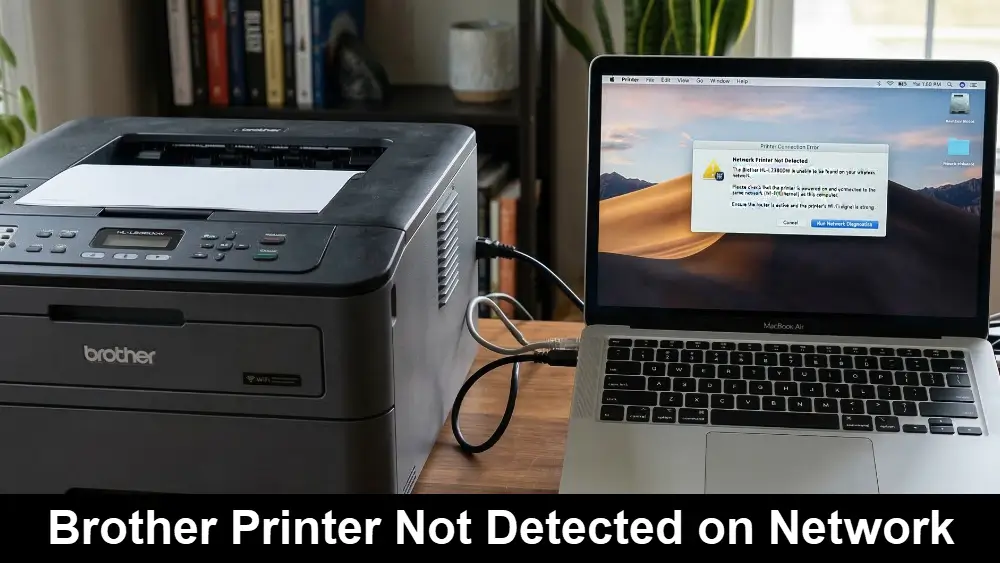
It’s a frustrating scenario many of us have faced: you send a document to print, but nothing happens. Upon investigation, you discover the dreaded “Brother printer not detected on network” error.
This common issue can bring your workflow to a halt, but the good news is that it’s usually solvable with a bit of troubleshooting.
Whether you’re dealing with a simple connection glitch or a more complex network problem, this article will guide you through the process of diagnosing and fixing the issue.
In a Nutshell: Your Quick Fix Guide
If your Brother printer isn’t showing up on your network, the problem often lies in a lost connection, incorrect network settings, or a firewall blockage.
This guide is for anyone experiencing this issue, providing a clear path from simple restarts to more advanced network diagnostics to get you printing again in no time.
Common Causes of a Brother Printer Not Detected on Network
Understanding why your printer has suddenly disappeared from the network is the first step toward fixing it.
In most cases, the root cause is one of a handful of common issues. Let’s explore the most likely culprits.
Basic Connectivity and Power Issues
Before diving into more complex solutions, it’s always a good idea to start with the basics. A simple oversight can often be the source of the problem.
For instance, a loose cable or a printer that hasn’t fully initialized can prevent it from being detected on the network. Therefore, taking a moment to check these simple things can save you a lot of time.
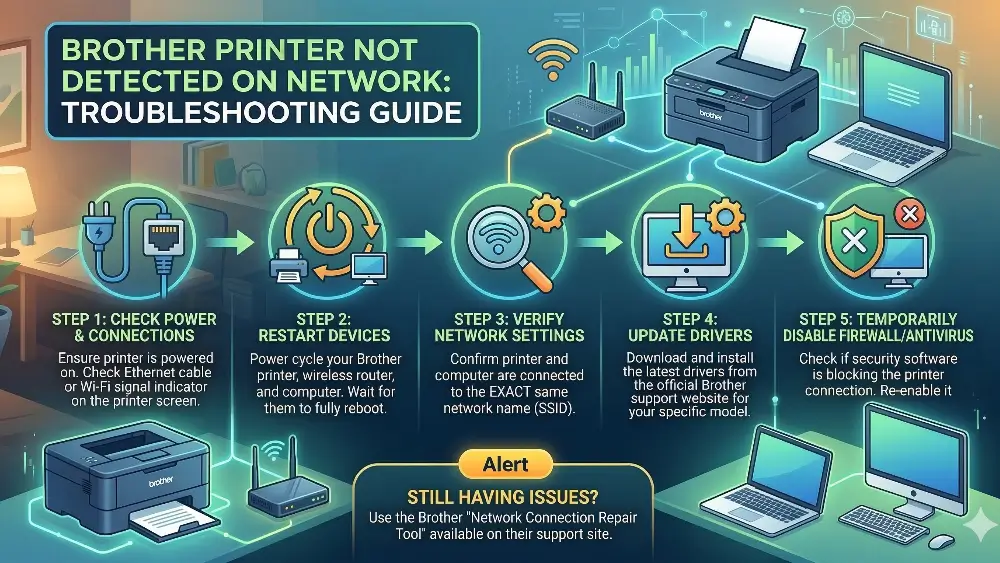
First, ensure your Brother printer is powered on and not in a deep sleep mode. A quick press of the power button should wake it up.
Next, if you’re using a wired connection, check that the Ethernet cable is securely plugged into both the printer and your router or network switch.
For wireless connections, confirm that the printer’s Wi-Fi is enabled and that it’s connected to the correct network.
Incorrect IP Address or Network Configuration
Every device on your network, including your printer, needs a unique IP address to communicate.
If this address is incorrect, duplicated, or not assigned correctly, your computer won’t be able to find the printer.
This can happen for several reasons, such as a router glitch or a recent change in your network setup.
To check this, you can print a Network Configuration report from your Brother printer’s control panel. This report will show you the printer’s current IP address.
As a general rule, an IP address of 0.0.0.0 or one starting with 169.254.x.x (an APIPA address) indicates a problem with the network connection, a fact highlighted in Brother’s official help documentation.
The IP address should also be in the same range as your computer and other devices on your network.
Firewall or Security Software Interference
Firewalls and security software are designed to protect your computer from threats, but they can sometimes be a little too aggressive.
It’s not uncommon for a firewall to mistakenly block the network connection that your printer needs to communicate with your computer.
This is a frequent cause of the “Brother printer not detected on network” error, especially after a software update.
You can temporarily disable your firewall to see if it’s the cause of the problem.
If the printer is detected with the firewall off, you’ll need to add an exception for your Brother printer in your firewall settings.
Brother provides guidance on how to do this for both Windows and macOS users on their official support site.
Advanced Troubleshooting for a Brother Printer Not Detected on Network
If the basic checks haven’t resolved the issue, it’s time to move on to some more advanced troubleshooting steps.
These solutions address less common but still plausible causes of network detection problems.
Resetting the Network Card and Reinstalling Drivers
Sometimes, the printer’s internal network card can get into a confused state. A simple power cycle, as mentioned earlier, can often resolve this.
However, if that doesn’t work, you may need to perform a full network reset on the printer itself. This will clear any incorrect network settings and allow the printer to obtain a fresh connection to your network.
If a network reset doesn’t solve the problem, the issue might be with the printer drivers on your computer. Corrupted or outdated drivers can cause a variety of communication problems.
The solution is to completely uninstall the Brother software and drivers from your computer and then reinstall the latest version from the official Brother support website. This ensures you have the most up-to-date and compatible software for your printer.
Verifying Router and Access Point Settings
Your router is the central hub of your network, and its settings can have a big impact on device connectivity.
For wireless printers, settings like Privacy Separator or AP Isolation can prevent devices on the same Wi-Fi network from communicating with each other.
If this feature is enabled on your router, your computer won’t be able to see your printer. You’ll need to log in to your router’s administration page and disable this setting.
Another potential issue is MAC address filtering.
This is a security feature that only allows devices with specific MAC addresses to connect to the network. If your printer’s MAC address isn’t on the approved list, it won’t be able to connect.
You can find your printer’s MAC address on the Network Configuration report and add it to your router’s filter list.
For a more in-depth look at how to configure these settings, this helpful YouTube video provides a visual guide to fixing Brother printer Wi-Fi connection problems (and is hopefully also embedded below):

Dealing with Multiple Routers or Network Extenders
In more complex network setups, you might have multiple routers or network extenders.
This can sometimes create separate sub-networks, and if your printer and computer are on different ones, they won’t be able to communicate.
Ensure that all your network devices are configured in a way that they form a single, unified network.
This might involve setting additional routers to “bridge mode” or “access point mode” to avoid creating multiple DHCP servers, which can lead to IP address conflicts.
Brother’s support documentation highlights that incorrect configuration of multiple broadband routers can be a cause of detection issues.
Final thoughts on Brother Printer Not Detected on Network
Encountering a “Brother printer not detected on network” error can be a significant roadblock, but it’s a problem that can almost always be solved with methodical troubleshooting.
By starting with the simplest solutions and progressively moving to more advanced steps, you can systematically identify and resolve the root cause of the issue.
As a preventative measure, it’s a good practice to occasionally print a Network Configuration report to ensure your printer’s IP address remains valid.
Also, keeping your printer’s firmware and your computer’s drivers up to date can prevent many common connectivity problems.
With a little patience and the steps outlined in this guide, you can ensure your Brother printer remains a reliable and accessible part of your network.
Frequently Asked Questions
Why does my computer say it can’t find my Brother printer?
This usually happens due to a lost network connection, an incorrect IP address, or firewall settings blocking the printer.
Your computer needs a clear and stable network path to communicate with the printer, and any interruption in that path will result in a “not detected” error.
How do I get my computer to recognize my wireless Brother printer?
Start by restarting both your printer and your computer. Then, verify that your printer is connected to the same Wi-Fi network as your computer.
If it’s still not detected, printing a Network Configuration report to check the IP address is a good next step.
Can a firewall block my printer?
Yes, firewalls and security software can mistakenly identify your printer’s network communication as a potential threat and block it.
Temporarily disabling the firewall can help you determine if this is the cause. If it is, you’ll need to add a firewall exception for your printer.
How to Fix a Brother Printer Not Detected on the Network
Here is a step-by-step guide to resolving network detection issues with your Brother printer.
Time Required: Approximately 15 minutes
What You’ll Need:
- Brother Printer
- Computer
- Router
- Network Cable (for wired connections)
Step 1: Check Basic Connections
Ensure your printer is powered on. For wired connections, check that the Ethernet cable is secure. For wireless, confirm the printer is connected to the correct Wi-Fi network.
Step 2: Restart Devices
Turn off your Brother printer, computer, and router. Wait for about a minute, then turn them back on in this order: router, printer, then computer.
Step 3: Verify the Printer’s IP Address
Print a Network Configuration report from your printer’s control panel. Check if the IP address is valid for your network (not 0.0.0.0 or starting with 169.254).
Step 4: Check Firewall Settings
Temporarily disable your computer’s firewall to see if it’s blocking the connection. If the printer is detected, add a firewall exception for your Brother printer.
Step 5: Reinstall Printer Drivers
If the problem persists, uninstall the Brother printer drivers from your computer. Download and install the latest Full Driver & Software Package from the official Brother support website.
Finally be sure to check out our Tech Troubleshooting FAQ or our Printer Troubleshooting Tips pages for even more general tips that cover a wide range of technical problems and solutions.
(If after reading the above article you still have a “Brother Printer Not Detected on Network” problem, then you might find a much less obvious solution on the above tech pages!)