
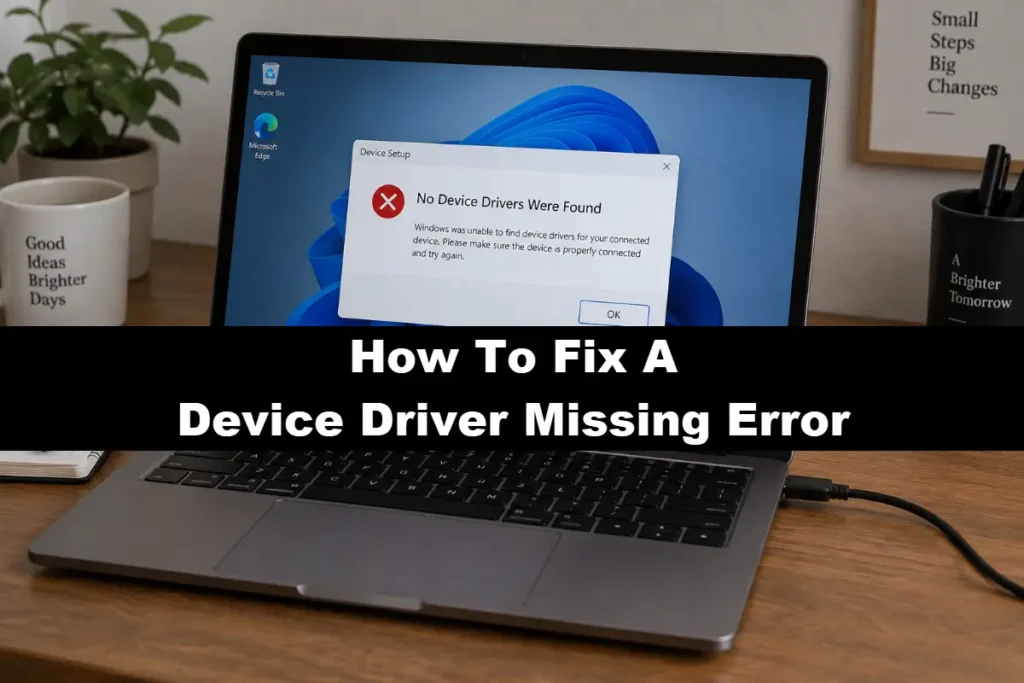
A frustrating moment for any computer user is when the device driver missing error stops them dead in their tracks.
It can happen like this:
You plug in a new device, or perhaps perform a system update – and then a familiar piece of hardware suddenly stops working.
Instead of the seamless experience you expect, you’re greeted with an error message or a yellow warning icon in Device Manager.
The culprit is often a device driver missing error – a cryptic message that leaves your hardware unable to communicate with your operating system.
We focus on the most effective fix:
Using Device Manager to automatically find or manually install the correct driver software directly from the hardware manufacturer, ensuring your device works perfectly.
Understanding Why A Device Driver Is Missing
A device driver is a special kind of software that acts as a translator between your computer’s operating system (like Windows) and a piece of hardware.
Without the correct driver, your system doesn’t know how to use the device, whether it’s a graphics card, a printer, or a USB webcam.
When a driver is missing, corrupted, or incorrect, the communication breaks down, and the hardware fails to function.
Common Causes For A Missing Device Driver
Several common situations can lead to a device driver missing error.
Understanding these can help you quickly identify the source of the problem.
Fresh Windows Installation is one of the most common scenarios.
When you install or reinstall Windows, the operating system has a large library of generic drivers, but it doesn’t have a specific driver for every single piece of hardware on the market.
This is especially true for brand-new components or specialised devices.
Incomplete Windows Update can also trigger the problem.
While Windows Update is the primary method for keeping drivers current, it can sometimes fail to install a specific driver correctly, or an update might be interrupted.
This can leave a device in a non-functional state.
Hardware Changes are a direct cause.
Installing a new component, like a graphics card or a motherboard, means the old drivers won’t work, and you must install the new ones provided by the manufacturer.
Corrupted Driver Files represent another significant cause.
Software conflicts, malware, or improper shutdowns can corrupt existing driver files.
When the operating system tries to load a corrupted driver, it may fail and report it as missing.
Your First Stop: Windows Update And Device Manager
Before diving into more complex solutions, the most reliable and straightforward fixes are built directly into Windows.
These methods will resolve the vast majority of device driver missing issues.
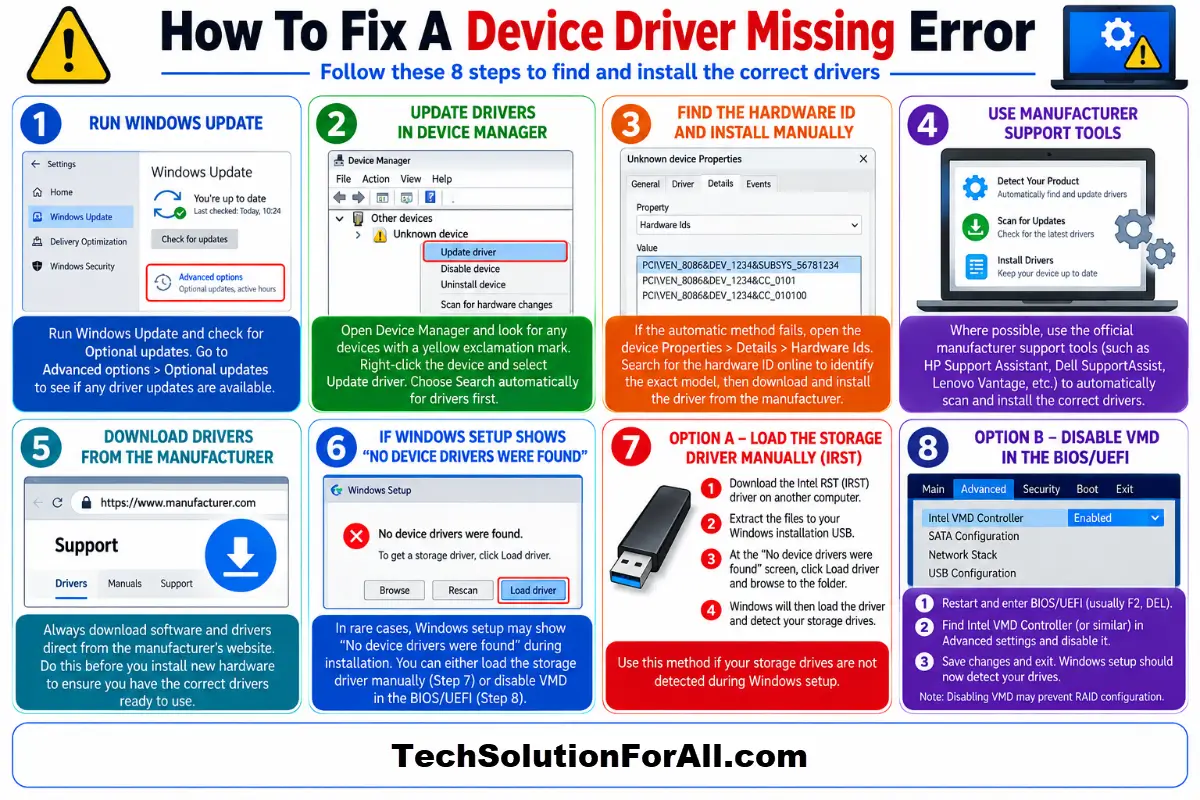
Step 1: Run Windows Update
Microsoft continually adds new drivers to its Windows Update service.
This should always be your first action, as it’s the simplest and most automated way to find a missing driver.
Press the Windows Key + I to open Settings.
Navigate to Update & Security (on Windows 10) or Windows Update (on Windows 11).
Click Check for updates and allow Windows to download and install any available updates.
Pay special attention to the Optional updates or Advanced options > Optional updates section.
Missing drivers often appear here.
If you see any driver updates, select them and install them.
Step 2: How to Fix a Missing Device Driver in Device Manager
Device Manager is your command centre for all hardware connected to your PC.
It’s where Windows reports the status of each device and where you can manually intervene to fix problems.
Right-click the Start button and select Device Manager from the menu.
Look for any devices with a yellow exclamation mark next to them. These are the devices with problems.
They may be listed under “Other devices” as an “Unknown device.”
Right-click the problematic device and select Update driver.
You will be presented with two options.
First, choose Search automatically for drivers.
Windows will scan its own library and the internet for a suitable driver.
If it finds one, it will install it automatically.
If Windows can’t find a driver automatically, don’t worry.
The next step is to take matters into your own hands.
Advanced Troubleshooting For A Device Driver Missing Error
When the automatic methods fail, you need to take a more direct approach.
This involves finding the driver yourself and telling Windows exactly where to find it.
This is the most reliable way to solve a stubborn device driver missing problem.
Manually Installing a Driver from the Manufacturer
Going directly to the source is the gold standard for driver installation.
Hardware manufacturers provide the most stable and feature-complete drivers on their support websites.
Identify the Hardware first.
In Device Manager, right-click the unknown device and go to Properties.
Under the Details tab, select Hardware Ids from the dropdown menu.
The value string contains VEN (Vendor) and DEV (Device) codes.
Copy this string and search for it online to identify the exact hardware model.
Download the Driver from the official source.
Visit the support website for the manufacturer.
Major brands like Intel, NVIDIA, and Dell have dedicated driver download sections.
Search for your specific model and download the latest driver for your version of Windows.
Install the Driver using the appropriate method.
Most drivers come in an executable (.exe) file.
Simply run this file and follow the on-screen instructions.
If the driver is in a compressed (.zip) file, extract its contents to a memorable location on your computer.
Update Manually in Device Manager if you extracted files.
Go back to Device Manager, right-click the device, and choose Update driver.
This time, select Browse my computer for drivers.
Navigate to the folder where you extracted the driver files and click Next.
Windows will then install the driver from the location you specified.
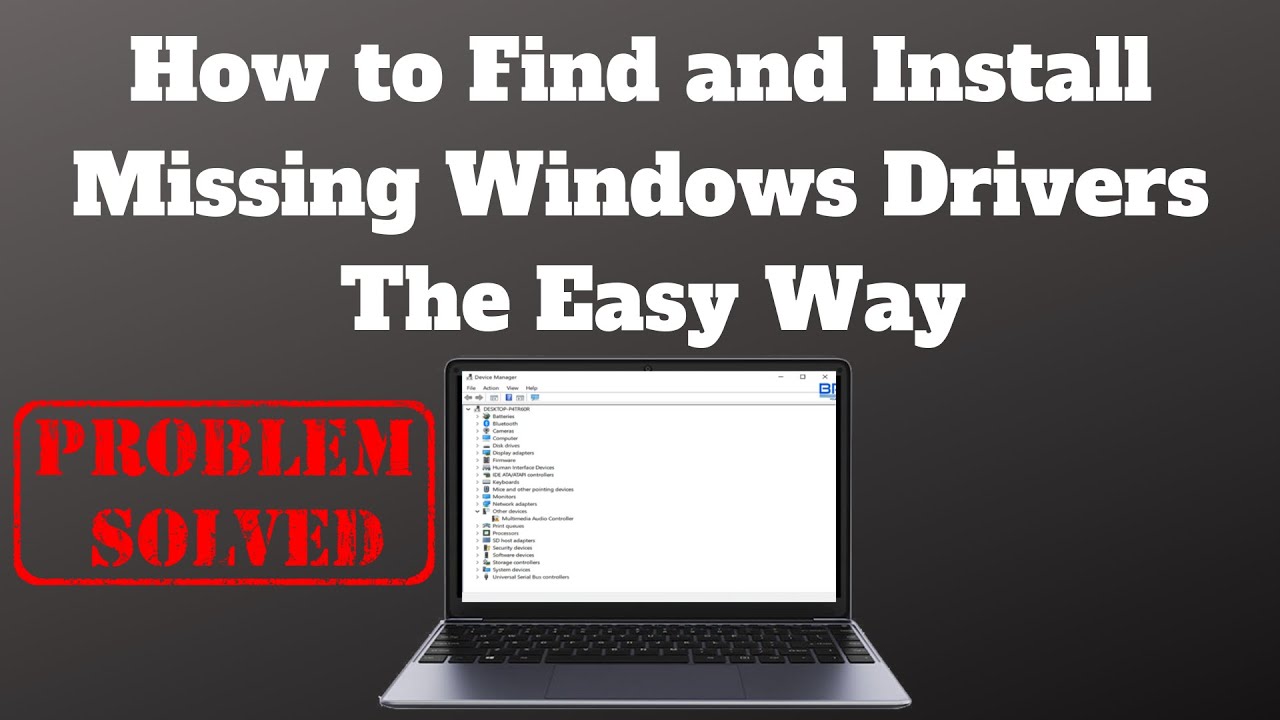
For a visual guide on troubleshooting driver issues (including excellent warnings on downloading drivers from various online sources and various installation methods), this older YouTube video on finding and installing missing Windows drivers provides helpful context (and is hopefully also embedded below!):
Edge Case: The “No Device Drivers Were Found” Error During Windows Installation
One of the most perplexing scenarios is when Windows setup itself reports a missing driver, stating, “No device drivers were found.”
This often happens on modern computers, particularly laptops with Intel 11th to 14th generation CPUs.
The issue is that Windows setup doesn’t natively have the driver for the storage controller (the component that manages your SSD).
As detailed by manufacturers like ASUS, you have two primary solutions.
Load the Storage Driver Manually by using another computer to go to your computer manufacturer’s support website and download the Intel Rapid Storage Technology (IRST) driver for your model.
Extract the driver files onto your Windows installation USB drive.
When the “No device drivers were found” error appears, click Load driver, browse to the folder containing the IRST files on your USB drive, and select it.
Windows will then load the driver and be able to see your storage drives.
Disable VMD in the BIOS/UEFI as an alternative.
Restart your computer and enter the BIOS/UEFI setup (usually by pressing F2, DEL, or another key during boot).
Look for a setting called Intel VMD Controller or similar, often in the “Advanced” section.
Disable this feature, save your changes, and exit.
Windows setup should now be able to detect your drives without needing a separate driver.
Note that disabling VMD may prevent you from setting up a RAID configuration.
How To Prevent The Device Driver Missing Problem
Proactive maintenance can prevent most driver issues from ever occurring.
Keep Windows Updated by regularly checking for both mandatory and optional updates in Windows Update.
This ensures you have the latest drivers as soon as Microsoft makes them available.
Use Manufacturer Support Tools whenever possible.
Most major manufacturers (like Dell, HP, and Lenovo) offer proprietary tools that automatically scan your system and recommend the correct driver updates.
These are often more reliable than a general Windows search.
Download Before You Install new hardware.
If you are installing new hardware, download the latest driver from the manufacturer’s website before you install the component.
This prevents the frustration of having non-functional hardware immediately after installation.
Final Thoughts On The Device Driver Missing Error
A device driver missing error can feel like a major roadblock, but it is almost always solvable with a methodical approach.
By starting with the simple, automated tools built into Windows and moving on to the more direct method of manual installation, you can take control of your hardware and ensure your system runs smoothly.
Remember that the manufacturer’s official website is your best friend for finding the correct and most stable drivers, restoring your computer to full functionality.
The key is patience and following the diagnostic steps in order, from the simplest to the most advanced, until your hardware is recognised and working as intended.
Frequently Asked Questions About The Device Driver Missing Error
Q: Can a missing driver damage my hardware?
A: No, a missing driver itself cannot damage your hardware.
It simply means your operating system cannot communicate with the device, so the device will not function.
The hardware itself remains physically unharmed.
Q: Is it safe to use third-party driver update tools?
A: It is generally recommended to avoid third-party driver updaters.
While some are legitimate, many bundle unwanted software (bloatware) or install incorrect or unstable drivers.
The safest sources are always Windows Update and the official manufacturer websites.
Q: What does the yellow exclamation mark in Device Manager mean?
A: The yellow exclamation mark indicates a hardware problem.
It could be a missing driver, a corrupted driver, a resource conflict (Code 12), or another issue that prevents the device from working correctly.
The device’s properties will often show an error code, like the Microsoft-documented Code 28, which specifically means the drivers are not installed.
How To Manually Update A Missing Driver
Follow these steps to manually find and install a missing device driver using Device Manager and the manufacturer’s website.
This process typically takes about 15 minutes.
Identify the Problem Device.
Open Device Manager by right-clicking the Start button.
Locate the device with a yellow exclamation mark, which is often under “Other devices.”
This is the hardware with the missing driver.
Find the Hardware ID.
Right-click the device and go to Properties > Details tab.
Select “Hardware Ids” from the dropdown menu.
Copy the top value.
This unique identifier helps you find the exact driver needed.
Download the Driver from the Manufacturer.
Search online for the Hardware ID to identify the device and its manufacturer.
Visit the manufacturer’s official support website, find the driver for your specific device model and Windows version, and download it.
Install the Driver.
If the driver is an .exe file, run it.
If it’s a .zip file, extract its contents to a new folder.
Go back to Device Manager, right-click the device, select “Update driver” > “Browse my computer for drivers,” and point it to the folder with the extracted driver files.
Verify the Installation.
After installation, the yellow exclamation mark in Device Manager should disappear.
The device should now be listed under its proper category and be fully functional.
You may need to restart your computer to complete the process.
Finally be sure to check out our Tech Troubleshooting FAQ or our Printer Troubleshooting Tips pages for even more general tips that cover a wide range of technical problems and solutions.
(If after reading the above article you still have a “Device Driver Missing Error”, then you might find a much less obvious solution on the above tech pages!)