When you’re dealing with a Brother printer not printing color, it can be incredibly frustrating, especially when you’ve just replaced the ink or toner. However, the good news is that this issue is often solvable without needing a technician. In many situations, the problem can be traced back to a simple setting, a clogged nozzle, or a software glitch.
This comprehensive guide is here to help you diagnose and resolve the issue step by step. We’ll explore the common culprits behind this problem and provide clear, actionable solutions to get your printer working perfectly again. Whether you’re using an inkjet or a laser model, these troubleshooting tips will help you restore full-color printing.
In Short: Fast Fixes For A Brother Printer Not Printing Color
This article is for anyone whose Brother printer has stopped printing in color. The most common causes include incorrect driver settings (like “Grayscale” mode), clogged printhead nozzles, low or empty ink cartridges, or using non-genuine supplies. We will cover solutions ranging from running a simple printhead cleaning cycle to adjusting software settings and performing a full driver reinstallation.
Common Causes of a Brother Printer Not Printing Color
Understanding why your printer has stopped printing in color is the first step toward fixing it. In most cases, the issue is not a major hardware failure but something much simpler. Let’s break down the most frequent reasons for this problem.
1. Incorrect Printer Driver Settings
One of the most common reasons for a Brother printer not printing color is an incorrect setting in the printer driver. Your computer’s operating system might be configured to print in “Grayscale” or “Black and White” only to save color ink. This setting can sometimes be enabled by default or changed accidentally. Because of this, it’s always the first place you should check.
2. Clogged Printhead Nozzles
For inkjet printers, the printhead nozzles are tiny ports that spray ink onto the paper. Over time, these nozzles can become clogged with dried ink, especially if the printer isn’t used frequently. When the color nozzles are blocked, the ink cannot pass through, resulting in missing colors or completely blank pages. Brother printers have a built-in cleaning function to resolve this, which often does the trick.
3. Low or Empty Ink Cartridges
This might seem obvious, but it’s easy to overlook. Your printer may indicate it has ink, but one of the color cartridges could be critically low or empty. Some Brother models will automatically switch to a black-and-white-only mode to conserve the remaining ink or prevent damage to the printhead. You can find more details on this behavior in the official Brother USA troubleshooting guide. Therefore, it’s essential to physically check the ink levels through the printer’s control panel or software.
4. Using Non-Genuine Ink or Toner
Brother strongly recommends using genuine Brother ink and toner cartridges for optimal performance and print quality. Using third-party or refilled cartridges can sometimes cause compatibility issues, leading to poor color reproduction or the printer not recognizing the cartridge at all. For more information on the risks of non-genuine supplies, refer to this Brother UK support article. While they may be cheaper, non-genuine supplies can sometimes lead to more headaches than they are worth.
Advanced Troubleshooting for a Brother Printer Not Printing Color
If you’ve checked the common causes and are still facing issues, it’s time to move on to more advanced steps. These solutions involve a more hands-on approach but are still well within the capabilities of most users.
Step 1: Run a Print Quality Check and Head Cleaning Cycle
Before diving into more complex solutions, your first action should be to use the printer’s built-in maintenance tools. Printing a test page will show you exactly which colors are missing or printing incorrectly.
- Print a Quality Check Sheet: Navigate to your printer’s control panel. Look for a “Settings” or “Ink” menu, and from there, find the option for “Test Print” or “Print Quality.” This will print a pattern of all the colors.
- Analyze the Results: Check the printed sheet. Are there gaps or lines in the color blocks? Are any colors missing entirely? This will confirm a clog.
- Run a Cleaning Cycle: If the quality is poor, the printer will typically prompt you to start a cleaning cycle. If not, you can initiate it manually from the same menu. This process forces a small amount of ink through the printhead to clear out any blockages.
- Repeat if Necessary: You may need to run the cleaning cycle two or three times to fully clear a stubborn clog. However, keep in mind that this process consumes ink, so don’t overdo it.
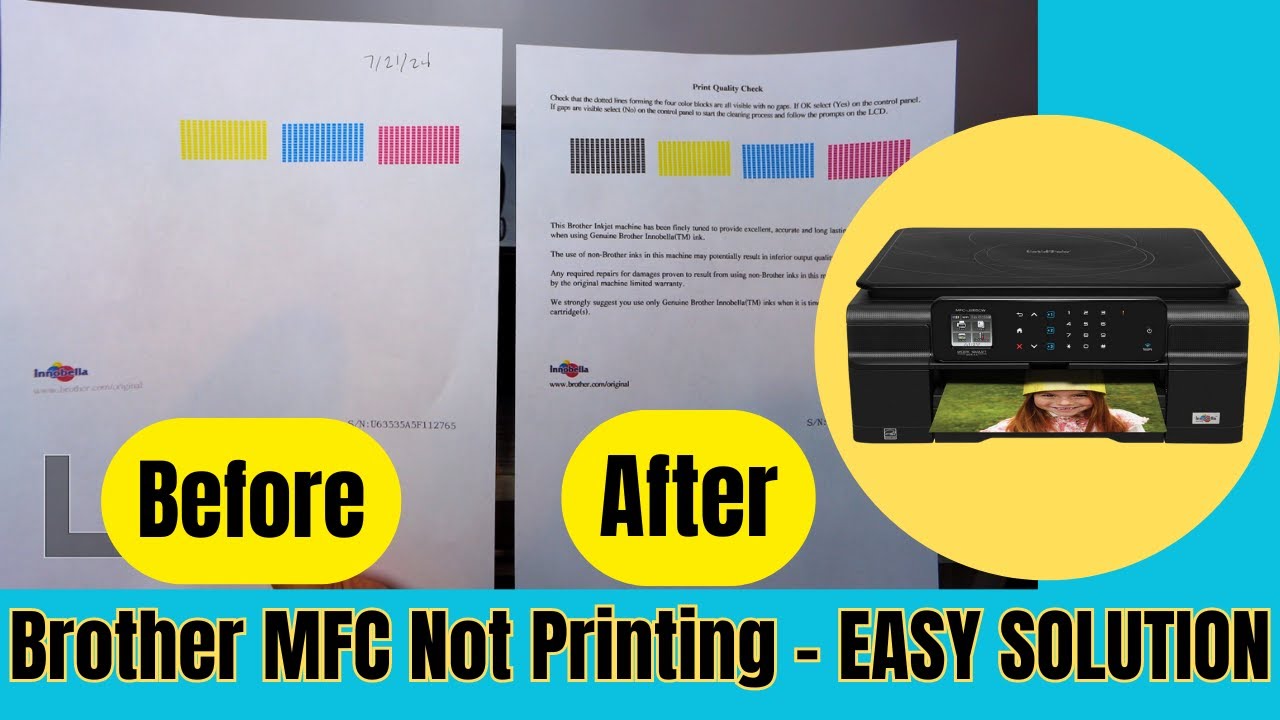
For a visual guide on how to handle a clogged printhead, the helpful video (hopefully embedded above) demonstrates a manual flushing technique that can solve stubborn blockages: How to Fix a Brother Printer Not Printing Color or Black.
Step 2: Verify and Adjust Driver Settings
If the print quality check sheet prints perfectly but you still can’t print in color from your computer, the problem almost certainly lies with the printer driver settings.
For Windows Users:
- Navigate to Settings > Bluetooth & devices > Printers & scanners.
- Select your Brother printer and click on Printing preferences.
- Look for a “Color” or “Paper/Quality” tab. Ensure that “Grayscale” or “Print in Black and White” is not selected. Choose “Color” instead.
- Additionally, check for a “Toner Save Mode” and disable it, as this can also cause colors to appear faded according to Brother’s official color quality tips.
For macOS Users:
- Open a document and go to File > Print.
- In the print dialog, make sure your Brother printer is selected.
- Find the dropdown menu (it might show the application name by default) and select Print Settings or Color/Quality.
- Ensure that “Color” is selected, not “Grayscale.”
Step 3: Reinstall the Printer Drivers
If the settings are correct and the issue persists, the printer driver itself may be corrupted. Reinstalling it can often resolve deep-seated software conflicts.
- Remove the Printer: Go back to Printers & scanners in your computer’s settings, select your Brother printer, and choose “Remove device.”
- Download the Latest Drivers: Visit the official Brother Support website and search for your specific printer model. Download the latest full driver and software package.
- Install the New Drivers: Run the installer and follow the on-screen instructions. This will set up your printer with a fresh, uncorrupted driver, which often resolves persistent communication issues.
Step 4: Check for Firmware Updates
Printer manufacturers occasionally release firmware updates to fix bugs and improve performance. An outdated firmware version could be the source of your color printing problems. You can typically check for updates through the printer’s control panel under a “Maintenance” or “Device Update” menu, or by using the software utility downloaded from the Brother support site.
Step 5: Check for Physical Obstructions and Correct Installation
Sometimes, the problem is purely physical. If you’ve recently installed a new ink or toner cartridge, it’s worth double-checking your work. Two very common but easily overlooked issues can prevent color printing.
Check for Protective Tape: New ink and toner cartridges ship with a protective plastic tape over the nozzle or toner distribution area. If this tape is not removed, the ink or toner cannot be dispensed. Carefully remove the cartridges and inspect them to ensure all protective coverings have been taken off.
Verify Correct Cartridge Placement: It might sound simple, but installing a color cartridge in the wrong slot is a frequent mistake. Each slot is color-coded for a reason. A Brother printer cannot produce accurate colors if, for example, the cyan cartridge is in the magenta slot. Remove all the cartridges and reinstall them one by one, making sure each one clicks firmly into its correctly colored slot.
A Note for Laser Printer Users: When Your Brother Printer Not Printing Color Issue Happens
If you have a Brother laser printer and are experiencing faded or streaky colors, the issue might be dirty corona wires. These wires transfer an electrical charge to the drum unit, which in turn attracts toner to the paper. Dust and toner particles can build up on these wires over time, leading to poor print quality.
To clean them:
- Open the top cover of your printer.
- Remove the drum and toner cartridge assembly for each color.
- On the drum unit, you will find a small, colored tab. Gently slide this tab back and forth from one end to the other 2-3 times. This will clean the corona wire inside.
- Return the tab to its original position before reinstalling the drum and toner assembly.
Environmental Factors and Your Brother Printer Not Printing Color
Believe it or not, the environment where your printer is located can affect its performance. Both temperature and humidity can impact ink and toner.
- High Humidity: Can cause paper to absorb moisture, leading to ink bleeding and poor toner adhesion.
- Low Humidity: Can cause ink to dry out more quickly in the printhead nozzles.
- Extreme Temperatures: Can affect the viscosity of the ink and the properties of the toner.
For best results, keep your printer in a stable, climate-controlled environment, away from direct sunlight, vents, or drafts.
Final thoughts on Brother Printer Not Printing Color
Encountering a Brother printer not printing color is a common hiccup, but it’s rarely a sign of a critical hardware failure. By methodically working through the steps outlined above – from checking driver settings and running cleaning cycles to reinstalling drivers – you can solve the problem in the vast majority of cases.
Remember to always start with the simplest solutions first. And to prevent future issues, try to print a color page at least once a week to keep the ink flowing and consider using only genuine Brother supplies for maximum reliability.
Frequently Asked Questions
Why is my Brother printer printing black and white instead of color? This is often due to a setting in your printer driver. Check the printing preferences on your computer to ensure that “Grayscale” or “Black and White” is not selected. If the setting is correct, you may have an empty color cartridge, as some Brother models default to black-and-white printing to conserve ink.
Can a clogged nozzle cause all colors to stop printing? Yes, it’s possible. While it’s more common for one or two colors to be affected, severe clogs across the entire printhead can prevent any color ink from reaching the paper. Running multiple head cleaning cycles is the best way to address this.
Do I have to use genuine Brother ink cartridges? Brother officially recommends using genuine cartridges for the best results and to avoid potential damage. While third-party inks can work, they sometimes lead to issues like poor color accuracy, unrecognized cartridges, or an increased likelihood of clogging. If you’re experiencing color problems, switching to genuine Brother ink is a worthwhile troubleshooting step.
My printer says the ink is full, but it still won’t print color. What’s wrong? If the ink levels are fine, the issue is likely a clogged printhead or a software problem. First, run a print quality check and a head cleaning cycle. If that doesn’t work, the next step is to reinstall the printer driver to fix any potential software corruption.
How to Check Print Quality and Clean the Printhead
Here is a step-by-step guide to using your Brother printer’s built-in maintenance functions to solve color printing issues.
What You’ll Need:
- Standard A4 or Letter size paper
- Your Brother inkjet printer with color ink cartridges installed
Estimated Time: 5 minutes
Step 1: Navigate to the Maintenance Menu
On your printer’s touchscreen or control panel, press the “Ink” or “Settings” button. Look for an option related to ink management or maintenance. This is where all the diagnostic and cleaning tools are located.
Step 2: Print a Quality Check Sheet
Select the “Test Print” or “Print Quality Check” option. The printer will produce a test page showing a grid pattern for each color (Cyan, Magenta, Yellow, and Black). This page will clearly show you which colors are printing correctly and which ones have issues.
Step 3: Examine the Test Page
Look closely at the printed patterns. If any of the color blocks have missing lines or appear faded, the printhead is clogged. Each color should show a complete, solid pattern without gaps.
Step 4: Start the Head Cleaning Cycle
The printer should prompt you to start a cleaning cycle if the quality is poor. If not, manually select the “Head Cleaning” option from the maintenance menu. The printer will begin forcing ink through the nozzles to clear blockages. This process takes about 2-3 minutes.
Step 5: Repeat and Re-test
After the cleaning finishes, print another quality check sheet. If the quality has improved but is not yet perfect, you can run the cleaning cycle one or two more times. If there is no improvement after several cleanings, the cartridge may be empty or there may be a more serious issue requiring cartridge replacement.
Finally be sure to check out our Tech Troubleshooting FAQ or our Printer Troubleshooting Tips pages for even more general tips that cover a wide range of technical problems and solutions.
(If you still have a Brother Printer Not Printing Color issue even after reading this article, that FAQ page above might just have the less obvious fix you need!)