When you find your Brother printer not printing from mobile devices, it can bring your productivity to a sudden halt.
That’s because printing directly from our smartphones really is such a modern convenience that we’ve all come to rely on.
You might be wondering if it’s a problem with your phone, the printer, or the network.
The good news is that, in most cases, this is a solvable issue.
This article is designed to help you diagnose the problem and get your Brother printer and mobile device communicating seamlessly once again.
Brother Printer Not Printing From Mobile Article Quick Fix
If your Brother printer is not printing from your mobile device, the issue is almost always a communication breakdown.
The most common culprits are your phone and printer not being on the same Wi-Fi network, a glitch in the Brother printing app, or an outdated printer firmware.
This guide will walk you through verifying your network connection, restarting your devices correctly, and checking for essential updates to resolve the problem.
Common Causes Of A Brother Printer Not Printing From Mobile
Understanding why your printer isn’t working is the first step toward fixing it.
Several factors can disrupt the connection between your mobile device and your Brother printer.
Let’s explore some of the most frequent reasons for this issue.
Your Phone and Printer Are on Different Networks
For your mobile device to send a print job to your Brother printer, both devices must be connected to the exact same Wi-Fi network.
This is the most common reason for mobile printing failures.
It’s easy to overlook, especially if you have multiple Wi-Fi networks in your home or office, such as a primary network and a guest network, or different bands (2.4 GHz and 5 GHz).
Your phone might automatically connect to the strongest signal, which may not be the same network your printer is configured to use.
Similarly, your phone might be using its cellular data (4G/5G) instead of Wi-Fi, which will prevent it from seeing the printer on the local network.
Issues with the Brother iPrint&Scan or Mobile Connect App
Brother provides dedicated apps like Brother iPrint&Scan and Brother Mobile Connect to facilitate printing from Android and iOS devices.
However, like any software, these apps can sometimes encounter problems.
The app might need to be updated, its cache could be corrupted, or it may have lost its connection to the printer.
An outdated app version might not be compatible with the latest operating system on your phone, leading to communication errors.
Outdated Printer Firmware or Mobile OS
Firmware is the essential software that runs on your printer, controlling its functions.
Manufacturers regularly release firmware updates to fix bugs, improve performance, and enhance security.
If your Brother printer’s firmware is outdated, it may contain a bug that prevents it from working correctly with modern mobile devices or printing protocols like AirPrint.
Similarly, an outdated operating system on your iPhone or Android device can cause compatibility issues with printing services.
Problems with AirPrint or Mopria Print Service
AirPrint (for Apple devices) and Mopria Print Service (for Android devices) are technologies that allow for driverless printing over a network.
While incredibly convenient, they can also be a source of problems.
For AirPrint to work, it must be enabled in your Brother printer’s network settings.
Sometimes, a network router can block the protocols that AirPrint uses to discover the printer.
For Mopria, the service might be disabled on your Android phone, or it may not have the necessary permissions to locate the printer on the network.
Basic Troubleshooting Steps To Try First
Before diving into more advanced solutions, it’s always a good idea to start with the basics.
These simple steps can often resolve the problem quickly without requiring any technical expertise.
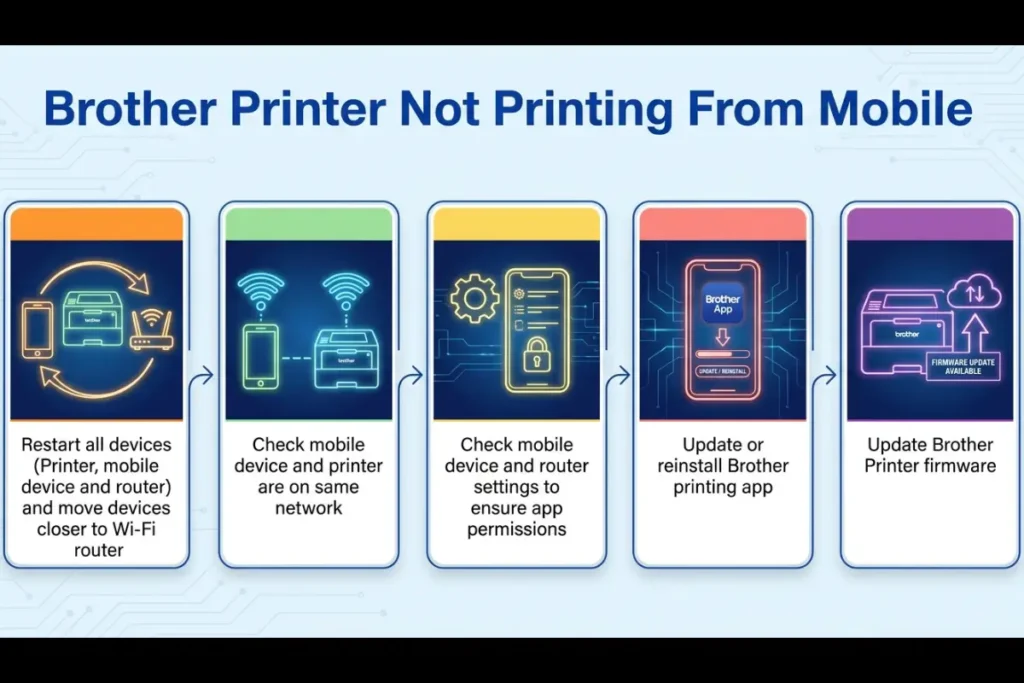
- Restart Everything:
This is the oldest trick in the tech support book for a reason – it often works.
Power down your Brother printer, your mobile phone, and your Wi-Fi router.
Wait about 30 seconds before turning them back on.
This process can clear out temporary glitches and re-establish a clean connection between all devices. - Verify Wi-Fi Connection:
On your mobile phone, go to the Wi-Fi settings and check the name of the network you are connected to.
Then, print a network configuration report from your Brother printer (the method for this varies by model, so consult your user manual).
Compare the network name (SSID) on the report with the one on your phone.
If they don’t match, connect your phone to the same network as the printer. - Check for Printer Errors:
Look at the LCD screen on your Brother printer.
Are there any error messages, such as “Paper Jam” or “Low Ink”?
Resolve any existing errors before attempting to print from your mobile device. - Move Closer to the Router:
A weak Wi-Fi signal can cause print jobs to fail.
Try moving your printer and mobile device closer to your Wi-Fi router to ensure a strong and stable connection.
Advanced Troubleshooting For A Brother Printer Not Printing From Mobile
If the basic steps didn’t solve the problem, it’s time to dig a little deeper.
These advanced troubleshooting methods will address more specific issues related to your printer’s settings, software, and network configuration.
Fixing App-Related Printing Problems
If the issue seems to be with the Brother app, follow these steps.
First, ensure you have the latest version of the Brother iPrint&Scan or Mobile Connect app from the Google Play Store or Apple App Store.
If you have the latest version, try clearing the app’s cache (on Android) or reinstalling the app completely.
For detailed instructions on using the app and ensuring your printer is selected correctly, you can refer to Brother’s official support page for the iPrint&Scan app for Android.
Resolving AirPrint and iOS Issues
For iPhone and iPad users, AirPrint is the primary way to print.
If you’re having trouble, the issue could be with AirPrint itself.
First, confirm that your Brother printer is AirPrint-compatible.
You can then check if AirPrint is enabled in your printer’s settings by accessing its web interface through a browser.
Apple provides a helpful guide on how to use AirPrint to print from your iPhone or iPad.
If you are consistently getting a “No AirPrint Printers Found” error, it may be necessary to update your printer’s firmware, as detailed in Brother’s guide on troubleshooting AirPrint issues.
For a visual guide on fixing wireless printing problems, which often relate to AirPrint and network discovery, this silent YouTube video on fixing Brother wireless print problems provides a helpful walkthrough of some of the general steps involved in re-establishing a connection (and is also hopefully embedded below!)
Addressing Android and Mopria Print Service Issues
Android printing relies on the Mopria Print Service, which should be pre-installed on most modern Android phones.
You can check if it’s enabled by going to your phone’s settings, searching for “Printing,” and selecting “Mopria Print Service.”
Ensure the service is turned on.
The Mopria Alliance website offers extensive information on this industry standard for mobile printing.
Sometimes, granting the Mopria service location permissions can help it discover the printer on your network.
Updating Your Printer’s Firmware
An outdated firmware is a common cause of a Brother printer not printing from mobile.
You can usually update the firmware directly from the printer’s control panel or by using a utility on your computer.
Visit the Brother support website for your specific printer model to find the latest firmware and instructions on how to install it.
This is a critical step, especially if you are experiencing issues with newer mobile devices or operating systems.
Final Thoughts On Brother Printer Not Printing From Mobile
Having your Brother printer not printing from mobile can be a significant inconvenience, but it’s usually a problem you can fix yourself.
By working through the troubleshooting steps methodically – from basic restarts to more advanced network and firmware checks – you can identify and resolve the root cause of the issue.
Remember to ensure both your printer and mobile device are on the same Wi-Fi network, keep your apps and firmware updated, and don’t hesitate to consult the official support resources from Brother, Apple, and the Mopria Alliance.
With a little patience, you’ll be back to effortless mobile printing in no time.
Frequently Asked Questions
Why is my phone saying no printer found?
This usually means your phone and printer are not on the same Wi-Fi network.
It can also happen if your printer is in sleep mode, or if a firewall on your router is blocking the printer discovery protocols.
Ensure both devices are on the same network and that the printer is awake and ready.
Do I need a special app to print from my phone to a Brother printer?
While not always strictly necessary, using the Brother iPrint&Scan or Brother Mobile Connect app is highly recommended.
These apps provide the most reliable connection and give you access to all of your printer’s features, such as scanning and maintenance.
For basic printing, iOS devices can use AirPrint and Android devices can use the Mopria Print Service without a dedicated app.
How do I get my Brother printer back online?
If your Brother printer is showing as “Offline,” the first step is to restart the printer and your Wi-Fi router.
Check that the printer’s Wi-Fi is enabled and that it is connected to your network.
You can verify this by printing a network configuration report from the printer’s menu.
How To Reconnect Your Brother Printer To Wi-Fi
This guide will walk you through the basic steps to reconnect your Brother printer to your Wi-Fi network using the control panel.
This is often the first step to fixing mobile printing issues.
Estimated Time: 5 minutes
Tools Needed: Your Brother printer, your Wi-Fi network name (SSID) and password.
Materials Needed: None
- Wake Up Your Printer
Press any button on the printer’s control panel to wake it from sleep mode. - Access the Network Menu
Navigate to the “Menu” or “Settings” on your printer’s control panel. Look for a “Network” option and select it. - Select the WLAN/Wi-Fi Option
Inside the Network menu, find the “WLAN” or “Wi-Fi” option. This will take you to the wireless network settings. - Use the Setup Wizard
Select the “Setup Wizard” option. The printer will now search for available Wi-Fi networks in your area. - Choose Your Network
A list of available Wi-Fi networks (SSIDs) will appear on the printer’s screen. Select your home or office network from the list. - Enter Your Wi-Fi Password
Carefully enter your Wi-Fi password using the printer’s control panel. The password is case-sensitive. Once entered, select “OK” or “Connect.” - Confirm Connection
The printer will attempt to connect to the network. Once successful, it will display a “Connected” message. You can print a network configuration report to confirm the connection and see the printer’s IP address.
Finally be sure to check out our Tech Troubleshooting FAQ or our Printer Troubleshooting Tips pages for even more general tips that cover a wide range of technical problems and solutions.
(If after reading the above article you still have a “Brother Printer Not Printing From Mobile” problem, then you might find a much less obvious solution on the above tech pages!)