It can be incredibly frustrating when your technology doesn’t work as expected, such as when you find your Brother printer not scanning on WiFi, even though printing works fine.
This is a surprisingly common problem that leaves many users confused and searching for a solution.
The good news is that, in most cases, the fix is straightforward and doesn’t require advanced technical skills.
This article will guide you through the most likely causes and provide clear, step-by-step instructions to resolve the issue and get your scanner communicating with your computer again.
In a Rush? Brother Printer Not Scanning on WiFi Quick Fix
If your Brother printer is not scanning over your wireless network, the problem is almost always related to a network configuration issue, a firewall blockage, or an incorrect scanner driver setting.
The most effective solution is to verify the printer’s IP address, ensure your computer’s firewall isn’t blocking the connection, and confirm the scanner driver is correctly configured.
This guide is for anyone who can print wirelessly but cannot scan from their Windows or Mac computer.
Common Causes of a Brother Printer Not Scanning on WiFi
Understanding why your Brother printer is not scanning on WiFi is the first step toward fixing it.
Several factors can disrupt the communication between your scanner and your computer, even when printing works perfectly.
Let’s explore some of the most frequent culprits.
Incorrect Network Settings or IP Address Conflicts
For your computer to find the scanner over the network, both devices need to be on the same page.
Often, the scanner driver on your computer may have an outdated or incorrect IP address for the printer.
This can happen if your router assigns a new IP address to the printer and the driver software doesn’t automatically update.
According to Brother’s official support documentation, ensuring the scanner driver is pointing to the correct IP address is a critical troubleshooting step.
Firewall or Security Software Interference
Your computer’s firewall is designed to protect you from online threats, but sometimes it can be a little too protective.
A firewall can mistakenly identify the network communication from your scanner as a potential threat and block it.
This is a very common reason for a Brother printer not scanning on WiFi.
Both Windows Defender Firewall and third-party antivirus software can cause this issue.
The solution involves adding an exception for the Brother scanning software in your firewall settings.
Scanner Driver Issues
Even if you have the printer driver installed, the scanner driver might be missing, corrupted, or outdated.
The printer and scanner often have separate drivers, and if the scanner driver isn’t installed or configured correctly, your computer won’t be able to communicate with the scanner.
Reinstalling the full driver and software package from the official Brother support website is often the most reliable way to fix this.
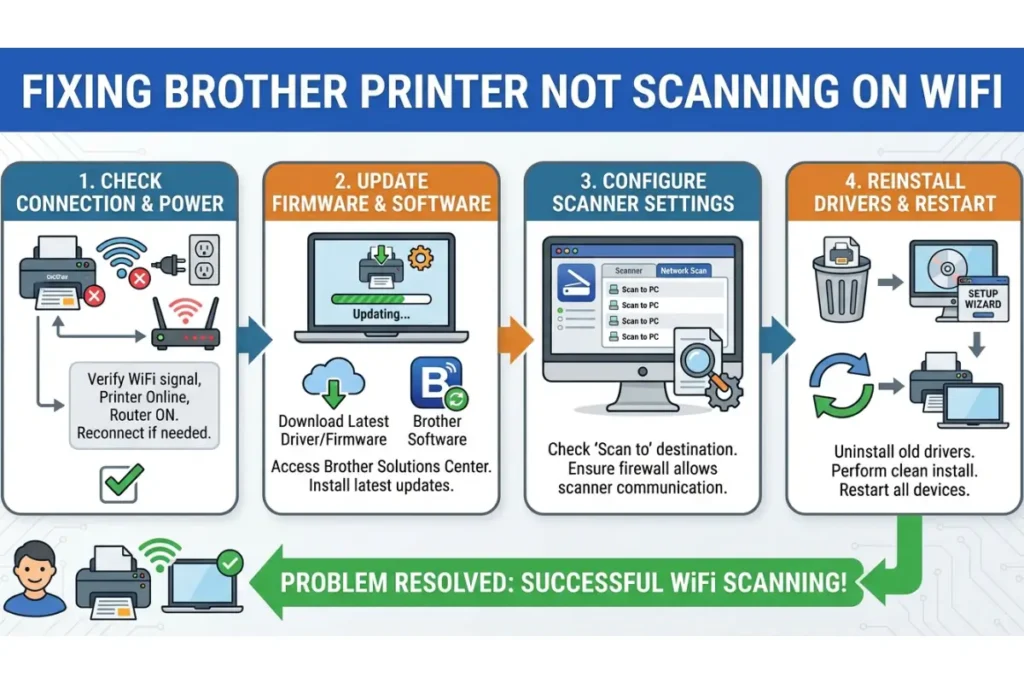
How to Fix Your Brother Printer Not Scanning on WiFi: Step-by-Step
Now that we’ve covered the common causes, let’s walk through the solutions.
Follow these steps in order to diagnose and resolve the problem.
Step 1: Basic Checks and Restarting Devices
Before diving into more complex settings, let’s start with the basics. These simple steps can often resolve temporary glitches.
- Check for Error Messages:
Look at your Brother printer’s LCD screen. If there are any error messages, such as “Paper Jam” or “Toner Low,” resolve those issues first. - Restart Everything:
A classic for a reason! Turn off your Brother printer, your computer, and your WiFi router. Wait for about 60 seconds, then turn them back on in this order: router first (wait for it to fully connect to the internet), then the printer, and finally your computer.
Step 2: Verify Network Connection and Print a Test Page
Next, confirm that your printer is properly connected to your WiFi network.
- Print a Network Configuration Report:
On your Brother printer, go to the network settings and print a Network Configuration or WLAN report. This report will show you the printer’s connection status and its IP address. - Print a Test Page:
From your computer, try to print a test page. If you can print successfully, it confirms that the basic network connection between your computer and printer is working.
Step 3: Update Scanner Driver and IP Address
If the basic checks don’t work, the next step is to ensure the scanner driver is correctly configured with the printer’s IP address.
- Find the Printer’s IP Address:
Look at the Network Configuration Report you printed in the previous step and find the IP address (e.g., 192.168.1.105). - Open Scanner Properties:
On your Windows computer, go to “Scanners and Cameras” in the Control Panel. Right-click on your Brother scanner and select “Properties.” - Update the IP Address:
In the scanner properties, look for a “Network Setting” tab. Select the option to “Specify your machine by address” and enter the IP address from the Network Configuration Report. Click OK.
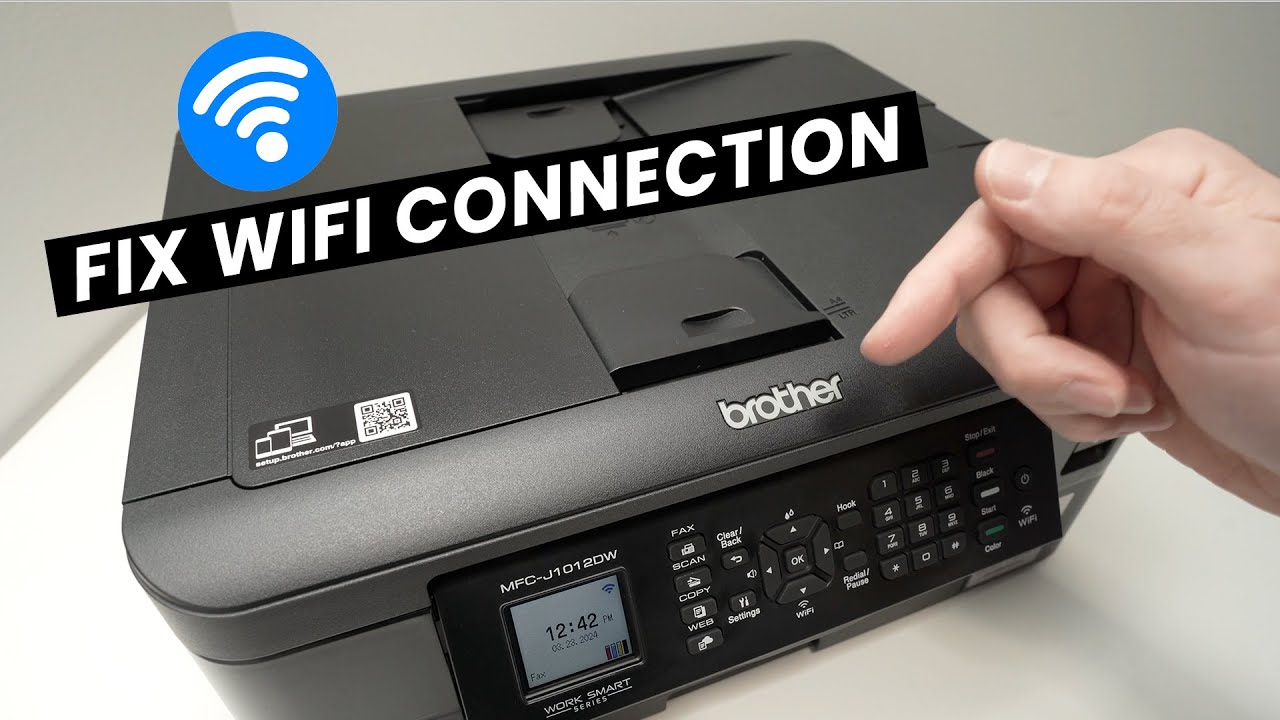
For a visual guide on how to fix connection problems, this walkthrough of WiFi connection fixes for Brother MFC printers covers the process clearly and is well worth a watch before diving deeper into settings (and is also hopefully embedded below!)
Step 4: Configure Your Firewall
If the issue persists, it’s time to check your firewall settings. You’ll need to allow the Brother scanning software to communicate through the firewall.
- Open Firewall Settings:
Go to your Windows Defender Firewall settings or the settings of your third-party antivirus software. - Allow an App Through Firewall:
Look for the option to “Allow an app or feature through Windows Defender Firewall.” Add the following Brother applications to the list of allowed apps:
- BRCTRLCNTR.EXE
- Brother iPrint&Scan.exe
- iPSNotifier.exe
- You may also need to open specific UDP ports for network scanning. Brother recommends opening UDP ports 54925, 137, and 161.
Advanced Troubleshooting For Brother Printer Not Scanning On WiFi
If you’ve tried all the steps above and are still having trouble, here are some advanced troubleshooting techniques to consider.
Reinstalling Brother Drivers and Software
A fresh installation of the drivers can often resolve persistent issues.
Go to the official Brother Support website and download the latest Full Driver & Software Package for your specific printer model.
Before installing, make sure to uninstall any existing Brother software from your computer.
Checking Router and Network Settings
In some cases, your router’s settings can interfere with network scanning.
Ensure that your printer is connected to the 2.4 GHz WiFi band, as some older printers are not compatible with 5 GHz bands.
Also, check that your router has settings like “UPnP” (Universal Plug and Play) and “Multicast” enabled, as these can help devices on your network discover each other.
When the Scanner Works from One Computer But Not Another
This is a less obvious but realistic scenario that many users overlook.
If your Brother scanner works fine from one computer on the same network but not from another, the issue is almost certainly isolated to the second computer rather than the printer itself.
In this case, the most likely culprits are a missing or corrupted scanner driver on that specific machine, a stricter firewall configuration, or a Windows network profile set to “Public” instead of “Private.”
Switching the network profile to Private allows Windows to enable network discovery and file sharing, which are both required for wireless scanning to function.
You can check this in Windows Settings > Network & Internet > your WiFi connection > Network profile.
Additionally, Microsoft’s guidance on fixing printer and also scanner connections are helpful resources for diagnosing computer-specific issues.
Final Thoughts On Brother Printer Not Scanning On WiFi
Dealing with a Brother printer not scanning on WiFi can certainly be a hassle, but as we’ve seen, the solutions are usually within reach.
By systematically working through the troubleshooting steps – from basic restarts to checking network settings and firewall configurations – you can almost always identify and fix the root cause of the problem.
Remember to be patient and methodical in your approach. Once you’ve resolved the issue, you’ll be back to scanning your important documents with ease.
To prevent future issues, it’s a good practice to occasionally check for driver updates and ensure your printer maintains a stable connection to your WiFi network.
Frequently Asked Questions (FAQ)
Why can I print but not scan with my Brother printer on WiFi?
This is a common issue that usually points to a problem with the scanner driver or network configuration. Printing and scanning are separate functions with different drivers and network port requirements. While printing might work fine, the scanner driver may not be installed correctly, or a firewall could be blocking the scanning communication.
Do I need to assign a static IP address to my Brother printer?
While not always necessary, assigning a static IP address to your printer can prevent many network scanning issues. When your printer’s IP address changes, the scanner driver on your computer can lose its connection. Setting a static IP ensures that the address remains constant, providing a more reliable connection for scanning.
Can my antivirus software block my Brother scanner?
Yes, absolutely. Antivirus and firewall software are common culprits when a Brother printer is not scanning on WiFi. They can mistake the network scanning communication for a potential threat and block it. To fix this, you’ll need to add the Brother scanning software to your security software’s exception or whitelist.
How To Fix Brother Printer WiFi Scanning
Here is a summary of the steps to fix your Brother printer when it won’t scan over WiFi. For more detailed explanations, please refer to the main body of the article.
Estimated Time: 15 minutes
Supplies:
- Brother Printer
- Computer (Windows or Mac)
- WiFi Router
Tools:
- Brother Printer Control Panel
- Computer Control Panel or System Settings
Steps:
- Restart Devices:
Turn off your Brother printer, computer, and WiFi router. Wait for 60 seconds, then turn them back on in this order: router, printer, then computer. - Verify Network Connection:
Print a Network Configuration Report from your printer to confirm it’s connected to your WiFi network and to get its IP address. - Update Scanner Driver IP Address:
On your computer, go to the scanner properties and update the network settings to use the printer’s current IP address from the configuration report. - Configure Firewall Settings:
Open your computer’s firewall settings and add the Brother scanning applications (e.g., BRCTRLCNTR.EXE, Brother iPrint&Scan.exe) to the list of allowed apps. - Reinstall Brother Drivers:
If the problem persists, uninstall all Brother software from your computer and reinstall the latest Full Driver & Software Package from the official Brother support website.
Finally be sure to check out our Tech Troubleshooting FAQ or our Printer Troubleshooting Tips pages for even more general tips that cover a wide range of technical problems and solutions.
(If after reading the above article you still have a “Brother Printer Not Scanning on WiFi” issue, then you might find a much less obvious solution on the above tech pages!)