Are you facing the infamous “Brother printer offline on Mac” issue?
Despite being powered on and connected, the dreaded “Offline” status prevents you from printing, causing a significant disruption to your workflow.
This is actually a familiar and frustrating scenario.
Just when you need to print an important document, your Mac insists your Brother printer is offline.
Rest assured that you are not alone in your struggle, and the solution is often simpler than you might think.
This problem is in fact one of the most common connectivity challenges Mac users face with their printers.
Because this issue can stem from various causes – ranging from a simple network hiccup to a more complex driver conflict – a systematic approach is the key to resolving it efficiently.
In this guide, we will walk you through a series of troubleshooting steps, starting with the most straightforward fixes and progressing to more advanced solutions.
Therefore, you can quickly identify the root cause and get your printer back online without unnecessary frustration.
The most common reason for a Brother printer offline on Mac error is a communication breakdown between your computer and the printer.
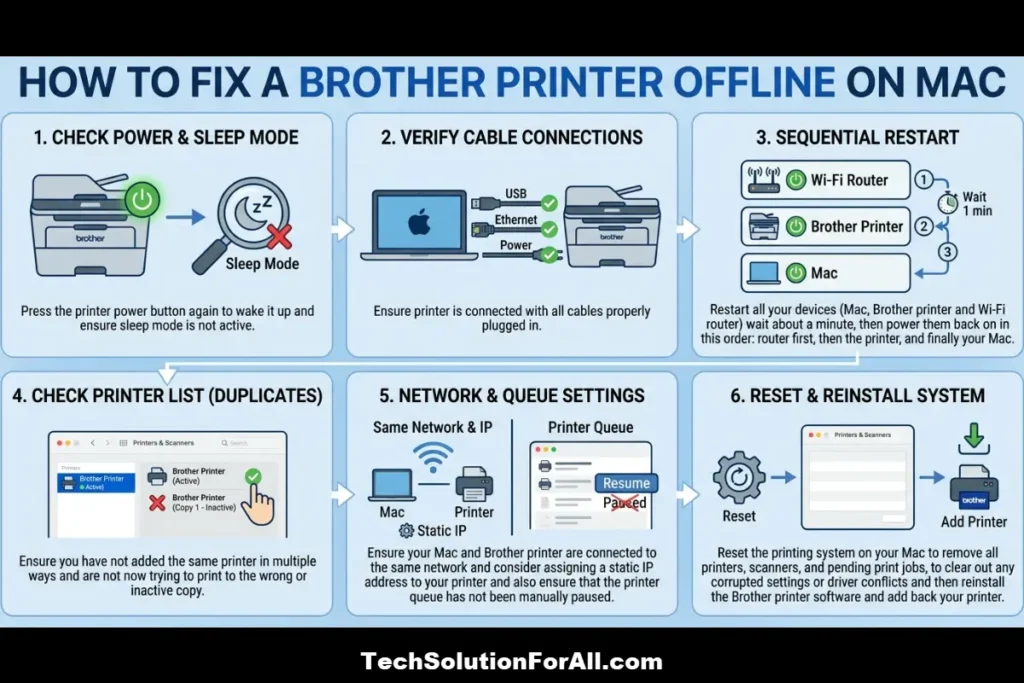
Often, the quickest fix is to restart your devices. Power down your Mac, your Brother printer, and your Wi-Fi router.
Wait about a minute, then power them back on in this order: router first, then the printer, and finally your Mac.
This simple sequence can often re-establish the connection and resolve the issue instantly.
Common Causes Of A Brother Printer Offline On Mac Error
Understanding why your Brother printer is showing as offline on your Mac is the first step toward a lasting solution.
In most cases, the problem is not with the printer hardware itself but with the communication link between your devices.
Below, we explore the most frequent culprits behind this connectivity issue.
1. Basic Network and Connection Problems
Often, the simplest explanation is the correct one.
A faulty or unstable connection is the leading cause of the Brother printer offline on Mac error.
Before diving into more complex settings, it is crucial to verify that your network is functioning correctly and that all devices are properly connected.
- Wi-Fi and Ethernet Issues:
Your Mac and Brother printer must be connected to the same network.
If your printer is connected via Wi-Fi, ensure it hasn’t disconnected or connected to a different nearby network.
For wired connections, check that the Ethernet cable is securely plugged into both the printer and your router. - IP Address Conflicts:
Every device on your network needs a unique IP address.
If another device accidentally takes the printer’s IP address, your Mac won’t be able to find it.
This can happen intermittently, especially on networks with many devices. - Printer in Sleep Mode:
To conserve energy, printers often enter a low-power sleep mode.
Sometimes, the printer doesn’t wake up correctly when you send a print job, causing your Mac to report it as offline.
A simple press of the power button is often enough to wake it up.
2. Incorrect Printer Configuration on Your Mac
Even with a perfect network connection, the way your printer is set up on your Mac can cause it to appear offline.
These settings can sometimes be altered by macOS updates or even by adding another printer.
- Printer Paused or Offline Status:
It’s possible that the printer queue has been manually paused.
In the printer’s queue window, you can check if printing is paused and resume it with a single click.
Apple provides clear guidance on how to solve printing problems on Mac, which includes checking the printer’s status. - Duplicate Printer Copies:
If you have connected your printer in different ways (e.g., USB and then Wi-Fi), your Mac might have created multiple copies of the same printer.
If the default printer selected is the wrong or inactive copy, your Mac will report it as offline.
3. Outdated or Incompatible Printer Drivers
The printer driver is a piece of software that allows your Mac to communicate with your Brother printer.
If this driver is outdated, corrupted, or incompatible with your version of macOS, communication will fail.
- CUPS vs. AirPrint Drivers:
macOS often defaults to using AirPrint, which is a driverless printing technology.
While convenient, it may not always offer full functionality.
Brother printers often perform more reliably with their own CUPS (Common UNIX Printing System) driver.
Brother’s official support page recommends ensuring the CUPS driver is installed for full functionality. - macOS Updates:
A major macOS update can sometimes render an older printer driver obsolete.
After an update, you may find that your previously working printer is suddenly offline.
Checking for an updated driver from Brother’s support website is a critical step in this situation.
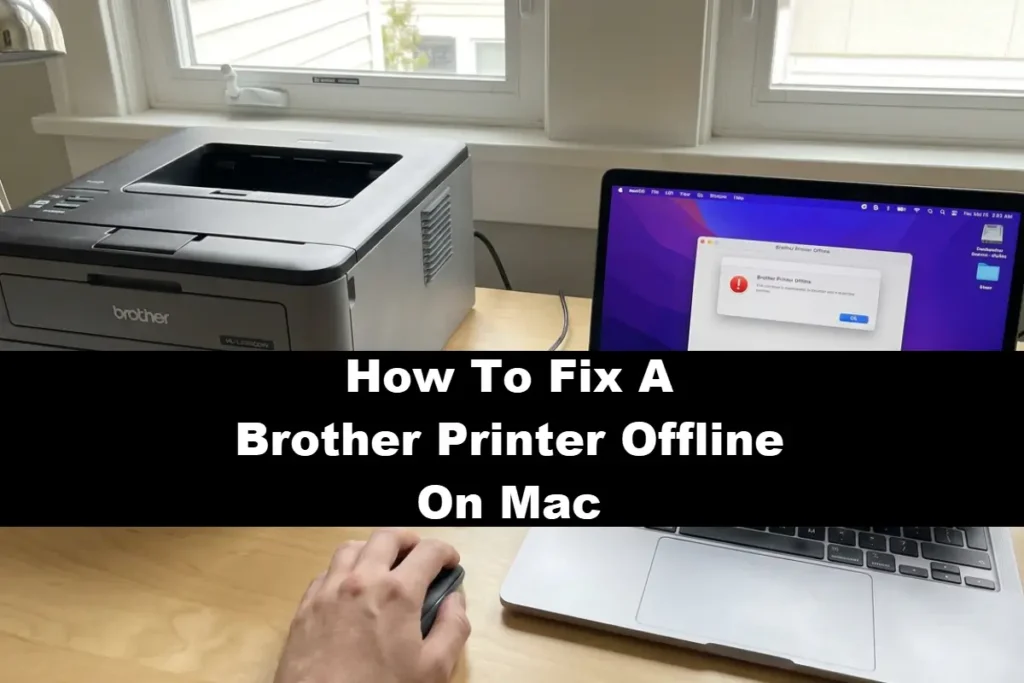
Advanced Troubleshooting For A Brother Printer Offline On Mac
If the basic checks did not resolve the issue, it’s time to move on to more advanced troubleshooting.
These steps address deeper conflicts within your system and network configuration that can cause the persistent Brother printer offline on Mac error.
1. Resetting the Mac Printing System
When all else fails, resetting the printing system on your Mac can provide a clean slate.
This process removes all printers, scanners, and pending print jobs, clearing out any corrupted settings or driver conflicts.
It is a powerful step that often resolves stubborn offline issues.
Apple provides official instructions on how to reset the printing system on your Mac to solve a problem.
To do this, navigate to System Settings > Printers & Scanners.
From there, Control-click (or right-click) on the list of printers and select Reset Printing System.
After the reset is complete, you will need to add your Brother printer again.
This process forces your Mac to re-establish a fresh connection and can often fix issues that other methods cannot.
2. Manually Setting a Static IP Address
Your printer’s IP address can sometimes change, especially if your router reboots or you have many devices on your network.
When this happens, your Mac can no longer find the printer at its last known address.
Assigning a static IP address to your printer prevents this from happening.
First, you will need to access your printer’s network settings, usually through its built-in web interface.
You can find the printer’s current IP address by printing a network configuration report from the printer’s control panel.
Once you have the IP address, you can reserve it in your router’s settings.
This ensures that the printer always has the same IP address, providing a stable connection for your Mac.
3. Reinstalling the Brother Printer Driver
If you suspect a driver issue, especially after a macOS update, a clean reinstallation of the Brother printer driver is the best course of action.
This ensures that you have the latest, most compatible version for your system.
Start by removing the printer from your Mac in System Settings > Printers & Scanners.
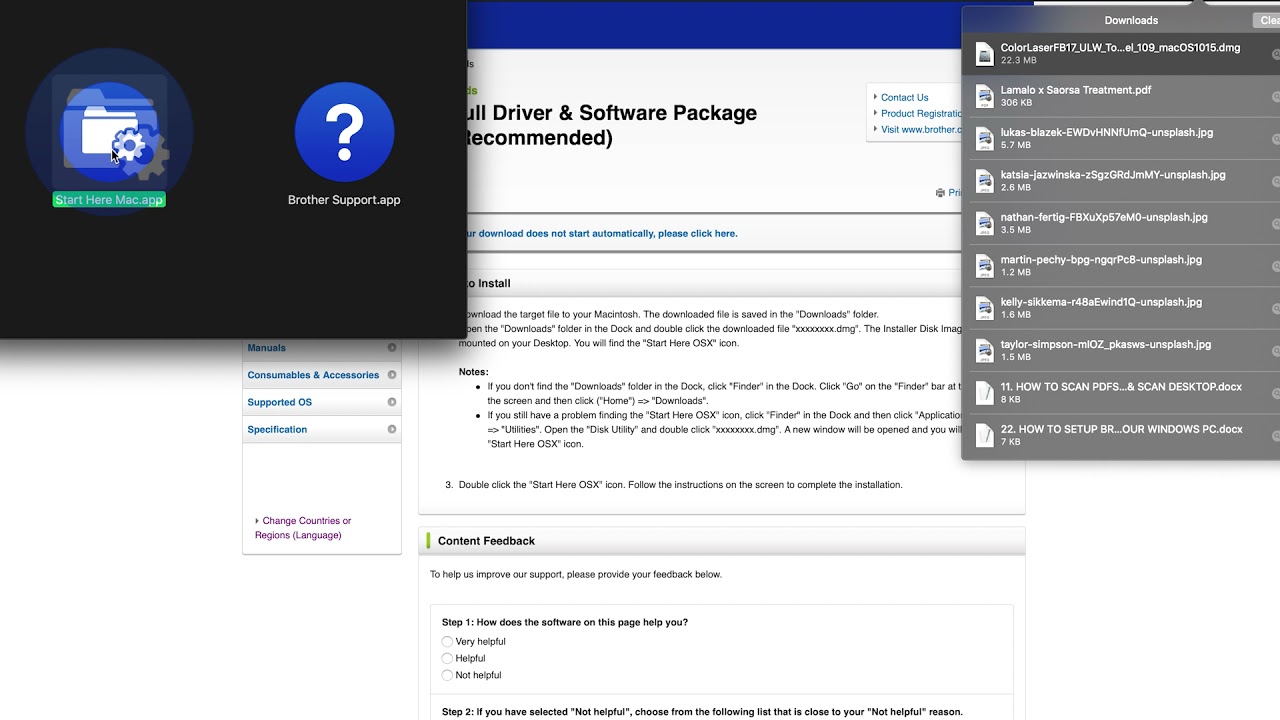
Then, visit the official Brother support website to download the latest Full Software Package for your specific printer model.
This package contains the necessary CUPS driver and other essential software.
For a visual guide to installing a Brother printer on a Mac, you can watch this helpful video (hopefully also embedded below!)
Final Thoughts On Brother Printer Offline On Mac
Resolving the Brother printer offline on Mac issue is usually a matter of systematically working through potential connection and software conflicts.
By starting with simple restarts and moving on to more advanced steps like resetting the printing system or setting a static IP address, you can restore communication between your devices.
Remember to check for updated drivers, especially after a macOS update, to ensure long-term stability.
With these steps, you can keep your printing workflow smooth and avoid future disruptions.
Frequently Asked Questions
Why does my Mac say my Brother printer is offline when it isn’t?
This usually happens due to a communication error between your Mac and the printer.
Common causes include network connectivity issues, an outdated printer driver, or the printer being in a deep sleep mode.
Restarting your devices or checking the printer’s connection to your Wi-Fi network often resolves the problem.
How do I get my Brother printer back online on my Mac?
A simple and effective first step is to restart your Mac, printer, and router.
If that doesn’t work, open System Settings > Printers & Scanners, remove the printer, and add it again.
This forces your Mac to re-establish the connection and can clear up any temporary glitches.
What is the difference between an AirPrint and a CUPS driver?
AirPrint is Apple’s driverless technology that allows for easy printing without installing specific software.
A CUPS driver, on the other hand, is a more traditional printer driver provided by the manufacturer (like Brother).
While AirPrint is convenient, the CUPS driver often provides more reliable performance and access to all of your printer’s features.
How To Reset The Printing System On A Mac
This guide will walk you through resetting your Mac’s printing system to resolve stubborn printer issues.
Total Time: 5 minutes
Supply: Your Mac computer
Tool: System Settings
- Open System Settings:
Click the Apple menu in the top-left corner of your screen and select System Settings. - Navigate to Printers & Scanners:
In the System Settings window, scroll down and click on Printers & Scanners. - Reset the Printing System:
In the Printers & Scanners pane, Control-click (or right-click) on your Brother printer in the list.
From the context menu that appears, select Reset Printing System. - Confirm the Reset:
A confirmation dialog will appear, warning you that this will delete all your printers.
Click Reset to proceed. - Re-add Your Printer:
After the reset is complete, the printer list will be empty.
Click the Add Printer, Scanner, or Fax button and follow the on-screen instructions to add your Brother printer back to the list.
Finally be sure to check out our Tech Troubleshooting FAQ or our Printer Troubleshooting Tips pages for even more general tips that cover a wide range of technical problems and solutions.
(If after reading the above article you still have a “Brother printer offline on Mac” issue, then you might find a much less obvious solution on the above tech pages!)