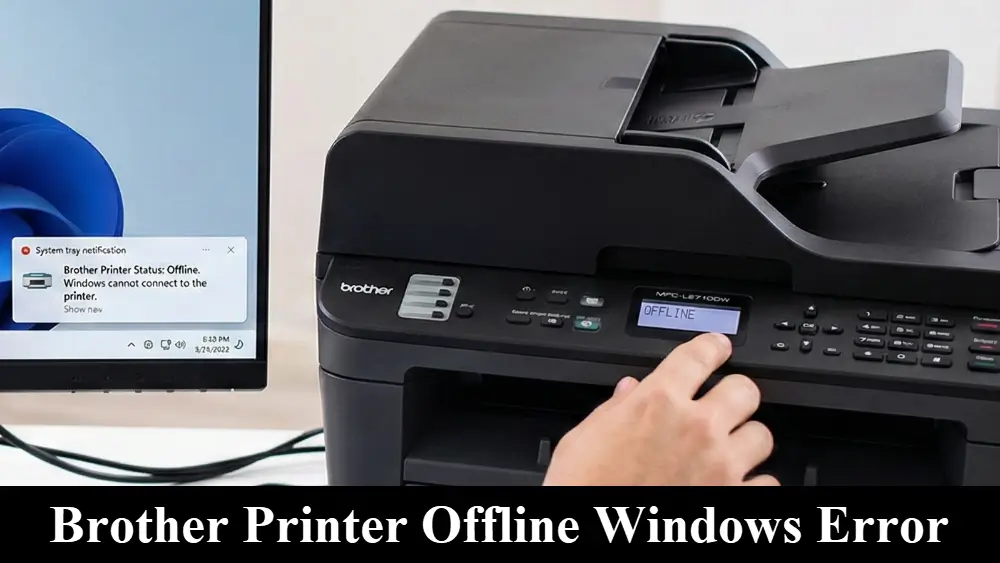
It’s a familiar and frustrating scenario: you need to print an important document, but you see the dreaded Brother printer offline Windows error message.
You’ve checked the power, the cables, and everything seems fine, yet the error persists. This is a common issue for many Windows users, but the good news is that it’s usually fixable.
Because of this, we’ve put together a comprehensive guide to help you troubleshoot and resolve the problem, getting you back to printing in no time.
In a Hurry? Here’s the Quick Fix
The most common reason for a Brother printer offline Windows error is a communication breakdown. This can be due to network issues, a stuck print job, or incorrect driver settings.
The solution often involves restarting your devices, checking your printer’s status in Windows, and ensuring it’s set as the default printer.
This article is for any Windows user struggling to get their Brother printer back online.
Common Causes of Brother Printer Offline Windows Errors
Understanding why your printer is offline is the first step to fixing it. In most cases, the issue isn’t with the printer itself but with the communication between your printer and your Windows computer.
Here are some of the most common culprits.
Connectivity and Power Issues
The most basic cause can be a problem with the physical connection. A loose USB cable, a disconnected Ethernet cable, or a weak Wi-Fi signal can all lead to your printer appearing offline.
Similarly, if the printer has entered a deep sleep mode, it might not be immediately responsive to print commands. Therefore, it’s always a good idea to start with the simplest checks first.
Incorrect Printer Status Settings
Sometimes, Windows itself can actually be the source of the Brother printer offline Windows problem.
A setting called “Use Printer Offline” might have been accidentally enabled, which tells your computer not to send print jobs to the printer. This can happen after a Windows update or if there was a previous printing error.
Additionally, if your Brother printer isn’t set as the default printer, your print jobs might be going to the wrong place.
Print Queue and Spooler Problems
The print spooler is a service in Windows that manages the print jobs sent to your printer. If a print job gets stuck in the queue, it can prevent any subsequent jobs from printing and may cause the printer to appear offline.
In this case, clearing the print queue and restarting the print spooler service can often resolve the issue.
Driver and Software Conflicts
Printer drivers are the software that allows your computer to communicate with your printer. If the driver is outdated, corrupted, or incompatible with your version of Windows, it can lead to a variety of problems, including the offline error.
Moreover, sometimes duplicate printer drivers can be created, causing confusion for the operating system.
Basic Troubleshooting for Brother Printer Offline Windows Errors
Now that we’ve covered the common causes, let’s walk through the basic troubleshooting steps. These solutions will resolve the issue in the majority of cases.
- Restart Everything: The classic IT solution for a reason. Turn off your printer, computer, and router. Wait for about a minute, then turn them back on in this order: router, printer, and then your computer. This can often reset any temporary glitches.
- Check Physical Connections: Ensure that all cables are securely plugged in. If you’re using a USB connection, try a different USB port on your computer. For network printers, verify the Ethernet cable is connected or that the Wi-Fi signal is strong.
- Verify Printer Status in Windows:
- Go to Settings > Devices > Printers & Scanners.
- Click on your Brother printer and select Open queue.
- In the window that opens, click on Printer in the menu bar.
- Make sure that Use Printer Offline and Pause Printing are not checked. If they are, click to uncheck them.
- Set Your Brother Printer as the Default: While in the Printers & Scanners menu, ensure your Brother printer is set as the default. If not, you can usually find an option to “Set as default” when you click on the printer.
- Clear the Print Queue: If there are any stuck print jobs in the queue, right-click on each one and select Cancel. If that doesn’t work, you may need to manually stop the print spooler service, as detailed in the How-To section below.
For a more detailed walkthrough of these steps, you can refer to the official support pages from both Brother and Microsoft.
Advanced Troubleshooting for Brother Printer Offline Windows Errors
If the basic steps didn’t solve the problem, it’s time to move on to some more advanced troubleshooting. These solutions address deeper issues with drivers, network settings, and software conflicts.
Dealing with Duplicate Printer Drivers
Duplicate printer drivers can be a significant source of confusion for Windows. This often happens if you’ve connected the printer via different USB ports or reinstalled the driver multiple times.
To fix this, go to Settings > Devices > Printers & Scanners. If you see multiple copies of your Brother printer (e.g., “Brother HL-L2350DW” and “Brother HL-L2350DW (Copy 1)”), you’ll need to figure out which one is the correct one.
You can often do this by checking the printer properties or by simply trying to print to each one. Once you’ve identified the correct one, you can remove the others.
Resolving Network Configuration Issues
For network printers, an incorrect IP address is a common cause of the offline error. You can print a network configuration report from your printer’s control panel to find its current IP address.
Then, you can check if your computer is trying to connect to the correct IP address. If not, you may need to reinstall the printer driver or manually configure the printer port with the correct IP address.
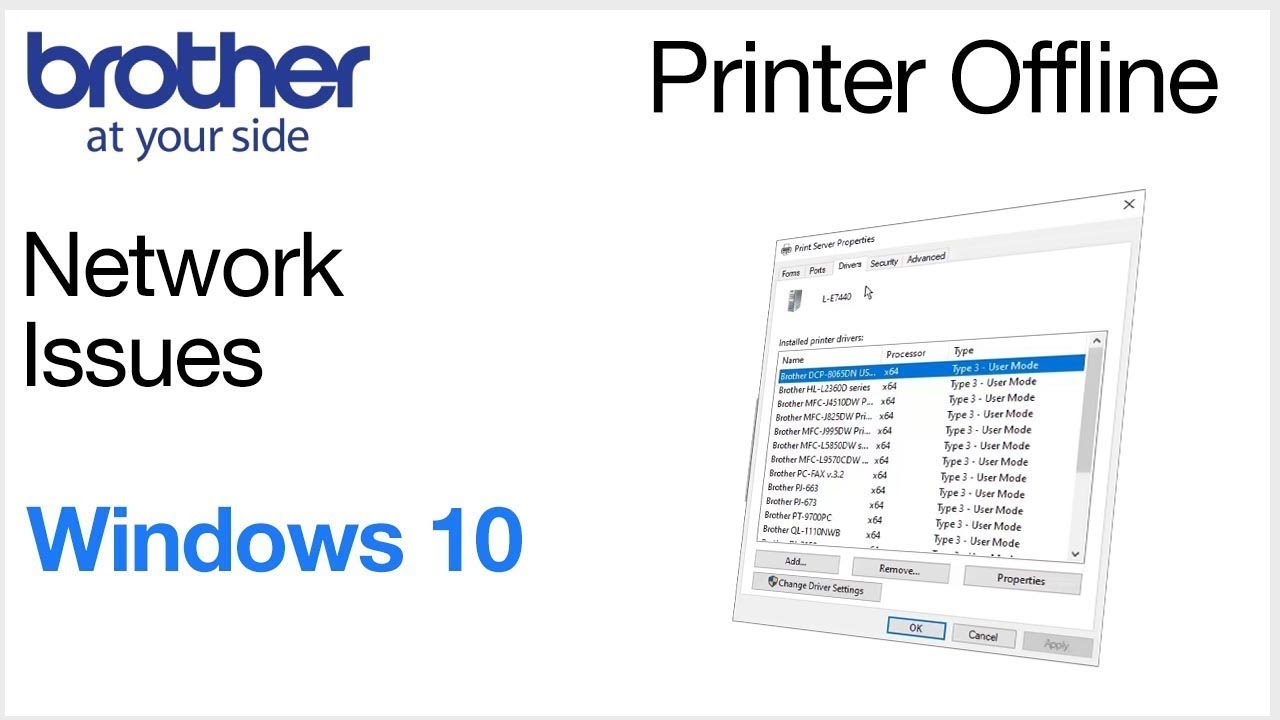
For a visual guide on some of these network-related fixes, this helpful YouTube video from Brother provides clear instructions and is hopefully also embedded below.
Addressing Firmware and Windows Update Conflicts
Sometimes, a recent Windows update can cause conflicts with your printer driver. In this case, you may need to wait for a new driver update from Brother or a patch from Microsoft.
It’s also a good idea to check if there are any firmware updates available for your printer, as these can often include bug fixes and compatibility improvements. You can usually find firmware updates on the Brother support website.
Advanced Diagnostics and Edge Cases
In some rare cases, the problem might be caused by your firewall or antivirus software blocking the connection to your printer.
You can temporarily disable your firewall to see if that resolves the issue. If it does, you’ll need to add an exception for your printer in your firewall settings.
Another edge case is related to ARM-based PCs, which may have compatibility issues with some printer installers. In this situation, it’s best to follow Microsoft’s guidance on installing printers on ARM devices.
Final thoughts on Brother Printer Offline Windows Errors
Dealing with a printer that’s stubbornly offline can be a real headache, but with a systematic approach, you can usually get it back up and running.
By starting with the basic checks and moving on to the more advanced solutions, you can methodically rule out the common causes and pinpoint the source of the problem.
Remember to be patient and to take advantage of the excellent support resources provided by both Brother and Microsoft. With a little bit of troubleshooting, you’ll be back to printing in no time.
Frequently Asked Questions
Why does my Brother printer say it’s offline when it’s on?
This usually indicates a communication problem between your printer and your computer. It could be due to a poor network connection, a stuck print job, or an incorrect setting in Windows, such as “Use Printer Offline” being enabled.
How do I get my Brother printer back online?
Start by restarting your printer, computer, and router. Then, check your printer’s status in Windows to ensure “Use Printer Offline” is not checked. Clearing the print queue and setting your Brother printer as the default can also help.
Can a Windows update make my printer go offline?
Yes, sometimes a Windows update can cause compatibility issues with your printer driver, leading to the offline error. In this case, you may need to reinstall the driver or wait for an update from Brother or Microsoft.
Is a weak Wi-Fi signal a common cause for my printer being offline?
Absolutely. If your printer is connected via Wi-Fi, a weak or unstable signal can cause it to frequently go offline. Try moving your printer closer to the router or using a Wi-Fi extender to improve the signal strength.
What should I do if I have duplicate printer icons?
If you see multiple icons for the same Brother printer, it can confuse Windows. You should try to identify the correct, working printer driver and remove the duplicates. You can do this by checking the printer properties or by attempting to print a test page from each one.
How to Manually Reset the Print Spooler in Windows
This is a more advanced fix, but it’s highly effective for resolving stuck print jobs that can cause the “offline” error.
Supplies:
- A computer running Windows
Tools:
- Windows Services and Command Prompt
Steps:
- Open the Services window: Press the Windows key + R to open the Run dialog box. Type services.msc and press Enter.
- Stop the Print Spooler service: In the Services window, scroll down and find the Print Spooler service. Right-click on it and select Stop.
- Clear the print queue: Open File Explorer and navigate to C:\Windows\System32\spool\PRINTERS. You may need to show hidden files to see this folder. Delete all the files in this folder. You may need administrator privileges to do this.
- Restart the Print Spooler service: Go back to the Services window, right-click on the Print Spooler service, and select Start.
Finally be sure to check out our Tech Troubleshooting FAQ or our Printer Troubleshooting Tips pages for even more general tips that cover a wide range of technical problems and solutions.
(If after reading the above article you are still seeing Brother printer offline Windows errors, then you might find a much less obvious solution on the above tech page!)