You need to print an important document, but your computer insists your Brother printer shows offline. Even though the printer seems to be on and ready, it refuses to communicate with your computer.
This common problem can be caused by a variety of issues, ranging from simple connection problems to more complex software glitches.
Fortunately, most of these issues can be resolved with a few straightforward troubleshooting steps. In this article, we will guide you through the process of diagnosing and fixing the “printer offline” error, helping you get your Brother printer back online and working reliably.
In a Nutshell: Your Quick Guide to a Working Printer
This article is for anyone whose Brother printer is stubbornly showing as offline.
We will cover the most common reasons for this issue, such as network problems, driver conflicts, and incorrect settings.
By following our step-by-step instructions, you will learn how to quickly identify the cause and apply the right solution to get your printer working again.
Common Causes of a Brother Printer Showing Offline
When your Brother printer shows offline, it can be due to a number of factors. Understanding the most common causes can help you quickly identify and resolve the issue.
In many situations, the problem is not with the printer itself, but with the communication between the printer and your computer. Let’s explore some of the most frequent culprits.
1. Basic Connection and Power Issues
Before diving into more complex troubleshooting, it’s essential to check the basics. A simple oversight can often be the root of the problem.
For instance, if your printer is not receiving power, it will naturally appear offline. Similarly, a loose or faulty cable can disrupt the connection between your printer and your computer or network.
First, ensure that your Brother printer is powered on. Check if the LCD screen is active or if any LED lights are on.
If the printer is in sleep mode, try pressing a button to wake it up. If it doesn’t respond, verify that the power cord is securely plugged into both the printer and a working electrical outlet.
Additionally, if you are using a USB cable, make sure it is firmly connected to both the printer and your computer. For more detailed guidance, you can refer to Brother’s official support page on this topic.
2. Network and Wi-Fi Problems
For wireless printers, network connectivity is the most common reason for the “offline” status and is almost certainly why your Brother printer shows offline right now (assuming it is connected as above!)
If your printer is not connected to the same Wi-Fi network as your computer, they won’t be able to communicate. This can happen if your router’s settings have changed, or if the printer has lost its connection for some other reason.
To begin with, you should verify that your printer is connected to the correct Wi-Fi network. You can usually do this through the printer’s own menu system.
If the connection is the problem, you may need to re-enter your Wi-Fi password. It is also a good idea to restart your router, as this can often resolve temporary network glitches.
If you continue to experience issues, printing a network configuration report from your printer can provide valuable information, such as the printer’s IP address, which can be useful for more advanced troubleshooting.
3. Incorrect Printer Status in Windows
Sometimes, your computer’s operating system may have incorrectly set the printer to “offline” mode. This can happen due to a previous printing error or a manual setting change.
When this setting is enabled, your computer will not even attempt to send print jobs to the printer, even if it is properly connected.
To check this in Windows, navigate to the “Devices and Printers” section in the Control Panel. Right-click on your Brother printer’s icon and select “See what’s printing.”
In the new window that opens, click on the “Printer” menu. If there is a checkmark next to “Use Printer Offline,” click on it to remove the checkmark.
This should immediately set the printer back to online mode.
For a more detailed walkthrough of this process, Microsoft provides a helpful guide on their support website.
4. A Stuck Print Job is Why Your Brother Printer Shows Offline
A print job that has become stuck in the print queue can also cause your Brother printer shows offline.
When a document fails to print for some reason, it can block all subsequent print jobs and cause the printer to appear offline. Clearing the print queue is often a quick and effective way to resolve this issue.
To clear the print queue in Windows, open the “See what’s printing” window as described in the previous step. From the “Printer” menu, select “Cancel All Documents.”
This will remove all pending print jobs from the queue. After clearing the queue, it is a good idea to restart both your computer and your printer to ensure that all communication is reset.
Advanced Troubleshooting for When Your Brother Printer Shows Offline
If the basic troubleshooting steps have not resolved the issue, it is time to delve into some more advanced solutions.
These steps address more complex problems, such as network configuration issues and software conflicts. While they may seem more technical, they are often necessary to resolve persistent “offline” errors.
1. Assigning a Static IP Address
One of the most common causes of a network printer repeatedly going offline is a changing IP address. Most home networks use DHCP (Dynamic Host Configuration Protocol), which automatically assigns IP addresses to devices.
However, if your printer’s IP address changes, your computer may still be trying to send print jobs to the old address, causing the printer to appear offline.
Assigning a static IP address to your printer ensures that its address never changes, providing a more stable connection.
To set a static IP address, you will first need to access your printer’s network settings, usually through its built-in menu.
You will also need to know your network’s IP address range and choose an address that is outside the range used by your router’s DHCP server. This prevents IP address conflicts with other devices on your network.
For a visual guide on how to find your printer’s IP address and navigate its settings, you might find a helpful tutorial on YouTube, such as this one that explains three methods to fix a Brother printer that keeps going offline (and is hopefully also embedded below).
2. Restarting the Print Spooler Service
The Print Spooler is a service on your Windows computer that manages print jobs. If this service encounters an error or stops running, it can prevent your computer from communicating with your printer, leading to the “offline” status.
Restarting the Print Spooler service can often resolve these issues by clearing out any stuck processes and re-establishing communication.
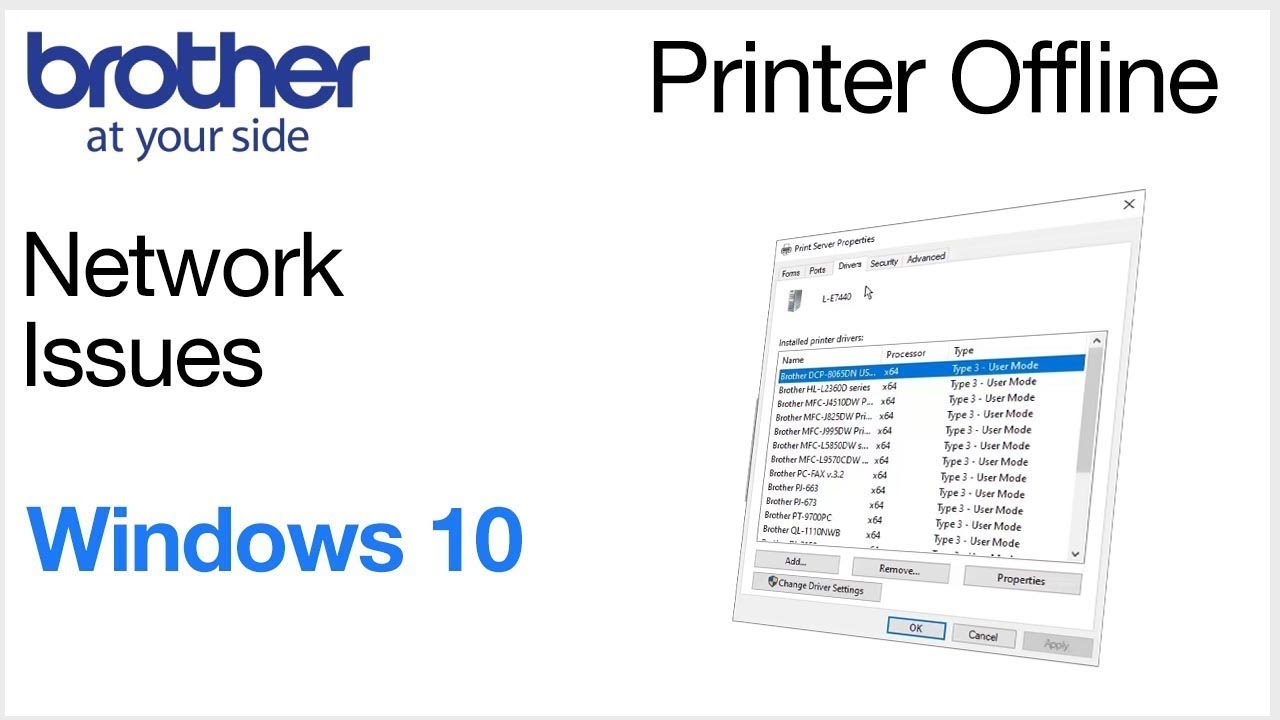
To restart the Print Spooler service, you will need to open the Services window in Windows. You can do this by pressing the Windows key + R, typing services.msc, and pressing Enter.
In the list of services, find “Print Spooler,” right-click on it, and select “Restart.” If the service was not running, select “Start.”
After restarting the service, try printing a test page to see if the issue is resolved.
3. Reinstalling the Printer Driver
A corrupted or outdated printer driver can also be the reason your Brother printer shows offline.
Drivers are the software that allows your computer to communicate with your printer, and if they are not working correctly, it can lead to a variety of printing problems.
Reinstalling the printer driver can often resolve these issues by replacing any corrupted files and ensuring that you have the latest version.
Before reinstalling the driver, you should first uninstall the existing driver from your computer. You can do this through the “Devices and Printers” section in the Control Panel.
Once the old driver has been removed, you can download the latest driver from the official Brother support website. Make sure to download the correct driver for your specific printer model and operating system.
During the installation process, follow the on-screen instructions carefully to ensure that the driver is installed correctly.
Final thoughts on why your Brother printer shows offline
Dealing with a printer that constantly shows as offline can be a significant source of frustration, especially when you have urgent documents to print.
However, as we have seen, the problem is often due to a simple communication breakdown between your computer and your printer.
By systematically working through the troubleshooting steps outlined in this article, from basic connection checks to more advanced solutions like assigning a static IP address, you can resolve the issue and get your printer back online.
To prevent the problem from recurring, it is a good practice to periodically check for driver updates and ensure that your printer’s network connection is stable.
Frequently Asked Questions
Why does my Brother printer say it’s offline when it’s connected to Wi-Fi?
This can happen for several reasons. The most common is that your printer and computer are not on the exact same Wi-Fi network.
It could also be due to a change in your printer’s IP address, or a firewall on your computer blocking the connection. Start by verifying the network connection and then move on to the other troubleshooting steps.
How do I get my Brother printer back online?
First, check the basics: make sure the printer is on and that all cables are securely connected. Then, in your computer’s printer settings, ensure that the “Use Printer Offline” mode is not enabled.
If that doesn’t work, try restarting your printer, computer, and router. Clearing the print queue is another effective solution.
Can a stuck print job cause my printer to go offline?
Yes, absolutely. A single print job that gets stuck in the queue can prevent all other jobs from printing and make the printer appear to be offline.
To fix this, you need to open the print queue on your computer and cancel all documents. After clearing the queue, it’s a good idea to restart both your printer and your computer.
How to Manually Set Your Brother Printer to Online in Windows
Here is a step-by-step guide to manually changing your Brother printer’s status from ‘Offline’ to ‘Online’ in the Windows operating system.
Time required: 5 minutes
Tools:
- A computer running Windows
- A Brother printer
Steps:
- Open the Control Panel:
Click on the Start menu and type ‘Control Panel’. Select it from the search results to open it. - Navigate to Devices and Printers:
In the Control Panel, find and click on ‘Devices and Printers’. This will show you a list of all the printers and other devices connected to your computer. - Find Your Brother Printer:
Locate your Brother printer in the list of devices. It will be represented by an icon with the printer’s model name. - Open the Print Queue:
Right-click on your Brother printer’s icon and select ‘See what’s printing’ from the context menu. This will open the print queue window. - Change the Printer’s Status:
In the print queue window, click on the ‘Printer’ menu at the top. If there is a checkmark next to ‘Use Printer Offline’, click on it to remove the checkmark. The printer’s status should now change to ‘Online’.
Finally be sure to check out our Tech Troubleshooting FAQ or our Printer Troubleshooting Tips pages for even more general tips that cover a wide range of technical problems and solutions.
(If after reading the above article you still have an issue where your Brother printer shows offline, then you might find a much less obvious solution on the above tech page!)