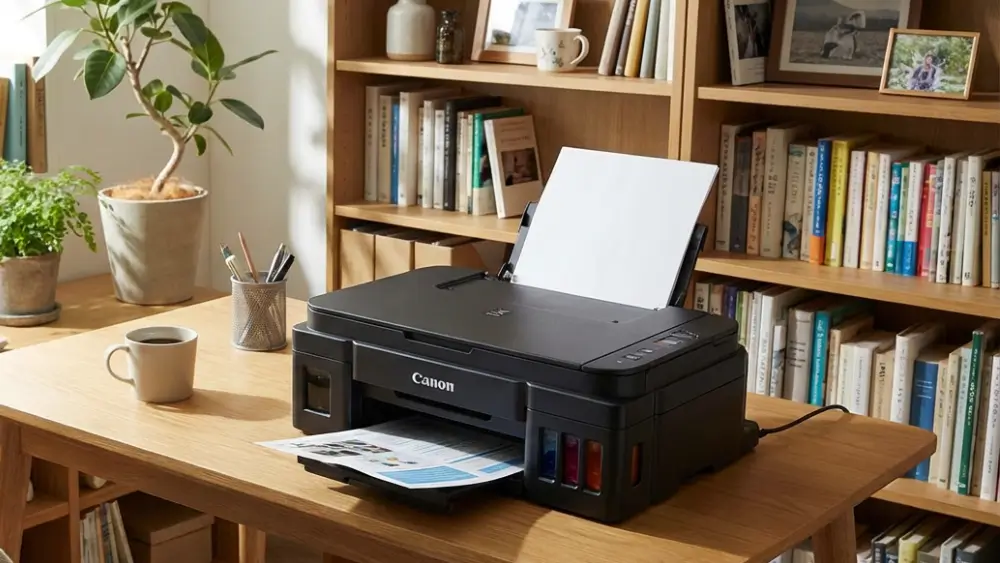
Effective Canon PIXMA G2000 troubleshooting does not require a degree in computer science, but it does require knowing exactly where to look.
Whether your device is completely unresponsive, producing streaky documents, or trapped in an endless paper jam cycle, the underlying cause is usually straightforward to resolve once properly diagnosed.
Canon PIXMA G2000 Troubleshooting At A Glance
Most Canon PIXMA G2000 printing failures stem from simple communication errors or dried ink in the printhead.
By systematically checking your USB connection, clearing the Windows print queue, and performing a deep cleaning cycle, you can resolve the majority of these frustrating interruptions.
You are in the right place to get your printer functioning perfectly again in just a few minutes.
Common Canon PIXMA G2000 Problems and Quick Fixes
The Canon PIXMA G2000 is a reliable MegaTank printer, but like any mechanical device, it encounters specific operational hurdles.
Understanding the most frequent issues is the first step in successful Canon PIXMA G2000 troubleshooting.
Users frequently report the printer failing to respond to commands, producing blank pages despite full ink tanks, or repeatedly jamming paper during critical print jobs.
Driver conflicts following Windows updates also account for a significant percentage of connection failures.
Before diving into complex diagnostics, always perform a fundamental power cycle.
Turn the printer off, disconnect the power cable from the wall outlet, and wait at least sixty seconds.
Reconnect the power and turn the device back on.
This simple action clears the printer’s internal memory and resets its basic communication protocols.
Simultaneously, restart your computer to ensure no background processes are interfering with the print spooler service.
If this quick reset does not resolve your specific issue, proceed to the targeted solutions below.
Canon PIXMA G2000 Not Printing
When your printer accepts a job but nothing happens, the disconnect usually lies between the operating system and the printer hardware.
A Canon PIXMA G2000 not printing is often the result of a stalled Windows print queue or a faulty USB connection.
First, verify the physical connection.
The G2000 relies on a standard USB Type-B to Type-A cable.
Inspect the cable for any visible damage, kinks, or severe bends.
Disconnect the cable from both the printer and the computer, then reconnect it firmly, ensuring you hear or feel a positive engagement.
If possible, plug the USB cable directly into a port on the motherboard (the back of a desktop computer) rather than a front panel or an external USB hub, as these can sometimes fail to provide adequate data transfer rates or power.
If the physical connection is secure, the issue likely resides in the software queue.
When a single print job encounters an error, it blocks all subsequent jobs, creating a digital traffic jam.
To clear the Windows print queue, press the Windows key and type “Services”.
Open the Services app and scroll down to locate the “Print Spooler” service.
Right-click it and select “Stop”.
Next, open File Explorer and navigate to:
C:\Windows\System32\spool\PRINTERS.
Delete all files within this folder. Return to the Services app, right-click “Print Spooler” again, and select “Start”.
This forcefully clears the stalled data and re-establishes a clean connection pathway.
For a visual guide on resolving these specific connection and queue issues, this helpful tutorial demonstrates some of the process steps above in more detail (and is also hopefully embedded below):
Watch: Canon PIXMA G2000 Series Not Printing Fix
Canon PIXMA G2000 Error Codes Explained
The printer communicates specific hardware and software failures through a series of flashing LED lights.
Decoding these flashes is a critical component of Canon PIXMA G2000 troubleshooting.
The Alarm lamp will flash orange a specific number of times, followed by a pause, repeating the sequence to indicate the exact nature of the problem.
Two flashes indicate that the printer is out of paper or the paper is not feeding correctly.
Verify that the paper is loaded properly in the rear tray, adjust the paper guides to fit snugly against the edges of the stack, and press the Resume/Cancel button.
Three flashes point to a paper jam.
Turn off the printer, carefully open the front cover, and inspect the paper path.
Gently remove any jammed paper, taking care not to tear it, as small fragments left behind will cause recurring jams.
Four or five flashes suggest an issue with the ink cartridges (FINE cartridges).
Ensure they are installed correctly and securely seated in their respective slots.
Eight flashes warn that the ink absorber is almost full.
The ink absorber is a sponge-like pad inside the printer that collects excess ink during cleaning cycles.
While you can press Resume/Cancel to continue printing temporarily, the printer will eventually require professional servicing to replace the absorber pad once it reaches maximum capacity.
Resolving Canon PIXMA G2000 Driver Problems
Operating system updates, particularly major Windows feature updates, frequently corrupt or misplace existing printer drivers.
If your computer suddenly fails to detect the printer, or if you receive persistent “Device Not Recognized” errors, driver corruption is the most probable culprit.
To resolve Canon PIXMA G2000 driver problems, you must completely remove the old software before installing the new version.
Open the Windows Control Panel, navigate to “Devices and Printers”, right-click the Canon G2000 icon, and select “Remove device”.
Next, open the “Apps & features” settings menu and uninstall any Canon utility software associated with the printer.
Once the old software is removed, restart your computer.
Navigate to the official Canon Support website to download the latest driver package specifically designed for your operating system version.
Avoid using third-party driver update utilities, as they often install generic or outdated files.
Run the downloaded installer and follow the on-screen prompts, ensuring the printer is disconnected until the software explicitly instructs you to plug in the USB cable.
This guarantees the driver installs correctly and establishes a fresh communication protocol.
Fixing Canon PIXMA G2000 Print Quality Problems
A printer that produces blank pages, faded text, or documents with horizontal streaks is suffering from clogged printhead nozzles or air bubbles in the ink delivery tubes.
The MegaTank system is highly efficient, but infrequent use allows the ink to dry and solidify within the microscopic nozzles.
If you are experiencing Canon PIXMA G2000 print quality problems, begin by printing a Nozzle Check Pattern.
This diagnostic page reveals exactly which colors are failing.
If the pattern is broken or missing colors entirely, initiate a standard Printhead Cleaning cycle through the printer properties menu in Windows.
This process forces a small amount of ink through the nozzles to clear minor blockages.
If the standard cleaning fails to improve the output, proceed to a Deep Cleaning cycle.
Be aware that Deep Cleaning consumes a significant amount of ink, so ensure your tanks are at least one-third full before starting.
For severe blockages where the printer outputs completely blank pages despite full tanks, you may need to perform an Ink Flush.
This intensive process draws fresh ink from the tanks entirely through the system, purging air bubbles and stubborn clogs, but it uses a massive amount of ink and should only be used as a last resort.
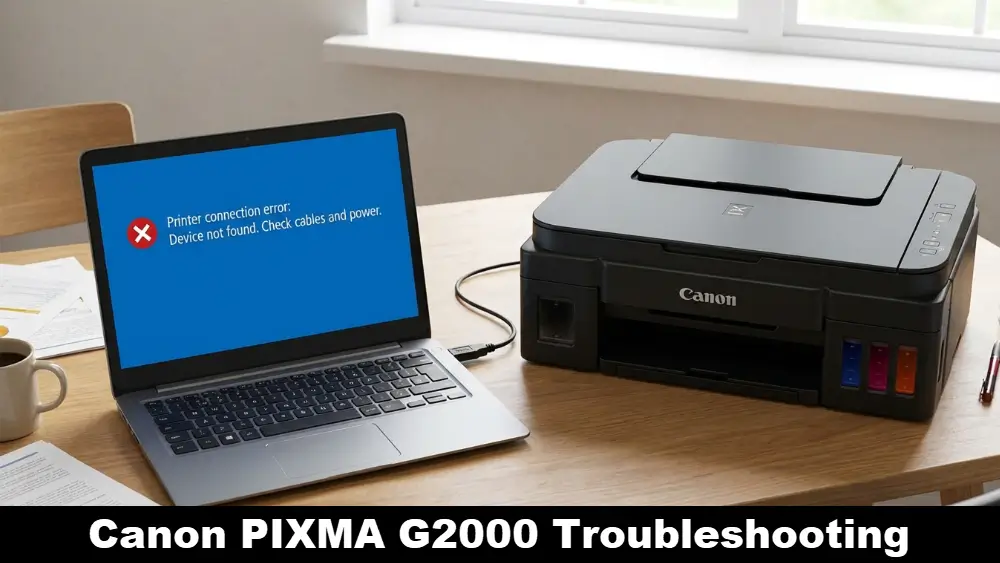
Advanced Canon PIXMA G2000 Troubleshooting for Persistent Issues
When basic Canon PIXMA G2000 troubleshooting fails to resolve the issue, you must investigate deeper system conflicts and hardware limitations.
Checking the Ink Tubes for Air Gaps
The continuous ink supply system relies on a solid column of ink in the delivery tubes.
If you open the top cover and observe large air gaps or completely empty sections within the transparent tubes, the printhead cannot draw ink effectively.
This usually occurs if the printer was moved improperly or if the ink tanks were allowed to run completely dry.
An Ink Flush (System Cleaning) is required to re-prime the tubes, but ensure you have sufficient ink levels before initiating this process.
Running Windows Printer Troubleshooting Tools
Windows includes a built-in diagnostic utility designed to identify and automatically fix common spooler and port configuration errors.
Navigate to Settings > Update & Security > Troubleshoot > Additional troubleshooters.
Select “Printer” and click “Run the troubleshooter”.
This tool will verify that the Print Spooler service is running, check for pending updates, and confirm that the correct port is assigned to the Canon G2000.
Verifying USB Port Power Management
Windows sometimes disables power to USB ports to save energy, which can cause the printer to disconnect randomly.
Open the Device Manager, expand the “Universal Serial Bus controllers” section, and double-click each “USB Root Hub”.
Navigate to the “Power Management” tab and uncheck the box that says “Allow the computer to turn off this device to save power”.
This ensures a continuous, stable connection to the printer.
Preventing Future Printer Problems
Proactive maintenance is significantly easier than reactive Canon PIXMA G2000 troubleshooting.
To minimize future disruptions, adopt a few simple habits.
First, print at least one full-color page every week.
This prevents the ink from drying inside the microscopic printhead nozzles, which is the leading cause of poor print quality.
Second, always turn the printer off using its dedicated power button rather than unplugging it or using a power strip switch.
The power button initiates a shutdown sequence that safely caps the printhead, protecting it from exposure to air.
Finally, keep your system updated.
Periodically check the Windows Update utility and the Canon website to ensure you are running the most recent drivers and firmware, which often contain patches for newly discovered bugs and compatibility improvements.
Final Thoughts on Canon PIXMA G2000 Troubleshooting
Resolving printer issues rarely requires technical expertise, just a methodical approach to identifying the symptoms.
By understanding the common causes – from stalled print queues and corrupted drivers to clogged printheads and paper path obstructions – you can confidently tackle almost any malfunction.
Effective Canon PIXMA G2000 troubleshooting restores your device’s reliability, ensuring your documents print cleanly and consistently every time you hit the print button.
Frequently Asked Questions
Why is my Canon PIXMA G2000 printing blank pages?
Blank pages are typically caused by clogged printhead nozzles or air in the ink delivery tubes. Run a Nozzle Check Pattern, followed by a Printhead Cleaning or Deep Cleaning cycle to clear the blockage.
How do I reset my Canon PIXMA G2000 printer?
To perform a basic reset, turn the printer off, unplug the power cable from the wall for 60 seconds, then plug it back in and turn it on. This clears temporary memory and communication errors.
Why is Windows not detecting my Canon G2000?
This is usually due to a faulty USB cable, a bad USB port, or corrupted printer drivers. Try a different cable and port, and if that fails, reinstall the latest drivers from the official Canon website.
What does the orange flashing light mean?
The Alarm lamp flashes orange to indicate specific errors. For example, 2 flashes mean out of paper, 3 flashes indicate a paper jam, and 8 flashes mean the ink absorber is almost full.
How do I fix a paper jam in the G2000?
Turn off the printer, open the front cover, and gently pull the jammed paper out slowly to avoid tearing it. Ensure no small scraps are left behind, as they will cause immediate re-jamming.
How to Clean the Printhead on a Canon PIXMA G2000
Follow these steps to resolve print quality issues by running a standard printhead cleaning cycle from your Windows computer.
- Open Printer Properties:
Navigate to the Windows Control Panel, select “Devices and Printers”, right-click your Canon G2000, and choose “Printer properties”. - Access Maintenance Menu:
Click on the “Maintenance” tab located at the top of the properties window. - Initiate Cleaning:
Click the “Cleaning” icon. Select the ink group you want to clean (usually “All Colors”) and click “Execute”. - Wait for Completion:
The printer will make mechanical noises for about 1-2 minutes. Do not interrupt this process or turn off the printer. - Print Nozzle Check:
Once finished, click “Print Check Pattern” to verify if the clogged nozzles have been cleared and print quality is restored.
Finally be sure to check out our Tech Troubleshooting FAQ or our Printer Troubleshooting Tips pages for even more general tips that cover a wide range of technical problems and solutions.
(If even after reading the above article you still have a need for “Canon PIXMA G2000 Troubleshooting”, then you might find a much less obvious solution on the above tech pages!)