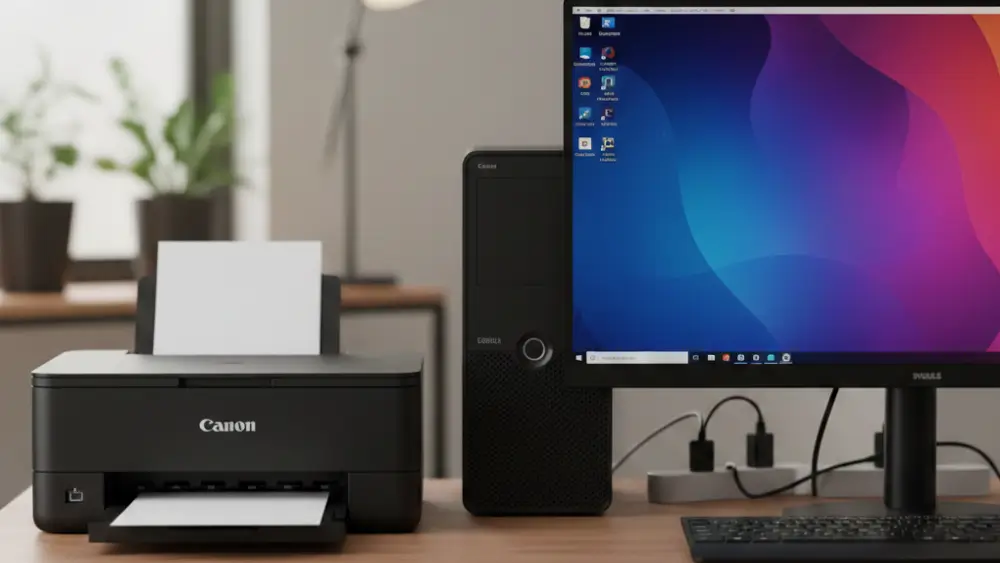
Trying to figure out your Canon PIXMA G2000 wireless setup can be a frustrating experience.
You might have spent a good amount of time searching for a Wi-Fi button that doesn’t exist or a setting in the menu that isn’t there.
It can be confusing, especially when so many modern printers connect to wireless networks effortlessly.
The simple truth is that the Canon PIXMA G2000 is a USB-only printer and was not designed with built-in wireless capabilities.
However, that doesn’t mean you’re out of options. This guide is here to walk you through exactly what’s going on and provide you with practical solutions to get your printer working on your network.
In a Nutshell: Your Canon PIXMA G2000 Wireless Setup Solution
If you’re looking for a quick answer, here it is: the Canon PIXMA G2000 does not have Wi-Fi.
This article is for anyone who owns this printer and wants to print wirelessly.
We will explore straightforward and effective workarounds, such as sharing your printer through a computer or using a dedicated print server, to help you achieve the wireless printing you need.
Common Causes of Canon PIXMA G2000 Wireless Setup Issues
Before diving into solutions, it is crucial to understand the root of the problem.
The primary reason you are struggling with the Canon PIXMA G2000 wireless setup is that the printer simply does not have the hardware for it. Let’s break down why this is the case and clear up some common points of confusion.
The G2000 Is a USB-Only Printer
The Canon PIXMA G2000 was designed as a straightforward, high-volume ink tank printer with a direct connection in mind.
According to the official Canon specifications for the G2000 series, the only interface it has is a Hi-Speed USB port. There is no built-in Wi-Fi adapter, which means it cannot connect to your wireless router on its own.
(The above means there is no direct Canon PIXMA G2000 wireless setup method built-in – you will have to use other means!)
This is a key distinction from many other printers on the market, and it is the main reason why you will not find a Wi-Fi button or any wireless setup options in its menu.
Confusion with Similar PIXMA Models
One of the most common reasons for confusion is the existence of very similar models in the same product line, such as the Canon PIXMA G3000 and G3010.
These printers look almost identical to the G2000 but come with the addition of wireless connectivity. As a result, many users understandably assume the G2000 shares this feature.
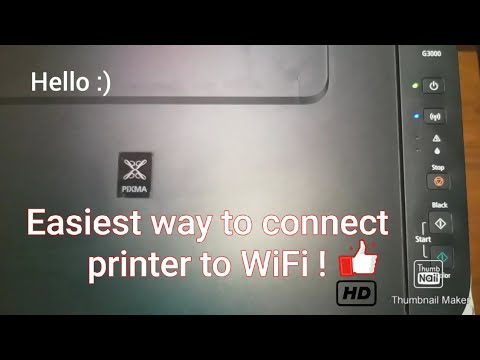
For example, the G3000 series has a dedicated Wi-Fi button and a straightforward process for connecting to a wireless network, as shown in many online tutorials.
You can see how this is done in a helpful video that demonstrates the wireless setup for a similar Canon G-series printer, which highlights the features the G2000 lacks (and is hopefully also embedded below).
What “Network” Means in the G2000 Manual
You might have come across mentions of “network” settings in the G2000’s manual and thought it referred to wireless networking.
However, in this context, it refers to sharing the printer over a local area network (LAN) by connecting it to a computer that acts as a print server.
This is a form of network printing, but it is not the same as a direct Canon Pixma G2000 wireless setup from the printer to your router.
This method is one of the workarounds we will explore in this article.
Environmental Factors That Complicate the Issue
In many situations, users purchase the G2000 without fully understanding its connectivity limitations. This often happens when buying from third-party sellers or when the product description is unclear.
Additionally, if you previously owned a wireless printer, you might naturally expect the same functionality.
Because of this, discovering the lack of Wi-Fi after unboxing can be particularly frustrating, especially if you’ve already set up your workspace with wireless printing in mind.
Workaround Solutions for Your Canon PIXMA G2000 Wireless Setup
Just because your Canon G2000 doesn’t have built-in Wi-Fi doesn’t mean you can’t print wirelessly. With a couple of clever workarounds, you can share your printer across your network.
These methods are reliable and can solve the Canon PIXMA G2000 wireless setup problem for good.
Let’s explore the most common and effective solutions.
Solution 1: Share Your Printer Through a Windows PC
One of the most straightforward ways to make your USB printer accessible to other devices is by using the built-in printer sharing feature in Windows.
This method turns the computer your printer is connected to into a host, or a print server, for other computers on your network.
How It Works
You connect the Canon G2000 to one primary Windows computer via its USB cable.
Then, you configure the sharing settings in Windows to allow other computers on the same network to send print jobs to it.
Microsoft provides a detailed, step-by-step guide on how to share your printer on a network, which is an excellent resource to follow.
Key Steps for Printer Sharing:
- Connect the Printer: First, plug your Canon G2000 into your main computer with a USB cable and ensure it is installed and working correctly.
- Open Settings: Go to Settings > Bluetooth & devices > Printers & scanners.
- Select Printer Properties: Choose your Canon G2000, go to Printer properties, and then click on the Sharing tab.
- Enable Sharing: Click Share this printer and give it a share name that is easy to recognize on the network.
Important Consideration:
The biggest drawback to this method is that the host computer must be turned on and awake for any other device to be able to print. If the host computer is off or asleep, the printer will be unavailable to the rest of the network.
Because of this, it is a great solution for some home setups but may not be ideal for an office environment where multiple users need consistent access throughout the day.
Solution 2: Use a Dedicated USB Print Server
For a more robust and independent solution, a dedicated USB print server is an excellent choice.
This is a small hardware device that connects directly to your router and your printer, making your USB printer a true network device.
How It Works: A print server has both a USB port for your printer and an Ethernet port to connect to your router.
Some models even offer wireless connectivity, allowing you to place the printer anywhere within your Wi-Fi range.
Once connected, the print server manages all the print jobs, so you do not need to rely on a host computer.
Brands like TP-Link and StarTech offer a variety of print servers that are compatible with most USB printers.
Advantages of a Print Server:
- Always On: The printer is available to anyone on the network at any time, as long as the print server is on.
- No Host PC Needed: It frees up your computer from having to manage print jobs.
- Flexible Placement: With a wireless print server, you can place your printer in a more convenient location.
Setting up a print server typically involves connecting the hardware and then installing a small utility on each computer that needs to use the printer.
For example, many TP-Link routers with a USB port have this functionality built-in, and their support site offers guides on how to set up the print server feature for different operating systems.
Solution 3: Router-Based USB Print Sharing
Another option worth considering is using your router’s built-in USB port if it has one.
Many modern routers include a USB port specifically designed for sharing printers or storage devices across your network. This approach is similar to using a dedicated print server but leverages equipment you may already own.
How It Works: You connect your Canon G2000 directly to the USB port on your router. Then, using the router’s administrative interface, you enable the print server function.
Each computer on your network will need to install a small utility provided by the router manufacturer to communicate with the printer.
Advantages:
- Cost-Effective: No need to purchase additional hardware if your router already has this capability.
- Centralized Management: Your router is already the hub of your network, making this a logical place to connect shared devices.
However, not all routers support this feature, and compatibility can vary depending on the printer model.
Therefore, it is important to check your router’s documentation or the manufacturer’s website to confirm support before attempting this method.
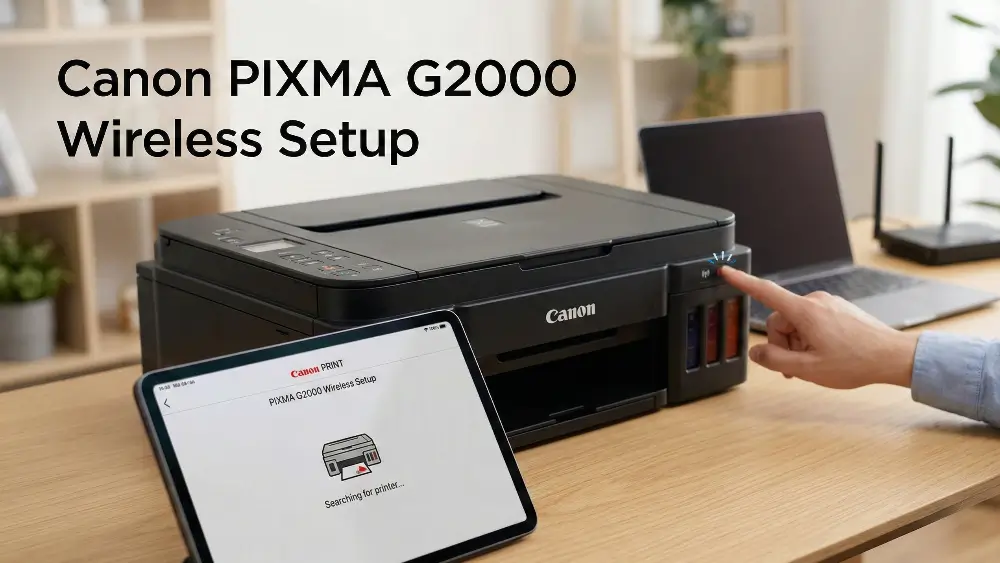
Advanced Troubleshooting for Canon PIXMA G2000 Wireless Setup
Even with workarounds, you might encounter some tricky situations.
If you’ve tried sharing your printer or using a print server and are still facing issues, this section covers some advanced troubleshooting steps to help you resolve them.
These scenarios go beyond the basic setup and address less common but frustrating problems.
When Printer Sharing Fails: Advanced Diagnostics
If you have set up printer sharing on your Windows PC but other computers can’t connect, there are a few things that could be going wrong. Often, the problem lies with network settings or firewalls.
1. Check Network Discovery and File and Printer Sharing
For printer sharing to work, your network profile must be set to Private, and network discovery must be enabled. Sometimes, a Windows update can reset these settings without your knowledge.
- To check this: Go to Settings > Network & internet > Advanced network settings > Advanced sharing settings. Ensure that for your Private network profile, Network discovery and File and printer sharing are both turned on.
2. Investigate Firewall Settings
Your firewall, whether it’s the built-in Windows Defender Firewall or a third-party security suite, could be blocking the connection. You need to ensure that it allows file and printer sharing traffic.
- For Windows Defender Firewall: You can go to Control Panel > System and Security > Windows Defender Firewall > Allow an app or feature through Windows Defender Firewall. Make sure that File and Printer Sharing is checked for Private networks.
3. Driver Issues on the Client Computer
Sometimes, the problem isn’t with the host computer but with the one trying to connect.
Ensure that the correct printer drivers for the Canon G2000 are installed on the client computer before you try to add the shared printer. While Windows often finds the driver automatically, it can fail, leading to a failed connection.
In such cases, manually downloading and installing the driver from Canon’s official website can resolve the issue.
4. Network Path and Computer Name Issues
In some cases, Windows may have trouble locating the host computer on the network.
This can happen if the computer name is too long, contains special characters, or if there are DNS resolution issues on your network. Try accessing the shared printer using the host computer’s IP address instead of its name.
You can find the IP address by opening Command Prompt on the host computer and typing ipconfig.
Print Server Connectivity Problems
If you are using a dedicated print server and are having trouble, the issue could be related to the network configuration or the print server itself.
1. Verify the Print Server’s IP Address
Your print server needs a stable IP address on your network.
Most print servers are set to get an IP address automatically via DHCP, but sometimes it is better to assign it a static IP address outside of your router’s DHCP range.
This prevents the IP address from changing, which would break the connection for all connected computers.
Consult your router’s manual for instructions on setting up DHCP reservations or static IP assignments.
2. Check for Firmware Updates
Print server manufacturers occasionally release firmware updates to improve compatibility and fix bugs.
Check the support page for your print server model to see if a firmware update is available.
For reference, major printer manufacturers like HP provide regular firmware updates for their devices, and the same principle applies to print servers.
This can often resolve persistent connectivity issues that seem to have no obvious cause.
3. Ensure Printer Compatibility
While most USB printers work with most print servers, there can be exceptions.
Before purchasing a print server, it is always a good idea to check its compatibility list to ensure your Canon G2000 is supported.
If you are already facing problems, double-checking the compatibility list can confirm if this is the source of your issue.
Some print servers work better with certain printer languages or protocols, and knowing this in advance can save you considerable troubleshooting time.
4. Port Configuration Issues
Print servers typically use specific network protocols and ports to communicate.
If you have a particularly strict firewall or network security policy, these ports might be blocked. Common protocols used by print servers include LPR (Line Printer Remote) and RAW printing on port 9100.
Ensure that your network allows traffic on these ports between the print server and client computers.
Consider an Upgrade as a Canon PIXMA G2000 Wireless Setup Solution
If these workarounds seem too complicated or are not providing the reliability you need, it might be time to consider if the G2000 is the right printer for your needs.
If wireless printing is a priority, upgrading to a model with built-in Wi-Fi, such as the Canon PIXMA G3000 series, might be the most straightforward long-term solution.
While it involves an additional cost, it eliminates the need for any workarounds and provides a seamless wireless printing experience directly from all your devices.
Moreover, newer models often come with additional features such as mobile printing support, cloud printing, and better driver support for modern operating systems.
These features can significantly improve your overall printing experience and reduce the time spent on troubleshooting.
When considering an upgrade, look for models that specifically mention wireless connectivity in their specifications, and check user reviews to ensure the wireless setup process is straightforward.
Final thoughts on Canon PIXMA G2000 wireless setup
While discovering that your Canon PIXMA G2000 doesn’t have built-in wireless capabilities can be disappointing, it is by no means a dead end.
As we’ve explored, the issue of the Canon PIXMA G2000 wireless setup is not about fixing a broken feature, but rather about creating a workaround for a feature that was never there.
By sharing your printer through a Windows computer or investing in a dedicated USB print server, you can achieve the wireless printing you need with a little bit of effort.
These solutions are reliable and can integrate your G2000 into your home or office network effectively.
Ultimately, the path you choose will depend on your budget, technical comfort level, and how you plan to use your printer.
We hope this guide has clarified the issue and empowered you with the knowledge to make the best decision for your setup.
Remember that while the G2000 may not have wireless capabilities, its excellent print quality and low running costs make it a solid choice for those willing to work around this limitation.
Frequently Asked Questions
Why can’t I find the Wi-Fi button on my Canon PIXMA G2000?
The Canon PIXMA G2000 does not have a Wi-Fi button because it is a USB-only printer. It was not designed with built-in wireless capabilities, so you will need to use a workaround to connect it to a network.
Can I make my Canon G2000 wireless without a computer?
Yes, you can. By using a dedicated USB print server, you can connect your G2000 to your network without needing a host computer to be on all the time. The print server manages the connection independently.
Is the Canon PIXMA G3000 the same as the G2000?
No, they are different. While they look similar, the Canon PIXMA G3000 has built-in wireless connectivity, whereas the G2000 does not. The G3000 is essentially the wireless version in the same product family.
Will printer sharing work with Mac computers?
Yes, printer sharing can work with Mac computers, though the setup process is slightly different. You can share a printer from a Mac or connect to a shared printer on a Windows PC from a Mac. However, both computers need to be on the same network and have the appropriate drivers installed.
How much does a USB print server cost?
USB print servers typically range from $30 to $80, depending on the brand and features. Wireless print servers tend to be on the higher end of this range, while basic wired models are more affordable.
How to Share Your Canon PIXMA G2000 on a Windows Network
This guide will walk you through sharing your USB-connected Canon PIXMA G2000 printer with other computers on your network using Windows’ built-in sharing feature.
Total Time: 15 minutes
Tools:
- A computer running Windows 10 or 11 (the host PC)
- Your Canon PIXMA G2000 printer
- A USB cable
Steps:
- Connect Your Printer: Connect your Canon G2000 to your host PC using the USB cable and make sure it is turned on and has its drivers installed.
- Open Printer Settings: Navigate to Settings > Bluetooth & devices > Printers & scanners.
- Access Printer Properties: Select your Canon PIXMA G2000 from the list and click on Printer properties.
- Enable Sharing: Go to the Sharing tab, check the box for Share this printer, and provide a simple Share name (e.g., CanonG2000).
- Configure Network Settings: Go to Settings > Network & internet > Advanced network settings > Advanced sharing settings. Ensure that for your Private network profile, Network discovery and File and printer sharing are both turned on.
- Connect from Another Computer: On another computer on the same network, go to Settings > Bluetooth & devices > Printers & scanners and click Add device. Windows should automatically detect the shared printer. If not, you may need to add it manually using the host PC’s name or IP address.
Finally be sure to check out our Tech Troubleshooting FAQ or our Printer Troubleshooting Tips pages for even more general tips that cover a wide range of technical problems and solutions.
(If after reading the above article you still have an issue with your Canon PIXMA G2000 wireless setup, then you might find a much less obvious solution on the above tech pages!)