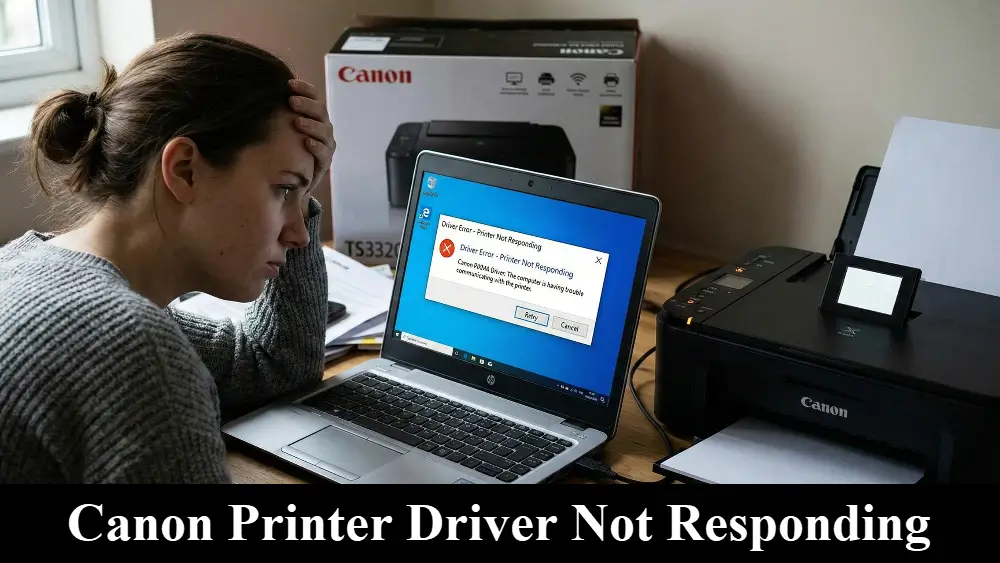
This common problem, where your computer insists the printer is offline or unavailable, and is often displayed as a “Canon printer driver not responding” error, can be incredibly frustrating, especially when you’re on a deadline.
The good news is that in most cases, this issue is solvable without needing a technician. This guide will walk you through the steps to diagnose and fix the problem, from simple checks to more advanced solutions.
Article at a Glance: Fixing Your Canon Printer
- The Problem: Your computer can’t communicate with your printer, resulting in the famous “Canon printer driver not responding” error.
- The Solution: This article provides a series of troubleshooting steps, starting with basic connection checks and moving to more advanced solutions like resetting the print spooler and reinstalling the driver.
- Who It’s For: Anyone experiencing a non-responsive Canon printer on a Windows computer.
Quick Fixes for the Canon Printer Driver Not Responding Error to Try First
Before diving into more complex troubleshooting, a few simple actions can often resolve the “Canon printer driver not responding” error.
These steps are quick to perform and can save you a lot of time if the problem is minor. Think of this as the essential first-aid kit for your printer woes.
1. Power Cycle Everything
A classic for a reason, the simple act of turning everything off and on again can clear temporary glitches in the communication between your computer, printer, and router.
This process, known as a power cycle, allows the devices to reset their internal states.
- Turn off your printer using its power button.
- Shut down your computer completely.
- Unplug your router from the power outlet.
- Wait for about 60 seconds. This gives the devices enough time to fully discharge and clear their memory.
- Plug your router back in and wait for it to fully restart (usually indicated by stable indicator lights).
- Turn on your computer and let it boot up.
- Finally, turn your printer back on.
Once everything is back online, try printing a test page. You might be surprised how often this simple sequence resolves the issue.
2. Set Your Canon Printer as the Default
Sometimes, Windows may have a different printer or a software-based PDF writer set as the default, causing print jobs to be sent to the wrong destination.
Explicitly setting your Canon printer as the default ensures that all print commands are directed to the correct device.
- Navigate to Settings > Bluetooth & devices > Printers & scanners.
- Find your Canon printer in the list.
- Click on it and then select the Set as default button. If you see a checkbox that says “Let Windows manage my default printer,” it’s a good idea to uncheck it to prevent Windows from automatically changing your preference.
3. Run the Windows Printer Troubleshooter
Windows includes a built-in troubleshooter designed to automatically diagnose and fix common printing problems.
While not always successful, it’s a valuable tool that can often identify and resolve issues with services like the Print Spooler or with driver configurations.
- Go to Settings > System > Troubleshoot > Other troubleshooters.
- Find Printer in the list and click the Run button next to it.
- Follow the on-screen prompts and let the troubleshooter attempt to identify and fix any problems it finds.
Microsoft provides additional guidance on this in their article on troubleshooting offline printer problems.
Common Causes of Canon Printer Drivers Not Responding
When you have a Canon printer driver not responding problem, it’s often due to a handful of common issues.
Understanding these potential causes can help you quickly identify and resolve the problem.
Let’s explore some of the most frequent culprits in more detail, explaining not just what they are, but why they happen.
1. Basic Connection and Power Issues
Before diving into more complex troubleshooting, it’s essential to rule out the simplest explanations.
A loose cable or a printer that isn’t fully powered on can easily cause a “not responding” error. Therefore, the first step is always to check your connections.
A physical disconnection means there is no path for the data to travel from your computer to the printer.
- Power Supply: Ensure your printer is turned on and that the power cord is securely plugged into both the printer and a working electrical outlet.
You can confirm the outlet is working by plugging in another device. Some printers also have a secondary power switch on the back, so ensure that is also in the ‘on’ position. - USB Connection: If you’re using a USB cable, make sure it’s firmly connected to both the printer and the computer.
It’s also a good idea to try a different USB port on your computer, as the one you’re using could be faulty.
For more details on ensuring a proper connection, you can refer to Canon’s official guide on resolving printer offline issues. - Wireless Network Instability: For wireless printers, verify that the printer is connected to the same Wi-Fi network as your computer.
A weak signal or a dropped connection can interrupt communication. You can usually check the network status on the printer’s display panel.
If your router has recently been reset or your Wi-Fi password has changed, the printer will need to be reconnected to the network.
Interference from other electronic devices, such as microwaves or cordless phones, can also disrupt the Wi-Fi signal.
2. Windows Print Spooler Service Glitches
The Print Spooler is a service on your Windows computer that manages print jobs.
If this service encounters an error or stops running, it can prevent your computer from communicating with the printer, leading to a “driver not responding” message.
In many situations, simply restarting the Print Spooler service can resolve the Canon printer driver not responding issue.
This service can sometimes get stuck, especially if there are corrupted print jobs in the queue. A corrupted print job is a file that the printer cannot process correctly, causing the entire queue to halt.
For a detailed guide on how to manage and troubleshoot this service, you can refer to Microsoft’s official documentation on the Print Spooler service.
3. Outdated or Corrupted Printer Drivers
A printer driver is a piece of software that allows your computer to communicate with your printer.
If the driver is outdated, corrupted, or incompatible with your version of Windows, it can cause a variety of problems, including the “not responding” error.
This is a very common cause, especially after a Windows update, as the update may require a new version of the driver to maintain compatibility.
Microsoft provides a helpful guide on how to fix printer driver compatibility issues, which can be a useful resource. It is also a good practice to regularly check for driver updates on the official Canon Support website.
4. Firewall or Antivirus Software Interference
To protect your computer, firewall and antivirus software monitor network traffic and can sometimes mistakenly block communication with your printer, especially if it’s a network printer.
This software might identify the printer’s communication as a potential threat and block it, leading to the “not responding” error.
You can temporarily disable your firewall or antivirus software to see if that resolves the issue.
If it does, you will need to add an exception for your printer in the software’s settings to allow it to communicate freely.
Advanced Troubleshooting for a Canon Printer Driver Not Responding
If the basic checks and quick fixes didn’t solve the problem, it’s time to move on to more advanced troubleshooting steps.
These methods address deeper software conflicts and configuration issues that can cause your Canon printer driver to become unresponsive.
These steps require a bit more technical comfort, but they are highly effective.
1. Manually Restarting the Print Spooler Service
As mentioned earlier, the Print Spooler service is critical for managing print jobs. When it malfunctions, restarting it and clearing out any stuck print jobs can often resolve the issue.
This process involves a few more steps than a simple reboot and is one of the most reliable fixes for driver-related errors.
- Open the Services window: Press the Windows key + R to open the Run dialog box. Type services.msc and press Enter.
- Locate the Print Spooler: In the Services window, scroll down and find the Print Spooler service.
- Stop the service: Right-click on Print Spooler and select Stop. This will halt all printing-related activities on your computer.
- Clear the print queue: Open File Explorer and navigate to C:\Windows\System32\spool\PRINTERS. You may need to grant administrator permissions to access this folder. Delete all the files in this folder.
This will clear all pending print jobs, including any that may be corrupted and causing the blockage. - Restart the service: Go back to the Services window, right-click on Print Spooler, and select Start. Then, right-click it again, select Properties, and ensure the “Startup type” is set to Automatic.
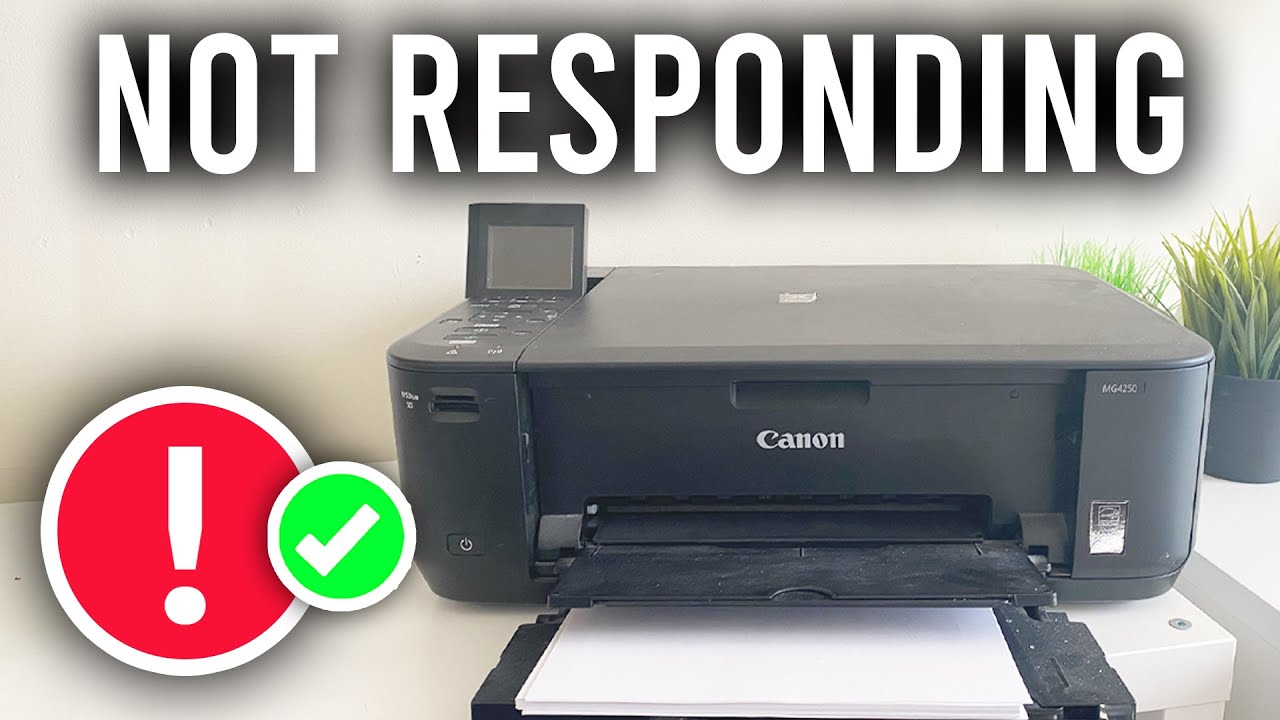
This process effectively resets the printing system. For a visual demonstration that can help you follow along, you can watch this helpful video that will walk you through the full set of fixes for a Canon printer that won’t respond (and is hopefully embedded below.)
2. Performing a Clean Reinstallation of the Printer Driver
An outdated or corrupted driver is a primary cause of the “Canon printer driver not responding” error. A clean installation of the latest driver can often provide a permanent fix by removing all old files and replacing them with fresh, updated ones.
- Uninstall the existing driver: Go to Settings > Apps > Apps & features. Find your Canon printer in the list, select it, and click Uninstall.
- Remove the printer from Devices: Go to Settings > Bluetooth & devices > Printers & scanners. Select your Canon printer and click Remove.
- Download the latest driver: Visit the official Canon Support website to find and download the correct driver for your printer model and Windows version.
- Install the new driver: Run the downloaded installer and follow the on-screen instructions. It is often best to wait for the installer to prompt you before connecting the USB cable or turning on the printer.
3. Verifying and Configuring the Correct Printer Port
In some cases, the printer driver may be trying to communicate with the printer through the wrong port, especially if the printer’s IP address has changed on a wireless network.
Ensuring the correct port is configured can re-establish communication.
- Open Printer Properties: Go to Settings > Bluetooth & devices > Printers & scanners, select your Canon printer, and click Printer properties.
- Check the Ports tab: In the Properties window, go to the Ports tab.
- Ensure the correct port is selected: For a USB printer, the port should be a USB port (e.g., USB001). For a network printer, it should be a TCP/IP port that matches the printer’s current IP address.
You can find the printer’s IP address by printing a network configuration page from the printer itself. If the IP address has changed, you may need to create a new port with the correct address.
4. Checking for IP Address Conflicts
For network printers, it’s possible that another device on your network has been assigned the same IP address as your printer.
This is known as an IP address conflict, and it will prevent your computer from reliably communicating with the printer.
You can diagnose this by temporarily turning off your printer and then using the ping command in the Command Prompt (e.g., ping 192.168.1.105) with your printer’s IP address.
If you receive a reply while the printer is off, another device is using that IP address.
To resolve this, you can either change the IP address of the other device or assign a static IP address to your printer outside of your router’s normal DHCP range.
Final thoughts on Canon Printer Driver Not Responding
Dealing with a Canon printer driver not responding problem can certainly be a frustrating experience, but as we’ve seen, the solutions are often within your reach.
By systematically working through the troubleshooting steps, from checking the basic connections to reinstalling the driver and verifying system settings, you can resolve the issue in most cases.
Remember to be patient and methodical in your approach.
To prevent this issue from recurring, it’s a good practice to keep your printer drivers and Windows operating system up to date.
Regularly checking for and installing updates can help ensure continued compatibility and smooth operation.
Frequently Asked Questions
Why does my Canon printer say “driver is unavailable”?
This error usually means Windows cannot find the correct driver for your printer. It can happen after a Windows update or if the driver is corrupted. To fix it, you should try updating the driver through Windows Update or by downloading the latest version directly from the Canon support website.
How do I restart the Print Spooler on my computer?
To restart the Print Spooler, open the “Services” application, find “Print Spooler” in the list, right-click it, and select “Restart”. This service manages print jobs, and restarting it can clear up many common printing errors, including a non-responsive driver.
Can a bad USB cable cause the “printer not responding” error?
Yes, absolutely. A faulty or loose USB cable can prevent your computer from communicating with the printer, leading to this error. Always ensure the cable is securely connected at both ends, and if the problem persists, try using a different USB cable or a different USB port on your computer.
Do I need to uninstall the old driver before installing a new one?
It is highly recommended. Uninstalling the old driver first ensures a “clean” installation and prevents potential conflicts between the old and new driver files. This can solve persistent issues that a simple driver update might not fix.
How to Manually Reinstall a Canon Printer Driver
Description: A step-by-step guide to completely remove and then cleanly reinstall your Canon printer driver on Windows to resolve common issues like the “driver not responding” error.
Estimated Time: 15 minutes
Supplies:
- Your Canon printer model name
Tools:
- A computer running Windows
- An internet connection
Steps:
- Disconnect the Printer: If your printer is connected via USB, unplug the cable from your computer.
- Uninstall Existing Software: Go to Settings > Apps > Apps & features. Find any software related to your Canon printer, select it, and click Uninstall.
- Remove the Printer Device: Navigate to Settings > Bluetooth & devices > Printers & scanners. Select your Canon printer from the list and click the Remove button.
- Download the Latest Driver: Open a web browser and go to the official Canon Support website. Enter your printer model to find and download the correct driver for your version of Windows.
- Run the Installer: Once the download is complete, run the installer file. Follow the on-screen instructions carefully.
- Reconnect the Printer: Do not reconnect the USB cable or turn on the printer until the installer specifically prompts you to do so. This is a critical step for a successful installation.
- Print a Test Page: After the installation is finished, print a test page to ensure the printer is working correctly and the “not responding” error is resolved.
Finally be sure to check out our Tech Troubleshooting FAQ or our Printer Troubleshooting Tips pages for even more general tips that cover a wide range of technical problems and solutions.
(If after reading the above article you still have a “Canon Printer Driver Not Responding” issue, then you might find a much less obvious solution on the above tech page!)