If you’re seeing the Canon Printer Error E59, you’re not alone. This common issue can be incredibly frustrating, especially when you’re on a deadline.
However, the good news is that this error is almost always easy to fix.
In most cases, the problem stems from a simple communication breakdown between your computer and your printer about the size of the paper you’re using.
In short: The Canon Printer Error E59 usually means the paper size setting on your computer or device doesn’t match the paper size registered in the printer.
This guide is for anyone experiencing this error on a Canon PIXMA printer (like the TS3522, TS3520, or similar models) and needs a straightforward solution to get back to printing.
Common Causes of the E59 Canon Printer Error
Understanding why the Canon Printer Error E59 occurs is the first step toward fixing it.
While it might seem like a critical failure, the root cause is typically a settings mismatch rather than a hardware problem.
Let’s explore the most common reasons you might be seeing this error in greater detail.
Paper Size Mismatch Between PC and Printer
The most frequent cause of the E59 error is a discrepancy between the paper size selected in your computer’s print dialog and the paper size the printer thinks is loaded.
For example, you might have selected “Letter” in your document’s print settings, but the printer is set to “A4” or another size.
Because of this, the printer stops the job to prevent a misprint.
According to Canon’s official support documentation, this is the primary trigger for the error.
This mismatch can happen for several reasons.
Often, the default print settings on your computer may not align with the paper you use most frequently.
Furthermore, different software applications can complicate the matter.
A word processor like Microsoft Word, a photo editor like Adobe Photoshop, and your web browser can each have their own saved print settings.
You may have printed a 4″x6″ photo an hour ago, and the photo software saved those settings.
When you then try to print a standard document, the old 4″x6″ setting might still be active, causing the E59 error when the printer sees Letter-sized paper in its tray.
Incorrect Paper Registration on the Printer
Modern Canon printers require you to register the size and type of the paper you load into the tray.
This feature is more than just a simple check; it allows the printer to adjust its operation for optimal quality.
For instance, the printer uses a different ink droplet size and printing speed for glossy photo paper compared to plain paper to prevent smudging and ensure vibrant colors.
When you load 4″x6″ photo paper but the printer’s last registered size was “Letter,” it will flag a mismatch and display the E59 error not just because of the size, but because its printing parameters are set for a different paper type.
You can easily check and change the registered paper size using the printer’s control panel.
This is a crucial step that many users overlook, but as confirmed by users in the Canon Community forums, getting this right is fundamental to a smooth printing experience.
Printer Driver Settings and Overly Sensitive Detection
In some situations, the printer driver itself can be the source of the problem.
A setting within the driver, often enabled by default, called “Detect paper setting mismatch” can be overly sensitive.
This feature is designed to be helpful, but it can sometimes cause the Canon Printer Error E59 even when the paper sizes appear to match.
This can happen due to minor discrepancies in how different applications report paper dimensions.
Disabling this setting through the Canon IJ Printer Assistant Tool or your computer’s printing preferences can often resolve these persistent, phantom errors.
The tool is part of the full driver and software package provided by Canon.
If you only installed the basic driver, you may need to download the full package from Canon’s website to access it.
As detailed in Canon’s guide on toggling the feature, turning this off tells the printer to trust the user and proceed with the print job, which can be a necessary workaround.
Advanced Troubleshooting for the Canon Printer Error E59
If the basic checks don’t resolve the issue, it’s time to dig a little deeper.
These advanced troubleshooting steps address less common causes and provide more definitive solutions to get your printer back online.
How to Correctly Set Paper Size on Your Printer
Ensuring your printer knows what size paper is loaded is crucial. The process is simple and is often the quickest fix.
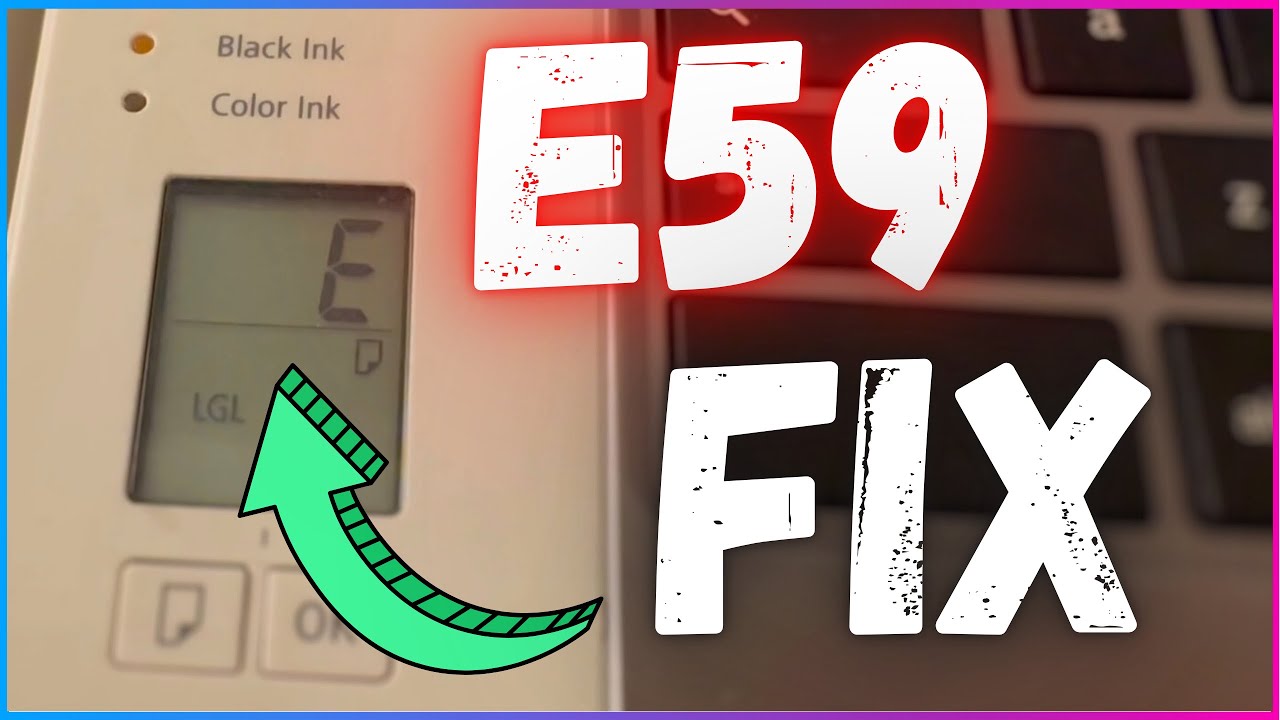
For a visual guide on how to perform these steps, you can watch a simple yet helpful short video that walks you through the process of fixing Canon Printer Error E59 by adjusting paper settings (which should also be embedded below hopefully!)
Here are the basic steps again in text form:
- Load Paper:
Start by loading your desired paper into the rear tray. Make sure the paper guides are snug against the edges of the paper stack to prevent it from feeding at an angle. - Check the LCD
Look at your printer’s LCD screen. It will display the currently registered paper size (e.g., LTR for Letter, A4, or 4″x6″). - Change if Necessary:
If the displayed size is incorrect, press the Paper Select button. This button usually has an icon of a piece of paper with a folded corner. Keep pressing it until the correct paper size appears on the screen. On some models, you may need to use arrow keys and the OK button to confirm the selection.
Once the printer is set correctly, the next step is to ensure your computer is on the same page.
Aligning Print Settings on Your Computer (Windows & macOS)
After setting the paper size on your printer, you must ensure your computer sends the print job with matching settings. This is done in the print dialog that appears just before you print.
- On Windows:
- Open the document you want to print and go to File > Print (or press Ctrl+P).
- In the print dialog box, click on Properties, Preferences, or Printer Properties.
- In the new window, find the Page Setup or Paper Size menu. Select the exact same paper size that you just registered on your printer.
- Also, check the Media Type setting to ensure it matches (e.g., Plain Paper, Photo Paper Plus Glossy II).
- Click OK and then Print.
- On macOS:
- Open your document and go to File > Print (or press Cmd+P).
- If you see a simplified dialog, click Show Details to expand it.
- In the Paper Size dropdown menu, select the correct size.
- In the dropdown menu that typically says Preview (or the application name), select Media & Quality and ensure the Media Type is correct.
- Click Print.
By ensuring these two settings match, you should be able to avoid the Canon Printer Error E59.
Edge Case: Creating a Custom Paper Size
What happens if the paper size you are using – for example, a specific type of invitation card or non-standard photo paper – isn’t listed in the print dialog?
In this scenario, you must create a custom paper size profile.
- On Windows:
In the Printing Preferences menu, look for a Custom option in the Page Size list. This will open a dialog where you can name your new size (e.g., “5×7 Greeting Card”) and enter its exact width and height in inches or millimeters. - On macOS:
In the Paper Size dropdown, select Manage Custom Sizes. Click the “+” icon to create a new profile, give it a name, and enter the dimensions. You can also set the non-printable margins here.
After creating the custom size, you can select it for your print job, but remember you must also register a corresponding standard size on the printer itself that is large enough to accommodate your custom print.
Disabling the “Detect Paper Mismatch” Setting
If you continue to get the E59 error despite matching the paper sizes, you may need to disable the mismatch detection feature. This can be particularly useful if you frequently switch between different paper types.
- Open the Canon IJ Printer Assistant Tool on your computer.
- Go to Custom Settings.
- Find and check the box that says “Don’t detect mismatch of paper settings when printing from computer”.
- Click OK and apply the settings.
Be aware that while this is a powerful override, it comes with a risk.
If you disable this check and accidentally send a large-format print job to a tray loaded with small photo paper, the printer will attempt to print anyway, leading to wasted ink, wasted paper, and a potentially messy printout.
Preventing the Canon Printer Error E59 in the Future
Fixing the error is good, but preventing it is even better.
By adopting a few simple habits, you can make the E59 error a thing of the past.
Develop a Consistent Printing Workflow
The most effective prevention strategy is to build a routine.
Every time you change the paper in your printer, make it a habit to immediately register the new paper size and type on the printer’s control panel.
Don’t wait until you’re ready to print.
This ensures the printer is always aware of what it holds, which is half the battle.
Before you click “Print” on your computer, take a moment to glance at the printer’s LCD to confirm the loaded paper, then ensure your software settings match.
Use Application-Specific Print Presets
Most operating systems and many applications allow you to save your print settings as a preset.
If you often switch between printing full-page documents and 4″x6″ photos, creating presets can save you a lot of time and prevent errors.
In your Mac or Windows print dialog, after you have configured the paper size, media type, and quality, look for an option to Save Current Settings as a Preset.
Name it something descriptive, like “4×6 Photo Glossy” or “Letter Plain Paper Draft.”
The next time you need to print, you can simply select the appropriate preset instead of reconfiguring everything manually.
Final thoughts on the Canon Printer Error E59
While the Canon Printer Error E59 can be a nuisance, it is rarely a sign of a serious hardware issue.
In almost every case, it’s a simple matter of ensuring your printer and computer are aligned on the paper size.
It’s a communication problem, not a mechanical one.
By following the steps outlined in this guide – from checking the paper registration on the printer itself to adjusting the settings on your computer and even creating custom presets – you can quickly resolve the error and get back to your tasks.
For added convenience, disabling the paper mismatch detection can provide a more permanent solution if you find the error recurring.
With a little patience and a consistent workflow, you can easily overcome this common printing hiccup and ensure a much smoother printing experience in the future.
Frequently Asked Questions About Error Code E59
What does Canon error E59 mean?
The Canon error E59 indicates that there is a mismatch between the paper size selected in the printer driver on your computer and the paper size that is registered on the printer itself. The printer stops the job to prevent printing on the wrong paper.
Can a paper jam cause the E59 error?
While a paper jam is a common printer issue, it typically results in a different error code (like E03). The E59 error is specifically related to paper settings, not a physical jam. However, it’s always a good practice to check for any obstructions if you’re experiencing printing problems.
Why does my Canon printer keep saying wrong paper size?
This usually happens for one of two reasons. Either the paper size registered on the printer (via its control panel) is incorrect for the paper you’ve loaded, or the print settings on your computer are sending a different paper size to the printer. Both must match exactly for the error to go away.
How to Fix Canon Printer Error E59
Here is a step-by-step guide to resolving the Canon Printer Error E59 by ensuring your paper settings match.
Time Required: 5 minutes
Tools:
- Your Canon Printer
- A computer (Windows or macOS)
Materials:
- Printing paper (e.g., Letter, A4, 4″x6″)
Steps:
- Check the Registered Paper Size on Your Printer
Look at your printer’s LCD screen to see which paper size is currently registered. If it does not match the paper you have loaded in the tray, press the Paper Select button on your printer until the correct size is displayed. - Verify the Paper Size in Your Computer’s Print Settings
On your computer, open the document you wish to print and go to File > Print. Open the Printing Preferences or Properties and navigate to the Page Setup tab. Ensure the Page Size selected here exactly matches the size you registered on your printer in the previous step. - Print a Test Page
With both the printer and the computer settings now aligned, try printing your document again. The Canon Printer Error E59 should now be resolved. - (Optional) Disable Mismatch Detection
If the error persists, open the Canon IJ Printer Assistant Tool on your computer, go to Custom Settings, and check the box for “Don’t detect mismatch of paper settings when printing from computer”. This will prevent the error from appearing in the future.
Finally be sure to check out our Tech Troubleshooting FAQ or our Printer Troubleshooting Tips pages for even more general tips that cover a wide range of technical problems and solutions.
(If after reading the above article you still have a problem with “Canon Printer Error E59”, then you might find a much less obvious solution on the above tech pages!)