It can be incredibly frustrating when you need to print an important document, only to find your Canon printer printing too light.
Whether the text is faded, the images are washed out, or the colors are just not vibrant, poor print quality can bring your productivity to a halt.
The good news is that, in most cases, this is a solvable problem.
This article will guide you through the most common causes and provide step-by-step solutions to get your printer working correctly again.
In a nutshell:
If your Canon printer is producing faint or faded prints, the issue likely stems from incorrect print settings, low toner or ink levels, or a clogged printhead.
This guide is for anyone experiencing light printing problems with their Canon printer.
It provides straightforward troubleshooting steps to diagnose and resolve the issue, from simple setting adjustments to more advanced cleaning procedures.
Common Causes Of A Canon Printer Printing Too Light
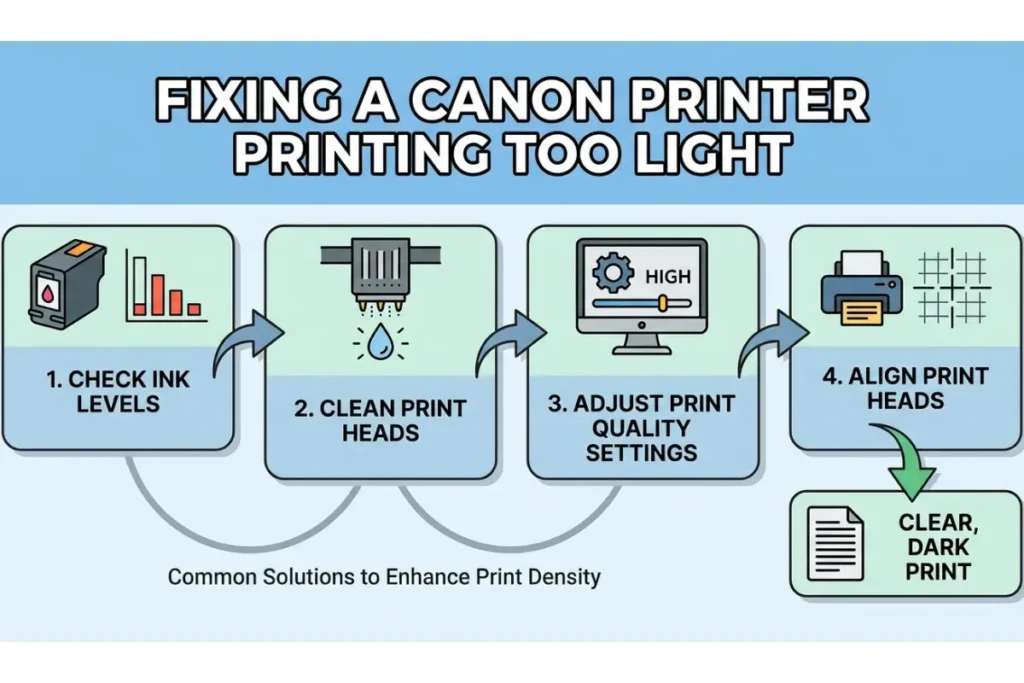
When your Canon printer starts producing faded or light prints, it’s usually due to one of a few common culprits.
Understanding these potential causes is the first step toward fixing the problem.
In many situations, the solution is surprisingly simple and doesn’t require any technical expertise.
Incorrect Print Quality Settings
One of the most frequent reasons for a Canon printer printing too light is that the print quality settings have been inadvertently changed.
For instance, many printers have a “Toner Save” or “Draft” mode designed to conserve ink or toner by using less of it during printing.
While this is useful for printing drafts or unimportant documents, it can result in noticeably lighter output.
It’s easy to forget that this mode is enabled, leading to confusion when you need a high-quality print.
Low Ink or Toner Levels
It might seem obvious, but low ink or toner levels are a primary cause of faint printing.
As a cartridge nears the end of its life, it can no longer supply a consistent flow of ink or toner to the page, resulting in faded text and images.
Your printer’s software may not always provide a perfectly accurate reading of the remaining levels, so it’s possible for a cartridge to be running low even if the on-screen indicator suggests otherwise.
Shaking a toner cartridge can sometimes temporarily resolve the issue by redistributing the remaining toner, but this is usually a sign that a replacement is needed soon.
Clogged Print Head Nozzles
For inkjet printers, clogged print head nozzles are a very common source of print quality problems, including light or streaky output.
The print head is the component that sprays ink onto the paper, and it contains hundreds of microscopic nozzles.
If these nozzles become blocked with dried ink – which can happen if the printer isn’t used regularly – the ink flow is restricted, leading to faint or missing sections in your prints.
Most Canon printers have a built-in cleaning cycle that can often resolve this issue, but sometimes a more thorough cleaning is required.
Advanced Troubleshooting For A Canon Printer Printing Too Light
If the basic checks don’t resolve the issue, it’s time to move on to some more advanced troubleshooting steps.
These solutions involve delving a bit deeper into your printer’s settings and performing some maintenance tasks.
Don’t worry – they are still very manageable and can often make a significant difference in print quality.
Adjusting Toner Density and Print Settings
As mentioned earlier, incorrect settings are a common cause of light printing.
If you’ve confirmed that “Toner Save” or “Draft” mode is off, the next step is to adjust the toner density directly.
This setting controls how much toner is applied to the page.
By increasing the density, you can achieve darker, more saturated prints.
The exact steps can vary depending on your printer model and operating system, but the general process is similar.
For many Canon models, you can adjust this through the printer driver settings on your computer.
You’ll typically find the toner density or print density settings under the “Quality” or “Advanced” tab in the printer properties.
For detailed instructions on how to do this for your specific model, you can refer to the official Canon support page on adjusting print density.
In some cases, you may also be able to adjust these settings directly from the printer’s control panel.
Performing a Print Head Cleaning Cycle
For inkjet printers, a clogged print head is a very likely culprit for a Canon printer printing too light.
A simple cleaning cycle can often clear the blockage and restore proper ink flow.
All Canon inkjet printers have a built-in utility for this purpose, which you can usually access through the printer’s maintenance menu or from the printer software on your computer.
It’s a good idea to run a nozzle check first to print a test pattern.
This will show you which nozzles, if any, are clogged.
After running a cleaning cycle, print another nozzle check pattern to see if the problem has been resolved.
You may need to run the cleaning cycle two or three times to fully clear a stubborn clog.
However, keep in mind that cleaning cycles use ink, so it’s best not to run them unnecessarily.
For a visual guide on how to address faint or faded prints, which often involves cleaning procedures, you can watch this helpful video on Fixing Blurry or Wavy Prints on Canon Pixma TS5120 TS5150 Printer (which is also embedded below hopefully!)
Also you will want to watch this video on improving printout quality by simply changing the app you use to print (a really great yet simple idea that works – hopefully the video is embedded below too!)

Manually Cleaning Printer Components
In some situations, an automated cleaning cycle may not be enough.
For laser printers, toner dust and debris can accumulate on internal components like the corona wire or the drum unit, leading to faint prints.
Manually cleaning these parts can often resolve the issue.
For example, Brother provides detailed instructions on how to manually clean the drum unit and corona wire, and the principles are similar for many laser printers.
Always make sure to follow the manufacturer’s instructions carefully and use a lint-free cloth to avoid damaging any sensitive components.
For inkjet printers, if the automated cleaning doesn’t work, you might consider manually cleaning the print head.
This is a more delicate procedure and should be done with care.
You can find many guides and videos online that demonstrate how to do this safely for your specific printer model.
However, be aware that improper cleaning can potentially damage the print head, so proceed with caution.
Checking for and Installing Driver Updates
Finally, outdated or corrupted printer drivers can sometimes cause a variety of issues, including a Canon printer printing too light.
Printer manufacturers regularly release driver updates to fix bugs, improve performance, and ensure compatibility with the latest operating systems.
It’s always a good practice to ensure you have the latest drivers installed for your printer.
You can typically download the latest drivers from the official support website for your printer brand.
For instance, HP provides a utility that can automatically detect your printer and recommend the correct drivers.
You can find more information on their print quality troubleshooting page.
Installing the latest drivers can often resolve unexpected printing problems and ensure your printer is functioning optimally.
Final Thoughts On Canon Printer Printing Too Light
Dealing with a Canon printer printing too light can certainly be a hassle, but as we’ve seen, the solutions are often within your reach.
By systematically working through the potential causes – from simple settings adjustments to more hands-on cleaning – you can usually restore your printer’s performance without needing to call for professional help.
Remember to be patient and methodical in your troubleshooting.
Start with the easiest and most common fixes first, and only move on to more advanced steps if necessary.
To prevent this issue from recurring, it’s a good idea to print a page or two every week to keep the ink flowing and prevent clogs.
Additionally, always use high-quality ink or toner cartridges, as they are less likely to cause problems.
By taking these simple preventative measures, you can ensure that your Canon printer is always ready to produce crisp, vibrant prints when you need them most.
Frequently Asked Questions (FAQ)
Why is my Canon printer printing light all of a sudden?
If your printer suddenly starts printing light, the most likely cause is that the “Toner Save” or “Draft” mode has been accidentally enabled. This setting is designed to conserve ink or toner, which results in a lighter print. Check your printer settings to ensure that this mode is turned off. Another possibility is that your ink or toner cartridge is running low.
Can I make my Canon printer print darker?
Yes, you can definitely make your Canon printer print darker. The most direct way to do this is by adjusting the print density or toner density settings in your printer driver. You can typically find this option under the “Quality” or “Advanced” tab in the printer properties on your computer. Increasing the density will result in darker, more saturated prints.
How do I fix faint printing on my Canon printer?
To fix faint printing, start by checking the simplest things first. Ensure that “Toner Save” mode is off and that your ink or toner cartridges are not empty. If those are not the issues, try running a print head cleaning cycle from your printer’s maintenance menu. If the problem persists, you may need to adjust the print density settings or manually clean some of the printer’s internal components.
Does shaking a toner cartridge help with light printing?
Shaking a toner cartridge can sometimes be a temporary fix for light printing. It helps to redistribute the remaining toner powder inside the cartridge, which can allow you to get a few more clear prints. However, if you find yourself needing to do this, it’s a strong indication that the cartridge is nearly empty and should be replaced soon.
How To Adjust Print Density On A Canon Printer
This guide will walk you through the steps to adjust the print density on your Canon printer using the printer driver settings on a Windows computer. This is a common solution for fixing a Canon printer printing too light.
Time Required:
5 Minutes
Supplies Required:
- A computer with the Canon printer driver installed
Tools Required:
- Your Canon printer
Steps:
- Open the Print Menu:
Open the document you want to print, and then go to File > Print. - Access Printer Properties:
In the print dialog box, select your Canon printer from the list of available printers, and then click on “Preferences” or “Properties“. - Navigate to Quality Settings:
In the printer properties window, click on the “Quality” tab. - Open Advanced Settings:
Look for a button that says “Advanced Settings” and click on it. - Adjust Toner Density:
In the Advanced Settings window, find the “Toner Density” or “Print Density” option. You may need to click on an “Adjust” or “Details” button to access the density settings. - Increase the Density:
Move the slider or select a higher value to increase the print density. This will make the print darker. - Save the Changes:
Click “OK” to save the new density setting, and then click “OK” again to close the printer properties window. - Print a Test Page:
Print your document to see if the issue is resolved. The print should now be darker and more vibrant.
Finally be sure to check out our Tech Troubleshooting FAQ or our Printer Troubleshooting Tips pages for even more general tips that cover a wide range of technical problems and solutions.
(If after reading the above article you still have a problem with your “Canon Printer Printing Too Light”, then you might find a much less obvious solution on the above tech pages!)