Are you struggling with a “Canon printer says no cartridge installed” issue?
If so we understand your frustration as it is seriously annoying.
The wording of the problem might alter slightly, but that is the core meaning of the message.
Sometimes it might say “No cartridge installed.”
Or it could be displayed as “Cartridge not recognised.”
Often it simply says “Check cartridge.”
Your Canon printer refuses to print, scan, or even move past the error screen.
It’s frustrating because you know the cartridge is there.
You just installed it!
This problem is more common than most people realise.
In most cases, the printer itself is fine.
Usually, the issue comes down to dirty contacts, a cartridge chip problem, or the printer getting stuck in a bad error state after an interruption or update.
You probably do not need a repair shop yet.
Nine times out of ten, when your Canon printer says no cartridge installed in the unit, this is a contact cleaning issue or a simple reset.
Let’s get your Canon printer back to work in under ten minutes.
Why Your Canon Printer Thinks The Cartridge Is Missing
Before jumping into fixes, it helps to understand what the printer is actually checking.
Canon printers do not physically “see” the cartridge.
They detect it electronically using a small chip on the cartridge and a row of spring-loaded contact pins inside the carriage.
If those pins cannot make a clean electrical connection with the chip, the printer assumes the cartridge is missing or invalid.
The error can also appear if:
- The cartridge chip is dirty or oily
- The carriage pins are bent, stuck, or damaged
- The printer’s memory glitched after a power cut or improper shutdown
- A remanufactured cartridge has a faulty chip
- Firmware updated and stopped recognising third-party cartridges
- A print head issue exists on certain PIXMA or MAXIFY models
This is not usually a catastrophic failure.
Canon printers are simply sensitive about cartridge communication, especially newer models with stricter chip validation.
Quick Checks To Solve A “Canon Printer Says No Cartridge Installed” Issue
Please do these before you do anything else.
Skipping them often wastes time on deeper troubleshooting that is not actually needed.
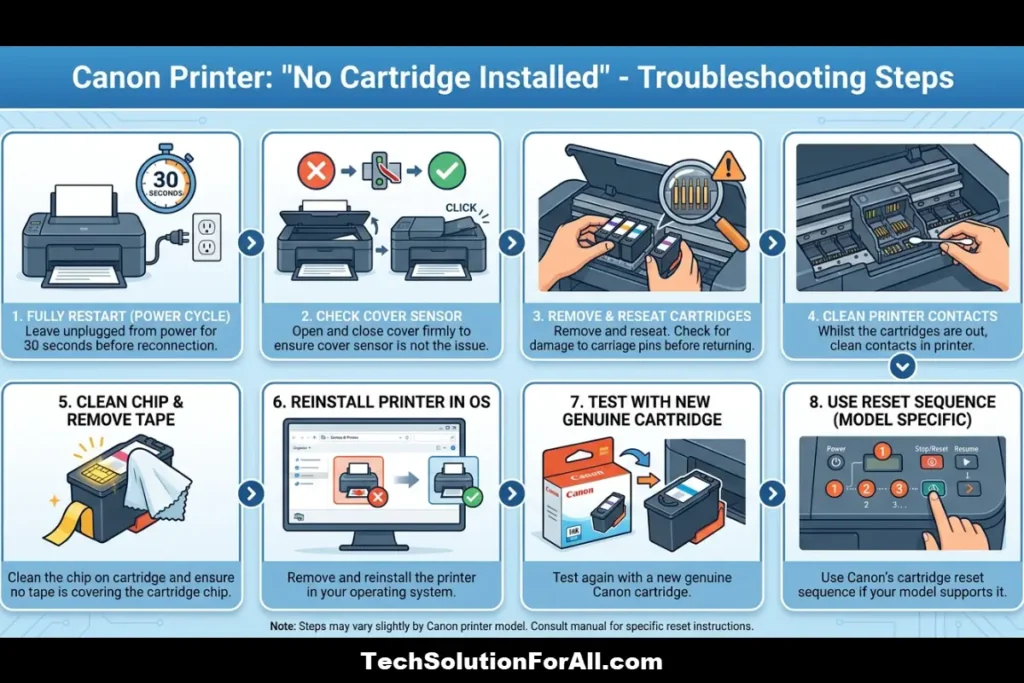
1. Open and close the front cover firmly
Some Canon models, especially PIXMA TS series and TR series printers, use a cover sensor as part of the cartridge detection process.
If the front cover is not fully closed, the printer may not even attempt to read the cartridges.
Close the cover with a firm, even press rather than a light push.
2. Remove and reseat the cartridge
Lift the cartridge latch if your model uses one, remove the cartridge, wait a few seconds, then reinstall it carefully until you feel and hear a proper click into place.
A surprising number of cartridge errors happen because the cartridge is slightly misaligned and simply doing this could solve the issue where your Canon printer says no cartridge installed.
3. Check for protective tape or plastic
This sounds obvious, but it happens regularly with new and remanufactured cartridges.
Some replacement cartridges still have protective film over the electrical chip, not just the ink outlet or nozzle area.
Remove any plastic, tape, or shipping cover before reinstalling the cartridge.
4. Restart the printer properly
Do not just pull the plug immediately.
Use the printer’s power button first and let it shut down normally.
Wait about 30 seconds, unplug the power cable, then leave it disconnected for another minute before reconnecting power.
This clears many temporary cartridge detection faults and stuck error states.
Step-By-Step Fixes For “Canon Printer Says No Cartridge Installed”
Work through these fixes in order, from simplest to more advanced.
Stop once the error clears.
Fix 1: Clean the cartridge chip and printer contacts
Why this works: Finger oils, dust, dried ink residue, or oxidation on the cartridge chip can interrupt communication between the cartridge and the printer.
What you need:
- A clean cotton swab or lint-free cloth
- Isopropyl alcohol (70% or higher works best, though a dry clean is often enough)
Steps:
- Remove the cartridge showing the error.
If the printer does not specify which one is failing, remove all cartridges. - Locate the small gold or silver contact chip on the cartridge.
- Gently wipe the chip using a dry cotton swab or lint-free cloth.
If needed, lightly dampen the swab with isopropyl alcohol.
Do not soak it. - Inside the printer carriage, locate the small spring-loaded contact pins.
- Carefully dab the pins with a dry swab or lint-free cloth.
Avoid pressing hard or bending the pins. - Allow everything to dry for at least two minutes.
- Reinstall the cartridge firmly until it clicks into place.
Then run a test print.
Important for Canon PIXMA MG series and TS series printers:
The contact pins are delicate.
A lint-free microfiber cloth is often safer than a cotton swab because loose fibres can catch on the pins.
For a great visual guide on how to fix ink cartridges not recognized by your printer please watch this amazing video that works for most printer brands (hopefully also embedded below!)

Fix 2: Reset the printer’s cartridge detection memory
Why this works: Canon printers sometimes store cartridge error states.
(Meaning that your Canon printer says no cartridge installed in the unit because initially there was an issue and it still “thinks” there is, despite it being resolved.)
A hard reset clears residual memory and forces the printer to detect the cartridges again from scratch.
This method works on many Canon PIXMA, MAXIFY, and imageCLASS models.
Steps:
- Turn the printer on and wait until the cartridge error appears.
- Unplug the power cable directly from the back of the printer while it is still powered on.
- Press and hold the power button for about 15 seconds while the printer remains unplugged.
- Release the power button.
- Wait 30 seconds.
- Reconnect the power cable.
- Turn the printer back on normally.
If the error immediately returns, the cartridge chip itself may be defective.
Fix 3: Check for firmware-related cartridge problems
Canon firmware updates occasionally change how the printer validates cartridge chips.
A third-party cartridge that worked perfectly before an update may suddenly stop being recognised.
Check your firmware version:
- On printers with a screen: Settings > Device info > Firmware version
- On Mac: Canon IJ Printer Utility
- On Windows: Canon Printer Assistant Tool
You can also check your printer model directly through the Canon Support site for firmware and cartridge compatibility information.
If the problem started shortly after a firmware update:
- Disable automatic firmware updates
- Test with a genuine Canon cartridge if possible
- Avoid updating further until the issue is resolved
Canon does not officially provide firmware rollback tools for most consumer printers, so downgrading is usually difficult.
For MAXIFY and MegaTank models: These printers tend to enforce cartridge and ink validation more aggressively.
Some users find that temporarily installing a genuine Canon cartridge clears the error and allows the printer to initialise properly again.
Fix 4: Check for bent or damaged contact pins
This is one of the more common hardware-related causes, especially if cartridges were forced into place or the printer was moved recently.
Typical symptoms include:
- Only one cartridge slot repeatedly shows the error
- Multiple cartridges fail only in the same slot
- Cleaning and resets do not help
- The problem started after replacing cartridges quickly or forcefully
What to do:
- Shine a torch into the cartridge carriage.
- Compare the contact pins in the problem slot against a working slot.
- Look for pins that are flattened, bent sideways, stuck down, or missing.
If a pin is only slightly bent, you may be able to straighten it carefully using a wooden toothpick or plastic spudger.
Do not use metal tools, and do not force the pin back aggressively.
These contacts bend very easily and can snap off.
If pins are missing or severely damaged, the print head assembly usually needs replacement.
On some PIXMA models the print head is removable, while cheaper TS and TR series models often integrate it into the printer itself.
Fix 5: Use Canon’s cartridge reset sequence (specific models)
Some Canon printers, particularly certain MegaTank and MAXIFY models, support a service-mode reset that forces cartridge or ink system re-detection.
For Canon PIXMA G7020, G6020, and G5020:
- Turn the printer off.
- Press and hold the Stop button (triangle inside a circle).
- While holding Stop, press and hold the Power button.
- Continue holding Power. Release Stop.
- Press the Stop button five times.
- Release the Power button.
- Wait for the printer to enter service mode.
- Press Stop once, then press Power once.
The printer should restart and perform a deeper reset.
Warning: Service mode can reset internal ink tracking or maintenance counters on some models.
Only use this method if normal troubleshooting has failed and you are confident the cartridges or tanks are properly installed.
Platform-Specific Troubleshooting When Your Canon Printer Says No Cartridge Installed
Windows: Driver conflicts and stale printer entries
Sometimes the cartridge error is technically correct on the printer side, but Windows keeps an outdated printer instance or corrupted spooler entry active, which causes misleading status behaviour.
Try this:
- Open Settings > Bluetooth & devices > Printers & scanners
- Remove your Canon printer
- Open Control Panel > Devices and Printers
- Remove duplicate or greyed-out Canon printer entries
- Restart the computer
- Reinstall the printer using “Add a printer or scanner”
Why this helps: Windows can cache printer status information.
Clearing old device entries forces fresh communication between Windows and the printer.
Mac: AirPrint and Canon driver conflicts
On macOS, AirPrint and Canon’s full driver package do not always behave the same way.
In some cases:
- AirPrint reports “no cartridge installed” while the Canon IJ driver works normally
- The Canon driver reports an error while AirPrint continues printing
Try switching drivers temporarily:
- Remove the printer from Printers & Scanners
- Re-add it using either “AirPrint” or “Canon IJ” as the driver option
- Test both if needed
You can also reset the Mac printing system:
- Open System Settings > Printers & Scanners
- Right-click or Ctrl-click inside the printer list
- Choose “Reset printing system”
- Re-add the printer
This clears corrupted printer communication settings and queue data.
If printer communication still behaves inconsistently after reinstalling, download the latest Canon drivers directly from Canon rather than relying on older bundled drivers.
iPhone and Android: Canon PRINT app issues
Sometimes the printer itself is working correctly, but the Canon PRINT app displays stale cartridge information.
Try the following:
- Fully close the Canon PRINT app
- Restart your phone or tablet
- Reopen the app and refresh the printer status
- Remove and re-add the printer inside the app if needed
If the printer screen itself shows no error, the issue is usually app-side rather than hardware-related.
If the app continues showing incorrect cartridge status, reinstall the Canon PRINT App completely before reconnecting the printer.
Less Common Causes Of The “Canon Printer Says No Cartridge Installed” Issue
“No cartridge installed” after a power outage
Power interruptions can leave the printer in a partially initialised state.
On some Canon PIXMA models, the cartridge detection system does not recover cleanly after a sudden outage.
Fix: Disconnect power completely for at least 10 minutes rather than just restarting for 30 seconds.
This allows residual power to drain fully and forces a cleaner startup process.
The printer works except for scanning
This catches a lot of people off guard.
Many Canon multifunction printers, including imageCLASS, MAXIFY, and PIXMA TR models, block scanning and copying whenever a cartridge error exists.
Even if you only want to scan a document, the printer firmware may refuse all functions until the cartridge issue is resolved.
Some imageCLASS models allow a temporary bypass by holding the Stop button for around 10 seconds, though support varies by model.
Remanufactured cartridges that suddenly stop working
A remanufactured cartridge may work perfectly for days or weeks before suddenly triggering a “no cartridge installed” message.
Possible causes include:
- The replacement chip is failing
- Firmware updated automatically overnight
- Minor contact movement from heat or vibration
- Lower-quality chip manufacturing
Start with cleaning and reseating.
If the problem keeps returning, test with a genuine Canon cartridge to isolate whether the issue is the printer or the replacement cartridge.
Prevention: Stop The “Canon Printer Says No Cartridge Installed” Error From Coming Back
Once the printer is working again, a few habits can help prevent repeat cartridge detection problems.
1. Be careful when moving the printer
If you transport the printer with cartridges installed, the carriage can shift and stress the contact pins.
If possible:
- Remove cartridges before moving the printer
- Or secure the carriage using the original transport lock or packing materials
2. Disable automatic firmware updates
If you regularly use third-party cartridges, automatic firmware updates can create compatibility problems later.
Printer menu path usually looks similar to:
Settings > Device settings > Firmware update > Disable automatic updates
You can also disable update checks through Canon’s desktop utilities on Windows and Mac.
3. Avoid storing cartridges for too long after opening
Old cartridges do not just suffer from dried ink.
The chip and electrical contacts can also become less reliable over time, especially if cartridges are stored in heat or humidity.
Try to use opened cartridges within six months where possible.
4. Clean contacts during every cartridge replacement
A quick wipe of the cartridge chip and carriage contacts during replacement helps prevent gradual buildup from causing communication problems later.
Advanced: When Your Canon Printer Actually Needs Repair
These symptoms point more toward hardware failure than a simple cartridge communication issue:
- Multiple cartridges fail simultaneously
- Genuine Canon cartridges also fail
- The carriage makes grinding or clicking noises
- The carriage does not move correctly when the cover opens
- Cartridge errors appear alongside print head or carriage fault codes
For some PIXMA TS and TR models, replacement print heads can cost nearly as much as a new printer.
On older imageCLASS and MAXIFY printers, repair costs may not make financial sense unless the printer is a higher-end model.
Final Thoughts On The “Canon Printer Says No Cartridge Installed” Issue
When your Canon printer says no cartridge installed, the printer is usually not broken.
In most cases, the problem comes down to dirty contacts, a weak cartridge chip connection, or a temporary firmware or memory issue.
Start with the simplest fixes first:
- Reseat the cartridge properly
- Clean the chip and contact pins
- Perform a full power reset
Those steps alone solve the majority of cases.
If you use third-party cartridges, always test with a genuine Canon cartridge before assuming the printer itself has failed.
That single test often tells you immediately whether the problem is the cartridge or the printer.
Most of these errors are fixable at home without tools, disassembly, or expensive repairs.
Work through the steps patiently and in order, and there is a good chance your printer will be working again within a few minutes.
FAQ’s About The “Canon Printer Says No Cartridge Installed” Problem
Q1: Why does my Canon printer say no cartridge installed when I just put a new one in?
The cartridge chip is probably not making proper contact with the printer’s pins.
Remove the cartridge, clean the chip and contacts gently, then reinstall it firmly until it clicks into place.
Q2: Can a Canon firmware update cause this error?
Yes.
Firmware updates sometimes block or misidentify third-party cartridges.
If the error started after an update, test with a genuine Canon cartridge and disable automatic updates moving forward.
Q3: Does “no cartridge installed” also stop scanning on Canon printers?
On many Canon multifunction printers, yes.
Models in the PIXMA TR, imageCLASS, and MAXIFY ranges often disable scanning and copying until the cartridge error is cleared.
Q4: How do I reset my Canon printer after a “no cartridge” error?
Turn the printer on, unplug the power cable from the back of the printer, hold the power button for 15 seconds, wait 30 seconds, reconnect power, and turn the printer back on.
Q5: Will taping over the cartridge chip work?
No.
Covering the chip prevents the printer from reading the cartridge properly and usually makes the error worse.
Q6: My Canon PIXMA TS6320 says no cartridge installed but only for black. Why?
The black cartridge slot may have dirty or bent contact pins, or the black cartridge chip itself may be failing.
Clean the contacts first, then test with another cartridge if available.
How To Fix “Canon Printer Says No Cartridge Installed” In 8 Minutes
Total time: 8 minutes
Supplies: Cotton swabs, isopropyl alcohol (optional)
Tools: None required
Steps:
- Turn off and unplug the printer – Use the power button first, then unplug the printer from the wall. (1 minute)
- Open the front cover and remove the cartridge – Wait for the carriage to stop moving before removing the cartridge. (30 seconds)
- Clean the cartridge chip – Wipe the gold or silver chip gently using a dry cotton swab or lint-free cloth. Use a small amount of alcohol only if necessary. (1 minute)
- Clean the printer’s contact pins – Lightly clean the spring-loaded pins inside the carriage without bending them. (1 minute)
- Wait for drying time – Allow any alcohol residue or moisture to evaporate fully. (2 minutes)
- Reinstall the cartridge firmly – Push the cartridge back in until you hear a distinct click and close the printer cover. (30 seconds)
- Reconnect power and restart the printer – Plug the printer back in and allow it to initialise fully. (2 minutes)
- Print a test page – Run a nozzle check or print a document to confirm the error has cleared.
Finally be sure to check out our Tech Troubleshooting FAQ or our Printer Troubleshooting Tips pages for even more general tips that cover a wide range of technical problems and solutions.
(If after reading the above article you still have a “Canon Printer Says No Cartridge Installed” issue , then you might find a much less obvious solution on the above tech pages!)