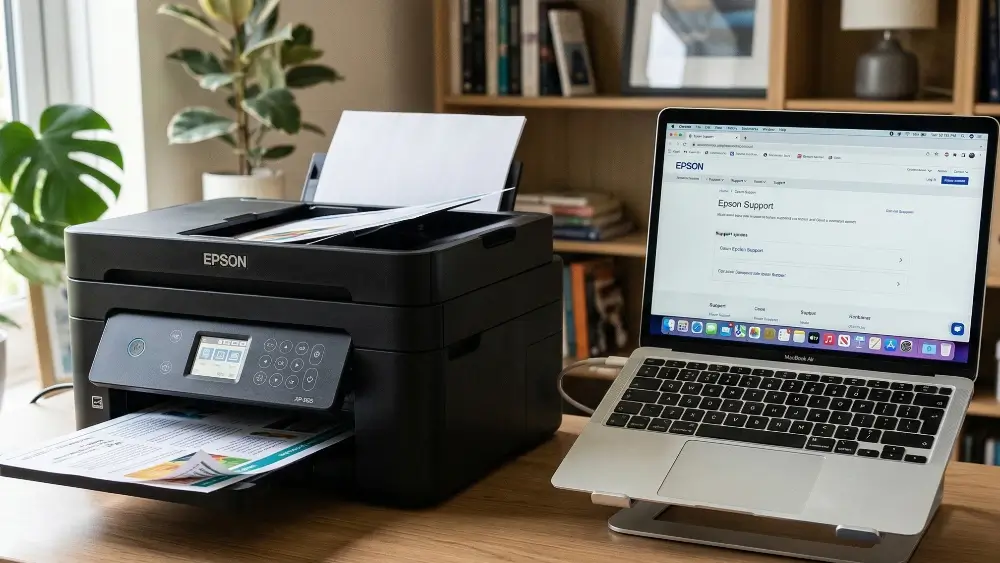
It might feel like a last resort performing an Epson printer factory reset when you have already tried all the usual troubleshooting steps without success.
However if you have an important document to print and your Epson printer is unresponsive, displaying a cryptic error message, or simply refusing to connect to your computer, a factory reset might well be the best option.
That is because very often it is the most effective way to resolve persistent software glitches, network connectivity problems, and other frustrating issues.
This guide will walk you through the process, providing clear instructions to help you restore your printer to its original settings and get it working smoothly again.
In a Hurry? Here’s the Bottom Line
This article provides comprehensive, step-by-step instructions for performing an Epson printer factory reset on various models.
Whether you’re dealing with network issues, software conflicts, or other persistent problems, a factory reset can often be the solution.
We’ll cover different reset methods, from simple button combinations to menu-based resets, and provide guidance on when and why you might need to perform one.
If you just want to jump right into performing the reset right now here is “how to” actually do it.
Common Causes For An Epson Printer Factory Reset
While an Epson printer factory reset can seem like a drastic step, there are many situations where it is the most logical and effective solution.
Understanding the common causes can help you determine if a factory reset is the right course of action for your specific problem.
In many cases, it can save you a significant amount of time and frustration compared to trying to diagnose and fix a complex issue manually.
Persistent Software Glitches and Error Messages
One of the most frequent reasons for performing a factory reset is to resolve persistent software glitches or error messages that don’t go away with a simple restart.
Over time, a printer’s internal software can become corrupted, leading to a wide range of problems.
For example, you might encounter error codes that you can’t clear, or the printer may become unresponsive to commands from your computer.
Because of this, a factory reset can clear out these software cobwebs and restore the printer to a known, stable state.
This is often much faster than trying to troubleshoot a vague or undocumented error code.
Network Connectivity Problems
In our increasingly wireless world, network connectivity issues are a common source of printer frustration.
Your Epson printer might suddenly refuse to connect to your Wi-Fi network, or it may drop the connection intermittently.
These problems can be caused by a variety of factors, including a change in your network password, a router update, or a conflict with another device on your network.
Resetting the printer’s network settings to their factory defaults can often resolve these issues.
In this case, you will need to reconnect the printer to your Wi-Fi network from scratch, but this is a small price to pay for a stable and reliable connection.
Incorrect Configuration and Settings
Modern printers have a vast array of settings that can be customized, from paper sizes and print quality to advanced color management options.
While this flexibility is powerful, it also means there are more opportunities for things to go wrong.
It’s easy to accidentally change a setting that causes your prints to come out incorrectly, or that prevents the printer from functioning as expected.
If you’ve been experimenting with your printer’s settings and can’t seem to get it back to a working state, an Epson printer factory reset can be a lifesaver.
It will restore all settings to their default values, giving you a clean slate to work from.
Preparing to Sell or Give Away Your Printer
Finally, if you are planning to sell or give away your Epson printer, it is crucial to perform a factory reset first.
This is an important step for protecting your privacy and security.
Many modern printers store sensitive information, such as your Wi-Fi network credentials, a history of printed documents, and even contact lists for scanning to email.
An Epson printer factory reset will erase all of this personal data, ensuring that the new owner cannot access it.
For models with a hard drive, it is especially important to use the “Erase All Data and Settings” option to securely wipe the drive, as noted in Epson’s official documentation.
How To Perform An Epson Printer Factory Reset
Now that we’ve covered the common reasons for performing a factory reset, let’s get into the practical steps.
The exact procedure for an Epson printer factory reset can vary depending on the model of your printer.
Some printers have a simple button combination, while others require you to navigate through the control panel menu.
Below, we’ll cover the most common methods, with specific examples for different types of Epson printers.
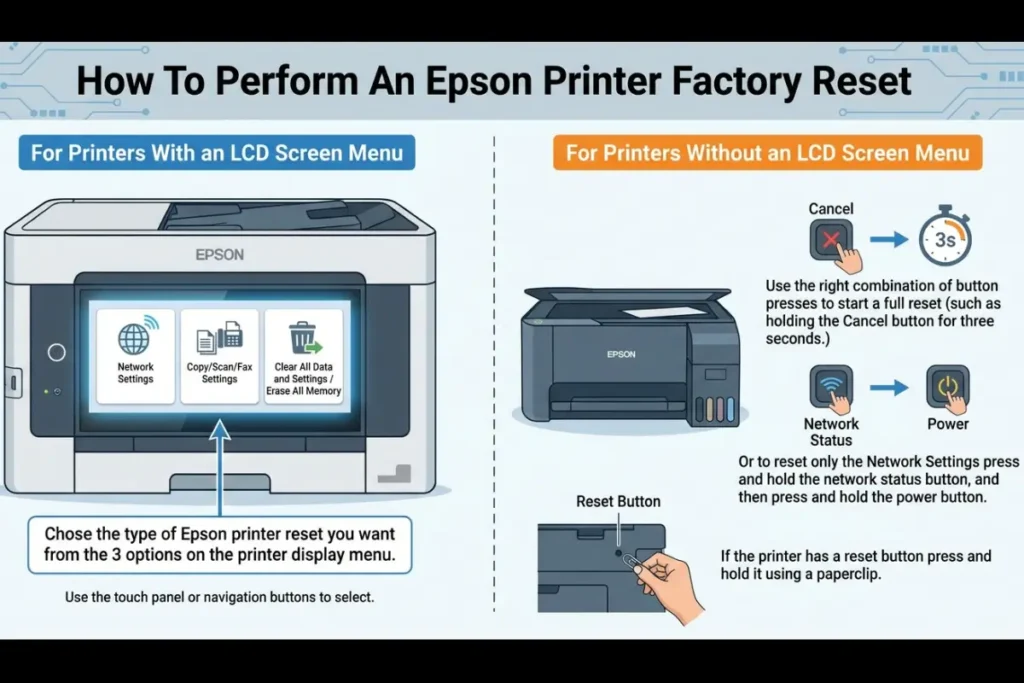
Using the Control Panel Menu
For many modern Epson printers, especially the EcoTank and WorkForce series, the easiest way to perform a factory reset is through the control panel menu.
This method gives you a clear, on-screen interface to work with and often allows you to choose which specific settings you want to reset.
For example, the Epson WorkForce Enterprise AM-C5000 and the EcoTank ET-2800/ET-2803 both use a menu-based reset procedure, as detailed in the user guides for the WorkForce Enterprise AM-C5000 and EcoTank ET-2800/ET-2803.
Here are the general steps for a menu-based reset:
- Access the Settings Menu:
Press the home button on your printer’s control panel, if necessary. Then, navigate to the Settings or Setup menu. - Find the Reset Option:
Look for an option called Restore Default Settings, System Administration, or something similar. You may need to navigate through a few sub-menus to find it. - Select the Reset Type:
You will often be presented with a list of reset options. These can include:
Network Settings: Resets only the Wi-Fi and other network-related settings.
Copy/Scan/Fax Settings: Resets the settings for those specific functions.
Clear All Data and Settings or Erase All Memory: This is the full factory reset option. It will erase all of your personal data and restore all settings to their factory defaults. - Confirm the Reset:
After selecting the reset option, you will be asked to confirm your choice. Select Yes to proceed with the reset. The printer will then restart with its factory default settings.
For a visual guide on how to navigate these menus and perform a factory reset on a typical Epson printer, you can watch this helpful YouTube video that demonstrates the process (and is hopefully embedded below!)
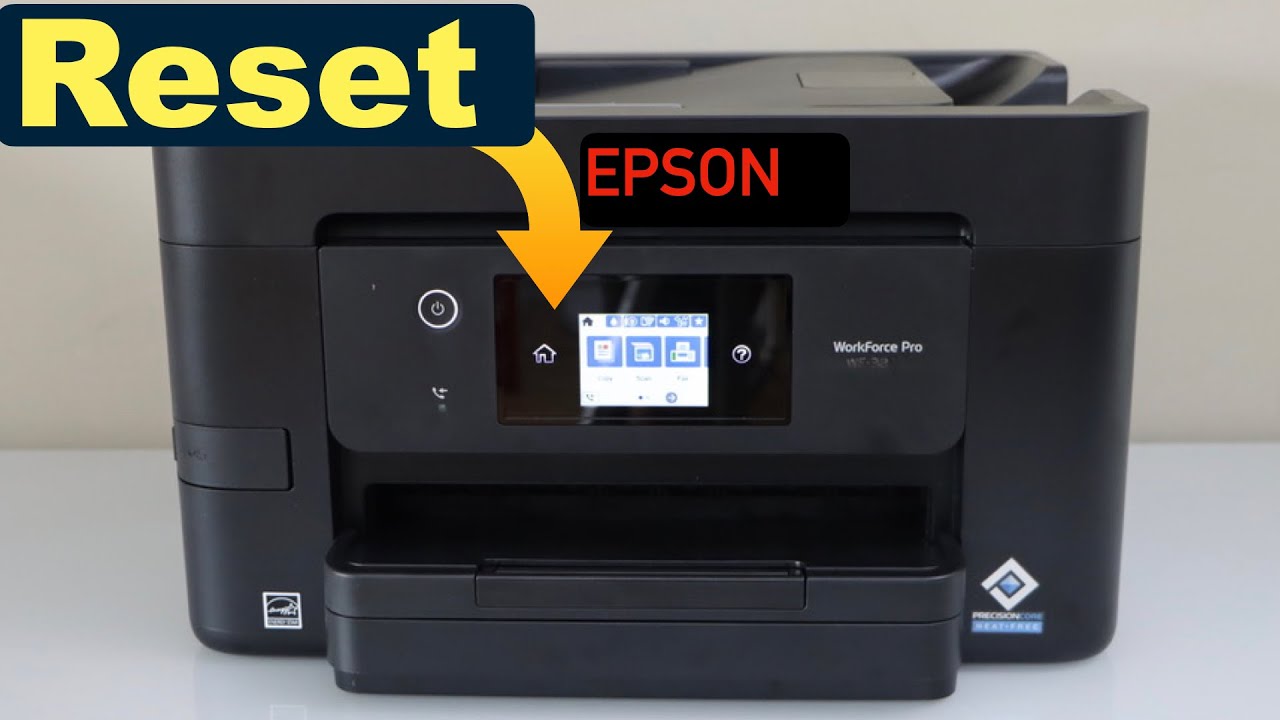
It is worth pointing out that some of you might only want to reset the settings of your Epson printer within the operating system itself (rather than an actual full printer reset) and for that you might find the following video helpful which is embedded below (hopefully!)

Using Button Combinations
Some Epson printers, particularly those without a large LCD screen, use a combination of button presses to initiate a factory reset.
This method is common for more compact or older models.
For instance, some models require you to press and hold the Cancel button for three seconds.
Other models, like the ET-2600 and L395 series, use a specific button combination to reset the network settings.
Here is a common button combination method for resetting network settings:
- Turn the Printer Off:
Make sure your printer is powered down. - Press and Hold the Buttons:
Press and hold the network status button, and then press and hold the power button. Continue to hold both buttons until the Wi-Fi lights flash alternately. - Release the Buttons:
Once the lights are flashing, release both buttons. The network settings will be reset when the Wi-Fi lights turn off.
Using a Pinhole Reset Button
Certain Epson printer models, such as the TM-T88VII, M30, and U220, have a small, recessed pinhole reset button.
This is a more forceful method of resetting the printer and is often used when the control panel is unresponsive.
You will need a small, pointed object like a paperclip to press this button.
Here’s how to use the pinhole reset button:
- Turn the Printer Off:
Ensure the printer is powered down. - Press and Hold the Reset Button:
Using a paperclip or similar object, press and hold the pinhole reset button. It is usually located on the back of the printer. - Power On the Printer:
While still holding the reset button, turn the printer on. - Continue Holding:
Hold the reset button for about 5-10 seconds. You may see a warning message or a test page print out, indicating that the reset is in progress. - Release the Button:
Once the reset is complete, you can release the button. The printer will restart with its factory default settings.
Advanced Troubleshooting For Epson Printer Factory Reset
In most cases, one of the methods described above will successfully reset your Epson printer.
However, there are some situations where you might encounter difficulties or need to take additional steps.
This section covers some advanced troubleshooting scenarios and less common issues you might face during an Epson printer factory reset.
When the Factory Reset Fails to Solve the Problem
Occasionally, a factory reset may not resolve the underlying issue.
If you’ve performed a full factory reset and your printer is still malfunctioning, it could be a sign of a more serious problem.
For example, if your printer is still not powering on, or if you are seeing the same error message immediately after the reset, it could indicate a hardware failure.
In this situation, it’s a good idea to consult official support resources from other major printer manufacturers, as they often provide detailed troubleshooting guides that can be helpful for similar issues.
For instance, HP provides a comprehensive guide to fixing common printer problems that can offer additional insights.
Similarly, Brother has detailed articles on how to reset their printers, which can sometimes shed light on issues that are common across different brands.
Dealing with Firmware Issues
Firmware is the software that runs on your printer and controls its basic functions.
Sometimes, a failed firmware update or a corrupted firmware installation can cause problems that a factory reset cannot fix.
In these cases, you may need to reinstall the printer’s firmware.
You can usually find the latest firmware for your specific model on the Epson support website.
The process typically involves downloading the firmware to your computer and then using a special utility to upload it to the printer.
It’s important to follow the instructions carefully, as a mistake during the firmware update process can potentially damage your printer.
Environmental and Connectivity Factors
It’s also worth considering that the problem may not be with the printer itself, but with its environment or connection.
For example, a weak Wi-Fi signal can cause intermittent connectivity issues that a factory reset won’t fix.
In this case, you might need to move your printer closer to your router or invest in a Wi-Fi extender.
Similarly, power surges or an unstable power supply can cause your printer to behave erratically.
If you suspect this might be the case, try plugging your printer into a different outlet or using a surge protector.
Microsoft also provides a useful guide for troubleshooting printer connection problems in Windows, which can help you diagnose and resolve a wide range of connectivity issues.
Final Thoughts On Factory Resetting Your Epson Printer
An Epson printer factory reset is a powerful tool for resolving a wide range of printer problems, from frustrating software glitches to stubborn network connectivity issues.
While it may seem like a drastic measure, it’s often the quickest and most effective way to get your printer back to a known, working state.
By following the steps outlined in this guide, you can confidently perform a factory reset on your Epson printer and get back to printing with minimal downtime.
Remember to always back up any important settings if possible, and to erase all data before selling or giving away your printer.
With a little patience and the right instructions, you can tackle even the most persistent printer problems.
Frequently Asked Questions (FAQ)
Will an Epson printer factory reset fix all problems?
A factory reset is a powerful troubleshooting step that can resolve many software-related issues, such as persistent error messages, network connectivity problems, and incorrect settings.
However, it will not fix hardware failures.
If your printer is still malfunctioning after a factory reset, it may have a physical problem that requires professional repair.
Do I need to reinstall my printer drivers after a factory reset?
In most cases, you will not need to reinstall your printer drivers on your computer.
A factory reset only affects the printer’s internal settings.
However, if you reset the network settings, you will need to reconnect the printer to your Wi-Fi network and may need to re-select the printer on your computer.
Is it safe to perform a factory reset on my Epson printer?
Yes, it is generally safe to perform a factory reset.
The process is designed to restore the printer to its original settings and will not damage the hardware.
However, it is important to remember that a factory reset will erase all of your custom settings, so you will need to reconfigure them afterward.
How To Perform An Epson Printer Factory Reset Via Control Panel
This guide provides a general overview of how to perform a factory reset on an Epson printer using the control panel. The exact menu names and options may vary slightly depending on your printer model.
Total Time: 5 minutes
Tools:
- Your Epson printer with a control panel
Steps:
- Access the Settings Menu:
Press the home button on your printer’s control panel.
Navigate to the Settings or Setup menu and press OK. - Find the Reset Option:
Look for an option called Restore Default Settings, System Administration, or a similar name.
You may need to navigate through a few sub-menus to find it. - Select the Reset Type:
Choose the type of reset you want to perform. For a full factory reset, select Clear All Data and Settings or Erase All Memory.
If you only want to reset specific settings, such as network settings, choose that option instead. - Confirm the Reset:
A confirmation screen will appear. Select Yes to proceed with the reset.
The printer will restart with its factory default settings.
Finally be sure to check out our Tech Troubleshooting FAQ or our Printer Troubleshooting Tips pages for even more general tips that cover a wide range of technical problems and solutions.
(If after reading the above article you still have an issue that an Epson printer factory reset did not solve, then you might find a much less obvious solution on the above tech pages!)