The common but disruptive Epson printer ink recognition error can bring your productivity to a halt.
However, before you consider calling for technical support or, in a moment of frustration, the printer itself, rest assured that in most cases, this is a problem you can solve on your own.
This guide is here to walk you through the process, step by step, in a clear and easy-to-understand way.
In a hurry? Here’s the bottom line:
An Epson printer ink recognition error is usually caused by simple issues like incorrect cartridge installation, the use of non-genuine ink, or dirty electrical contacts.
This article is for any Epson printer user who wants to quickly diagnose and fix this problem without needing advanced technical skills.
We will cover everything from the most common causes to advanced troubleshooting, helping you get your printer back online.
Common Causes of an Epson Printer Ink Recognition Error
Understanding why your printer is displaying an Epson printer ink recognition error is the first step toward fixing it. In many situations, the cause is surprisingly simple, while in others, it can be a combination of factors.
Because of this, it is important to approach the problem methodically. Let’s explore the most common culprits in detail.
You’re Using Non-Genuine or Third-Party Ink Cartridges
One of the most frequent reasons for this error is the use of non-genuine, refilled, or third-party ink cartridges. While the lower price point can be tempting, these cartridges are not always reliable.
Epson designs its printers to work specifically with its own genuine ink cartridges, which contain a microchip that communicates with the printer.
As a result, the printer may not recognize a cartridge from another brand, even if it is advertised as “compatible.”
This is often because the printer’s firmware is designed to detect and reject non-Epson chips as a quality control measure. Using genuine cartridges is the most reliable way to avoid this specific problem.
The Ink Cartridge is Not Seated Correctly
Even with a genuine Epson cartridge, you can still encounter an Epson printer ink recognition error if the cartridge is not installed correctly. The cartridge needs to be firmly seated in its designated slot for the printer to recognize it.
If it’s even slightly misaligned or tilted, the electrical contacts on the cartridge and in the printer won’t be able to establish a stable connection, leading to the error message.
According to Epson’s own troubleshooting guides, you should hear a distinct click when the cartridge is properly installed, confirming it is locked in place.
The Protective Yellow Tape is Still on the Cartridge
New Epson ink cartridges are shipped with a small, yellow strip of tape that must be removed before installation.
This tape serves to seal the cartridge and prevent leaks during transit. It typically covers the air vent and the ink port.
If this tape is not removed, it creates a vacuum, and the printer will be unable to detect the ink flow, which in turn can trigger the Epson printer ink recognition error.
It’s a small detail, but it’s a very common oversight, especially when you are in a hurry.
The Cartridge’s Chip is Dirty or Damaged
Every modern ink cartridge has a small green or gold-colored chip that functions as its brain, allowing it to communicate with the printer.
If this chip is dirty, smudged with ink, or has been inadvertently touched, the printer won’t be able to read it correctly, resulting in a recognition error. This can easily happen during installation.
Similarly, if the chip is scratched or physically damaged, the cartridge will be unusable.
Gently cleaning the chip with a lint-free cloth can often resolve this issue, as detailed in many official and third-party repair guides.
Environmental Factors and Physical Obstructions
Less common, but still possible, are environmental factors or physical obstructions inside the printer.
For instance, a significant buildup of dust or a small piece of torn paper inside the cartridge carriage can prevent the cartridge from seating correctly.
Furthermore, extreme temperatures or high humidity can potentially affect the sensitive electronics of both the printer and the ink cartridge chips over time.
It is always a good practice to ensure your printer is in a clean, dry, and temperate environment.
Basic Troubleshooting for Your Epson Printer Ink Recognition Error
Now that we have identified the common causes, let’s walk through the basic troubleshooting steps to resolve the Epson printer ink recognition error.
These steps are simple, require no special tools, and can be performed by anyone, regardless of their technical expertise.
Step 1: Remove and Reinstall the Ink Cartridge
The first and simplest step is to remove the problematic ink cartridge and reinstall it. This action can often resolve issues with improper seating. Here’s how to do it:
- Turn on your Epson printer and lift the main cover.
- Wait for the ink cartridge carriage to move to the replacement position.
- Gently press the release tab on the ink cartridge and lift it straight out of its slot.
- Inspect the slot for any visible obstructions.
- Wait for a few seconds, and then reinsert the cartridge, making sure it clicks firmly into place.
- Close the printer cover and check if the error message has disappeared.
Step 2: Clean the Ink Cartridge Chip
If reinstalling the cartridge doesn’t work, the next step is to clean the chip on the cartridge. As we discussed, a dirty chip can prevent the printer from recognizing the cartridge. Here’s a safe way to clean it:
- Remove the ink cartridge from the printer.
- Locate the small, green or gold-colored chip on the side or bottom of the cartridge.
- Gently wipe the chip with a clean, dry, lint-free cloth. Avoid using paper towels, which can leave behind fibers.
- For more stubborn smudges or dried ink, you can lightly dampen a cotton swab with rubbing alcohol and carefully clean the contacts.
- Allow the chip to air dry completely for a minute before reinstalling the cartridge.
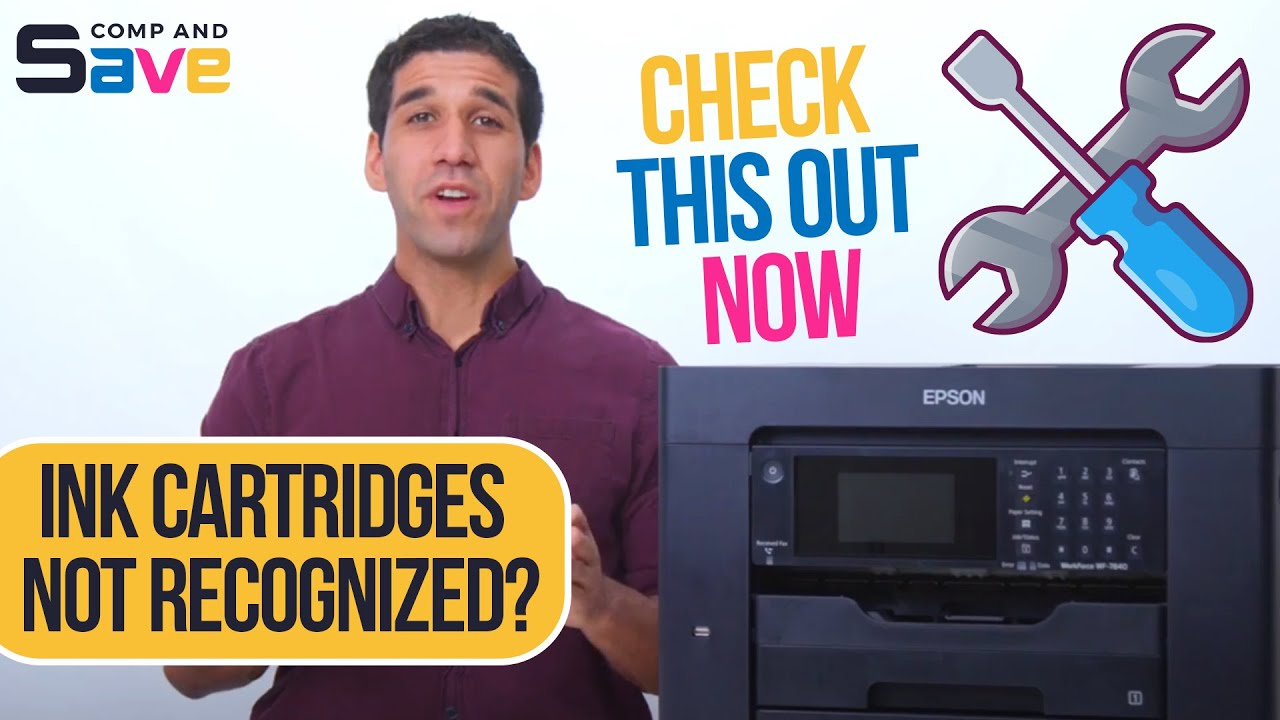
For a clear visual walkthrough of this process, this helpful video (which is also embedded below hopefully) provides an excellent demonstration of how to clean cartridge contacts and reset the printer, which can be invaluable for ensuring you are doing it correctly.
Step 3: Power Cycle Your Printer
A power cycle, or a hard reset, can often resolve temporary glitches and communication errors within the printer’s memory. It’s a simple but surprisingly effective troubleshooting step:
- With the printer turned on, unplug the power cord from the back of the printer and from the wall outlet.
- Leave all ink cartridges installed during this process.
- Wait for at least 60 seconds. This allows the printer’s internal memory to fully clear and reset.
- Plug the printer back in and turn it on. The printer will go through its startup sequence, which may resolve the error.
Step 4: Check for and Remove the Yellow Tape
If you have just installed a new cartridge, it is crucial to double-check that you have removed the yellow protective tape.
This is a very common mistake that is easy to overlook in a rush. If the tape is still on the cartridge, the ink cannot flow, and the printer will report an error.
Carefully remove the cartridge, peel off the tape completely, and then reinstall it.
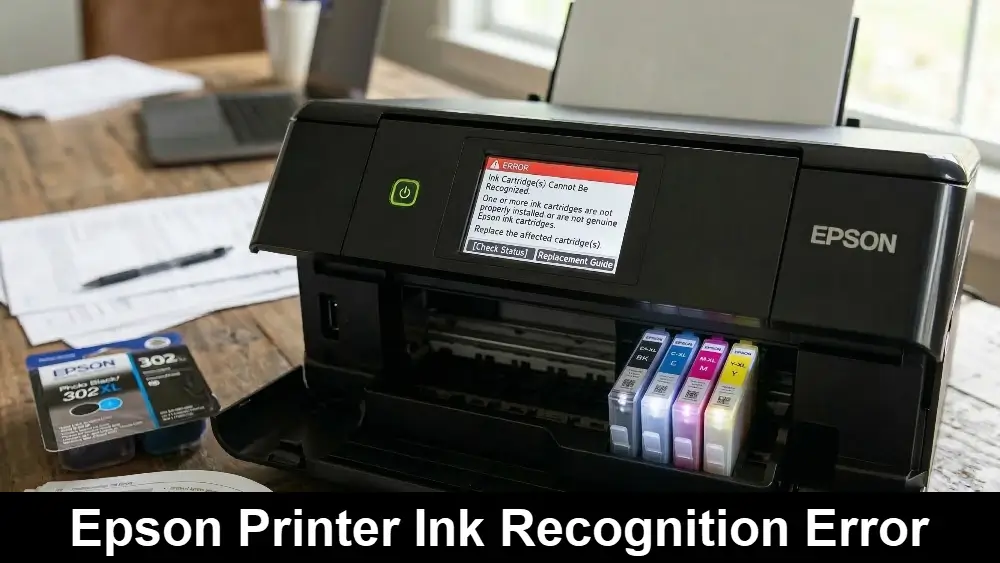
Advanced Troubleshooting for the Epson Printer Ink Recognition Error
If the basic troubleshooting steps don’t resolve the Epson printer ink recognition error, it’s time to move on to some more advanced techniques.
These methods address less common but still very real scenarios that can cause this frustrating issue.
Dealing with Printer Firmware Updates
Printer manufacturers, including Epson, periodically release firmware updates to improve performance, patch security vulnerabilities, and add new features.
However, these updates can sometimes cause issues with ink cartridge recognition, particularly with third-party or refilled cartridges.
If you started experiencing the Epson printer ink recognition error immediately after a recent firmware update, the update is a likely cause.
In such cases, you might consider disabling automatic firmware updates on your printer to prevent future issues.
While we won’t detail how to roll back firmware here, as it can be a complex and risky process, you can often find guides for your specific printer model on tech forums or community support pages.
What to Do When a Genuine Epson Cartridge is Not Recognized
It can be particularly baffling when your printer rejects a brand new, genuine Epson cartridge.
If you’ve tried the basic troubleshooting steps and are still facing the error, there are a few more things you can try.
First, inspect the cartridge itself for any signs of physical damage. A cracked casing or a broken plastic tab can prevent it from seating correctly.
Second, try a different genuine Epson cartridge. It’s possible, though rare, that you have received a defective cartridge.
If a new genuine cartridge works, the problem was with the previous one.
If the issue persists with multiple genuine cartridges, it may indicate a problem with the printer itself, and you may need to contact Epson support for further assistance.
Lessons from Other Brands: The “Cannot Detect” Error
Interestingly, the Epson printer ink recognition error is not unique to Epson printers. Other major brands like HP and Brother also have similar issues, which can provide insight into the problem.
For example, many Brother printers display a “Cannot Detect” error message, and their official troubleshooting steps are very similar, focusing on verifying genuine supplies and checking for correct installation.
Likewise, HP provides comprehensive support pages for a wide range of ink cartridge issues, including communication errors, which highlights the universal nature of these problems.
This tells us that the core principles of ink cartridge recognition – a clean chip, proper seating, and compatible firmware – are fundamental across all major printer brands.
Inspecting the Printer’s Internal Contact Pins
If you have tried multiple cartridges and cleaned them thoroughly, the problem may lie with the contact pins inside the printer’s cartridge holder.
These small, often gold-plated pins are what read the chip on the cartridge. Over time, they can become dirty with ink residue or even get bent or damaged.
To inspect them, you will need a flashlight. Carefully shine the light into the empty cartridge slot and look at the small pins.
If they appear to be dirty, you can attempt to clean them very gently with a cotton swab lightly dampened with rubbing alcohol.
Be extremely careful not to apply too much pressure, as bending these pins will require professional repair.
How to Prevent the Epson Printer Ink Recognition Error
While fixing the error is important, preventing it from happening in the first place can save you a lot of time and frustration. Here are some best practices to keep your Epson printer running smoothly:
- Always Use Genuine Epson Ink:
This is the single most effective way to prevent recognition errors. Genuine cartridges are designed and tested to work flawlessly with your printer. - Handle Cartridges Carefully:
When installing a new cartridge, hold it by the sides. Avoid touching the green chip or the metal contacts to prevent transferring oils or dirt. - Install Cartridges Correctly:
Always ensure you hear a firm “click” when installing a cartridge. This confirms it is properly seated and making a good connection. - Keep Your Printer Clean:
Periodically, check the inside of your printer for dust, debris, or small pieces of paper that could obstruct the cartridge carriage. - Consider Disabling Automatic Firmware Updates:
If you choose to use third-party inks, disabling automatic firmware updates can prevent your printer from suddenly rejecting them after an update.
Final thoughts
An Epson printer ink recognition error can certainly be a frustrating experience, especially when you have urgent printing tasks.
However, as we have seen, the solutions are often straightforward and well within your grasp.
By following the steps outlined in this guide – from the basic checks like ensuring the yellow tape is removed to more advanced troubleshooting like cleaning the internal contact pins – you can resolve this issue in most cases without needing to call for professional help.
Moreover, the prevention tips in this guide will help you avoid the problem altogether in the future.
Remember to always handle your ink cartridges with care, use genuine Epson products for the best results, and be mindful of your printer’s firmware.
With a little patience and a methodical approach, you can get your Epson printer back to its reliable self.
Frequently Asked Questions
Why does my Epson printer say it cannot recognize an ink cartridge after I refilled it?
Epson printers are designed to work with genuine Epson ink cartridges, which have a smart chip that the printer reads to monitor ink levels and confirm authenticity.
When you refill a cartridge, the chip is not reset, so the printer may still read the cartridge as empty or simply fail to recognize it as a valid cartridge.
For this reason, and to ensure the best print quality, we always recommend using new, genuine Epson cartridges.
Can I use third-party ink cartridges in my Epson printer?
While some third-party ink cartridges may work with Epson printers, their reliability can be inconsistent.
As mentioned in this article, using non-genuine cartridges is a very common cause of the Epson printer ink recognition error.
Manufacturers can release firmware updates that make previously compatible third-party cartridges unusable.
To ensure consistent performance and avoid potential issues, it is safest to use genuine Epson ink cartridges.
What does it mean if the error persists after trying a new genuine cartridge?
If you have followed all the troubleshooting steps in this guide, including trying a brand new, genuine Epson cartridge, and the error still persists, it may indicate a more significant hardware issue.
The problem could lie with the printer’s internal chip reader or the carriage assembly.
In this situation, we recommend contacting official Epson support for further diagnostic help and potential service options.
Is it safe to clean the printer’s internal contact pins myself?
Yes, it is generally safe to clean the internal contact pins as long as you do it with extreme care. You must turn off and unplug the printer first.
Use a fresh, lint-free swab lightly dampened with isopropyl alcohol, and gently wipe the contacts without applying pressure.
The key is to be gentle, as bending or damaging these pins can lead to a permanent failure that requires professional repair.
Will my printer’s warranty be voided if I use non-genuine ink?
Using non-genuine ink does not automatically void your printer’s warranty.
However, if the use of a third-party or refilled cartridge causes damage to the printer, such as a clogged printhead or a damaged chip reader, the repair for that specific damage would not be covered under the standard Epson warranty.
It is always best to check the warranty terms for your specific model.
How to Fix an Epson Printer Ink Recognition Error
This guide provides a step-by-step process to resolve the common “Ink Cartridge Not Recognized” error on Epson printers.
Total Time:
15 Minutes
Supplies Required:
- A clean, dry, lint-free cloth
- Rubbing alcohol (optional)
- A new, genuine Epson ink cartridge (if needed)
Tools Required:
- Your Epson printer
Steps:
- Verify Cartridge Compatibility:
Ensure you are using a genuine Epson ink cartridge designed for your specific printer model. - Remove and Reinstall the Cartridge:
Turn on your printer, open the cover, and carefully remove the unrecognized ink cartridge. Wait a few moments, then reinsert it firmly until you hear a click. - Inspect and Clean the Cartridge Chip:
Remove the cartridge again and locate the small gold or green chip. Gently wipe it with a dry, lint-free cloth to remove any dust or smudges. For stubborn residue, you can lightly dampen the cloth with rubbing alcohol and allow the chip to dry completely. - Check for Protective Tape:
If you are installing a new cartridge, make sure you have removed the yellow protective tape from the top. - Perform a Printer Power Cycle:
Turn off your printer and unplug it from the power source. Wait for at least one minute to allow the printer’s internal memory to reset. Plug it back in and turn it on. - Try a New Cartridge:
If the error persists after these steps, the cartridge itself may be faulty. Try installing a new, genuine Epson ink cartridge to see if this resolves the issue.
Contact Support:
If none of the above steps work, there may be an issue with the printer itself. Contact Epson support for further assistance.
Finally be sure to check out our Tech Troubleshooting FAQ or our Printer Troubleshooting Tips pages for even more general tips that cover a wide range of technical problems and solutions.
(If after reading the above article you still have an “Epson Printer Ink Recognition Error”, then you might find a much less obvious solution on the above tech pages!)