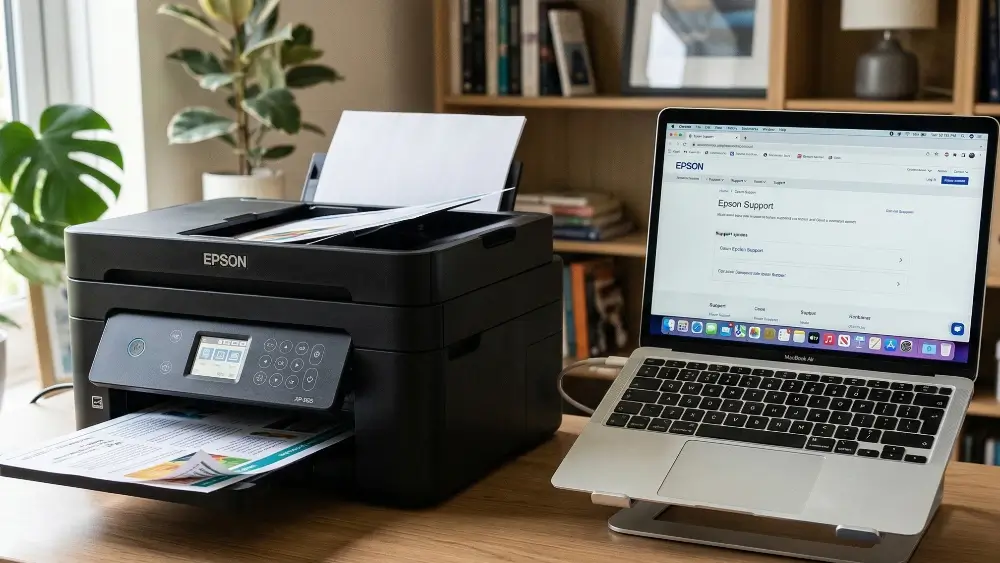
Dealing with an Epson printer not printing after ink change issue is a common and frustrating problem. However, the good news is that in most cases, you can resolve this situation yourself with a few simple troubleshooting steps.
This article will walk you through the most likely causes and provide clear, step-by-step instructions to get your printer back in working order.
In a Nutshell: Your Quick Fix Guide
If your Epson printer isn’t working after a new ink cartridge was installed, the problem is often due to the cartridge not being seated correctly, protective tape being left on, or the printhead being clogged.
This guide is for anyone who has recently changed an ink cartridge and is now experiencing printing problems. We will cover everything from basic checks to more advanced solutions.
Common Causes of an Epson Printer Not Printing After Ink Change
When your Epson printer stops printing after you’ve replaced the ink, it’s usually due to a handful of common issues. Understanding these potential causes can help you quickly identify and solve the problem.
Let’s explore some of the most frequent culprits in more detail.
The Ink Cartridge Isn’t Seated Properly
One of the most common reasons for the Epson printer not printing after ink change is that the new cartridge is not installed correctly.
If the cartridge is not fully clicked into place, the printer’s sensors may not recognize it, or the ink may not be able to flow to the printhead. It’s important to ensure the cartridge is firmly seated in its slot.
As detailed in Epson’s own support documentation, you should remove and reinsert the ink cartridge, making sure to push it all the way into its slot.
Protective Tape or Seals Were Left On
New ink cartridges come with protective tape or plastic seals that cover the ink port and electrical contacts. It is essential to remove all of this packaging before installing the cartridge.
If the tape is left on, it will block the flow of ink and prevent the printer from printing. This is an easy mistake to make, especially if you are in a hurry.
Before installing a new cartridge, always inspect it carefully to ensure all protective materials have been removed.
The Printhead is Clogged
Another very frequent cause of the Epson printer not printing after ink change issue is a clogged printhead.
When you change an ink cartridge, air can sometimes get into the ink lines, or small particles of dried ink can become dislodged and clog the tiny nozzles in the printhead.
This is particularly common if the printer hasn’t been used for a while. Running the printer’s built-in head cleaning utility one or two times can often resolve this problem.
You can usually find this option in your printer’s maintenance settings.
Your Printer Needs a Simple Restart
Sometimes, the simplest solution is the most effective.
A printer’s internal memory can occasionally hold onto an error state, even after the issue has been resolved. Power cycling the printer can clear this memory and allow it to recognize the new cartridge.
To do this properly, turn the printer off, unplug it from the power source, wait for about 60 seconds, and then plug it back in and turn it on again.
This process, often called a hard reset, can resolve a surprising number of printer issues.
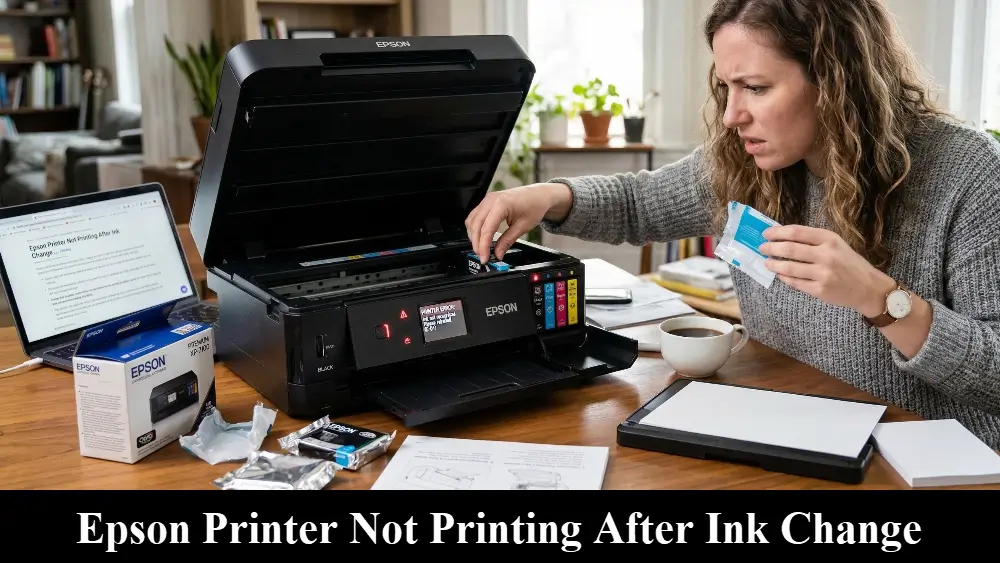
Advanced Troubleshooting for an Epson Printer Not Printing After Ink Change
If the basic troubleshooting steps don’t solve the problem, you may need to look into some more advanced solutions. These steps address less common but still very possible reasons for your Epson printer not printing after ink change problem.
Using Non-Genuine or Refilled Cartridges
While they can be more affordable, third-party or refilled ink cartridges can sometimes cause compatibility issues.
Printer manufacturers like Epson and HP often release firmware updates that can prevent non-genuine cartridges from working correctly. If you have recently installed a third-party cartridge, this could be the source of your problem.
You can try reinstalling the old cartridge to see if the printer recognizes it. If it does, the new cartridge is likely the issue.
For more information on dealing with cartridge recognition issues, you can refer to HP’s guide on fixing ink-related problems.
The Printer’s Firmware is Out of Date
Conversely, sometimes an outdated firmware can cause problems with new, genuine cartridges, making this a very likely cause of your Epson printer not printing after ink change problem.
Manufacturers periodically release firmware updates to improve performance and fix bugs. Check the Epson support page for your printer model to see if a firmware update is available.
Installing the latest firmware can sometimes resolve communication issues between the printer and the ink cartridges.
Cleaning the Cartridge and Printer Contacts
Dirty or obstructed electrical contacts on the ink cartridge or inside the printer can prevent the printer from recognizing the cartridge.
You can gently clean these contacts with a lint-free cloth lightly dampened with distilled water. Be sure to let the contacts dry completely before reinstalling the cartridge.
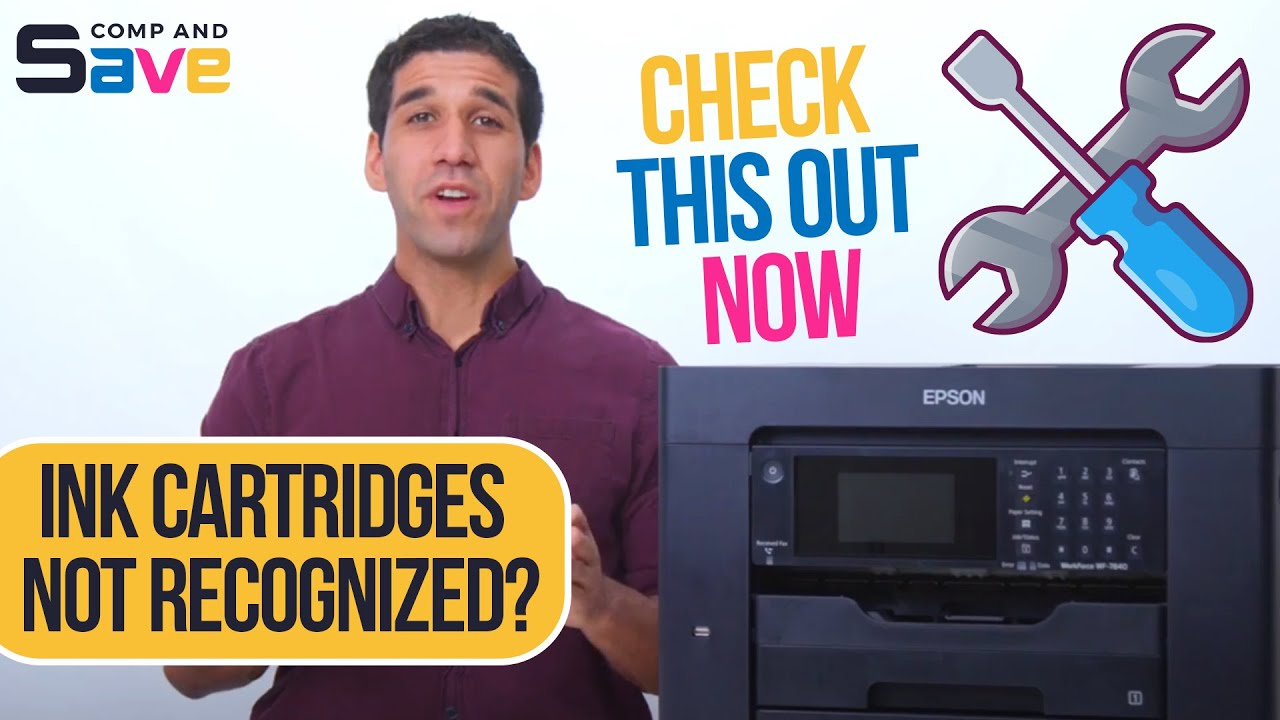
For a visual guide on how to handle cartridge recognition errors, this helpful video (hopefully also embedded below) provides some great tips on how to solve ink cartridge replacement errors.
Final thoughts on Epson Printer Not Printing After Ink Change
Encountering an Epson printer not printing after an ink change can certainly be a hassle, but it is usually a solvable problem.
By working through the troubleshooting steps outlined in this guide, from the simple checks to the more advanced solutions, you should be able to identify and fix the issue.
Remember to always handle ink cartridges with care and ensure they are installed correctly.
As a preventative measure, it’s a good practice to run a nozzle check and print a test page after every ink cartridge replacement to confirm everything is working as it should.
Frequently Asked Questions
Why is my Epson printer printing blank pages after I changed the ink?
This is often due to a few common issues. The most likely cause is that the protective tape on the new ink cartridge was not removed, preventing ink from flowing.
It could also be a clogged printhead or the cartridge not being seated correctly. Try running a head cleaning cycle and reseating the cartridge.
How many times should I run the head cleaning on my Epson printer?
It is recommended to run the head cleaning utility two to three times. If the problem persists after three cycles, continuing to run it will only waste ink.
At that point, it is better to investigate other potential causes, such as a faulty cartridge or a more severe clog that may require manual cleaning.
Can I use non-Epson ink cartridges in my printer?
While you can use third-party or refilled cartridges, they can sometimes cause issues. Printer manufacturers may release firmware updates that block non-genuine cartridges.
If you encounter problems after installing a non-Epson cartridge, try an official one to see if that resolves the issue.
How to Properly Reseat an Epson Ink Cartridge
One of the most effective solutions when you discover your Epson printer not printing after ink change is to properly reseat the cartridge.
This process ensures the cartridge is correctly installed and making proper contact with the printer.
Here’s how to do it step by step.
What You’ll Need:
- Your Epson printer
- The replacement ink cartridge
- Approximately 5 minutes
Step 1: Prepare the Printer
Turn on your Epson printer and lift the scanner unit or open the cartridge access door.
The printhead should automatically move to the cartridge replacement position. If it doesn’t, you may need to press the stop button for a few seconds to trigger this movement.
Step 2: Remove the Cartridge
Press the tab on the ink cartridge you want to reseat and lift it straight up and out of the printer. Handle the cartridge carefully to avoid getting ink on your hands or clothing.
Step 3: Inspect the Cartridge
Check to make sure all protective tape and seals have been removed from the cartridge. Look for any orange or yellow tape covering the ink port or electrical contacts.
Also, inspect the electrical contacts on both the cartridge and inside the printer slot to ensure they are clean and free of debris.
Step 4: Reinstall the Cartridge
Insert the cartridge back into its slot at a slight angle, then press down firmly until you hear it click into place.
The cartridge should be level with the other cartridges and should not stick up higher than the rest. If it doesn’t click, remove it and try again.
Step 5: Finalize the Process
Close the cartridge access door or scanner unit.
The printer will then begin to charge the ink system, which may take a minute or two. Once it is finished, try printing a test page to confirm the cartridge is working properly.
Finally be sure to check out our Tech Troubleshooting FAQ or our Printer Troubleshooting Tips pages for even more general tips that cover a wide range of technical problems and solutions.
(If after reading the above article you still have the “Epson Printer Not Printing After Ink Change” issue, then you might find a much less obvious solution on the above tech page!)