It can be incredibly frustrating when you need to scan an important document, only to find your Epson printer not scanning to computer for some reason.
You might see an error message, or the scanner might simply not respond.
This is a common problem that many people face, but the good news is that it’s usually solvable.
Whether you’re dealing with a simple connection issue or a more complex software conflict, this guide will walk you through the steps to get your scanner working again.
Epson Printer Not Scanning to Computer Article At A Glance:
If your Epson printer is not scanning to your computer, the problem is likely due to a faulty connection, outdated drivers, or a software glitch.
This guide provides step-by-step instructions for both beginners and experienced users to diagnose and resolve the issue, covering everything from basic checks to advanced troubleshooting on Windows and Mac.
Common Causes Of An Epson Printer Not Scanning To Computer
When your Epson scanner stops communicating with your computer, it’s usually due to one of a few common culprits.
Before diving into more complex solutions, it’s important to rule out these basic issues.
In many situations, there is a simple fix for the Epson printer not scanning to computer issue.
1. Faulty or Loose Cable Connections
A primary reason for an Epson printer not scanning to a computer is a problem with the physical connection.
A loose or damaged USB cable can prevent the computer from recognizing the scanner, even if the printer part is working fine.
Similarly, connecting the scanner through multiple USB hubs can sometimes cause communication issues, as Epson’s official scanner troubleshooting documentation confirms.
- Check the USB Cable:
Ensure the USB cable is securely plugged into both the scanner and the computer. Try a different USB port on your computer to rule out a faulty port. - Use the Original Cable:
Whenever possible, use the USB cable that came with your Epson scanner. Third-party cables may not meet the required specifications. - Connect Directly:
If you are using a USB hub, try connecting the scanner directly to your computer. If you must use a hub, try to limit it to a single hub.
2. Outdated or Corrupted Scanner Drivers
Scanner drivers are the software that allows your computer’s operating system to communicate with your Epson scanner.
If these drivers are outdated, corrupted, or were not installed correctly, your scanner will not function properly.
An Epson printer not scanning to computer problem is especially common after a major operating system update.
- Reinstall Drivers:
Uninstalling and then reinstalling the latest scanner drivers from the official Epson support website is often a quick fix. - Windows Updates:
Recent Windows updates, such as the Windows 11 24H2 update, have been known to cause issues with scanner connectivity. Making sure your Windows is fully updated with the latest patches can resolve these problems.
3. Software Conflicts and Settings
Sometimes, the problem isn’t with the hardware at all, but with the software on your computer.
This can range from the computer being in a power-saving mode to conflicts with other programs or incorrect settings in the scanning software itself.
- Power-Saving Mode:
If your computer is in a sleep or standby mode, it may not be able to communicate with the scanner. Wake your computer and restart the Epson Scan software. - Firewall and Antivirus:
Security software can sometimes mistake the scanner’s network communication for a threat and block it. You may need to temporarily disable your firewall or antivirus software to see if this is the cause. - Epson Scan 2 Utility:
The Epson Scan 2 Utility allows you to check and reset your scanner’s connection settings. This can be particularly useful for network scanning issues.
Advanced Troubleshooting For An Epson Printer Not Scanning To Computer
If the basic checks didn’t solve your problem, it’s time to move on to more advanced troubleshooting.
These steps involve a deeper look at your system’s configuration and may require more technical comfort.
However, by following these instructions carefully, you can often resolve even the most stubborn scanning issues like an Epson printer not scanning to computer.
1. Resolving Network Scanning Problems
When you’re trying to scan over a Wi-Fi or Ethernet network, the potential for communication errors increases.
A firewall, incorrect network settings, or even the router itself can interfere with the connection.
- Check Network Connection:
First, ensure your Epson printer is connected to the same network as your computer.
You can usually verify this by printing a network status sheet from the printer’s control panel. - Use the Epson Scan 2 Utility:
As mentioned earlier, the Epson Scan 2 Utility is an essential tool for network scanning problems.
You can use it to test the connection and, if necessary, reset the scanner’s network settings.
Epson’s network scanning troubleshooting guide explains exactly how to use this utility to reset the connection. - Firewall and Router Settings:
Firewalls are a common cause of network scanning failures.
Temporarily disabling your computer’s firewall can help you determine if it’s the source of the problem.
Additionally, some routers have built-in firewalls or security features that might be blocking the scanner.
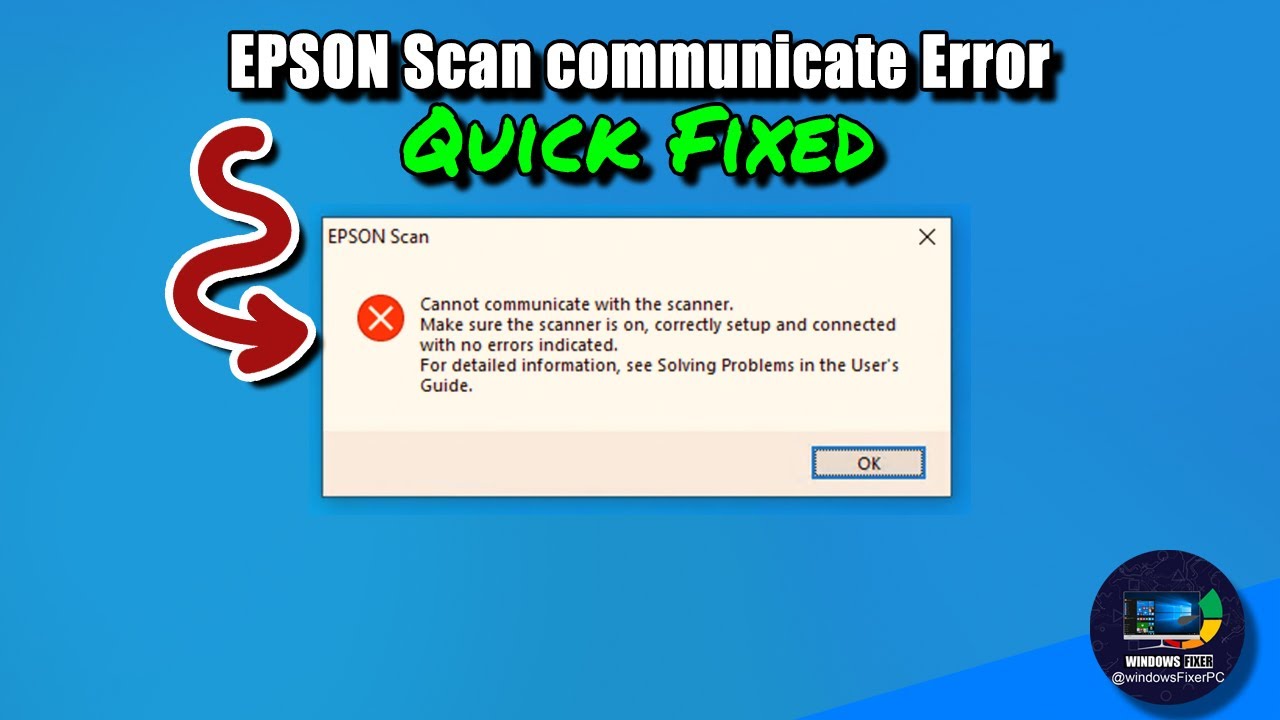
For a more detailed visual guide on resolving certain types of communication errors, you can watch a couple of helpful YouTube tutorials.
Firstly there is how to fix Epson scanner communication errors which mostly focuses on the Windows Image Acquisition (WIA) service (and is hopefully embedded below!)
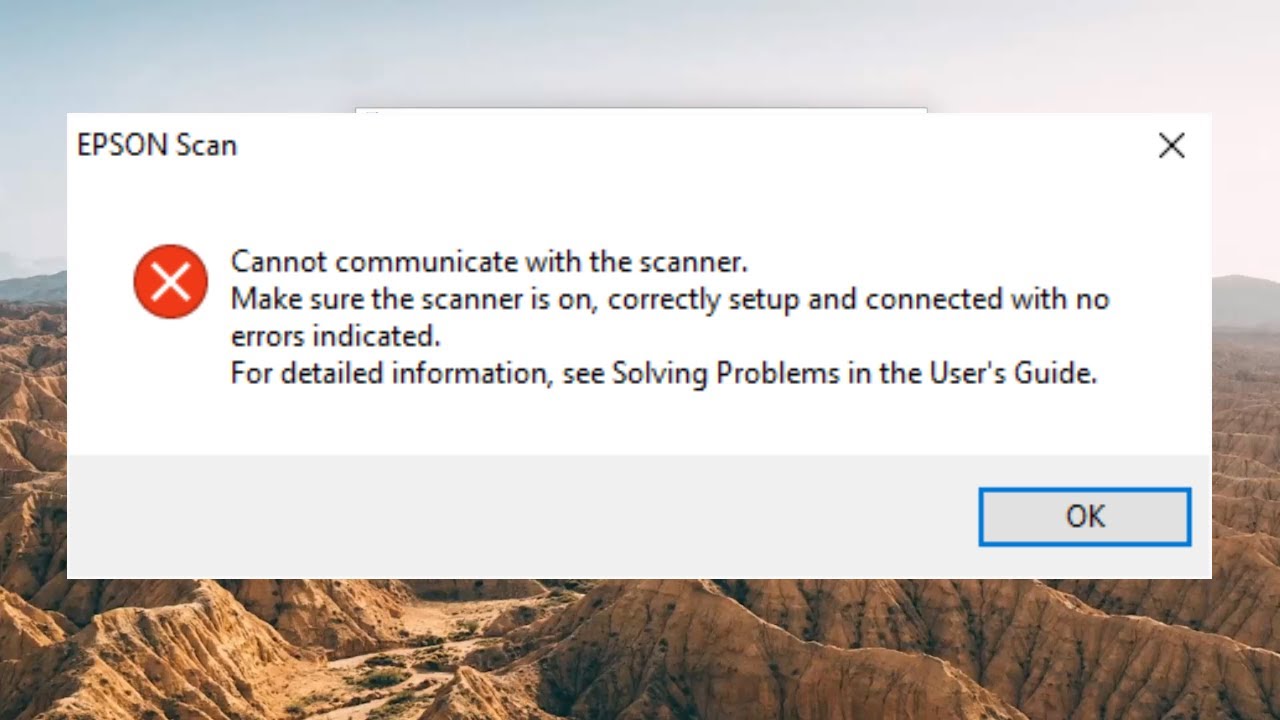
Next up is another YouTube video that focuses on the WIA service and more besides when fixing Epson scan cannot communicate with the Scanner in Windows (also hopefully embedded below!)
2. Fixing Issues After a Windows or macOS Update
Operating system updates can sometimes reset or corrupt device drivers, leading to an Epson printer not scanning to a computer.
This has been a known issue with some major Windows updates.
- Reinstall Drivers and Software:
The most reliable solution is to completely uninstall all Epson printer and scanner software from your computer.
Then, download and install the latest versions from the official Epson support website.
This ensures you have the most up-to-date and compatible software for your operating system. - Use the Windows Scan App:
If you’re using Windows 10 or 11 and continue to have problems with the Epson software, the built-in Windows Scan app is an excellent alternative.
Microsoft’s guide to installing and using a scanner in Windows walks you through downloading and setting it up for free from the Microsoft Store.
3. Addressing Problems Within the Epson Scan Software
Sometimes, the issue lies within the Epson Scan software itself.
It might not be configured correctly, or it might have become corrupted.
- Check the Scanner Selection:
In the Epson Scan software, make sure your scanner is selected as the active device.
If you have multiple scanners or have had others installed in the past, the software might be trying to connect to the wrong one. - Reset Software Settings:
The Epson Scan 2 Utility provides an option to reset the software’s settings to their default values.
This can often fix issues caused by incorrect configurations. - Run as Administrator (Windows):
In some cases, running the Epson Scan software as an administrator can resolve permission-related issues.
To do this, right-click the Epson Scan icon and select “Run as administrator.”
Final Thoughts On Epson Printer Not Scanning To Computer
Dealing with an Epson printer not scanning to your computer can certainly be a setback, but as we’ve seen, the solutions are often within reach.
By systematically working through the troubleshooting steps – from checking the physical connections to reinstalling drivers and configuring software – you can resolve the vast majority of scanning issues.
Remember to be patient and methodical in your approach to finding the best solution for the Epson printer not scanning to computer error.
To prevent future problems, it’s a good practice to periodically check for driver updates on the Epson support website, especially after a major operating system update.
Keeping your cables in good condition and your software settings correct will also go a long way in ensuring a smooth scanning experience.
With these tips, you can minimize downtime and keep your Epson scanner ready for when you need it most.
Frequently Asked Questions
Why is my Epson scanner not detected by my computer even though the printer works?
This often happens because the printer and scanner functions use different drivers.
While the printing driver might be working correctly, the scanner driver could be corrupted, outdated, or was not installed properly.
Ensure you have the latest TWAIN or ICA scanner driver installed from Epson’s official support site.
Can I scan on my Epson printer without using the Epson Scan software?
Yes, you can.
On Windows, you can use the built-in Windows Scan app, which is available from the Microsoft Store. On macOS, you can use the Image Capture application.
These alternatives can often bypass issues specific to the Epson Scan software.
How do I fix the “scanner cannot communicate” error with my Epson printer?
This error usually points to a connection or software issue.
Start by checking your USB or network connection.
Next, try restarting both your computer and your printer.
If the problem persists, reinstalling the Epson scanner drivers and using the Epson Scan 2 Utility to reset the connection settings are effective solutions.
Do I need to update my Epson scanner driver after a Windows or Mac update?
It is highly recommended.
Major operating system updates can cause incompatibility issues with existing drivers.
Visiting the Epson support website after an OS update to download and install the latest drivers for your model is a crucial step to prevent scanning problems.
What should I do if my Epson printer is not scanning over Wi-Fi?
For Wi-Fi scanning issues, first, confirm that both your printer and computer are on the same network.
Use the Epson Scan 2 Utility to check and reset your network settings.
Also, temporarily disable any firewall or antivirus software on your computer or router, as they can block the necessary communication.
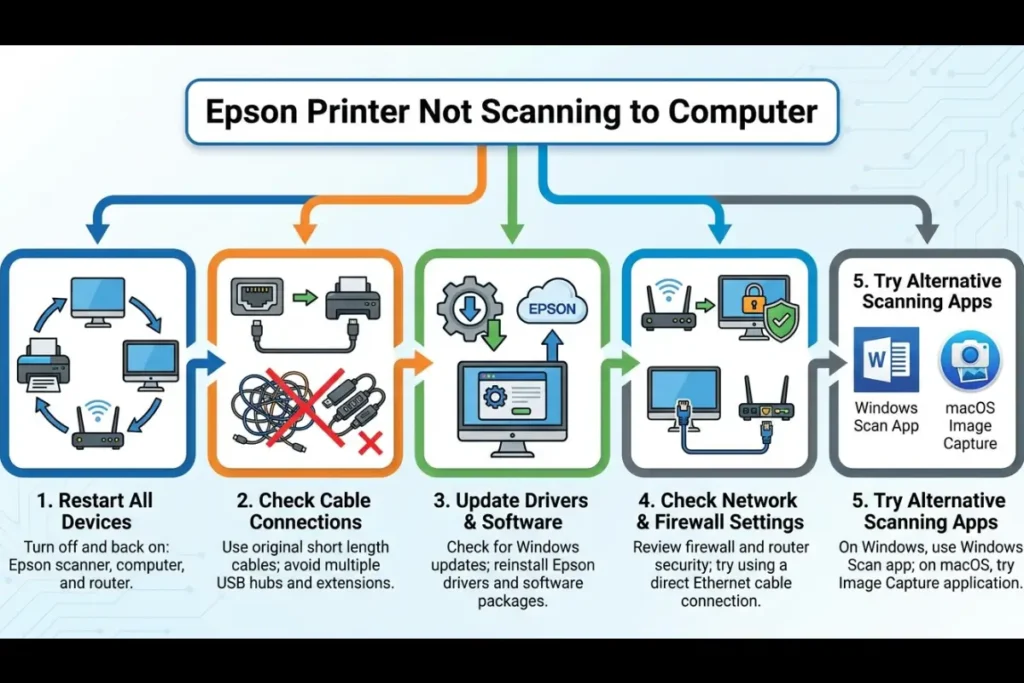
How To Fix An Epson Printer Not Scanning To A Computer
Estimated Time: 20 minutes
Tools:
- USB Cable
- Epson Scan 2 Utility
Supplies:
- Epson Printer
- Computer (Windows or Mac)
Steps:
- Check Physical Connections:
Ensure the USB cable is securely connected to both the printer and the computer.
If using a network connection, verify that the printer is connected to the same network as your computer.
Try a different USB port and avoid using multiple USB hubs. - Restart Devices:
Turn off your Epson printer, computer, and any network equipment (like a router).
Wait for about a minute, then turn them back on in the following order: router, printer, and then computer.
This can often resolve temporary communication glitches. - Update or Reinstall Scanner Drivers:
Visit the official Epson support website for your printer model.
Download and install the latest scanner driver (TWAIN or ICA).
If you already have drivers installed, it is best to uninstall them completely before installing the new ones. - Use the Epson Scan 2 Utility:
For network scanning issues, open the Epson Scan 2 Utility.
Check that your scanner is selected and the connection is set to ‘Network’.
Use the ‘Reset’ function in the ‘Other’ tab to re-establish the connection. - Check Firewall and Antivirus Software:
Temporarily disable your firewall and antivirus software to see if they are blocking the scanner’s communication.
If this resolves the issue, add an exception for Epson Scan in your security software’s settings. - Try an Alternative Scanning Application:
If the Epson Scan software is still not working, try using a different application.
For Windows, use the ‘Windows Scan’ app from the Microsoft Store.
For macOS, use the built-in ‘Image Capture’ application.
Finally be sure to check out our Tech Troubleshooting FAQ or our Printer Troubleshooting Tips pages for even more general tips that cover a wide range of technical problems and solutions.
(If after reading the above article you still have an “Epson Printer Not Scanning to Computer” problem, then you might find a much less obvious solution on the above tech pages!)