If you’re wondering how to connect brother printer to mac, you’ve come to the right place. Many users encounter this issue, but the good news is that the solutions are often straightforward.
This guide will walk you through the process step by step, ensuring you can get your printer up and running with minimal hassle.
In Short: Your Guide to a Seamless Connection
This article provides a comprehensive walkthrough revealing how to connect Brother printer to Mac.
We cover everything from the most common connection methods – including wireless, USB, and AirPrint – to advanced troubleshooting techniques for more stubborn issues.
Whether you’re setting up a new printer or fixing an existing connection, this guide is for you.
Common Causes of Brother printer Mac Connection Issues
When your Mac can’t seem to find your Brother printer, it’s usually due to a handful of common issues. Understanding these potential roadblocks is the first step toward a successful connection.
In many situations, a simple check or adjustment can resolve the problem quickly. Let’s explore some of the most frequent culprits and show you how to connect Brother printer to Mac the easy ways.
Incorrect Network Configuration
One of the most common reasons for connection failure is an incorrect network configuration.
For a wireless connection to work, both your Mac and your Brother printer must be connected to the same Wi-Fi network. It’s surprisingly easy to overlook this, especially if you have multiple networks in your home or office, such as a primary network and a guest network.
Brother printers, for security and functionality reasons, should always be on the primary network.
Additionally, if you’ve recently changed your Wi-Fi password or router, your printer will need to be reconnected to the new network.
The printer won’t automatically update its settings, so you’ll need to go through the wireless setup process again. Because of this, it’s always a good idea to double-check your network settings on both devices before diving into more complex troubleshooting.
Missing or Outdated Printer Drivers
While macOS has excellent built-in support for many printers through AirPrint, there are still instances where a specific driver is necessary.
A printer driver is a piece of software that allows your Mac to communicate with your printer. If you’re using an older Brother printer that doesn’t support AirPrint, or if you’re trying to use advanced printer features, you may need to install the correct driver.
Moreover, an outdated driver can also cause connection problems.
Manufacturers like Brother regularly release driver updates to improve compatibility and fix bugs. Therefore, if you’re experiencing issues, it’s worth checking the official Brother support website for the latest drivers for your specific printer model.
In this case, downloading and installing the most recent driver can often resolve the connection issue.
Firewall or Security Software Interference
Firewall and security software are designed to protect your computer from threats, but they can sometimes be a little too enthusiastic and block legitimate connections, such as the one between your Mac and your Brother printer.
This is particularly common with third-party antivirus or firewall applications that have strict settings.
In most cases, the software may not recognize the printer’s connection attempt as safe, and as a result, it will block it. You might not even receive a notification that this is happening.
Temporarily disabling your firewall or security software can be a quick way to diagnose this issue. If the printer connects with the software disabled, you’ll know you need to add an exception for your Brother printer in the software’s settings.
Advanced Troubleshooting for how to connect Brother printer to Mac
If the basic checks don’t solve your connection problems, it’s time to dig a little deeper. Advanced troubleshooting often involves looking at the network settings more closely and using some of your Mac’s built-in tools to diagnose the issue.
These steps might seem more technical, but they are highly effective at resolving stubborn connection failures, so now lets show you how to connect Brother printer to Mac the advanced ways.
Verifying Network Connectivity with a Ping Test
A ping test is a fundamental network diagnostic tool that can tell you if your Mac can communicate with your Brother printer over the network.
It works by sending a small packet of data to the printer’s IP address and waiting for a response. If the printer responds, you know a basic connection exists.
To perform a ping test, you’ll first need to find your printer’s IP address, which can usually be found on the Network Configuration Report printed from the machine itself. (Scroll half way down the page for more details.)
Once you have the IP address, you can use the Terminal app on your Mac to run the test. A successful ping test confirms that your Mac and printer can see each other on the network, which means the problem likely lies with the printer settings on your Mac or the driver.
If the ping test fails, it indicates a more fundamental network issue, such as an incorrect IP address, a firewall blockage, or a problem with your router.
Resolving IP Address Conflicts
Every device on your network needs a unique IP address to communicate.
An IP address conflict occurs when two devices on the same network are assigned the same IP address. This can confuse your router and prevent one or both devices from connecting to the network correctly.
While modern routers are good at preventing this, it can still happen, especially on complex networks.
To check for an IP address conflict, you can print the Network Configuration Report from your Brother printer and compare its IP address to the IP addresses of other devices on your network.
If you find a conflict, the easiest solution is to restart your router, which will typically reassign IP addresses to all connected devices.
You can also manually assign a static IP address to your printer outside the range of addresses your router assigns automatically, which can prevent future conflicts.
Resetting the Mac Printing System
Sometimes, the printing system on your Mac can become corrupted, leading to a variety of printing problems, including the inability to connect to a printer.
Resetting the printing system is a powerful troubleshooting step that removes all printers and scanners from your settings, effectively giving you a clean slate. This can resolve issues caused by corrupted drivers or incorrect settings.
To reset the printing system, you can go to System Settings > Printers & Scanners, right-click (or Control-click) in the printer list, and choose “Reset printing system.”
It’s important to note that this will remove all your printers, so you will need to add them all back again. However, for persistent connection issues, this is often a necessary and effective solution, as outlined in Apple’s official guide.
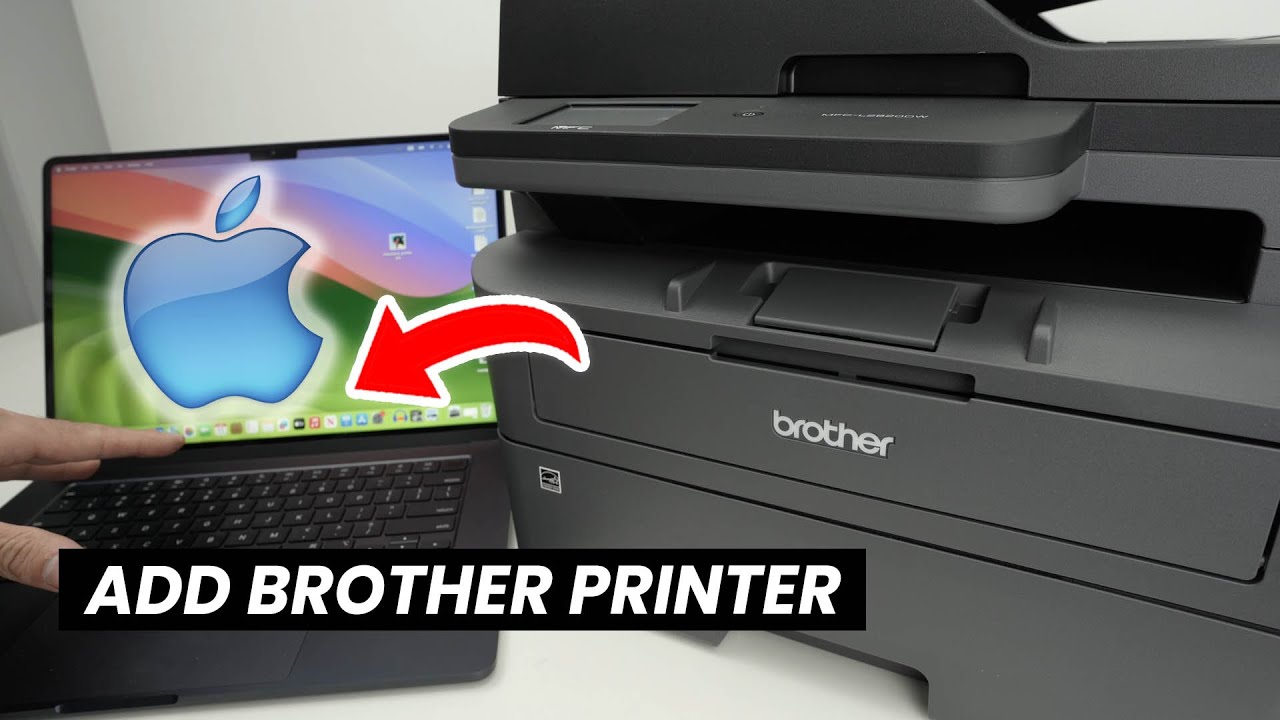
For a visual guide on navigating your Mac’s settings to manage printers, you can find helpful tutorials, such as this one on how to connect Brother printer to Mac (hopefully also embedded below), which can make the process clearer.
Dealing with “AP Isolation” or “Privacy Separator”
Many modern routers have a security feature called “AP Isolation” or “Privacy Separator.” When enabled, this feature prevents wireless devices on the same network from communicating with each other.
While this can be useful for security on public Wi-Fi networks, it will prevent your Mac from finding your wireless Brother printer. If you’ve tried everything else and your devices still can’t connect, it’s worth checking your router’s settings for this feature.
You’ll need to log in to your router’s administration page to check this setting. The exact location and name of the feature will vary depending on your router’s manufacturer.
If you find that AP Isolation is enabled, disabling it should allow your Mac and printer to communicate. If you’re not comfortable changing your router’s settings, you may need to consult your router’s manual or contact your internet service provider for assistance.
How to Connect Brother Printer to Mac Using AirPrint
Connecting your Brother printer to your Mac is a straightforward process, especially with AirPrint, which allows for a seamless wireless connection without the need for extra drivers. Follow these steps to get your printer and Mac communicating in minutes.
Estimated Time: 10 minutes
What You’ll Need:
- Your Brother printer, powered on
- Your Mac computer
- Your Wi-Fi network name (SSID) and password
Steps:
- Ensure Both Devices Are on the Same Wi-Fi Network Before you begin, it is crucial to confirm that both your Mac and your Brother printer are connected to the same wireless network. This is the most common reason for connection issues. You can check your Mac’s network connection in the Wi-Fi menu at the top of your screen. For your printer, you may need to check its network settings on the device’s display.
- Open Printers & Scanners Settings on Your Mac Next, navigate to your Mac’s system settings. You can do this by clicking the Apple icon in the top-left corner of your screen and selecting System Settings. From there, scroll down and click on Printers & Scanners.
- Add the Printer In the Printers & Scanners window, click the Add Printer, Scanner, or Fax button. Your Mac will automatically start searching for available printers on your network. In most cases, your Brother printer should appear in the list.
- Select Your Printer and Add It Once your Brother printer appears in the list, select it. macOS will automatically choose the correct driver, which is typically AirPrint. Click the Add button to complete the process. Your printer is now connected and ready to use.
Frequently Asked Questions
Why is my Mac not finding my Brother printer?
There are several common reasons why your Mac might not be finding your Brother printer. The most frequent issue is that the printer and the Mac are not on the same Wi-Fi network.
Additionally, outdated printer drivers, firewall settings blocking the connection, or the printer being in sleep mode can also cause this problem.
Do I need to install a driver to connect my Brother printer to my Mac?
In many cases, you do not need to install a driver. Modern Macs use AirPrint, which allows you to print wirelessly to compatible printers without needing to install any additional software.
However, if your Brother printer is an older model or you need to access advanced features, you may need to download and install the specific driver from the Brother support website.
How do I connect my Brother printer to my Mac with a USB cable?
Connecting with a USB cable is a reliable alternative to a wireless connection.
Simply plug the USB cable into your printer and an available USB port on your Mac. If your Mac only has USB-C ports, you may need a USB-C to USB-A adapter.
Once connected, go to System Settings > Printers & Scanners and click Add Printer, Scanner, or Fax. Your Mac should automatically detect the printer.
Final thoughts on how to connect brother printer to mac
Successfully connecting your Brother printer to your Mac is an achievable goal, even if it sometimes feels like a technical puzzle.
By working through the steps outlined in this guide – from basic checks to more advanced troubleshooting – you can resolve most connection issues.
Remember to start with the simplest solutions first, such as ensuring both devices are on the same Wi-Fi network and that the printer is powered on and ready.
In most cases, these simple checks will be enough.
However, if you do run into more stubborn problems, don’t be afraid to explore the advanced troubleshooting steps. Taking a methodical approach will help you isolate and solve the problem, leading to a stable and reliable printing setup.
With a little patience, you’ll have your Brother printer and Mac working in perfect harmony.
Finally be sure to check out our Tech Troubleshooting FAQ or our Printer Troubleshooting Tips pages for even more general tips that cover a wide range of technical problems and solutions.
(If after reading the above article you still have a problem with how to connect Brother printer to Mac, then you might find a much less obvious solution on the above tech page!)