The Canon E05 error is one of those printer messages that appears at the worst possible moment – usually when you are rushing to print a boarding pass, a work document, or school homework.
Your screen freezes, the printer stops responding, and you see “E05” with no clear explanation of what actually failed.
The machine may still power on and make normal startup noises, but it refuses to print.
You restart everything once, maybe twice, and the error simply comes back.
In most cases, the fix involves clearing communication problems – not replacing hardware.
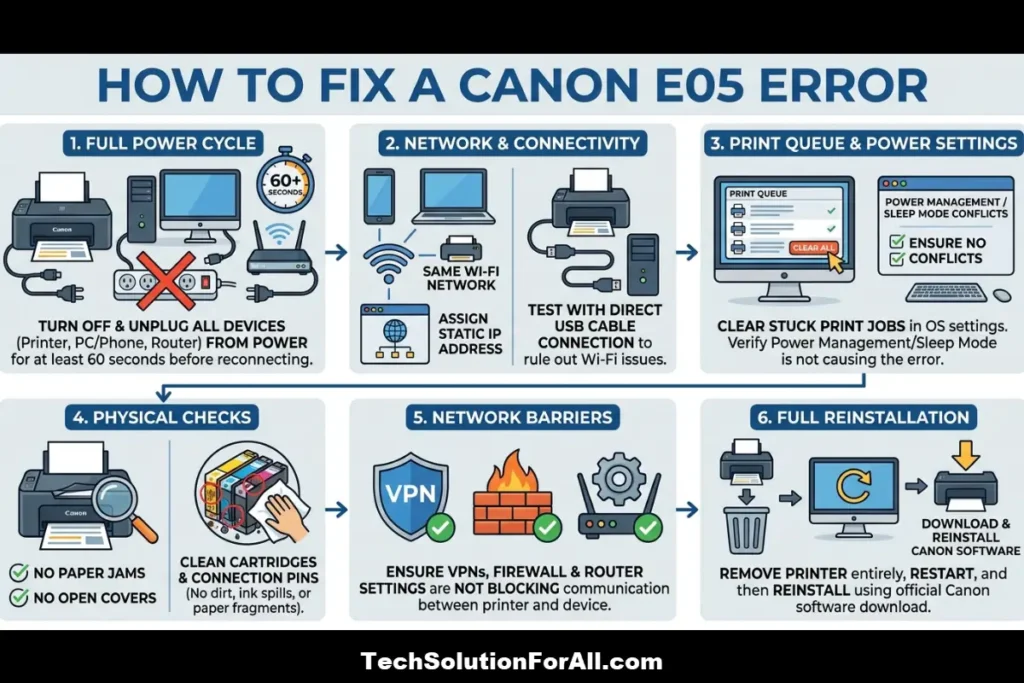
Follow the steps below in order. The early fixes solve the problem for a large percentage of users.
What The Canon E05 Error Actually Means
The E05 code is Canon’s way of reporting a communication failure.
Unlike a paper jam error, which points to a mechanical issue, or an ink error, which points to cartridges, E05 is broader.
It appears when your printer and your computer, phone, or tablet lose the ability to exchange data correctly.
On older Canon printers with basic LCD screens, you may see only “E05.”
On newer PIXMA and MAXIFY models with improved displays, you may instead see messages such as “Communication Error E05” or “Cannot communicate with device.”
Importantly, E05 is different from:
- E02 (no paper loaded)
- E03 (paper jam)
- E04 (ink cartridge issue)
- E13 (ink absorber full)
Knowing the difference matters because many users spend hours looking for paper jams or replacing cartridges unnecessarily.
In most cases, the printer itself is not permanently damaged.
Printer Families Commonly Affected By The Canon E05 Error
The E05 error appears most often on Canon PIXMA home printers – particularly the TS (TS3120, TS3320, TS5020, TS6020, TS7020, TS8020, TS9120) and TR (TR4520, TR4720, TR7520, TR8520, TR8620) series.
These models rely heavily on wireless communication and are more sensitive to unstable Wi-Fi conditions.
Canon MAXIFY business printers (IB4020, MB2120, MB2720, MB5120, MB5420) can also trigger E05 errors, especially when switching between Wi-Fi and Ethernet or when using features such as scan-to-email that depend on stable network communication.
Canon imageCLASS multifunction printers (MF260, MF450, MF730 series) report E05 less frequently, but when they do, the issue is often related to firewall rules, print servers, or network permissions rather than basic Wi-Fi instability.
Older Canon PIXMA MG (MG2520, MG2920, MG3620) and MX (MX452, MX492, MX922) series use simpler communication methods.
On these models, E05 more commonly points to USB communication failures or corrupted drivers.
Canon E05 Error Quick Checks
Try these quick checks before moving into deeper troubleshooting.
Each takes less than a minute and may resolve the issue immediately.
1. Power cycle everything in the correct order
Turn off the printer and unplug it from the wall.
Shut down your computer or phone.
Unplug your router and modem.
Wait at least 60 seconds.
Reconnect the modem and router first.
Wait until the internet lights stabilise completely, which usually takes 2-3 minutes.
Then reconnect and power on the printer.
Finally, start your computer and try printing again.
2. Confirm the printer is actually connected to Wi-Fi
Look at the printer’s control panel for the Wi-Fi icon.
If the icon is missing or shows a warning symbol, the printer likely disconnected from the network.
Go to:
Setup > Network Settings > Wireless LAN Setup
Reconnect the printer to your Wi-Fi network.
3. Clear stuck print jobs
A corrupted print queue can keep triggering communication failures.
On Windows:
Settings > Bluetooth & devices > Printers & scanners > Select printer > Open print queue > Cancel all documents
On Mac:
System Settings > Printers & Scanners > Select printer > Open Print Queue > Cancel all jobs
4. Test with a USB cable temporarily
If possible, connect the printer directly to your computer using USB.
If printing works normally over USB, the problem is almost certainly related to the wireless connection rather than the printer hardware itself.
5. Check for paper jams or partially open covers
E05 is not technically a paper error, but some Canon printers can trigger secondary communication timeouts when another internal error interrupts the print process.
Open the printer carefully, remove loose paper if present, and confirm all covers and trays are fully closed.
There is an interesting YouTube video on solving Canon E05 errors by cleaning the contacts between the cartridge and the printer pins, which is hopefully embedded below.
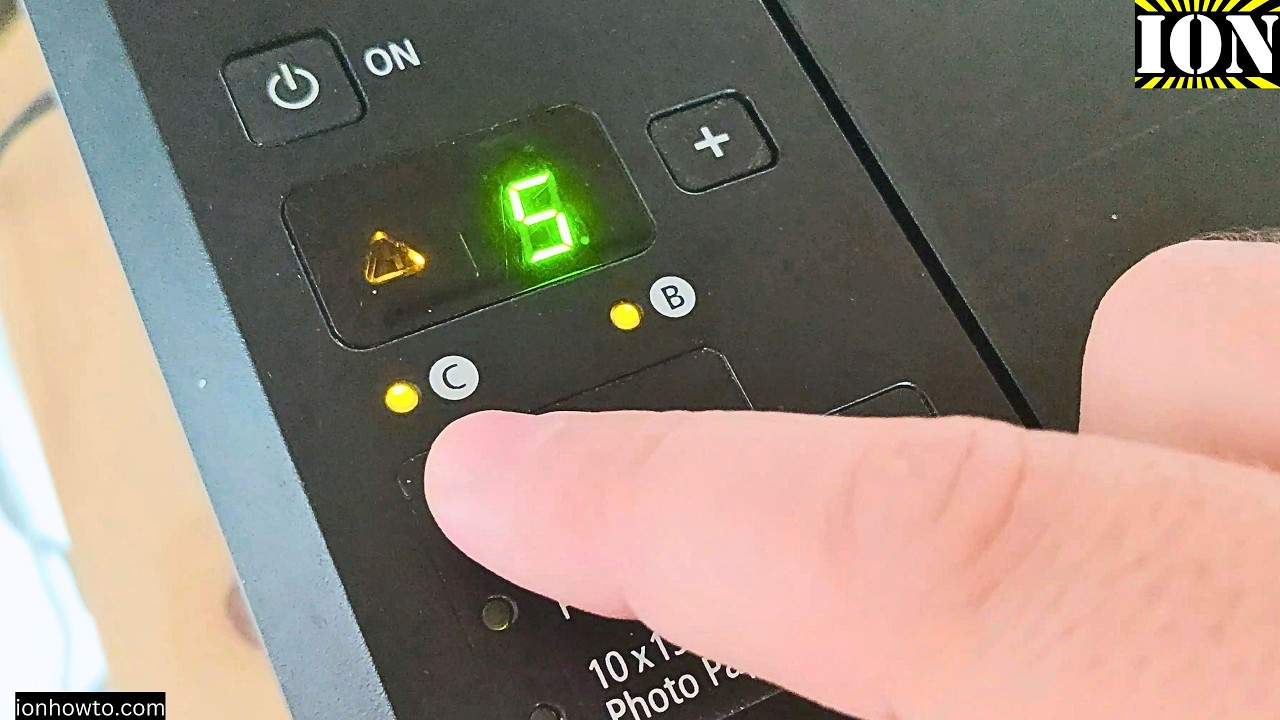
It is worth pointing out once again that an E05 Canon error is a communication error specifically and it is not necessarily dirty cartridges at fault, however if dirt stops that communication flow it could well be the cause.
The cleaning process in the video above does technically solve the E05 problem (as the error vanishes and is replaced by a “1” at the end), although other printing issues remain present and the creator admits they will only be using the printer as a scanner going forwards anyway!
Fixing Network-Related Canon E05 Errors
Most E05 errors today are caused by network communication problems.
Home Wi-Fi setups have become more complicated over the years, especially with mesh systems, dual-band routers, device isolation features, and aggressive power-saving settings.
Why your printer and computer stop seeing each other
Printers rely on discovery protocols such as Bonjour (Apple), WSD (Windows), and mDNS to appear automatically on your network.
Your router passes these discovery messages between devices.
When those broadcasts are delayed, blocked, or isolated, the computer behaves as if the printer disappeared.
The printer may still appear connected locally, but communication between devices breaks down.
After enough failed communication attempts, the printer reports E05.
Common real-world causes include:
- Your computer or phone switched to 5GHz while the printer remains on 2.4GHz
- “Client isolation” or “AP isolation” is enabled on the router or guest network
- VPN software redirected traffic away from the local network
- A firewall update blocked printer communication ports
- Mesh Wi-Fi systems moved devices between access points poorly
- Router firmware bugs interrupted mDNS or Bonjour traffic
Step-by-step network reset for Canon E05 error
On the printer (PIXMA / MAXIFY models):
- Press the Setup button (gear or wrench icon)
- Go to Device Settings > LAN Settings > Wireless LAN Setup
- Choose “Easy Setup” or “WPS Push Button”
- Press the WPS button on your router within 2 minutes
- Wait for confirmation that the printer connected successfully
If WPS does not work:
- Go to Setup > Device Settings > LAN Settings > Wireless LAN Setup
- Select “Manual Setup” or “Standard Setup”
- Choose your Wi-Fi network name
- Enter the Wi-Fi password carefully
- Print a network status page from:
Setup > Device Settings > LAN Settings > Print LAN details
On Windows 10/11:
- Open Settings > Network & Internet > Advanced network settings
- Select “Network reset”
- Restart the computer
- Reinstall the Canon printer:
Settings > Bluetooth & devices > Printers & scanners > Add device
On macOS (Ventura through Sequoia):
- Open System Settings > Privacy & Security > Local Network
- Confirm Canon software has local network permission
- If Canon apps are missing, reinstall the latest Canon software package
- Restart the Mac
Wi-Fi band separation: A common hidden trigger
Many modern routers combine 2.4GHz and 5GHz into a single Wi-Fi network name.
While this works well for phones and laptops, printers often handle band steering poorly.
Most Canon printers support only 2.4GHz Wi-Fi.
Your laptop or phone may jump between bands automatically, which can interfere with discovery traffic depending on how the router handles internal routing.
A more reliable setup is:
- Separate the 2.4GHz and 5GHz networks into different names
- Connect the printer only to the 2.4GHz network
- Connect your computer to the same network while troubleshooting
- Disable “Smart Connect” or “Band Steering” temporarily if needed
This alone fixes a surprisingly large number of recurring E05 problems.
Driver And Software Conflicts Causing Canon E05 Error
If network fixes do not help, the issue often comes from the computer itself rather than the printer.
(Indeed recent Windows printer driver changes might just explain why older Canon drivers sometimes break after updates, but that is a post for another day!)
The multiple driver problem
Canon printers can sometimes install multiple print methods at once:
- Canon’s full driver package
- Generic Windows IPP drivers
- AirPrint
- WSD printers
- Older Canon drivers left behind after upgrades
When multiple drivers point to the same printer, jobs can route incorrectly or conflict with each other.
That conflict may eventually trigger E05.
Typical signs of a driver conflict:
- E05 started after a Windows update or Canon software update
- Multiple Canon printer entries appear in your printer list
- The first print works, but later jobs fail
- Scanning works while printing fails
Clean driver removal and reinstall
Windows:
- Disconnect the printer completely (USB unplugged or Wi-Fi disabled)
- Open:
Settings > Apps > Installed Apps - Remove all Canon printer software entries related to your printer model
- Open:
Control Panel > Devices and Printers - Right-click the Canon printer and choose “Remove device”
- If multiple duplicate Canon printers appear, remove all of them
- Restart the computer
- Download the latest full driver and software package directly from Canon’s support website
- Some Canon driver packages also include their own uninstall utility (often named UNINST.exe or DelDrv.exe).
If standard removal does not clear the issue, run the uninstall utility included with your specific driver package before reinstalling. - Install the software before reconnecting the printer
- Reconnect the printer only when prompted during setup
Mac:
- Go to System Settings > Printers & Scanners
- Remove all Canon printer entries
- Delete remaining Canon printer files from:
- /Library/Printers/
- /Library/Preferences/
- Restart the Mac
- Install the latest Canon package from Canon’s official website
Firewall and antivirus interference
Some security software blocks printer traffic because printers accept incoming network connections.
Overly aggressive firewall rules can stop printers from responding correctly.
Commonly affected ports include:
- TCP 9100
- UDP 5353
- TCP 631
Quick test:
Temporarily disable your firewall or antivirus and try printing again.
If the E05 error disappears:
- Add the printer’s IP address to trusted devices
- Allow Canon software through the firewall
- Enable local network access inside your VPN settings if applicable
Windows Defender example:
- Open Windows Security > Firewall & network protection
- Select “Allow an app through firewall”
- Click “Change settings”
- Add Canon software executables
- Allow both Private and Public access
VPN and proxy interference
VPNs are a very common cause of intermittent E05 errors, especially on laptops used for remote work.
When a VPN is active, some systems stop routing local network traffic normally.
Your printer remains on the home network, but the computer tries sending traffic through the VPN tunnel instead.
Most VPN apps include settings such as:
- “Allow local network access”
- “Bypass VPN for local devices”
- “Split tunneling”
Enable those features if available.
Power Management / Sleep Mode Conflicts Causing Canon E05 Error
Modern printers use aggressive power-saving features.
Some models enter deep sleep after only a few minutes of inactivity.
The problem is that waking from sleep is not always instant.
The printer has to reconnect to Wi-Fi, reinitialise network services, and respond to discovery requests.
If the computer times out first, the print job fails and E05 appears.
Adjust printer sleep settings
On the printer:
- Go to Setup > Device Settings > Energy Settings
- Set “Auto Power Off” to the longest available time or disable it
- Increase “Sleep Mode” to at least 30 minutes
- If available, avoid “Deep Sleep” mode
Windows timeout adjustments
- Open Control Panel > Devices and Printers
- Right-click your Canon printer > Printer properties
- Open the Ports tab
- Select Configure Port
- Either:
- Increase the SNMP timeout value
- Or disable SNMP Status Enabled entirely
SNMP is used by Windows to check printer availability.
Some Canon printers respond slowly when waking from sleep, causing Windows to assume the printer disconnected.
Advanced Troubleshooting For Persistent Canon E05 Errors
If E05 still appears after the earlier fixes, move on to these more advanced checks.
Assign a static IP address to the printer
Most home routers assign IP addresses automatically using DHCP.
The printer may receive a different IP address after a reboot or power outage, while your computer still tries using the old address.
That mismatch can repeatedly trigger communication failures.
To assign a static IP:
- Print the printer’s network configuration page:
Setup > Device Settings > LAN Settings > Print LAN details - Write down:
- IP address
- Subnet Mask
- Default Gateway
- On the printer:
Setup > Device Settings > LAN Settings > IPv4 Setup - Change from DHCP/Auto to Manual
- Enter the same IP information
- On the router, create either:
- A DHCP reservation
- Or an address reservation
This prevents the router from assigning the same address to another device later.
- Re-add the printer on your computer using TCP/IP printing and the new static address
Check for USB communication failures
If you print over USB instead of Wi-Fi, E05 can still appear because of communication instability.
Things worth checking:
- Replace old or damaged USB cables
- Avoid USB hubs where possible
- Try a rear motherboard USB port instead of front-panel ports
- Keep cable lengths reasonable
- Update chipset and USB drivers from the PC manufacturer’s website
On Windows:
- Open Device Manager
- Expand Universal Serial Bus controllers
- Open each USB Root Hub
- Under Power Management, uncheck:
“Allow the computer to turn off this device to save power”
Reset the printer’s network stack completely
Some Canon printers retain corrupted network settings even after reconnecting to Wi-Fi normally.
PIXMA / MAXIFY reset procedure:
- Turn off the printer
- Hold the Stop/Reset button
- While holding Stop/Reset, hold the Power button
- Continue holding Power
- Release Stop/Reset
- Press Stop/Reset five times slowly
- Release Power
- Allow the printer to restart completely
- Reconfigure the network from scratch
imageCLASS models:
- Press Settings/Register
- Go to Preferences > Network Settings > Initialize
- Select “Initialize All Network Settings”
- Confirm and restart the printer
Less Common Causes And Model-Specific Behaviours
Canon PIXMA TS7020 and TS8020
Some users report E05 errors after using the SD card slot.
Removing the SD card before printing can help.
Firmware updates released by Canon improved stability on affected units.
Canon MAXIFY MB5120 on business networks
On managed office networks using 802.1X authentication, E05 errors may appear if the printer cannot authenticate properly.
In some environments, IT departments place printers on a dedicated VLAN to avoid authentication conflicts.
Canon PIXMA TR4520 with certain HP laptops
Some HP networking utilities interfere with printer discovery.
Disabling tools such as HP Sure Connect or older wireless assistant software can help restore communication.
Canon TS3120 on Chromebook
Chromebooks rely heavily on IP-based printing.
If the printer’s IP address changes, remove the printer from ChromeOS settings and re-add it manually using the printer’s IP address instead of automatic discovery.
How To Prevent Canon E05 Error From Returning
Once the printer works again, a few small changes can make the setup much more stable long term.
Router recommendations
- Reserve an IP address for the printer
- Separate 2.4GHz and 5GHz network names if possible
- Disable AP isolation or client isolation
- Keep router firmware updated
- Avoid placing the printer at the edge of Wi-Fi coverage
Printer recommendations
- Increase sleep timers
- Disable aggressive power-saving modes
- Keep the printer within reasonable distance of the router
- Avoid interference from microwaves, cordless phones, or baby monitors
Computer recommendations
- Set your home network profile to “Private” on Windows
- Keep Canon drivers updated
- Exclude Canon software from aggressive antivirus scanning
- Remove duplicate printer entries periodically
When hardware failure is genuinely possible
While uncommon, persistent E05 errors across multiple devices and networks can eventually point to failing hardware.
Possible causes include:
- Faulty Wi-Fi modules
- Damaged mainboards
- Failing USB controller chips
- Internal power regulation faults
If the printer is relatively new, contact Canon support under warranty.
On older low-cost printers, replacement is often more economical than board-level repair.
Final Thoughts On The Canon E05 Error
The Canon E05 error is frustrating mainly because the message itself is vague.
Fortunately, it is usually fixable without replacing the printer.
In most cases, the problem comes down to:
- Wi-Fi communication problems
- Driver conflicts
- Sleep mode timing issues
- IP address changes
- Firewall or VPN interference
Start with the quick checks first, then move through the network and driver fixes methodically.
Many users solve the issue simply by reconnecting the printer to Wi-Fi correctly, separating Wi-Fi bands, or reinstalling Canon drivers cleanly.
If the error still appears after all troubleshooting steps, visit Canon’s official support community and search for your exact printer model plus “E05.”
Model-specific firmware quirks and workarounds are sometimes documented there by other users and Canon support staff.
For official drivers and firmware, always download directly from Canon’s support website rather than third-party driver sites.
FAQ’s About The Canon E05 Error
Q1: Is Canon E05 error the same as “Printer Offline”?
No, but the two problems are closely related.
“Printer Offline” is your computer reporting that it cannot reach the printer.
E05 is the printer reporting a communication failure internally.
Fixing the underlying communication problem often resolves both messages together.
Q2: Can a paper jam cause Canon E05 error?
Indirectly, yes.
A paper jam or stalled print mechanism can interrupt communication during a print job, which may trigger E05 afterward.
Clear the jam fully, restart the printer, and try printing again.
Q3: Why does E05 return after working temporarily?
The most common reason is that the printer’s IP address changed after a reboot or router restart.
Sleep mode timing problems and unstable Wi-Fi coverage are also common causes of recurring E05 errors.
Q4: Does Canon E05 error mean the printer is permanently broken?
Usually not.
E05 is primarily a communication-related error.
Permanent hardware failure is relatively uncommon compared to networking or software issues.
Q5: Will factory resetting the printer remove the E05 error?
Sometimes.
A factory reset clears corrupted network settings and stored wireless profiles, but it also removes custom settings and saved Wi-Fi passwords.
It is usually better to try a network reset first.
Q6: Can a VPN cause Canon E05 error?
Yes.
Many VPNs block or reroute local network traffic, preventing the computer from communicating properly with the printer.
Disabling the VPN temporarily is a useful test.
How To Fix The Canon E05 Error With A Static IP Address
Total time: 15 minutes
Supplies: None required
Tools: Access to your router’s admin page, your printer’s control panel
Steps:
- Print your printer’s current network settings page from the Setup > LAN Settings menu.
Write down the IP address, Subnet Mask, and Gateway. - Log into your router by entering its address into a web browser (commonly 192.168.1.1 or 192.168.0.1).
Enter the router administrator username and password. - Locate DHCP Reservation or Address Reservation in the router settings.
Enter your printer’s MAC address and the IP address you want the printer to keep permanently.
Save the changes. - On the printer:
Setup > Device Settings > LAN Settings > IPv4 Setup > Manual
Enter the same IP address, Subnet Mask, and Gateway information.
Save the settings and restart the printer.
- On your computer, remove the existing Canon printer entry.
Add the printer again using TCP/IP printing and enter the static IP address manually. - Print a test page.
If the configuration completed correctly, the E05 communication error should no longer appear.
Finally be sure to check out our Tech Troubleshooting FAQ or our Printer Troubleshooting Tips pages for even more general tips that cover a wide range of technical problems and solutions.
(If after reading the above article you still have a “Canon E05 Error”, then you might find a much less obvious solution on the above tech pages!)