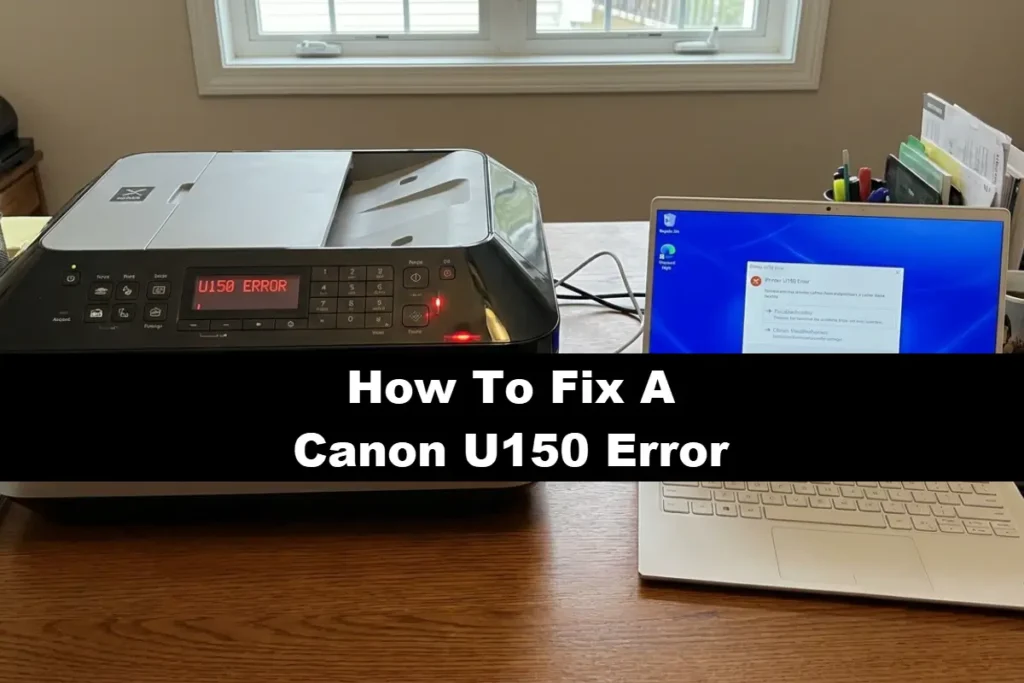
A Canon U150 error is one of the most frustrating Canon errors because it stops all functionality – copying, scanning, and printing.
The U150 error essentially tells the printer to shut down until the problem is resolved.
Which is pretty annoying when you are trying to print an urgent document, but your Canon printer has other plans.
It could be that the screen flashes an error code: U150.
Or maybe the message says “The following ink tank cannot be recognised” or “Check Ink U150.”
Perhaps all your cartridge lights are off, or just one.
You have tried restarting the printer, but nothing changes.
The good news is that most of the time, you can fix this without replacement parts or a service centre visit.
Nine times out of ten, reseating the cartridge or cleaning the metal contacts solves it.
If that fails, a hard reset or override bypass often gets you printing again.
Let us walk through exactly what is happening and how to fix it.
What the Canon U150 Error Actually Means
The U150 error code is Canon’s standard response to an “ink cartridge cannot be recognised” condition.
(You can read Canon support information for U150 errors here along with their other noted errors – but they do provide very little info on it though!)
Unlike a simple “low ink” warning, U150 means the printer’s logic board cannot communicate with the chip on the ink cartridge.
When you install a Canon cartridge, the printer reads a small microchip on the side of the cartridge.
That chip reports the ink level, cartridge model, and authenticity data.
If that communication fails for any reason, the printer throws error U150.
This error appears across many Canon printer families, including:
- Canon PIXMA (MG series, MP series, MX series, TS series, TR series)
- Canon MAXIFY (business inkjet models)
- Canon MegaTank (G series) – though these use refillable tanks, some models still have chip-based cartridges
- Canon imageCLASS (inkjet multifunction models)
The error message text varies slightly by region and model:
“The following ink cartridge cannot be recognised. U150” or “CHECK INK U150” .
Common Causes Of The Canon U150 Error (Real-World Scenarios)
Understanding why this happens helps you fix it and prevent recurrence.
1. Poor Electrical Contact (Most Common)
The cartridge chip touches metal pins inside the print head carriage.
Over time, ink mist, dust, or oxidation creates a thin insulating layer.
The printer cannot read the chip, so it reports U150.
2. Incomplete Cartridge Seating
You install a cartridge, but it does not click fully into place.
The contacts do not align properly.
This happens often with third-party cartridges that have slightly different plastic moulding.
3. Empty or Depleted Cartridge Flag
Canon printers track ink usage.
When a cartridge reports empty, the printer stores that information.
If you reinstall an empty cartridge or refill it without resetting the chip, the printer may reject it with U150.
4. Refilled or Non-Genuine Cartridge Issues
Third-party or refilled cartridges sometimes have chips that fail prematurely.
The printer may initially accept them, then later reject them with U150.
Canon explicitly states they are “not liable for any malfunction caused by refilled ink tanks” .
5. Print Head Connection Failure (Worse Case)
On cartridge-style printers (PIXMA MP620, MG7520, etc.), the cartridges click into a removable print head.
If the print head itself has poor contact with the printer’s logic board, multiple cartridges may show U150 simultaneously .
6. Firmware Update That Blocks Third-Party Cartridges
Canon has released firmware updates that increase cartridge authentication.
An automatic update can suddenly cause previously working third-party cartridges to trigger U150.
7. Logic Board or Electrical Fault (Rare)
A power surge, static discharge, or component failure can damage the cartridge detection circuit.
If no cartridges are recognised despite cleaning and reseating, the logic board may be failing.
Quick Canon U150 Error Diagnostic Checks To Do First
Before diving into lengthy troubleshooting, run through these five checks.
They take under two minutes and resolve many U150 cases.
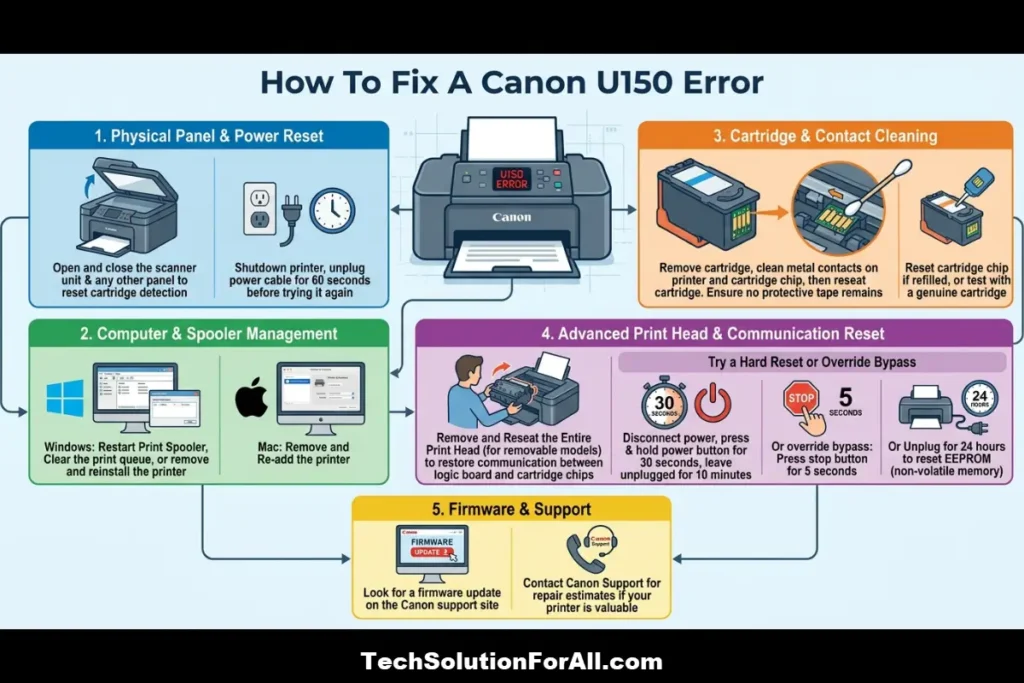
Check 1: Open and close the scanner unit.
Lift the scanner bed or top cover, then close it firmly.
The printer resets cartridge detection when the cover closes.
Some users report this alone clears U150 .
Check 2: Verify cartridge lights are on.
With the cover open, look at each cartridge.
A functional cartridge has a small red or green LED illuminated.
If a cartridge’s light is off, the printer does not recognise that specific cartridge.
Check 3: Press each cartridge down firmly.
Cartridges sometimes work loose from vibration.
Press down on each cartridge until you hear or feel a click.
Check 4: Restart the printer properly.
Do not just press the power button.
Unplug the printer from the wall outlet, wait 60 seconds, then plug back in and power on.
This clears temporary logic errors.
Check 5: Check for protective tape.
A new cartridge has orange protective tape over the chip and nozzles.
If you left the tape on, remove it.
If the tape is partially blocking the chip, the printer cannot read it.
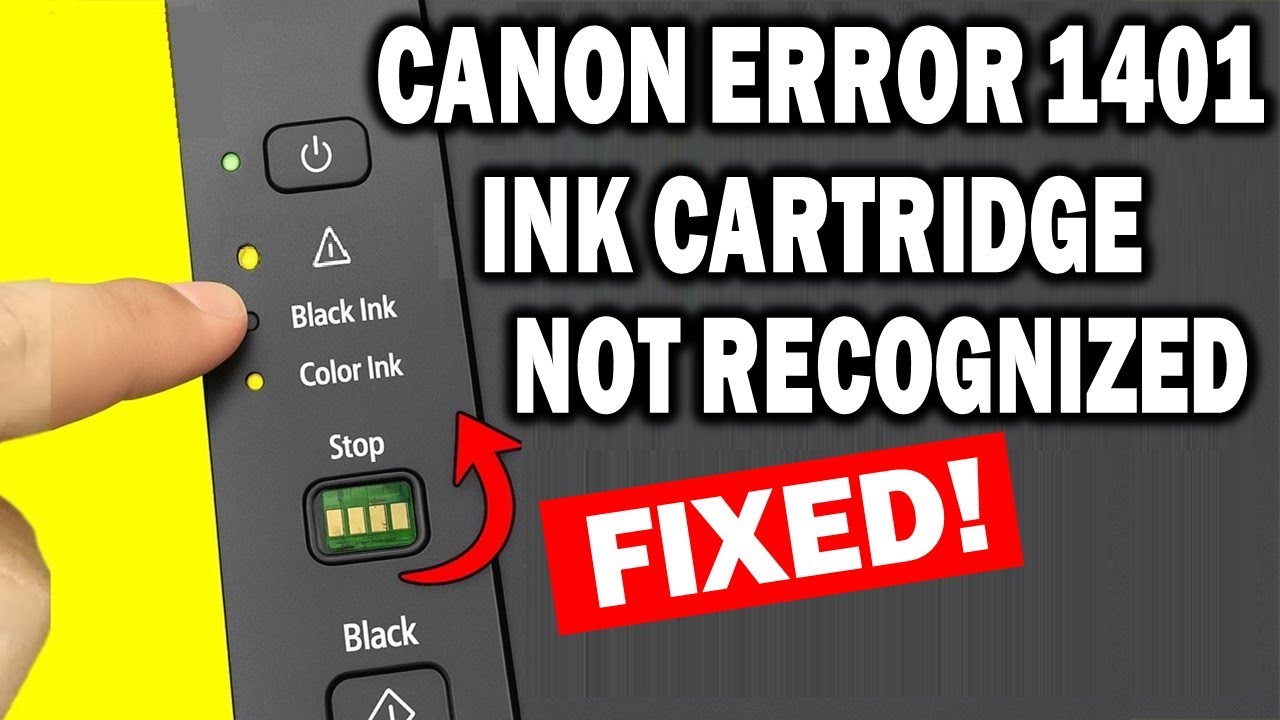
For a visual guide to clearing general ink cartridge recognition errors (which is essentially what an error U150 is) by cleaning alone, you should watch this “no talking” video hopefully also embedded above.
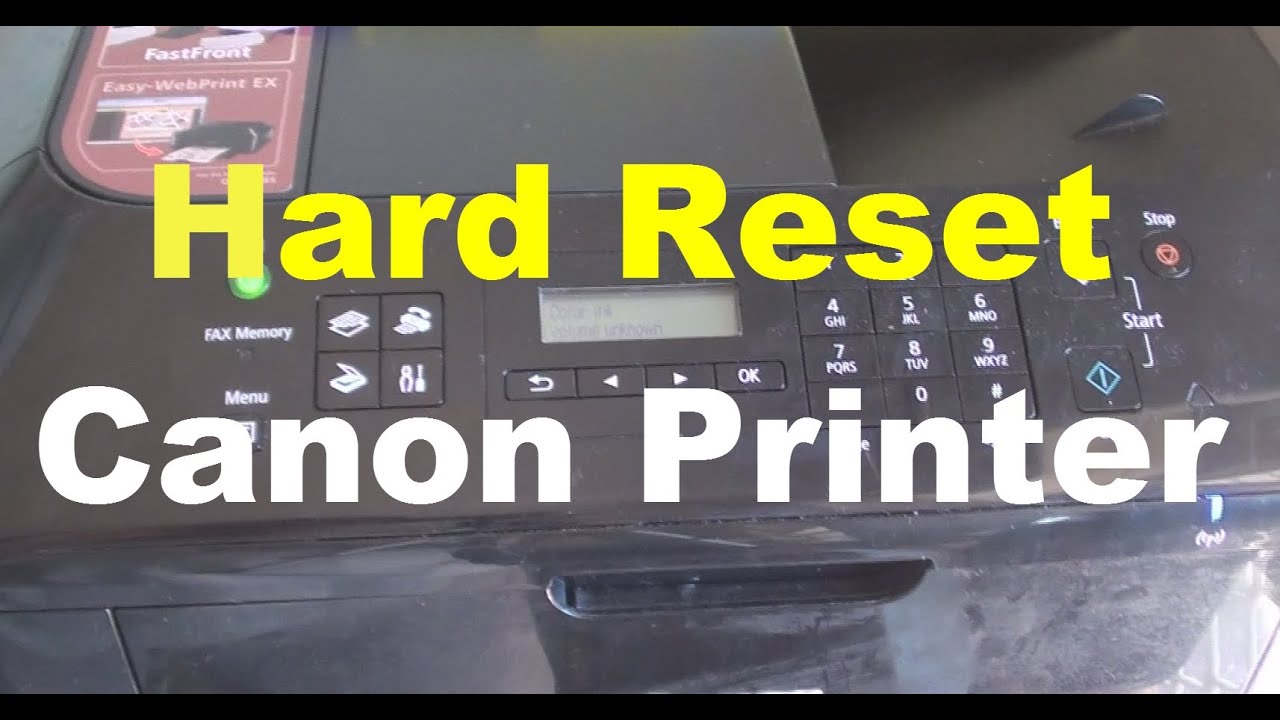
I also quite this video on hard resetting Canon printers to fix errors via button press combinations as this can help solve a variety of issues including U150 errors (and is hopefully embedded below too!)
Step-By-Step Fixes For Canon U150 Error
Work through these solutions in order.
Each step escalates in complexity and invasiveness.
Fix 1: Reseat the Affected Cartridge (3 minutes)
This solves roughly 60% of U150 errors.
- Turn on the printer and open the scanner unit or front cover. The cartridge carriage moves to the centre.
- Identify which cartridge shows no light (or all cartridges if multiple are affected).
- Lift the cartridge out by its top tab. Do not touch the copper-coloured chip or the nozzles.
- Inspect the cartridge chip for ink smears or debris.
- Reinstall the cartridge by sliding it into its slot at a slight upward angle, then pressing down until it clicks.
- Close the cover. The printer performs a detection cycle.
- If the error clears, run a nozzle check to confirm function.
Why this works:
Reseating wipes the cartridge chip contacts against the printer pins, removing minor oxidation.
It also ensures full mechanical seating.
Fix 2: Clean the Cartridge Chip and Printer Contacts (10 minutes)
If reseating fails, dirt or oxidation on the electrical contacts is the likely cause.
Supplies needed:
Lint-free cloth or coffee filter, distilled water or isopropyl alcohol (70% or higher), dry cloth.
Instructions:
- Remove the cartridge showing U150.
- Dip a lint-free cloth in distilled water or isopropyl alcohol.
Wring it out completely – it should be damp, not wet. - Gently wipe the gold or silver chip on the cartridge side.
Rub in one direction. Do not scrub. - With the cartridge removed, locate the metal pins inside the carriage slot. These are spring-loaded.
- Use a dry section of the cloth to gently wipe the pins.
If they appear crusted with ink, use the damp cloth very carefully. - Allow all components to air dry for 2-3 minutes.
- Reinstall the cartridge firmly until it clicks.
- Close the cover and test.
Critical warning:
Do not use paper towels, tissues, or cotton swabs.
They leave fibers that worsen contact problems.
Do not use alcohol on the print head nozzles – only on the chip.
Why this works:
Ink mist creates an invisible film that interrupts low-voltage signals.
Cleaning removes that film and restores conductivity.
Fix 3: The 5-Second Stop Button Override
Canon includes a “force override” for U150 errors.
This disables ink level detection and allows printing even when the printer cannot verify the cartridge.
When to use this:
You have a refilled or third-party cartridge that works fine, but the printer rejects it.
Or you are in a hurry and need to print immediately.
Instructions:
- When the U150 message appears on the screen, locate the Stop button (red triangle inside a circle) or Stop/Reset button.
- Press and hold the Stop button for at least 5 seconds.
- Release the button. The printer may make noise and reset.
- The error message should clear. The printer now operates with ink level detection disabled.
Important consequences:
- The printer no longer warns you when ink is low.
- Printing with an empty cartridge can damage the print head.
- Canon will not cover damage caused by printing with empty or refilled cartridges .
The printer internally logs that you used this override.
But for urgent print jobs, this solution works immediately.
Fix 4: Full Printer Power Drain (Hard Reset)
Sometimes the printer’s logic locks into an error state that a simple restart does not clear.
A full power drain resets the volatile memory.
Instructions:
- Turn off the printer using the power button.
- Unplug the power cord from the back of the printer and from the wall outlet.
- If your printer has a removable battery (some portable models), remove it.
- Press and hold the power button for 30 seconds while the printer is unplugged.
This drains residual charge from capacitors. - Wait 10 minutes (not 30 seconds – the full 10 minutes matters).
- Plug the printer directly into a wall outlet (not a power strip or surge protector for testing).
- Turn on the printer and test.
Why this works:
The printer’s cartridge detection circuit can enter a “latch-up” state where it falsely reports U150.
Draining all power forces the logic to reinitialise from scratch.
Fix 5: Replace the Specific Cartridge (Third-Party or Empty)
If cleaning and resetting fail, the cartridge chip itself may be dead.
This is common with refilled cartridges where the chip has reached its write-cycle limit.
Instructions:
- Purchase a known genuine Canon cartridge for the affected colour.
If budget is a concern, a high-quality compatible cartridge from a reputable seller is an alternative. - Install the new cartridge while the printer is on.
(You can read Canon’s cartridge installation and replacement guidance here.) - Close the cover and allow detection to run.
Note on multi-cartridge U150 errors:
If the error shows for all cartridges simultaneously, replacing one cartridge rarely helps.
The issue is likely the print head connection or logic board .
Fix 6: Remove and Reseat the Entire Print Head (Advanced)
For PIXMA and MAXIFY models with removable print heads (MG series, MP series, MX series, TS series), the print head acts as an intermediary between cartridges and the printer.
Symptoms that indicate a print head issue:
- All cartridges show U150 simultaneously.
- Cartridge lights are off even with new cartridges.
- The error persists after replacing multiple cartridges.
Instructions:
- Turn off and unplug the printer.
- Open the scanner unit fully.
- Locate the print head lock lever (usually gray or blue).
Lift it to release the print head. - Carefully lift the print head straight up out of its carriage.
- Inspect the print head’s gold contact pads and the matching pins in the carriage.
Clean both with a dry lint-free cloth. - Reinstall the print head by lowering it into place and pressing down until seated.
- Push the lock lever down to secure the print head.
- Reinstall all cartridges.
- Close the cover, plug in, and test.
Why this works:
The print head’s electrical contacts also corrode or collect debris.
Reseating it restores communication between the printer logic board and the cartridge chips.
Fix 7: Firmware Rollback or Update Check
If your printer recently updated its firmware and previously working third-party cartridges now trigger U150, Canon may have released an authentication update.
What you can do:
- Check your printer’s current firmware version in the settings menu.
- Visit Canon’s support site for your specific model.
Look for firmware release notes mentioning “cartridge authentication” or “system stability.” - If a newer firmware exists, install it.
Some updates fix false positive U150 errors. - Downgrading firmware is generally not possible on Canon printers.
Prevention:
Disable automatic firmware updates if you rely on third-party cartridges.
Check online forums for your specific model before updating.
Platform-Specific Canon U150 Error Troubleshooting
The U150 error behaves differently depending on the system you use in conjunction with the printer.
Windows Printing with Canon U150 Error
When U150 appears, Windows typically shows a generic “Printer error state” message.
The printer icon may show “Error” in Devices and Printers.
Windows-specific steps:
- Open Services (type services.msc in the Run dialog).
- Find “Print Spooler” and restart it.
- Clear the print queue completely (delete all pending jobs).
- The U150 error is printer-side, not driver-side.
Windows fixes do not resolve the core issue, but clearing stuck jobs allows the printer to reset.
Mac (macOS) Printing with Canon U150 Error
Mac systems show “Printer in error state” in System Settings > Printers & Scanners.
Mac-specific steps:
- Open System Settings > Printers & Scanners.
- Select your Canon printer and click the minus (-) button to remove it.
- Restart your Mac.
- Re-add the printer using the plus (+) button. macOS automatically downloads drivers.
If the U150 error persists, the issue is within the printer itself, not the Mac.
iOS / AirPrint and Android / Mopria and the Canon U150 Error
Mobile printing through AirPrint or Mopria fails silently when U150 is active.
The print job appears to send but never prints.
Mobile troubleshooting:
- The U150 error must be cleared on the printer’s physical display.
- Using the Canon PRINT app does not bypass U150.
- If the printer is on a network, the error message is visible in the printer’s remote UI (enter the printer’s IP address in a browser).
Network, Driver, And Sleep Mode Conflicts Causing Canon U150 Errors
While U150 is primarily a hardware recognition error, certain conditions can trigger false positives.
Sleep Mode and Canon U150 Error
Some Canon printers enter a deep sleep state.
Upon waking, cartridge detection may fail temporarily.
Fix:
Disable sleep mode temporarily for testing.
On most Canon PIXMA models:
- Press Setup (wrench icon).
- Navigate to Device Settings > Eco settings.
- Set “Auto power off” to “Never” or the maximum time.
- Test whether U150 appears on wake.
USB vs. Network Behaviour
The U150 error is stored in the printer’s internal memory.
It persists regardless of connection type.
Switching from USB to Wi-Fi or Ethernet does not clear the error.
You must resolve it on the printer itself.
Driver Corruption (Rare Cause)
In very rare cases, corrupted driver communication causes the printer to incorrectly report U150.
This usually happens after a failed driver update or operating system upgrade.
Fix:
Completely uninstall the Canon printer driver using Canon’s cleanup utility (not just Windows Add/Remove Programs).
Then reinstall the latest driver from Canon’s support site.
Canon U150 Error Edge Cases And Advanced Scenarios
Error U150 After Power Outage or Surge
A sudden power loss or brownout can corrupt the printer’s EEPROM (non-volatile memory).
The printer may permanently believe a cartridge is unrecognised.
Recovery attempt:
- Unplug for 24 hours (not 10 minutes).
Extended discharge sometimes resets corrupted memory. - If the error remains, the logic board may need replacement.
For printers under $150, replacement is usually more cost-effective than repair.
Error U150 on Canon MegaTank (G Series) Printers
G series MegaTank printers use refillable ink tanks rather than cartridges.
However, some models (like G3000 series) have a maintenance cartridge or waste ink box with a chip.
For MegaTank models:
U150 typically refers to the maintenance cartridge or the print head’s chip.
The troubleshooting steps above still apply – reseat the maintenance cartridge and clean its chip contacts.
Intermittent U150 Errors That Come and Go
If U150 appears, clears itself after a restart, then returns days later, you likely have an intermittent connection issue.
Most likely causes:
- Loose cartridge that shifts during printing
- Vibration from the printer’s paper feed mechanism
- Thermal expansion as the printer warms up
Long-term fix:
Place a small piece of electrical tape on the side of the cartridge to shim it tighter in the slot.
This forces better contact with the pins.
U150 error and the Orange Tape “Gotcha”
New users sometimes remove the orange protective tape from the bottom (nozzles) but leave a small piece of tape covering the chip.
The chip sits on the side or front of the cartridge.
Check carefully.
When The Canon U150 Error Means Service Is Required
Some U150 errors are not user-serviceable.
Canon support representatives confirm that if the following steps fail, the printer requires servicing:
- You have cleaned all cartridge chips and carriage pins
- You have replaced the affected cartridge with a genuine Canon cartridge
- You have performed a full power drain (unplugged for over 10 minutes)
- You have reseated the print head (if removable)
- The error persists across multiple cartridges
Service options:
- Contact Canon Support for repair estimates
- Check if your printer is under warranty (cartridge errors are often covered)
- Compare repair cost against replacement cost
Known issue:
Some Canon PIXMA models (MP620, MG7520, MX922) have a higher-than-normal failure rate for the cartridge detection circuit.
Forum reports suggest this is a design vulnerability.
Preventing Future Canon U150 Errors
Once you resolve U150, these practices reduce recurrence.
Use Genuine Canon Cartridges or High-Quality Compatibles
Canon designs their chip authentication around genuine cartridges.
Third-party cartridges use reverse-engineered chips that fail more often.
Keep the Cartridge Area Clean
Every time you replace a cartridge, wipe the chip and carriage pins with a dry lint-free cloth.
Preventive cleaning takes 10 seconds and prevents gradual build-up.
Store Spare Cartridges Properly
Keep cartridges in their sealed packaging until use.
Exposure to humidity corrodes the chip contacts.
Disable Automatic Firmware Updates
Check your printer’s settings menu for “Auto update” and disable it.
Research firmware updates on forums before installing.
Use the Printer Regularly
Canon printers that sit unused for months are more likely to develop contact oxidation.
Run a nozzle check or print a test page weekly.
Final Thoughts On The Canon U150 Error
The Canon U150 error is frustrating because it halts all printer functions.
But in most cases, the fix is straightforward: reseat the cartridge, clean the contacts, or use the 5-second Stop button override.
If you have followed all the steps in this guide and the error persists across multiple cartridges, the printer may have a hardware failure in the cartridge detection circuit.
For entry-level PIXMA printers, replacement often makes more financial sense than repair.
For MAXIFY or imageCLASS office printers, professional repair is worth considering.
Most users will resolve U150 within 15 minutes using the cleaning and reseating steps.
The printer is rarely truly broken – it just needs better electrical contact.
Work through the fixes systematically, and you will likely be printing again without spending any money on parts or service.
FAQs About The Canon U150 Error
What does Canon error U150 mean?
U150 means the printer cannot communicate with the chip on one or more ink cartridges.
The printer stops all functions until the cartridge is recognised or replaced.
Can I still print with U150 error?
No, the printer locks all functions including copying and scanning.
Use the 5-second Stop button override to bypass the error and print with ink monitoring disabled.
Why does U150 appear after I refilled a cartridge?
Refilled cartridges often have chips that were not reset.
The printer remembers the cartridge was empty and rejects it.
Use the Stop button override to bypass.
Does Canon U150 mean my printer is broken?
Usually not.
Most U150 errors are caused by dirty contacts or loose cartridges.
Cleaning and reseating solve the problem in over 80% of cases.
Why do all my cartridges show U150 at once?
This suggests the print head itself has poor contact with the printer.
Remove, clean, and reseat the entire print head.
If that fails, the logic board may be failing.
Will a factory reset fix U150?
Canon consumer printers do not have a factory reset that clears hardware errors.
The power drain method (unplugging for 10+ minutes) is the closest equivalent.
How To Fix Canon U150 Error
Total time: 10-15 minutes
Supplies:
Lint-free cloth or coffee filter
Distilled water or 70%+ isopropyl alcohol
Dry cloth
Tools:
None required (your hands only)
Steps:
- Turn on the printer and open the scanner unit. The cartridge carriage moves to the centre position.
- Remove the cartridge showing U150 by lifting the top tab and pulling up.
- Dampen the lint-free cloth with distilled water or alcohol. Wring it completely.
- Wipe the gold or silver chip on the cartridge side. Wipe in one direction only.
- Locate the metal spring pins inside the carriage slot. Wipe them gently with the same cloth.
- Wait 2-3 minutes for all components to air dry completely.
- Reinstall the cartridge by sliding it into the slot at a slight angle, then pressing down until it clicks.
- Close the scanner unit. The printer runs an automatic detection cycle.
- If the error persists, press and hold the Stop button for 5 seconds to override.
Finally be sure to check out our Tech Troubleshooting FAQ or our Printer Troubleshooting Tips pages for even more general tips that cover a wide range of technical problems and solutions.
(If after reading the above article you still have a “Canon U150 Error” yet to be fixed, then you might find a much less obvious solution on the above tech pages!)