If you have just turned on your device and are immediately trying to figure out how to fix Epson printer error code 000031, you are likely feeling incredibly frustrated.
This specific fault code typically points to an internal mechanical issue or hardware obstruction that halts all operations right at startup.
We understand how disruptive this can be when you need to print urgent documents, but fortunately, this is a known issue with several practical solutions you can try at home.
AT A GLANCE:
If your printer is displaying this internal fault, the most effective initial step is to perform a complete power reset while carefully checking the printhead path for any foreign objects.
By clearing physical obstructions and cleaning the encoder strip, you can resolve the majority of these mechanical errors without needing professional repair.
You are in the right place to get your printer functioning normally again.
Understanding Epson Error Code 000031
When you encounter this specific alert on your printer’s display panel, it is important to understand what the machine is trying to communicate.
This error generally signifies a critical internal fault, most commonly related to the mechanical movement of the printhead carriage or a failure in the internal sensors.
Because the printer performs a self-diagnostic check every time it powers on, any restriction in movement or sensor misread will immediately trigger this code, locking the device to prevent further mechanical damage.
Unlike simple connectivity issues or low ink warnings, this fault requires a physical inspection of the printer’s internal components.
The device is essentially protecting itself from grinding gears or burning out motors when it detects that the carriage cannot move freely across its intended path.
Common Causes of the 000031 Error
Before diving into the solutions, identifying the root cause can save you significant time.
Consulting a comprehensive printer maintenance guide can also help you understand these components better.
Here are the most frequent reasons you might need to research how to fix Epson printer error code 000031.
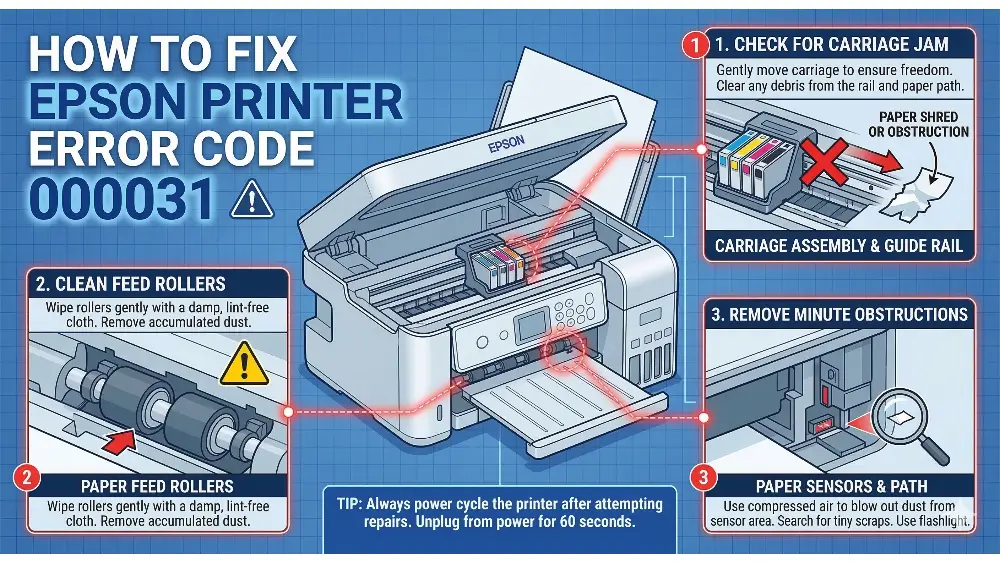
Printhead Carriage Obstruction
The most prevalent cause is a physical blockage preventing the printhead from moving side to side.
Even a small piece of torn paper, a rogue paperclip, or a buildup of dried ink can stop the carriage.
When the motor attempts to move the printhead and meets resistance, the printer immediately throws the error code to halt the operation.
(So clearing the debris might well be all you ever need to do in understanding how to fix Epson printer error code 000031 forever!)
Paper Jam Fragments Inside the Printer
Sometimes, after clearing a major paper jam, tiny torn fragments remain hidden deep inside the paper feed mechanism.
These small pieces might not be visible from the main tray but can interfere with the optical sensors or the gear assembly, leading directly to an internal hardware fault during the startup sequence.
Encoder Strip Blockage or Contamination
The encoder strip is a semi-transparent plastic band that runs behind the printhead carriage, covered in microscopic lines that tell the printer exactly where the printhead is located.
If this strip becomes smeared with ink, grease, or heavy dust, the optical sensor cannot read it.
According to experts in printer encoder strip technology, this sensor failure confuses the printer’s positioning system, resulting in the error.
Internal Hardware Fault or Firmware Glitch
In some instances, the issue is not physical but electronic.
A sudden power surge or an interruption during a firmware update can corrupt the printer’s internal memory.
Additionally, prolonged use can simply lead to the degradation of internal motors or logic boards, causing a genuine hardware failure that triggers the alert.
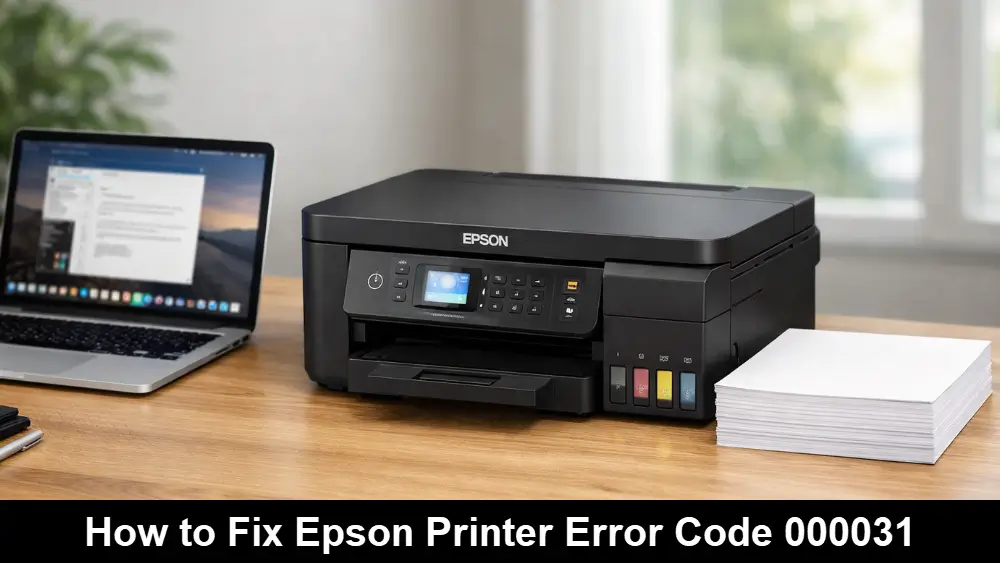
Step-by-Step Fixes for Epson Error Code 000031
Now that we understand the potential causes, let us walk through the practical steps to resolve the issue.
Follow these procedures carefully to restore your printer’s functionality.
Performing a Full Power Reset
A hard reset is the simplest and often most effective first step for clearing false error states or temporary firmware glitches.
Turn the printer off using the power button, then physically unplug the power cord from both the back of the printer and the wall outlet.
Wait for at least three to five minutes to allow the internal capacitors to drain completely.
Reconnect the power cord directly to a wall outlet – avoiding surge protectors temporarily – and turn the printer back on to see if the error clears.
(So learn the above simple step and you might be able to solve how to fix Epson printer error code 000031 without going any further!)
Checking Inside the Printer for Obstructions
If the reset does not work, you must inspect the internal mechanics.
Turn the printer off and open the main access door as if you were going to change the ink cartridges.
Use a flashlight to carefully examine the entire path of the printhead carriage.
Look closely at the far right and left resting stations.
If you spot any paper scraps, dust bunnies, or foreign objects, use long tweezers to gently remove them without touching the delicate electronic ribbons.
Cleaning the Encoder Strip Carefully
If the physical path is clear, the encoder strip might be dirty.
Locate the clear plastic strip running horizontally behind the carriage belt.
Lightly dampen a lint-free cloth or a foam swab with isopropyl alcohol or distilled water.
Gently pinch the strip with the cloth and wipe it slowly from one side to the other.
Be extremely careful not to unhook the strip from its tension springs, as replacing it can be incredibly difficult.
Allow it to dry completely before powering the printer back on.
Resetting the Printer Firmware
If you suspect a software glitch after a recent update, you might need to reset or update the firmware.
You can often find the latest firmware and detailed instructions on the official Epson support website.
Connect your printer to your computer via a USB cable, download the appropriate firmware updater tool for your specific model, and follow the on-screen prompts to flash the system memory.
Determining When Professional Servicing is Required
If you have completed all the physical checks, cleaned the sensors, and performed resets without success, you may be facing a genuine internal hardware failure.
If the carriage motor has burned out or the main logic board has failed, user intervention is no longer possible.
At this stage, you should contact Epson support or a certified technician, especially if the printer is still under warranty.
Advanced Troubleshooting Techniques
For users who are comfortable with more technical steps, there are a few advanced methods to try before giving up on the machine.
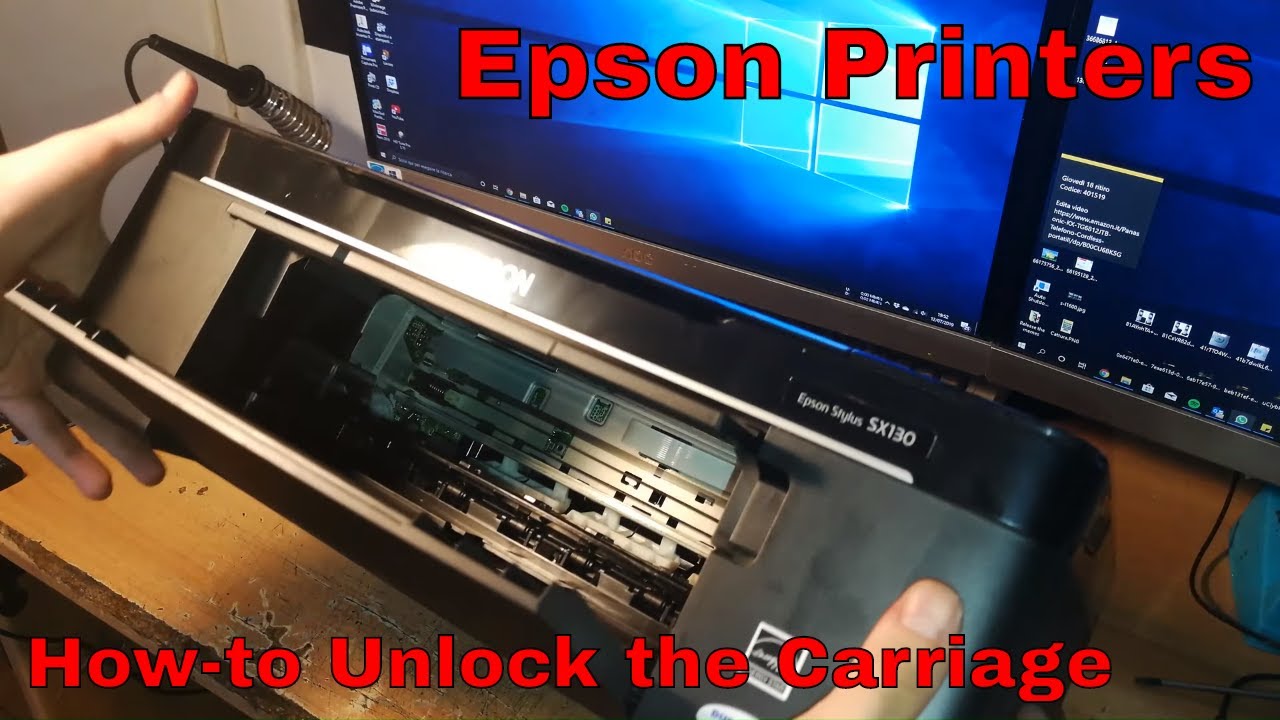
Manually Releasing the Printhead
For a visual walkthrough of this tip on releasing the printhead on Epson printers, you might find this video helpful (lets hope it embeds below!):
Sometimes the printhead is locked in its home position on the far right and cannot move, causing the error.
While the printer is unplugged, you can sometimes locate a small white plastic gear near the resting station.
Gently rotating this gear manually can lower the locking mechanism, allowing you to slide the carriage freely to the center to inspect the parking area for hidden debris.
Inspecting the Paper Feed Rollers
The error can also stem from the paper feed mechanism failing to engage.
Inspect the rubber pickup rollers in the rear tray or bottom cassette.
If they are coated in paper dust and have lost their grip, they can cause a sequence failure during startup.
Clean these rollers thoroughly with a damp cloth to ensure they can properly grab the paper.
Checking for Power Interruption Damage
If the error appeared immediately following a power outage or severe thunderstorm, the printer’s internal power supply unit might have sustained damage.
While replacing this part is possible on some models, it often requires extensive disassembly.
It is worth testing the printer on a completely different electrical circuit in your home to rule out a faulty wall socket before assuming the printer is dead.
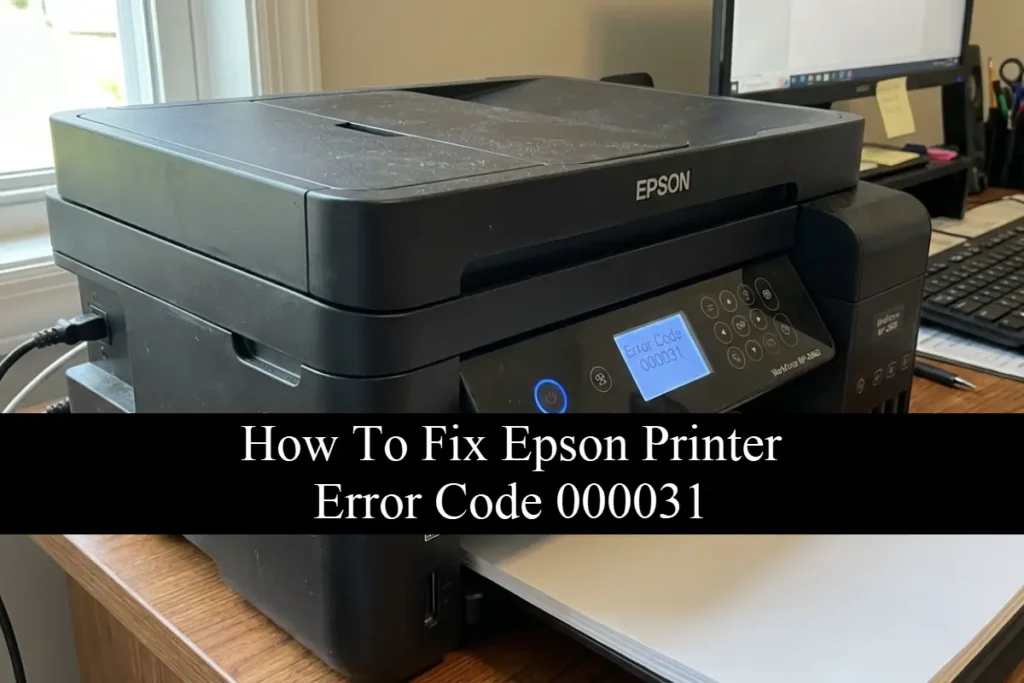
How to Fix Epson Printer Error Code 000031 – Edge Cases
While the causes listed above cover the vast majority of instances, there are a few unusual edge cases.
For example, using third-party continuous ink supply systems (CISS) with poorly routed ink tubes can physically obstruct the carriage movement, mimicking a hardware failure.
Additionally, extreme temperature fluctuations in the room where the printer is stored can cause condensation on the optical sensors, leading to temporary read errors that resolve themselves once the machine acclimates to the environment.
If you are using a CISS, ensure the tubing is properly secured and does not sag into the printhead path.
Prevention Tips
Once you have successfully uncovered how to fix Epson printer error code 000031 and have cleared the issue, you will want to prevent it from returning.
Always use high-quality paper and fan the stack before loading it to prevent multi-page feeds and subsequent jams.
Keep the printer’s exterior clean and close all paper trays and covers when not in use to prevent dust accumulation on the internal mechanisms.
Furthermore, always turn the printer off using its dedicated power button rather than cutting power at a power strip, as this allows the printhead to safely park and cap itself, protecting the delicate nozzles and internal gears.
Final thoughts on how to fix Epson printer error code 000031
Dealing with sudden printer faults is never convenient, but understanding the mechanics behind the issue makes resolution much more manageable.
By systematically checking for physical blockages, maintaining the cleanliness of the encoder strip, and knowing when to perform a hard reset, you can overcome this specific internal fault.
Learning how to fix Epson printer error code 000031 not only saves you from immediate frustration but also equips you with the knowledge to maintain your printer’s longevity.
Remember that while many mechanical issues can be resolved at home, recognizing when a true hardware failure requires professional attention is equally important.
FAQs About How to Fix Epson Printer Error Code 000031
Q: What exactly does Epson error code 000031 mean?
A: This error code indicates a critical internal hardware fault or mechanical issue, typically meaning the printhead carriage is obstructed or the internal sensors cannot read the encoder strip properly during the startup sequence.
Q: Can a simple power reset fix the 000031 error?
A: Yes, in cases where the error is caused by a temporary firmware glitch or a false sensor reading, a full hard reset (unplugging the machine for five minutes) can clear the memory and resolve the issue.
Q: Where is the encoder strip located, and how do I clean it?
A: The encoder strip is a clear, thin plastic band located directly behind the printhead carriage. You can clean it by gently wiping it from side to side with a lint-free cloth lightly dampened with isopropyl alcohol.
Q: Will using non-Epson ink cartridges cause this error?
A: While third-party cartridges themselves usually cause different ink-related errors, if a cartridge is physically misshapen or if a continuous ink system’s tubes block the carriage path, it can trigger the 000031 mechanical fault.
Q: At what point should I stop troubleshooting and call a professional?
A: If you have cleared all physical obstructions, cleaned the encoder strip, performed a hard reset, and the error persists immediately upon startup, the printer likely has a failed motor or logic board requiring professional repair or replacement.
How To Resolve The 000031 Error
Step 1: Perform a Hard Reset
Turn off the printer and unplug it from the wall for five minutes. Plug it back in directly to a wall outlet and power it on to clear temporary glitches.
Step 2: Inspect for Obstructions
Open the main printer access door. Use a flashlight to check the entire printhead path for paper scraps or foreign objects, and remove them carefully with tweezers.
Step 3: Clean the Encoder Strip
Locate the clear plastic strip behind the printhead. Gently wipe it with a lint-free cloth dampened with isopropyl alcohol to remove ink smears or dust.
Step 4: Check the Carriage Movement
With the printer unplugged, ensure the printhead carriage can move freely. If locked, manually rotate the release gear to free it and check the parking station for debris.
Step 5: Update Firmware
If physical checks fail, connect the printer to your computer and check the official Epson website for any available firmware updates to resolve software conflicts.
Finally be sure to check out our Tech Troubleshooting FAQ or our Printer Troubleshooting Tips pages for even more general tips that cover a wide range of technical problems and solutions.
(If after reading the above article you still have a problem understanding “How to Fix Epson Printer Error Code 000031”, then you might find a much less obvious solution on the above tech pages!)