Setting up a new printer should be simple, yet learning how to install brother printer with usb correctly trips up thousands of users every day.
The moment you plug the cable in before the software is ready, Windows silently assigns a generic driver that lacks the specific instructions needed to operate your hardware.
The result is a printer that appears connected but refuses to respond – and a frustration that feels entirely out of proportion to the task at hand.
You deserve a clear, reliable method that works the first time, which is exactly what you will find below!
If your computer is not recognizing your Brother printer, the fix is almost certainly driver-related.
By downloading the official Full Driver & Software Package and waiting for the installer’s prompt before connecting the USB cable, you eliminate the root cause of nearly every failed setup.
You are in exactly the right place to solve this permanently.
Download the Brother Printer Driver Before Connecting USB
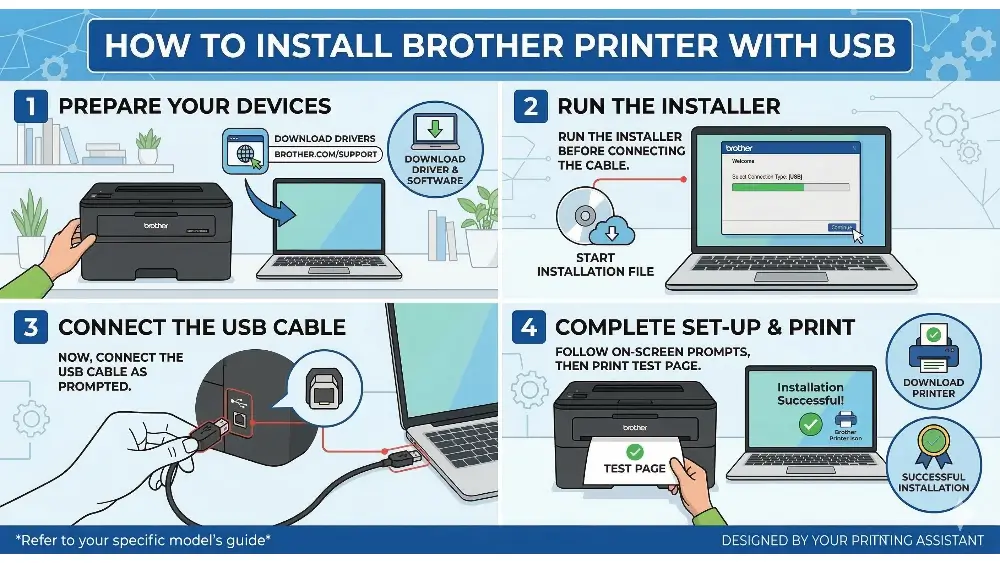
The most important step in this entire process happens before any cable is touched and you need to pay attention here if you want to know how to install Brother printer with USB the right way!
When you connect the USB before the software is installed, Windows searches its own internal driver library for a match.
It often finds a generic USB printer driver that appears to work but lacks the specific communication protocols Brother hardware requires.
This leads to a device that shows as “ready” in your settings but produces nothing when you send a print job.
To avoid this, begin by visiting the official Brother support website and entering your exact model number. The model number is printed on a label on the front panel or the back of the machine.
Once you locate your model, download the “Full Driver & Software Package” rather than the basic printer driver.
This package includes the printer driver, scanner driver (for all-in-one models), status monitor, and diagnostic utilities – everything needed for full functionality.
Run the downloaded installer and accept the license agreement. The software will begin extracting files and preparing your system.
At a specific point in the process, the installer will display a screen with an animation or clear text instructing you to connect the USB cable.
Only at this moment should you plug the cable into the printer and your computer.
This sequencing allows Windows to immediately match the newly connected hardware to the waiting Brother software, bypassing the generic driver entirely.
Understanding why this works is straightforward.
The installer pre-registers the hardware ID in Windows before the device is physically present. When the cable is connected, Windows performs a hardware scan, finds the registered ID, and loads the correct driver automatically.
Skipping this sequence forces Windows to guess – and it guesses wrong.
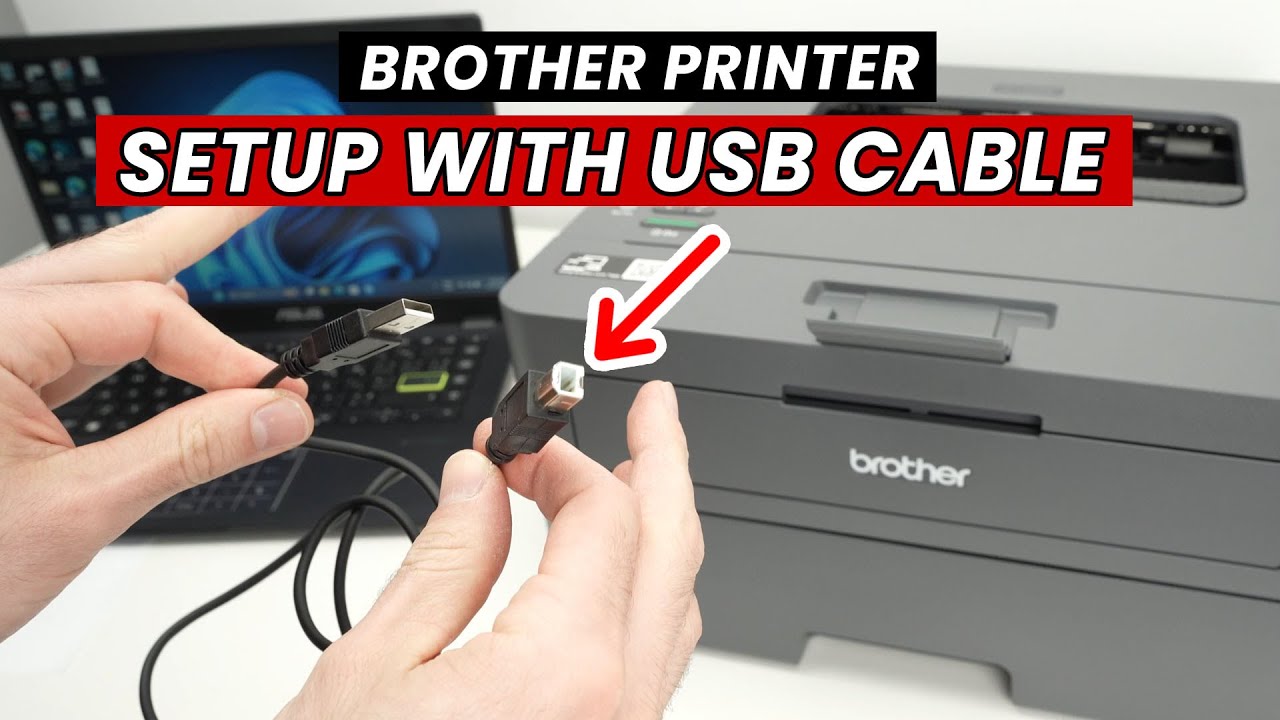
If you prefer a visual walkthrough of the physical connection process, this video demonstrates how to install Brother printer with USB and is hopefully also embedded below:
Common Causes of USB Connection Failures
Even when following the correct sequence, users occasionally encounter problems.
Knowing the most frequent failure points allows you to diagnose issues quickly and confidently and if you can avoid the issues below you will master how to install Brother printer with USB from the start!
Faulty or Excessively Long Cables
Not all USB cables are built to the same specification. Brother officially recommends a Type A/B USB 2.0 cable no longer than six feet (approximately two metres).
Cables beyond this length experience signal degradation, causing intermittent communication drops that manifest as print jobs stalling or the device disappearing from the printers list.
If your cable is old, visibly damaged, or longer than recommended, replacing it is the first and cheapest diagnostic step.
Connecting Through a USB Hub or Extension
Modern computers offer multiple USB ports, but not all deliver the same power and data throughput.
Connecting your printer through a USB hub, a monitor’s pass-through port, or a keyboard extension is a common mistake. These secondary connections often lack the consistent power delivery that printers require during initialization.
Always connect the cable directly to a port built into the computer itself – the ports on the back panel of a desktop or the side of a laptop chassis.
Lingering Print Jobs Blocking the Queue
If a previous installation attempt failed partway through, Windows may have trapped a document in the print spooler. This stuck job acts as a digital blockage, preventing new configurations from registering correctly.
Before attempting a fresh installation, open your Printers & Scanners settings, right-click the Brother device, and cancel all pending documents. Then remove the device entirely before starting over.
Conflicting Generic Drivers from a Previous Attempt
Once Windows assigns a generic driver to your printer, that driver continues to claim the device even after you install the official software.
You must manually remove the incorrectly configured device from the Printers & Scanners menu.
Simply uninstalling the Brother software is not always sufficient – the device entry itself must be deleted so the new installation can create a clean, correct one.
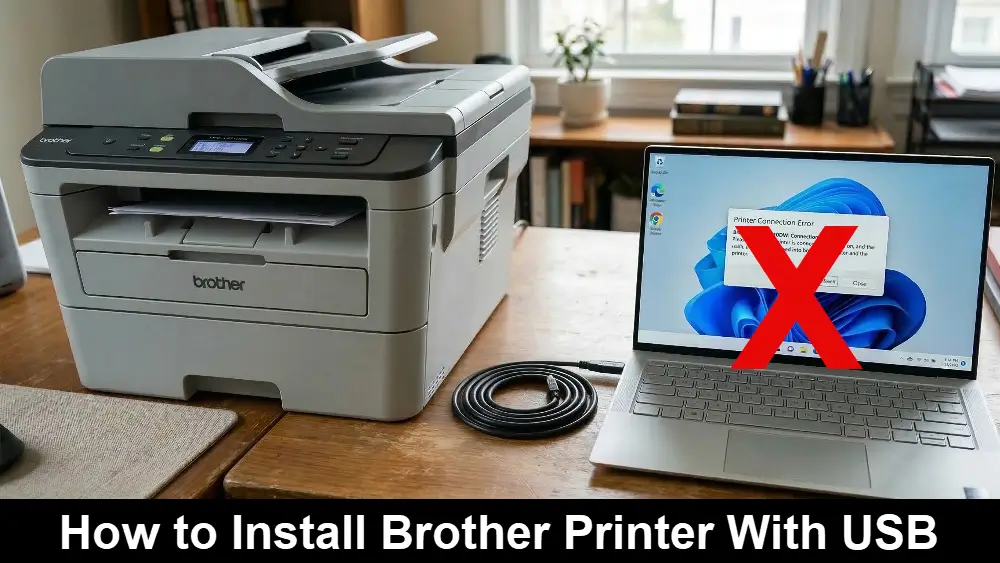
Advanced Troubleshooting for Persistent USB Issues
When the standard approach does not resolve the problem, deeper system-level fixes are required.
These steps address the underlying causes of stubborn connection failures – get these steps right and you should learn how to install brother printer with usb correctly.
Clearing the Print Spooler Completely
The Windows Print Spooler is the background service that manages all print queue activity. When it becomes corrupted – which happens more often than Microsoft would like to admit – no printer on the system will function correctly.
To reset it, press Windows + R, type services.msc, and press Enter. Locate “Print Spooler” in the list, right-click it, and select Stop.
Next, open File Explorer and navigate to:
C:\Windows\System32\spool\PRINTERS.
Delete every file inside this folder, but do not delete the folder itself. Return to Services, right-click Print Spooler, and select Start.
This completely clears the system’s printing memory and resolves a surprising number of persistent failures.
Using the Brother Uninstall Tool for a Clean Slate
Standard Windows uninstallation often leaves behind registry entries, driver files, and configuration data that interfere with subsequent installation attempts.
Brother provides a dedicated Uninstall Tool available through their official support portal (just search for your model number to find out how to uninstall it or learn more about the tool here).
Running this utility removes every trace of the previous installation, including hidden registry keys that the standard uninstaller ignores.
After running the tool and restarting your computer, the next installation attempt begins in a genuinely clean environment.
Resolving USB Composite Device Errors in Device Manager
On some Windows 10 and Windows 11 systems, the printer appears in Device Manager as a “USB Composite Device” with a yellow warning triangle rather than being correctly identified. This indicates a deep-seated driver conflict.
Right-click the problematic entry and select “Update driver,” then choose “Browse my computer for drivers.” Point the wizard to the folder where the Brother installer extracted its files, typically in a temporary folder within:
C:\Users\[YourName]\AppData\Local\Temp.
This forces Windows to use the manufacturer’s files rather than its own flawed repository.
Edge Cases and Unusual Scenarios
Certain hardware and software combinations produce unexpected behaviour that falls outside the standard troubleshooting path.
USB 3.0 Port Compatibility
USB 3.0 ports – identifiable by their blue plastic inserts – are technically backward compatible with USB 2.0 devices. However, some older Brother printer models experience communication instability when connected to USB 3.0 ports.
If your computer only offers USB 3.0 connections and the printer is not detected, try accessing your computer’s BIOS settings and enabling “USB Legacy Support.”
On some systems, switching the USB controller mode from “xHCI” to “EHCI” resolves the incompatibility.
Antivirus Software Silently Blocking Installation
Aggressive security software occasionally treats the Brother installer’s registry modifications as suspicious activity, silently blocking the process without displaying an error.
If your installation appears to hang or completes without the printer appearing in your devices list, temporarily disable your antivirus software and run the installer again.
Remember to re-enable your security software immediately after the installation is complete.
Prevention Tips for Long-Term Reliability
Once you have successfully completed the setup, a few simple habits will keep the connection stable for years – which truly is the last step in understanding how to install Brother printer with USB for anyone!
Always power the printer on before sending a document.
Sending a print job to a printer that is still waking from sleep mode sometimes causes a timeout error in Windows, which can corrupt the print queue.
Additionally, avoid moving the USB cable between different ports on your computer.
Windows assigns a virtual port identifier to each physical USB connection; changing ports forces the system to re-enumerate the device, which can create duplicate printer entries and unpredictable behaviour.
For ongoing support and model-specific guidance, the Brother USA troubleshooting hub provides detailed diagnostic flowcharts that walk you through every possible failure scenario.
Keeping your driver up to date is equally important – Brother periodically releases updates that improve Windows compatibility and fix known communication bugs.
Final thoughts on how to install Brother printer with USB
The entire process of setting up a USB printer connection comes down to one fundamental principle: software before hardware.
By downloading the official Full Driver & Software Package and respecting the installer’s sequencing, you eliminate the root cause of nearly every connection failure before it has a chance to occur.
Pair this with a quality cable, a direct port connection, and a clean print spooler, and your Brother printer will deliver reliable performance from the very first page.
And now that you have finished reading this step-by-step guide (hopefully without skipping anything) you know everything about how to install Brother printer with USB but were afraid to ask!
FAQ about How to Install Brother Printer With USB
Why does my computer not recognize my Brother printer via USB?
This almost always happens because the USB cable was connected before the official driver was installed. Windows assigns a generic driver instead of the correct one.
Disconnect the cable, uninstall any existing printer entries, download the Full Driver & Software Package from the official support website, and reconnect only when the installer prompts you to do so.
Do I need an internet connection to install a USB printer?
You need internet access to download the Full Driver & Software Package from the manufacturer’s website. Once the file is downloaded, the installation process itself does not require an active connection.
How do I fix the “USB Composite Device” error in Device Manager?
Open Device Manager, locate the entry showing a yellow warning triangle, right-click it, and select “Update driver.” Choose to browse your computer manually and direct Windows to the folder where the Brother installer extracted its files.
Can I use a USB hub to connect my Brother printer?
This is strongly discouraged. USB hubs frequently lack the consistent power and bandwidth that printers require during initialization and printing.
Always connect the USB cable directly to a port on the computer itself.
How long should the USB cable be?
Brother recommends a Type A/B USB cable no longer than six feet (approximately two metres). Longer cables are prone to signal degradation and intermittent disconnections.
How to Install Brother Printer With USB – Step-By-Step Guide
Step 1: Disconnect the USB cable
Make sure the USB cable is not connected to your computer or printer before starting.
Step 2: Download the Full Driver & Software Package
Visit the official Brother support website, search for your model number, and download the Full Driver & Software Package for your operating system.
Step 3: Launch the installer
Run the downloaded file and accept the license agreement. When prompted, select “Local Connection (USB)” as the connection type.
Step 4: Wait for the connection prompt
Do not connect the USB cable until the installer displays a screen specifically instructing you to do so.
Step 5: Connect the USB cable and power on
Plug the cable directly into the printer’s USB port and into a port on your computer. Turn the printer on.
Step 6: Finish the installation
Allow Windows to detect the device automatically and follow any remaining prompts to complete the setup.
Finally be sure to check out our Tech Troubleshooting FAQ or our Printer Troubleshooting Tips pages for even more general tips that cover a wide range of technical problems and solutions.
(If after reading the above article you still have a problem understanding “How to Install Brother Printer With USB”, then you might find a much less obvious solution on the above tech pages!)