Dealing with an HP eprint not working situation can cause endless frustration, and you are certainly not alone. Many users rely on this service to print seamlessly from their mobile devices or laptops, only to find their documents stuck in the digital void.
We understand how annoying it is when technology fails right when you need it most, but the good news is that these connectivity issues are usually simple to resolve once you know where to look.
You are in the right place to finally fix your wireless printing issues and get your documents flowing again.
By addressing the core network and web service settings that block communication, you can restore full functionality in minutes.
This guide walks you through the exact steps to re-establish the connection between your printer and the HP cloud.
Why is HP ePrint Not Working on Printer Devices?
When you experience HP eprint not working on printer models across the board, the root cause usually lies in the communication bridge between your local network and HP’s cloud servers.
The ePrint service relies heavily on a stable internet connection and active web services to function correctly. If either of these elements is disrupted, your print jobs will simply vanish.
HP Web Services Disabled Causing HP ePrint Not Working
One of the most common reasons you might find your HP eprint missing or unresponsive is that HP Web Services has been disabled on the printer itself.
This service is the backbone of ePrint, allowing your printer to receive documents sent via email.
Sometimes, a power outage or a simple software glitch can toggle this setting off without your knowledge.
Outdated Firmware Triggering HP ePrint Not Working
If you can’t find hp eprint icon on your printer’s display panel, it might be due to outdated firmware.
Manufacturers frequently release updates to patch security vulnerabilities and improve cloud connectivity. Running an older version of the firmware can cause compatibility issues with the latest ePrint server protocols, leading to sudden failures.
Network and DNS Configuration Issues
A printer that is disconnected from Wi-Fi or struggling with an unstable network will inevitably lead to HP eprint not printing your documents.
Furthermore, even if the Wi-Fi connection appears strong, incorrect DNS settings on your router can block the printer from reaching the HP servers.
This is a frequent culprit when the printer shows it is online but still refuses to process remote jobs.
Inactive ePrint Email Address
Another frequent issue arises when the HP ePrint email address is not configured properly or has become inactive.
If your HP eprint setup not working is the main symptom, it is crucial to verify that the unique email address assigned to your printer is still valid and correctly linked to your HP Smart account.
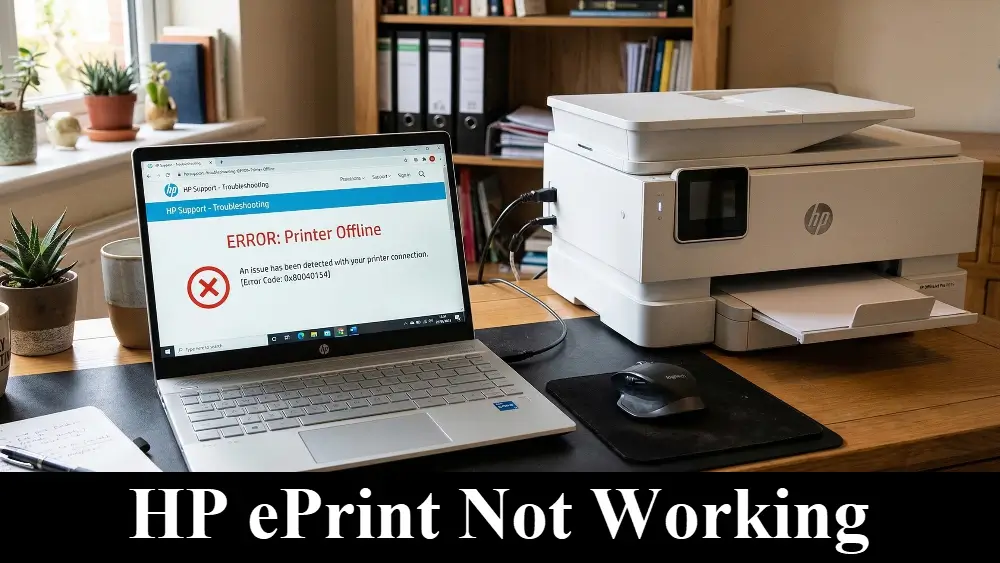
Step-by-Step Fixes for HP ePrint Not Working
Resolving these issues requires a systematic approach to rule out the most common culprits. Follow these steps to restore your ePrint functionality.
1. Restart Your Printer and Router
The oldest trick in the book is often the most effective. A simple restart can clear temporary network glitches and force the printer to re-establish its connection to the HP servers.
Turn off your printer, unplug your router for thirty seconds, plug it back in, and then power the printer back on. This process flushes the DNS cache and often resolves immediate connectivity problems.
2. Enable and Update HP Web Services
Should your HP eprint not working issue persist, checking the status of HP Web Services is the next logical step.
Navigate to the network or web services menu on your printer’s control panel. When the service is disabled, simply turn it on. In cases where it is already active, try disabling it and then re-enabling it.
Toggling the service forces the printer to generate a new connection token with the HP cloud, effectively resetting the communication channel.
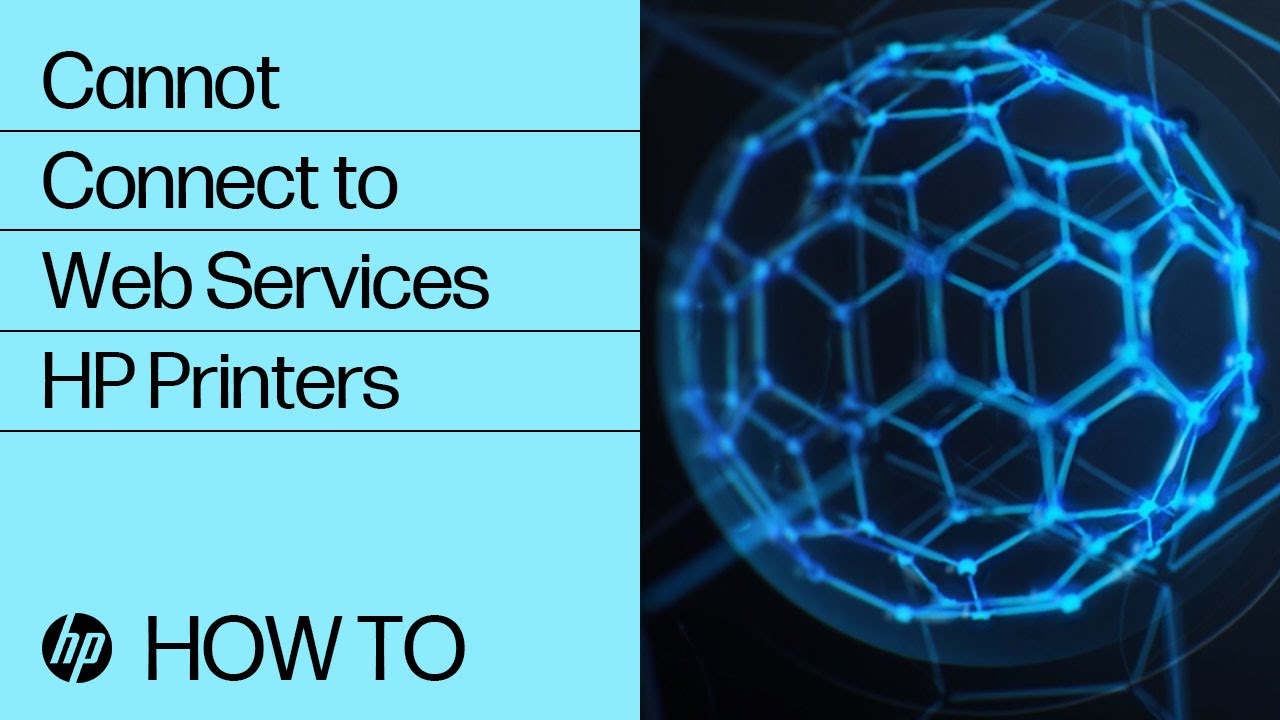
You can find more detailed guidance on managing these settings through the official HP Support website or if you prefer a visual guide to connecting to HP Web Services this YouTube video is a must watch (and is hopefully embedded below).
3. Update Your Printer Firmware
To ensure you have the latest features and bug fixes, updating your printer’s firmware is essential. If you can’t find HP eprint icon, a firmware update might restore it.
Access the settings menu on your printer, look for the ‘Printer Maintenance’ or ‘Update’ section, and select ‘Check for Updates’.
Allow the printer to download and install any available updates, then restart the device.
4. Reconfigure Your Network Connection
When HP eprint not printing is caused by network instability, reconfiguring the Wi-Fi connection can help.
Go to the wireless settings on your printer and select the ‘Wireless Setup Wizard’. Follow the prompts to reconnect to your network.
If you suspect DNS issues, you might need to log into your router’s admin panel and change the DNS servers to a public option like Google DNS (8.8.8.8 and 8.8.4.4), which is a common fix recommended by networking experts at Google’s Public DNS configuration guide.
5. Verify Your ePrint Email Address
If your HP eprint setup not working is the primary concern, log into your HP Smart account online.
Verify that your printer is listed and that the ePrint email address matches the one you are using. If the address has been compromised or forgotten, you can generate a new one through the web portal and update your contacts accordingly.
Advanced Troubleshooting and Edge Cases
Sometimes, the standard fixes are not enough to resolve persistent hp eprint not working problems. In these edge cases, you may need to dig a little deeper into your network settings.
Resetting Printer Network Settings
When the printer refuses to communicate with the cloud despite a strong Wi-Fi signal, resetting the network settings to factory defaults can clear out any corrupted configurations.
You will usually find this option in the ‘Network’ or ‘Wireless’ menu under ‘Restore Network Settings’. After the reset, running the Wireless Setup Wizard again is necessary to get back online.
Performing a Full Printer Reset
As a last resort, performing a full factory reset on the printer can eliminate deep-seated software glitches. This will erase all custom settings, including your ePrint configuration, so you will need to set up the printer from scratch. This step is often necessary when the hp eprint missing issue cannot be resolved through standard updates or restarts, as it forces the printer’s operating system to rebuild its core files from a clean slate.
Prevention Tips for Reliable Printing
To avoid future instances of HP eprint not working on printer devices, consider implementing a few preventative measures.
Always keep your printer firmware up to date by enabling automatic updates if your model supports it.
Ensure your router is placed in a central location to provide a strong, stable Wi-Fi signal to the printer.
Finally, regularly check your HP Smart account to ensure your ePrint email address remains active and secure.
Final thoughts on HP eprint not working
Dealing with hp eprint not working can disrupt your workflow, but it is rarely a permanent issue.
By systematically checking your network connection, updating your firmware, and ensuring HP Web Services are active, you can quickly restore your remote printing capabilities.
Remember that a stable internet connection is the foundation of any cloud-based service, so keeping your home network healthy is the best way to ensure your printer is always ready when you need it.
For more comprehensive troubleshooting, tech resources like PCMag’s printer troubleshooting guide often provide excellent supplementary guides on home networking.
FAQ
Why is my HP ePrint not working?
The most common reasons include disabled HP Web Services, an unstable Wi-Fi connection, outdated printer firmware, or incorrect DNS settings on your router blocking access to HP servers.
How do I fix HP ePrint not printing?
Start by restarting your printer and router. If that fails, check that HP Web Services is enabled on your printer, update the firmware, and verify your ePrint email address is correct.
What should I do if I can’t find the HP ePrint icon?
If the icon is missing, your printer’s firmware might be outdated, or HP Web Services might be disabled. Updating the firmware and enabling Web Services through the settings menu usually restores the icon.
How to Fix HP ePrint Not Working
Time Required:
15 minutes
Tools Needed:
Computer or Smartphone
Supplies Needed:
None required
Step 1: Restart Devices
Turn off your printer and unplug your router. Wait 30 seconds, plug the router back in, and then turn on the printer to clear temporary network glitches.
Step 2: Check HP Web Services
Navigate to the printer’s control panel, locate the Web Services menu, and ensure it is enabled. If it is already on, toggle it off and back on to refresh the connection.
Step 3: Update Firmware
Go to the printer’s settings menu, find the update section, and check for new firmware. Install any available updates to ensure compatibility with HP servers.
Step 4: Verify ePrint Email
Log into your HP Smart account online and confirm that your printer’s ePrint email address is active and correctly configured.
Finally be sure to check out our Tech Troubleshooting FAQ or our Printer Troubleshooting Tips pages for even more general tips that cover a wide range of technical problems and solutions.
(If after reading the above article you still have a problem with HP ePrint Not Working, then you might find a much less obvious solution on the above tech page!)