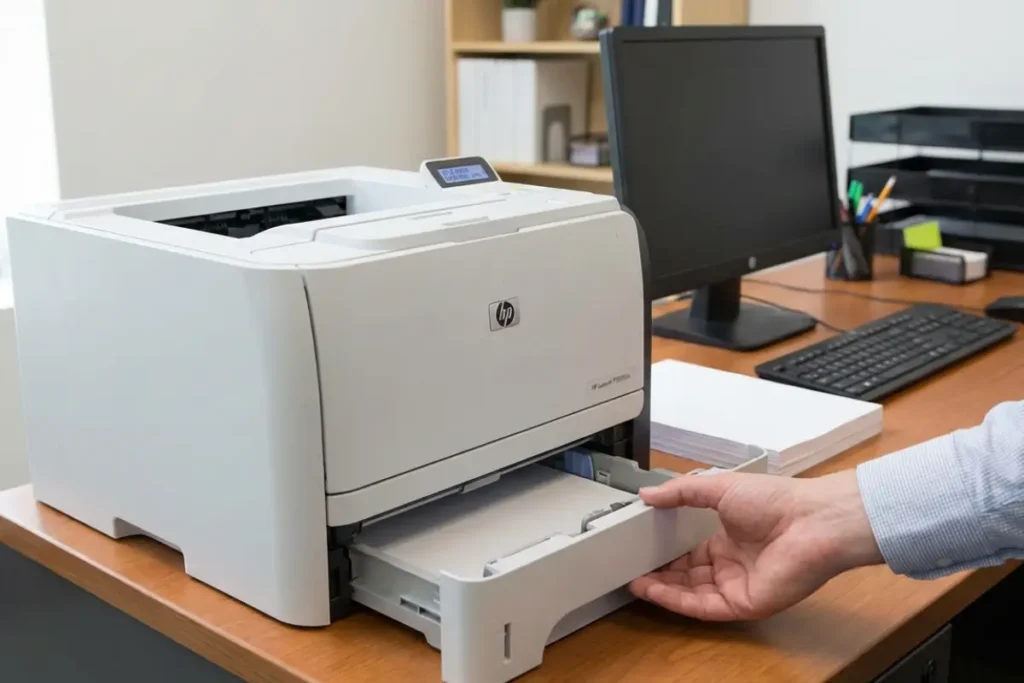
Experiencing the dreaded HP LaserJet Error Code 11 can bring your entire workday to a grinding halt.
You send a crucial document to print, only to be met with flashing lights and a completely unresponsive machine. We understand how incredibly frustrating this disruption is, especially when you have deadlines looming.
Fortunately, resolving HP LaserJet Error Code 11 is entirely possible with the right approach.
AT A GLANCE
Your printer didn’t suddenly fail. HP’s March 2025 firmware update almost certainly caused this.
Here’s how to fix it without waiting for HP.
You are in exactly the right place – follow the steps below and you will have your printer back in action in minutes.
Before You Begin: Verify Your Firmware Version
Before diving into complex fixes, it is essential to confirm whether your machine is running the problematic firmware.
Print a configuration page from your printer’s control panel, or access the Embedded Web Server (EWS) by typing your printer’s IP address directly into your browser’s address bar.
Look for the firmware version in the output; if it reads 20250209, your device is affected by the recent update bug.
This single check will save you a great deal of unnecessary troubleshooting time.
Common Causes of HP LaserJet Error Code 11
Understanding the root cause is the first step toward a permanent solution. While the firmware update is the primary culprit right now, other factors can trigger this specific error.
1. The March 2025 Firmware Glitch
The most widespread cause currently is the flawed firmware release.
This update introduced a communication breakdown between the printer’s formatter board and the engine control system, resulting in the HP LaserJet Error Code 11.
The issue is not isolated to a single model – it has been reported across a wide range of HP LaserJet Pro and Enterprise series devices, such as the following models:
Confirmed Affected Models:
- HP LaserJet MFP M232-M237 series
- HP LaserJet MFP M233 series
- HP LaserJet MFP M234 series
- HP LaserJet MFP M235 series
- HP LaserJet MFP M236 series
- HP LaserJet MFP M237 series
- HP LaserJet Pro M200 series
2. Loose Internal Connections
Sometimes, the issue is entirely physical.
If the ribbon cables connecting the internal boards become slightly dislodged – perhaps after moving the printer or clearing a severe paper jam – the system cannot communicate properly.
Even a fraction of a millimetre of separation can be enough to trigger an error state.
3. Faulty Formatter Board
In older models, a failing formatter board can mimic the symptoms of a firmware crash.
The formatter board is essentially the “brain” of the printer, and if its components degrade over time, it will throw an HP LaserJet Error Code 11.
This is more likely if your device is several years old and has seen heavy use.
4. Corrupted Print Jobs in the Queue
A massive, highly complex, or corrupted print job stuck in the Windows or macOS print spooler can overwhelm the printer’s memory, causing it to freeze and display error codes.
This is a surprisingly common cause that is often overlooked because the problem originates on the computer, not the printer itself.
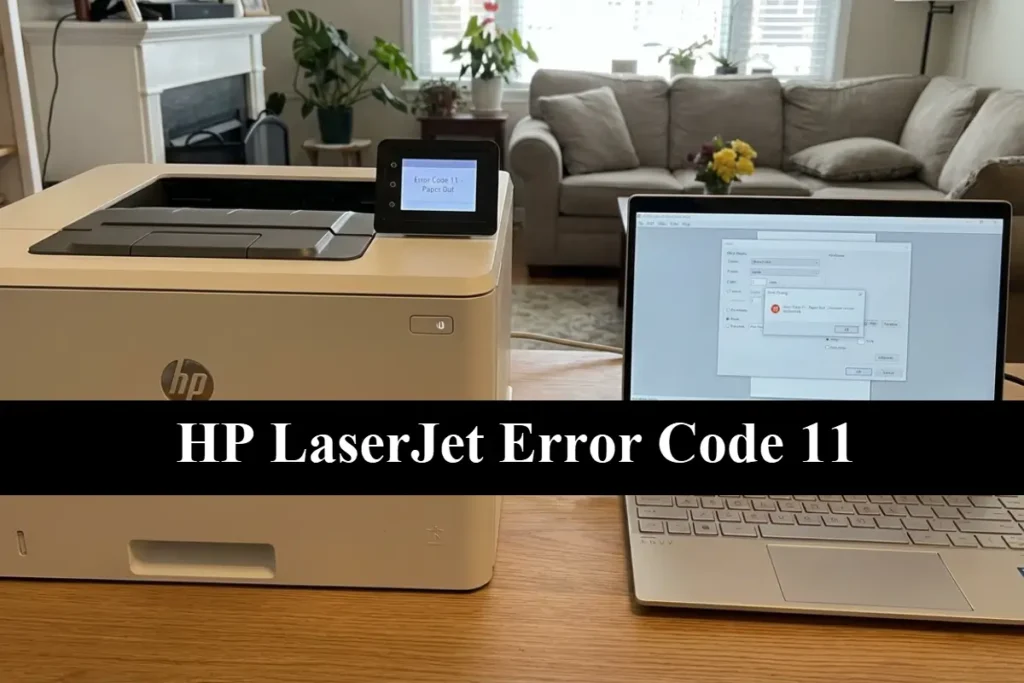
Advanced Troubleshooting for HP LaserJet Error Code 11
If verifying the firmware and restarting the printer doesn’t resolve the HP LaserJet Error Code 11, you need to dig a little deeper.
Perform a Cold Reset
A cold reset restores the printer to its factory default settings, wiping out any corrupted configurations that might be causing the error.
Turn the printer off, then hold down the “Go” button while turning it back on.
Release the button when the “Attention” light turns on.
Note that this will erase your network settings, so you will need to reconfigure your Wi-Fi or Ethernet connection afterwards.
This step resolves the error in the majority of firmware-related cases.
Reseat the Formatter Board
If you are comfortable with basic hardware maintenance, reseating the formatter board can resolve physical connection issues.
Unplug the printer completely, remove the side access panel, carefully slide out the formatter board, and then firmly push it back into its slot.
Ensure all retaining screws are tightened.
This process is well-documented in HP’s official service documents which describe the process many times on numerous pages and are all available for free on their support site.
NVRAM Initialization
This is a more drastic step than a cold reset.
It clears the Non-Volatile Random Access Memory, which stores persistent settings that survive power cycles.
The exact button combination varies by model, so consult your printer’s service manual before proceeding.
This should only be attempted if the HP LaserJet Error Code 11 persists after all other software troubleshooting has been exhausted, as it will reset all customised settings.
Edge Cases
In rare instances, the error might be tied to an incompatible third-party toner cartridge that features a faulty or outdated microchip.
While far less common than the firmware issue, swapping the cartridge for a genuine HP one temporarily can help rule this out as a cause.
Another edge case involves power surges damaging the power supply unit, which subsequently fails to deliver stable voltage to the formatter board, causing it to report a communication error.
Prevention Tips
To avoid encountering HP LaserJet Error Code 11 in the future, consider disabling automatic firmware updates.
Instead, manually review and install updates only after they have been available for several weeks and proven stable by the wider user community.
Additionally, plug your printer into a high-quality surge protector to safeguard its sensitive internal electronics from voltage spikes.
Regularly clearing your print queue before shutting down your computer is also a simple habit that prevents corrupted job files from accumulating.
What HP Has Said
HP has acknowledged the problem but has not yet released a corrective firmware patch.
According to posts on the HP Support Community forums, their engineering team is actively investigating the 20250209 firmware bug and a fix is in development.
The company has advised affected users to avoid re-installing the problematic update and to use the workarounds detailed below while the patch is prepared.
Staying subscribed to the relevant forum thread is the best way to receive notification the moment fixes are released.
Workarounds While You Wait
If you cannot downgrade your firmware immediately and are waiting for an official patch, there are practical workarounds available.
Try connecting the printer directly to your computer via a USB cable instead of using the network connection, as the bug primarily affects network-based print spooling.
This alone resolves the immediate printing blockage for most users.
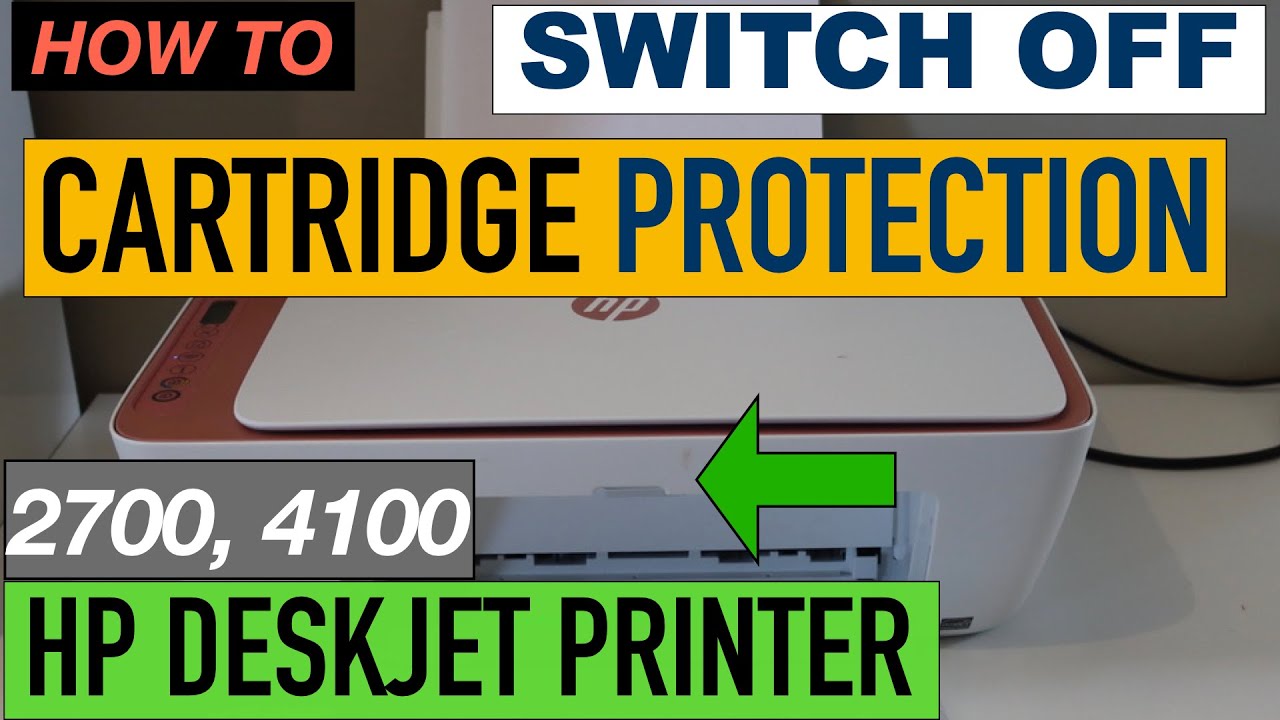
Alternatively, you can try disabling the “Cartridge Policy” setting within the EWS to bypass certain internal checks that may be triggering the error state.
A helpful walkthrough of this process is available in this YouTube tutorial on disabling Cartridge Protection and is also hopefully embedded below!
Final thoughts on HP LaserJet Error Code 11
Dealing with HP LaserJet Error Code 11 is undoubtedly an annoyance, particularly when it stems from a manufacturer’s own update.
By verifying your firmware version, applying the practical troubleshooting steps outlined above, and utilising the temporary workarounds, you can regain control of your printing tasks today.
Stay patient, keep an eye on HP’s official support channels for the permanent patch, and remember that this is a software hurdle – not a total hardware failure.
Your printer is not broken; it simply needs the right intervention.
Frequently Asked Questions
Q: What exactly is HP LaserJet Error Code 11?
A: It is a communication error within the printer, most recently caused by a faulty firmware update released by HP in March 2025. It signals that the printer’s formatter board and engine control system cannot communicate correctly.
Q: Can I fix HP LaserJet Error Code 11 myself?
A: Yes, in many cases. You can apply workarounds such as connecting via USB, performing a cold reset, or clearing the print queue without any specialist tools or technical expertise.
Q: Will HP release a fix for this error?
A: HP has acknowledged the issue and is working on a corrective firmware patch. Monitor the HP Support Community forums for updates.
How to Fix HP LaserJet Error Code 11
Step 1: Verify Your Firmware Version
Print a configuration page or open the Embedded Web Server (EWS) to confirm you are running firmware version 20250209.
Step 2: Clear the Print Queue
On your computer, cancel all pending print jobs to ensure a corrupted file is not causing the printer to freeze.
Step 3: Perform a Power Cycle
Turn off the printer, unplug it from the wall outlet for at least 60 seconds, then plug it back in and power it on.
Step 4: Connect via USB
If the printer is connected over a network, connect it directly to your PC with a USB cable as a temporary workaround.
Step 5: Perform a Cold Reset
If the error persists, hold the “Go” button while powering on the printer to perform a factory cold reset and clear corrupted internal settings.
Finally be sure to check out our Tech Troubleshooting FAQ or our Printer Troubleshooting Tips pages for even more general tips that cover a wide range of technical problems and solutions.
(If after reading the above article you still have a “HP LaserJet Error Code 11” issue, then you might find a much less obvious solution on the above tech pages!)