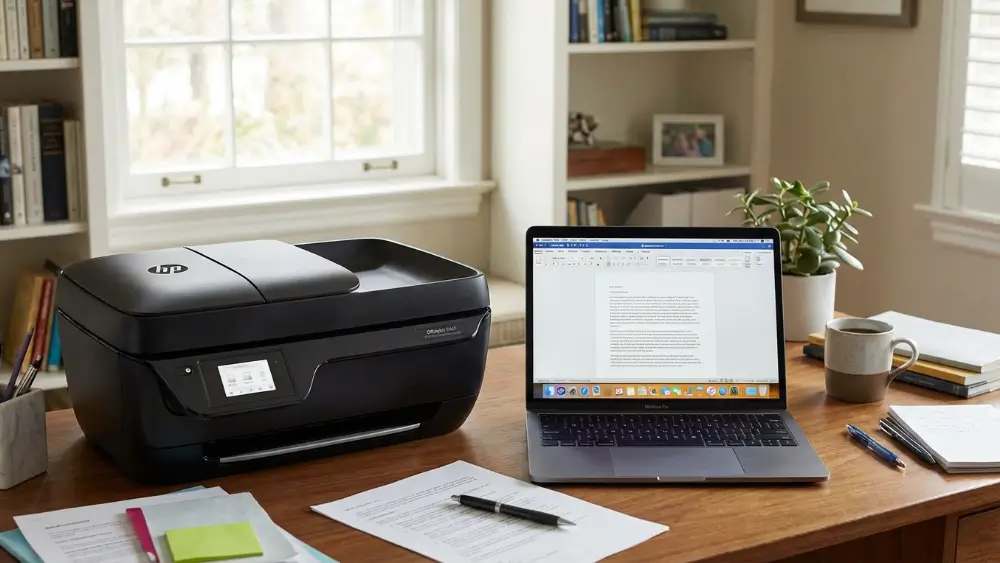
HP OfficeJet 3830 troubleshooting is a common necessity for many home office users who rely on this popular device.
While the HP OfficeJet 3830 is generally a dependable machine, it can occasionally fall victim to driver conflicts, wireless dropouts, or physical obstructions.
Fortunately, most of these issues are entirely fixable without needing to call a technician.
3830 PRINTER TROUBLESHOOTING AT A GLANCE
This comprehensive guide will walk you through the most effective HP OfficeJet 3830 troubleshooting steps.
We will tackle the exact reasons your printer might be offline, refusing to connect, or producing faded pages, and provide clear solutions to get you printing again today.
Common Causes of Printer Frustration
Before diving into specific fixes, it is helpful to understand why your printer might be acting up.
The HP OfficeJet 3830 relies on a complex interplay of hardware, software, and network connectivity.
When one of these elements fails, the entire printing process grinds to a halt.
Driver problems are frequently the culprit behind mysterious printing failures.
The software that allows your computer to communicate with the printer can become outdated or corrupted, especially after a Windows update.
Wireless connection issues are another major source of headaches. If your printer loses its connection to your home network, your computer simply cannot find it.
Paper jams, while physical, can trigger confusing error states that persist even after the paper is removed.
Finally, outdated firmware or print queue errors can cause jobs to pile up without ever reaching the page.
HP OfficeJet 3830 Not Printing
The most pressing issue users face is a printer that simply will not print.
When tackling HP OfficeJet 3830 troubleshooting for a non-responsive device, the first step is always a power cycle. This simple action clears temporary memory glitches and forces the printer to re-establish its connections.
To restart the printer and computer properly, turn off the printer using the power button, then unplug the power cord from the back of the machine.
Leave it unplugged for at least sixty seconds. While you wait, restart your computer.
Once the computer has fully rebooted, plug the printer back in and turn it on.
This basic step resolves a surprising number of communication errors.
If a restart does not work, the issue might lie in the print queue. When a print job encounters an error, it can get stuck in the queue, blocking all subsequent jobs.
To clear the Windows print queue, open your computer settings, navigate to the Devices section, and select Printers & scanners. Click on your HP OfficeJet 3830 and select Open queue.
From the Document menu, choose Cancel All Documents. Once the queue is clear, try printing a test page.
HP OfficeJet 3830 Showing Offline
An “offline” status means your computer cannot communicate with the printer, even if the printer is turned on and appears ready.
This is a classic HP OfficeJet 3830 troubleshooting scenario that usually points to a network or software disconnect.
First, verify that the printer is actually connected to your network.
Check the wireless icon on the printer’s control panel; it should be solid blue. If it is blinking, the printer has lost its connection.
You can use the HP Smart tool, a free diagnostic utility provided by HP, to automatically detect and resolve many offline status issues.
This tool is invaluable for identifying whether the problem is a simple setting change or a more complex network routing issue.
Sometimes, Windows mistakenly sets the printer to “Use Printer Offline” mode.
To fix this, open the print queue as described earlier. Click on the Printer menu at the top of the window and ensure that “Use Printer Offline” is not checked.
If it is, click it to remove the checkmark.
HP OfficeJet 3830 Not Connecting to WiFi
Wireless connectivity is essential for modern printing, and when it fails, it can be incredibly disruptive.
If your HP OfficeJet 3830 is not connecting to WiFi, the problem could be environmental or configuration-based.
Start by checking WiFi or USB connections.
If you are using a wireless connection, ensure the printer is within range of your router and that there are no major physical obstructions, like thick walls or large metal objects, blocking the signal.
You can print a Wireless Network Test Report from the printer’s control panel to check the signal strength and network configuration.
If the printer has dropped the connection entirely, you may need to reconnect it.
On the printer’s control panel, navigate to the Network or Wireless settings and select the Wireless Setup Wizard. Follow the on-screen prompts to select your network and enter your password.
If your router has a WPS (Wi-Fi Protected Setup) button, you can also try the WPS connection method for a quicker setup.
HP OfficeJet 3830 Not Printing from Windows
When the printer works perfectly from a mobile device but fails when printing from a PC, the issue is almost certainly related to the Windows environment.
This type of HP OfficeJet 3830 troubleshooting requires looking at drivers and system settings.
Outdated or corrupted drivers are the primary suspects here.
To update or reinstall HP printer drivers, visit the official HP support website and download the latest drivers specific to the OfficeJet 3830 and your version of Windows.
It is often best to completely uninstall the existing printer software before installing the new drivers to ensure a clean slate.
You can do this through the “Add or remove programs” menu in Windows.
If updating the drivers does not resolve the issue, you can run Windows printer troubleshooting tools.
Windows includes a built-in troubleshooter designed specifically for printing problems.
Navigate to Settings > Update & Security > Troubleshoot > Additional troubleshooters, and select Printer.
For more detailed guidance, Microsoft provides extensive documentation on resolving printer connection and printing problems in Windows.
Follow the prompts to let Windows attempt to identify and fix the problem automatically.
If you prefer a visual walkthrough, this video covers the most common HP OfficeJet 3830 not printing fixes step by step (and is hopefully also embedded below!)
Resolving Paper Jam Errors
Paper jams are a physical reality of printing, but they can sometimes be tricky to clear completely. If the printer reports a jam, it will halt all operations until the sensors detect that the paper path is clear.
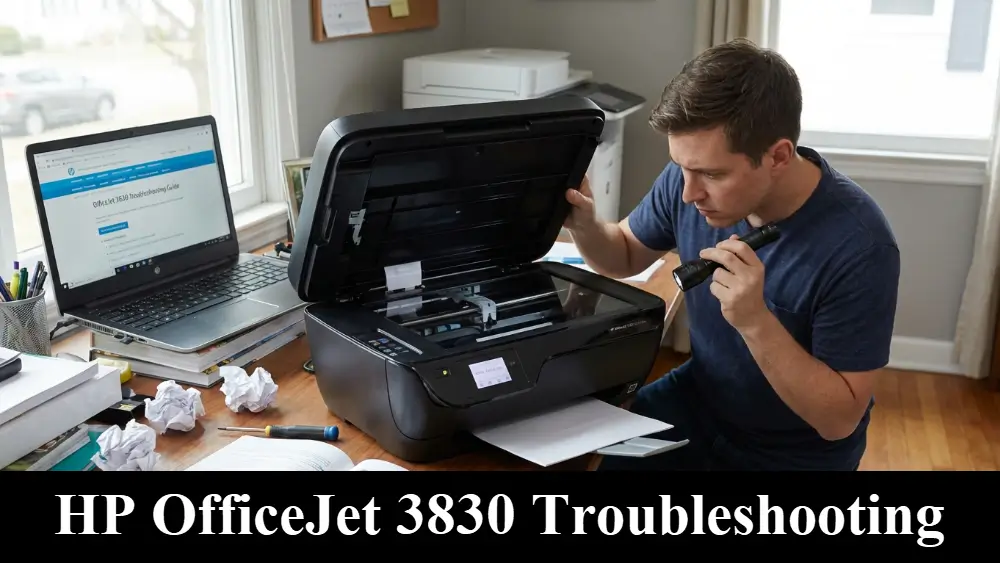
When dealing with paper jam errors, it is crucial to check ink cartridges and the paper path for obstructions.
Turn off the printer and open the ink cartridge access door. Carefully look inside for any torn pieces of paper or foreign objects.
Use a flashlight if necessary. It is important to pull any jammed paper out slowly and evenly to avoid tearing it, which can leave small fragments behind that are difficult to reach.
Also, check the input and output trays, as well as the cleanout door on the bottom or back of the printer, depending on the specific model variation.
Sometimes, the rollers that feed the paper can become coated with dust or paper fibers, causing them to slip. Cleaning these rollers with a lightly dampened, lint-free cloth can prevent future jams.
Fixing Poor Print Quality or Faded Prints
If your printer is functioning mechanically but the output looks terrible, you are dealing with a print quality issue. Faded text, streaks, or missing colors are common complaints that require specific HP OfficeJet 3830 troubleshooting steps.
The most obvious cause is low or empty ink cartridges. Check the ink levels via the printer’s control panel or the HP software on your computer.
If the levels are adequate, the printhead might be clogged. The HP OfficeJet 3830 has a built-in automated tool to clean the printhead.
Access the printer settings, usually under a “Maintenance” or “Tools” menu, and select the option to clean the printhead. You may need to run this process two or three times for severe clogs.
If cleaning the printhead does not improve the quality, try aligning the printer.
This process ensures that the ink is deposited exactly where it should be on the page. The alignment tool is also found in the printer’s maintenance menu.
Finally, ensure you are using the correct type of paper for your print job and that the paper settings in the print dialog box match the paper loaded in the tray.
Advanced HP OfficeJet 3830 Troubleshooting: Printer Not Detected by Windows
In some cases, Windows simply refuses to acknowledge that the printer exists, even when it is plugged in and turned on. This is a frustrating edge case in HP OfficeJet 3830 troubleshooting.
If the printer is not detected by Windows, first try a different USB port on your computer, preferably one directly on the motherboard rather than a USB hub.
If you are trying to connect wirelessly, ensure your computer and the printer are on the same network subnet.
Some modern routers broadcast both 2.4GHz and 5GHz bands under the same name, which can confuse older devices.
The OfficeJet 3830 requires a 2.4GHz connection. You may need to temporarily disable the 5GHz band on your router during setup.
Another advanced step is to check the Windows Services to ensure the Print Spooler service is running.
Press the Windows key + R, type “services.msc”, and press Enter. Locate the Print Spooler service, right-click it, and select Restart. Ensure its startup type is set to Automatic.
Prevention Tips for Long-Term Reliability
The best HP OfficeJet 3830 troubleshooting is the kind you never have to do. Preventing problems is much easier than fixing them after they occur.
Keep your printer drivers updated regularly. Manufacturers frequently release updates to address bugs and improve compatibility with new operating system versions.
Maintaining stable WiFi connections is also crucial. If your printer is located in a WiFi dead zone, consider moving it closer to the router or using a WiFi extender.
Performing occasional printer maintenance can also extend the life of your device.
Run the printhead cleaning tool every few months, even if you are not experiencing quality issues, to prevent ink from drying and clogging the nozzles.
Keep the paper trays clean and free of dust, and always use high-quality paper and genuine HP ink cartridges for the best results.
Final thoughts on HP OfficeJet 3830 Troubleshooting
Navigating printer problems does not have to be a stressful experience. By systematically applying these HP OfficeJet 3830 troubleshooting techniques, you can overcome the most common obstacles that disrupt your workflow.
Whether you are dealing with a stubborn offline status, a frustrating paper jam, or mysterious driver conflicts, the solutions are usually straightforward and manageable.
Remember to start with the simplest fixes, like a power cycle, before moving on to more complex software adjustments.
With a little patience and the right approach, your printer will be back to producing crisp, clear documents reliably.
Frequently Asked Questions
Why is my HP OfficeJet 3830 showing as offline?
Your printer usually shows as offline when it loses communication with your computer or network. This can be caused by a dropped WiFi signal, an outdated driver, or Windows mistakenly setting the printer to “Use Printer Offline” mode. Restarting both devices and checking the network connection are the best first steps.
How do I fix a paper jam in my HP OfficeJet 3830?
To fix a paper jam, turn off the printer and carefully open the access doors. Gently pull any stuck paper out evenly to avoid tearing it. Check the input tray, output tray, and the ink cartridge access area for any small torn pieces that might still be blocking the path.
Why is my HP OfficeJet 3830 not printing black ink?
If your printer is not printing black ink, the black cartridge may be empty, or the printhead might be clogged. Check your ink levels first. If there is ink remaining, run the automated printhead cleaning tool from the printer’s maintenance menu to clear any dried ink blocking the nozzles.
How do I connect my HP OfficeJet 3830 to a new WiFi network?
To connect to a new WiFi network, use the printer’s control panel. Navigate to the Wireless or Network settings and select the Wireless Setup Wizard. The printer will search for available networks; select yours and enter the password when prompted.
What should I do if my print jobs are stuck in the queue?
If print jobs are stuck, you need to clear the Windows print queue. Go to Printers & scanners in your Windows settings, select your printer, and click Open queue. Click the Document menu and select Cancel All Documents. You may also need to restart the Print Spooler service in Windows.
How to Restart Your HP OfficeJet 3830 to Fix Printing Errors
Performing a proper power cycle is the most effective first step for resolving most communication and printing errors.
Time required: 3 minutes
Supplies needed: None required
Tools needed: None
Step 1: Turn off the printer
Press the power button on the printer’s control panel to turn the device off completely. Wait for the screen to go dark and the mechanical noises to stop.
Step 2: Disconnect the power
Unplug the power cord directly from the back of the printer. Do not just turn off a power strip; physically remove the cable from the device.
Step 3: Wait sixty seconds
Leave the printer unplugged for at least one full minute. This allows any residual power to drain from the internal components, clearing temporary memory states.
Step 4: Restart your computer
While waiting, restart the computer or device you are trying to print from. This clears the computer’s temporary communication ports.
Step 5: Reconnect and power on
Plug the power cord back into the rear of the printer and press the power button to turn it on. Wait for the initialization sequence to finish before attempting to print again.
Finally be sure to check out our Tech Troubleshooting FAQ or our Printer Troubleshooting Tips pages for even more general tips that cover a wide range of technical problems and solutions.
(If after reading the above article you still require “HP OfficeJet 3830 Troubleshooting”, then you might find a much less obvious solution on the above tech pages!)